Provider Master Quick Reference Guide: Adding and Deleting Providers
1. Adding a New Provider
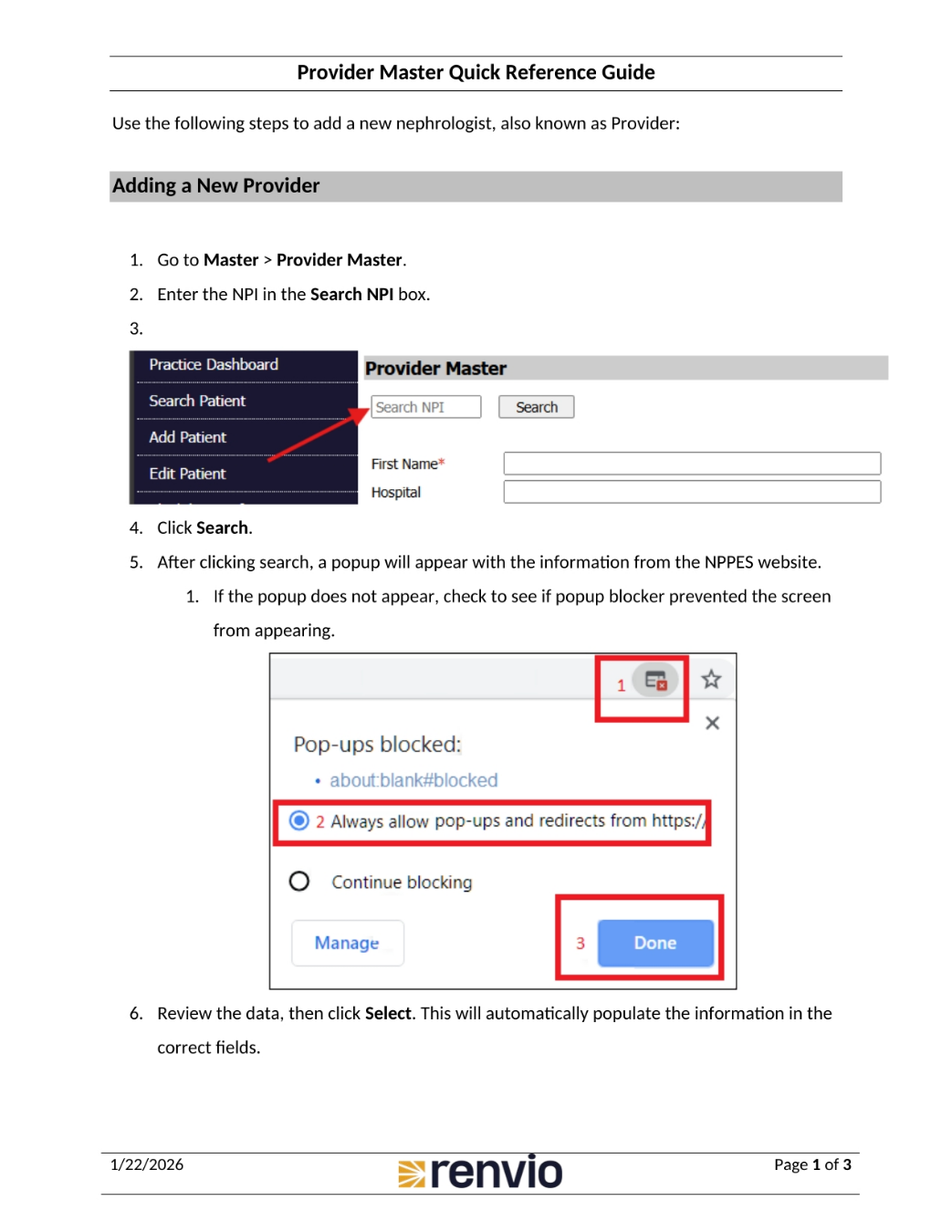
To add a new nephrologist, also known as a provider, first navigate to Master, then select Provider Master. Next, enter the NPI in the Search NPI box and click Search. After clicking search, a popup will appear with information from the NPPES website. If the popup doesn't appear, check your popup blocker settings, and ensure that you always allow pop-ups and redirects. Finally, review the data and click Select to automatically populate the information in the correct fields.
2. Completing Provider Information
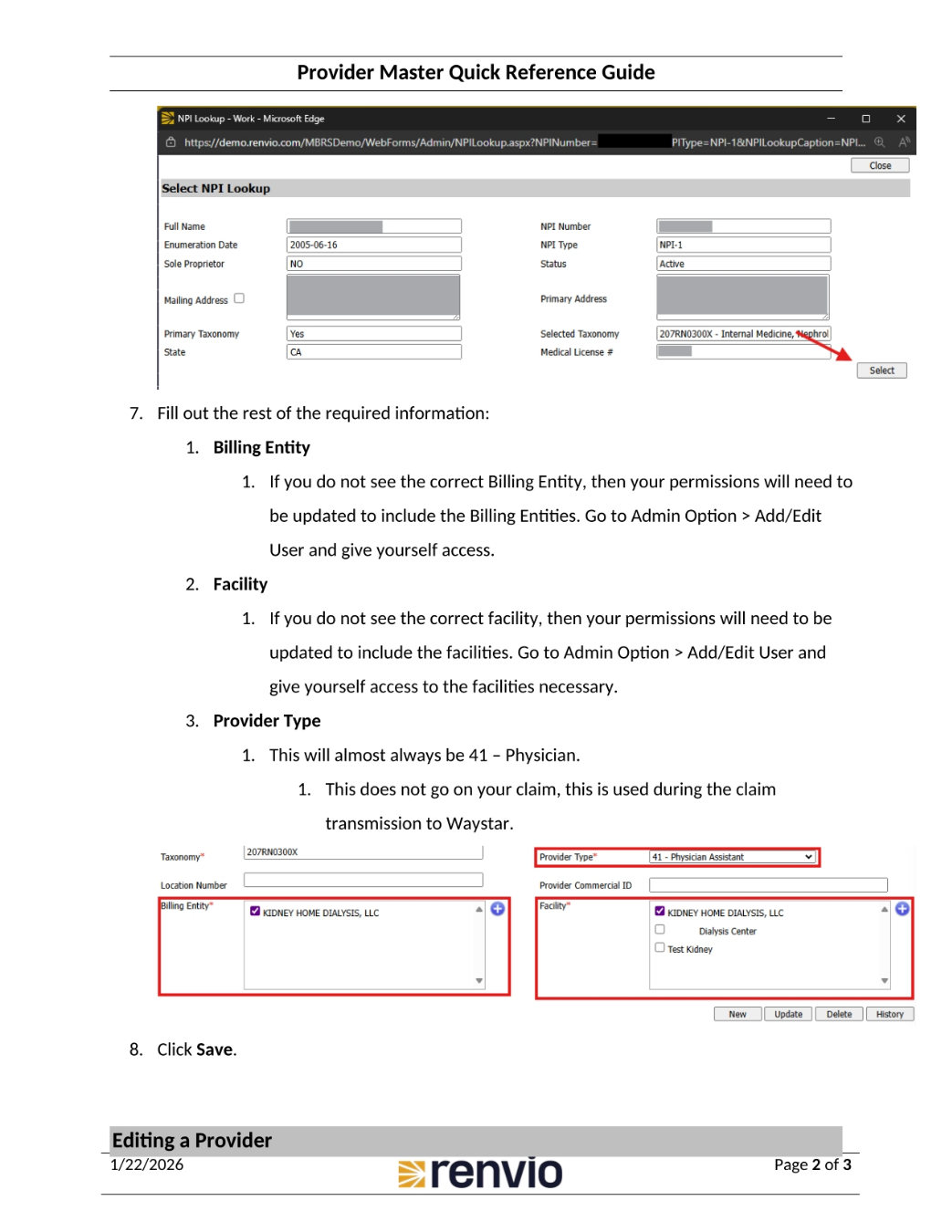
Now, fill out the rest of the required information. This includes the Billing Entity, Facility, and Provider Type. If you do not see the correct Billing Entity or Facility, your permissions may need to be updated via the Admin Option. The Provider Type will almost always be 41 – Physician. Note that this does not go on your claim but is used during the claim transmission to Waystar. Finally, click Save.
3. Editing and Deleting Providers
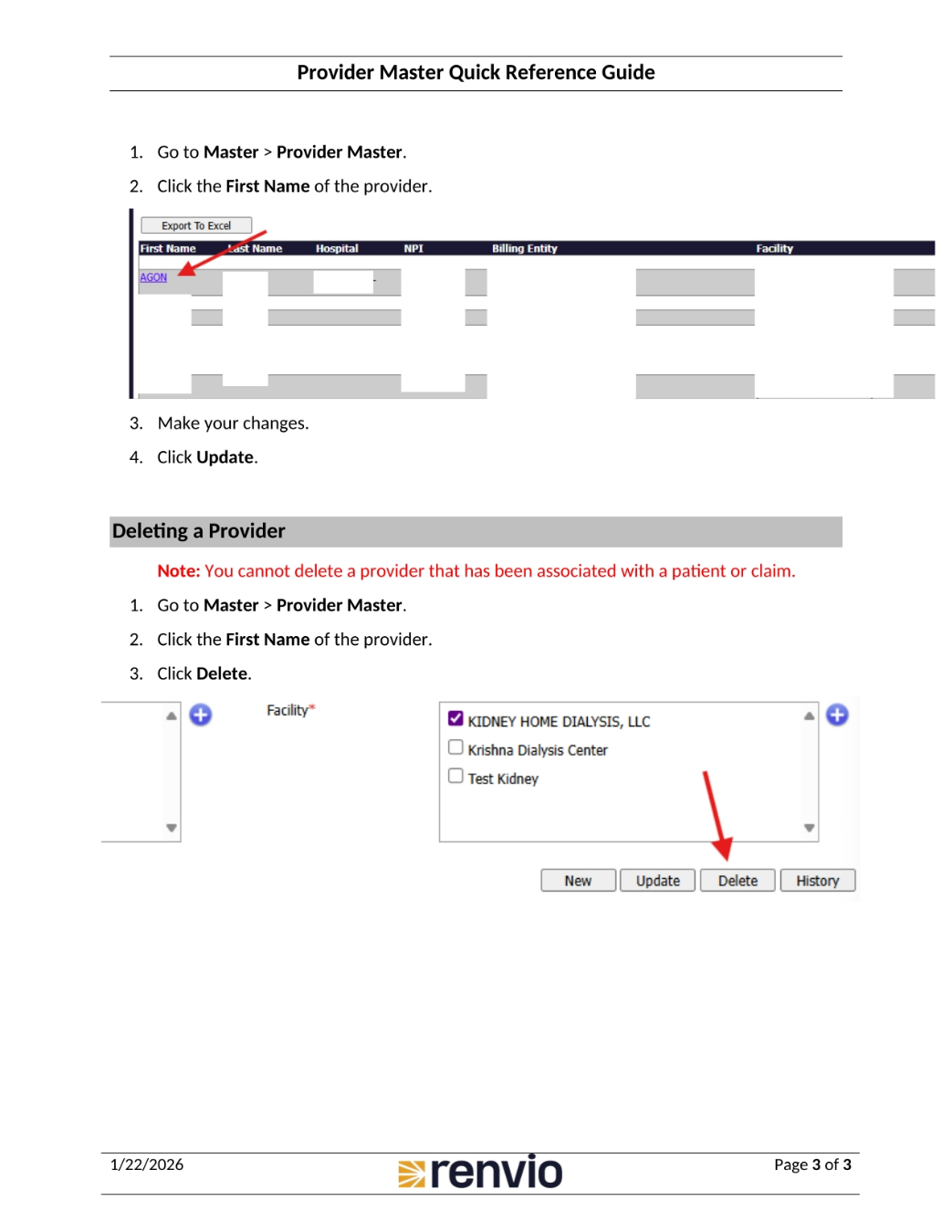
To edit a provider, go to Master, then Provider Master. Click the First Name of the provider, make your changes, and click Update. To delete a provider, remember that you cannot delete a provider that has been associated with a patient or claim. Go to Master, then Provider Master. Click the First Name of the provider, and then click Delete.