Generating Patient Statements: A Quick Reference Guide
1. Generating a Patient Statement
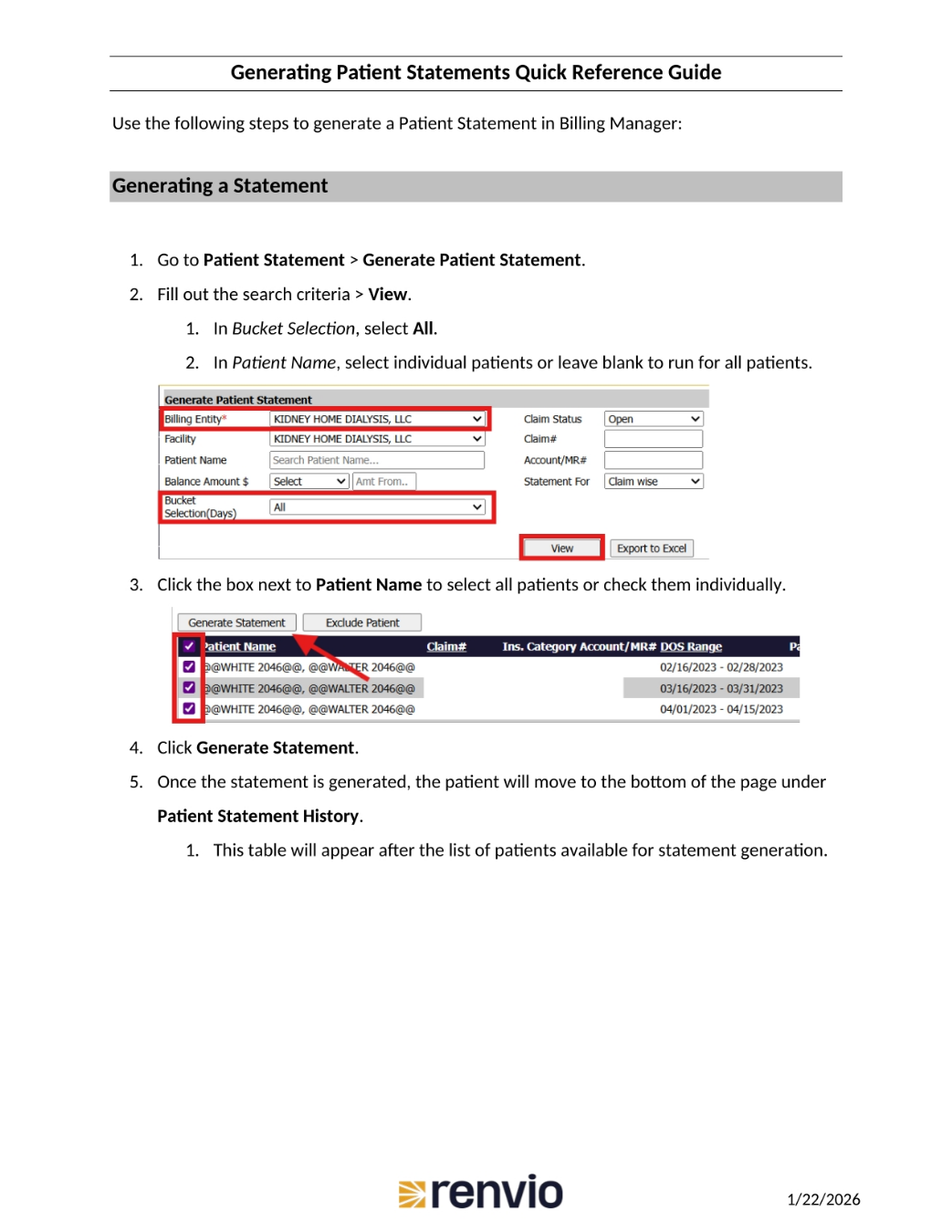
Here are the steps to generate a patient statement in Billing Manager. First, go to Patient Statement, then Generate Patient Statement. Next, fill out the search criteria and click View. In Bucket Selection, select All. In Patient Name, select individual patients or leave it blank to run for all patients. Click the box next to Patient Name to select all patients or check them individually. Finally, click Generate Statement. Once the statement is generated, the patient will move to the bottom of the page under Patient Statement History.
2. Viewing and Printing Patient Statements
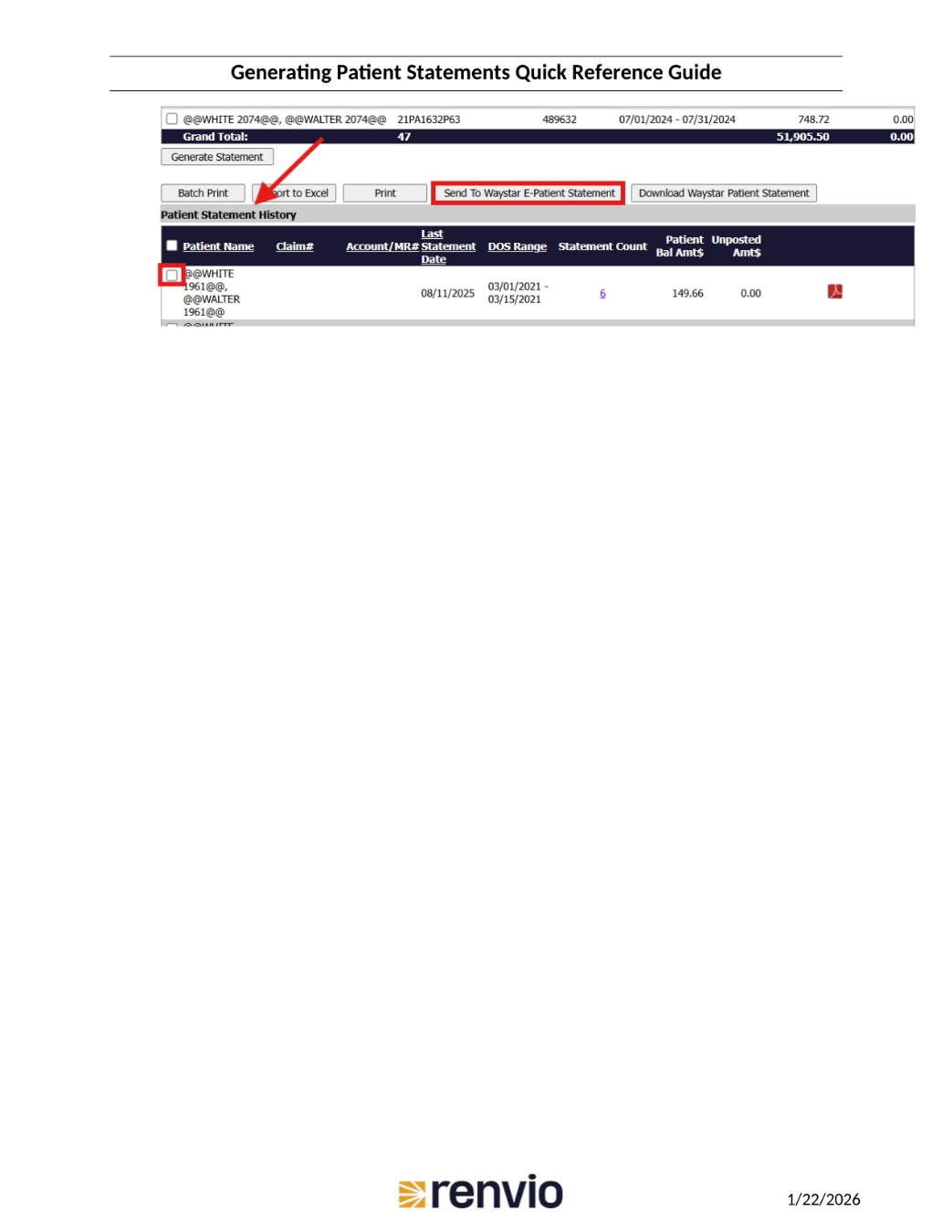
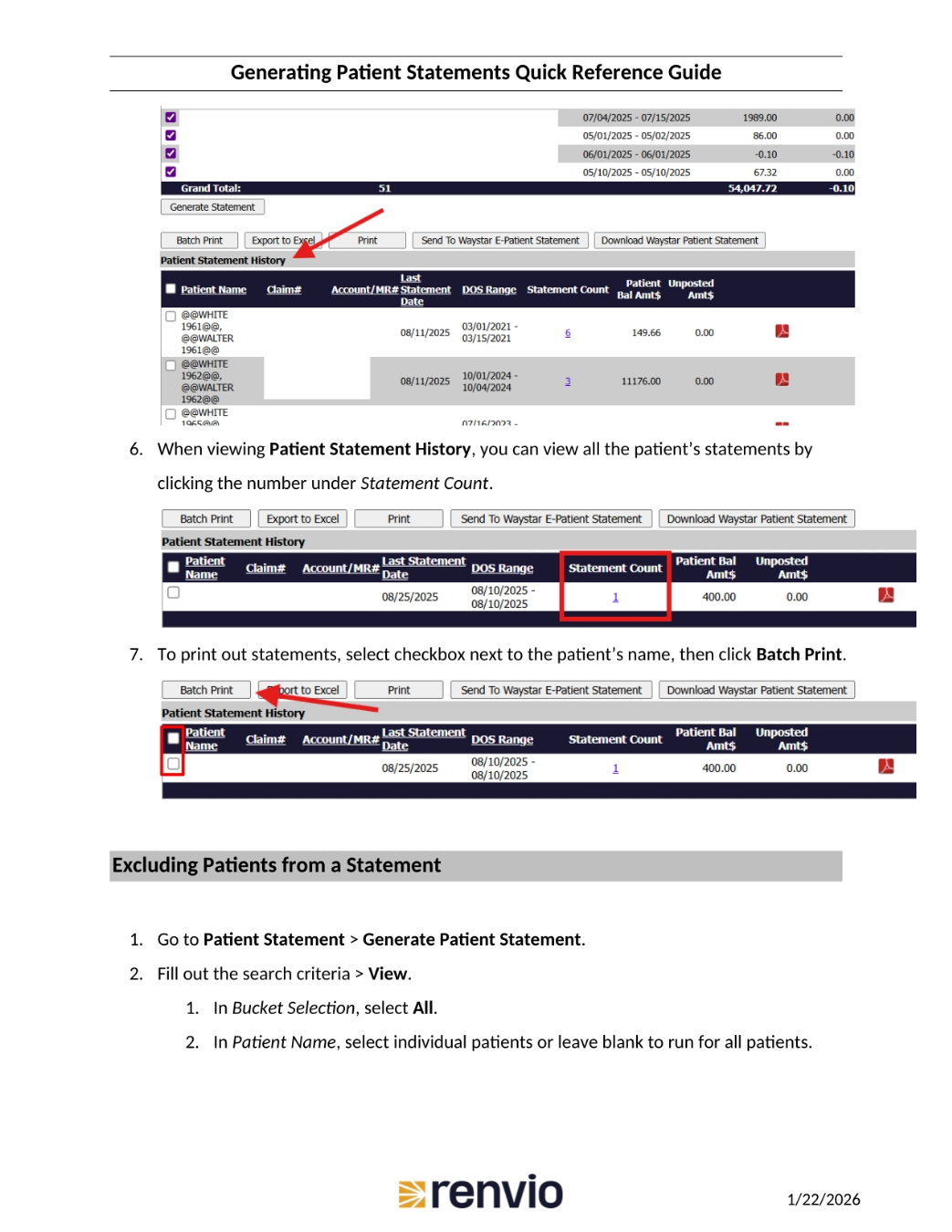
When viewing Patient Statement History, you can view all the patient's statements by clicking the number under Statement Count. To print out statements, select the checkbox next to the patient's name, then click Batch Print. The steps to exclude patients from a statement are similar. Go to Patient Statement, then Generate Patient Statement. Fill out the search criteria and click View. In Bucket Selection, select All. In Patient Name, select individual patients or leave it blank to run for all patients.
3. Excluding a Patient
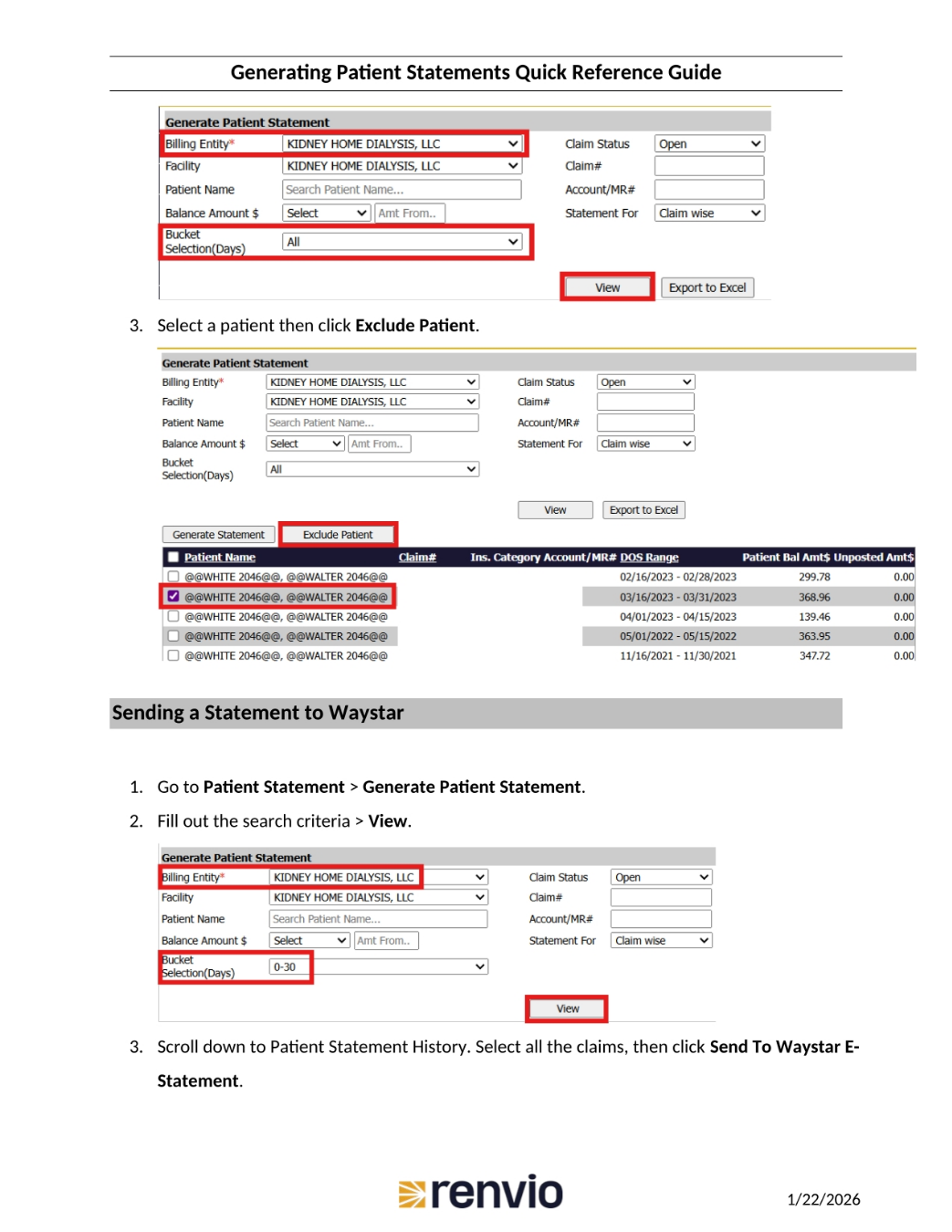
Select a patient, then click Exclude Patient. To send a statement to Waystar, go to Patient Statement, then Generate Patient Statement. Fill out the search criteria and click View. Finally, scroll down to Patient Statement History, select all the claims, then click Send To Waystar E-Statement.
4. Sending to Waystar
This slide shows an example of sending a statement to Waystar. Select the claims, then click Send to Waystar E-Patient Statement.