Quick Reference Guide: Sending Paper Claims in Billing Manager
1. Sending a Paper Claim via Waystar
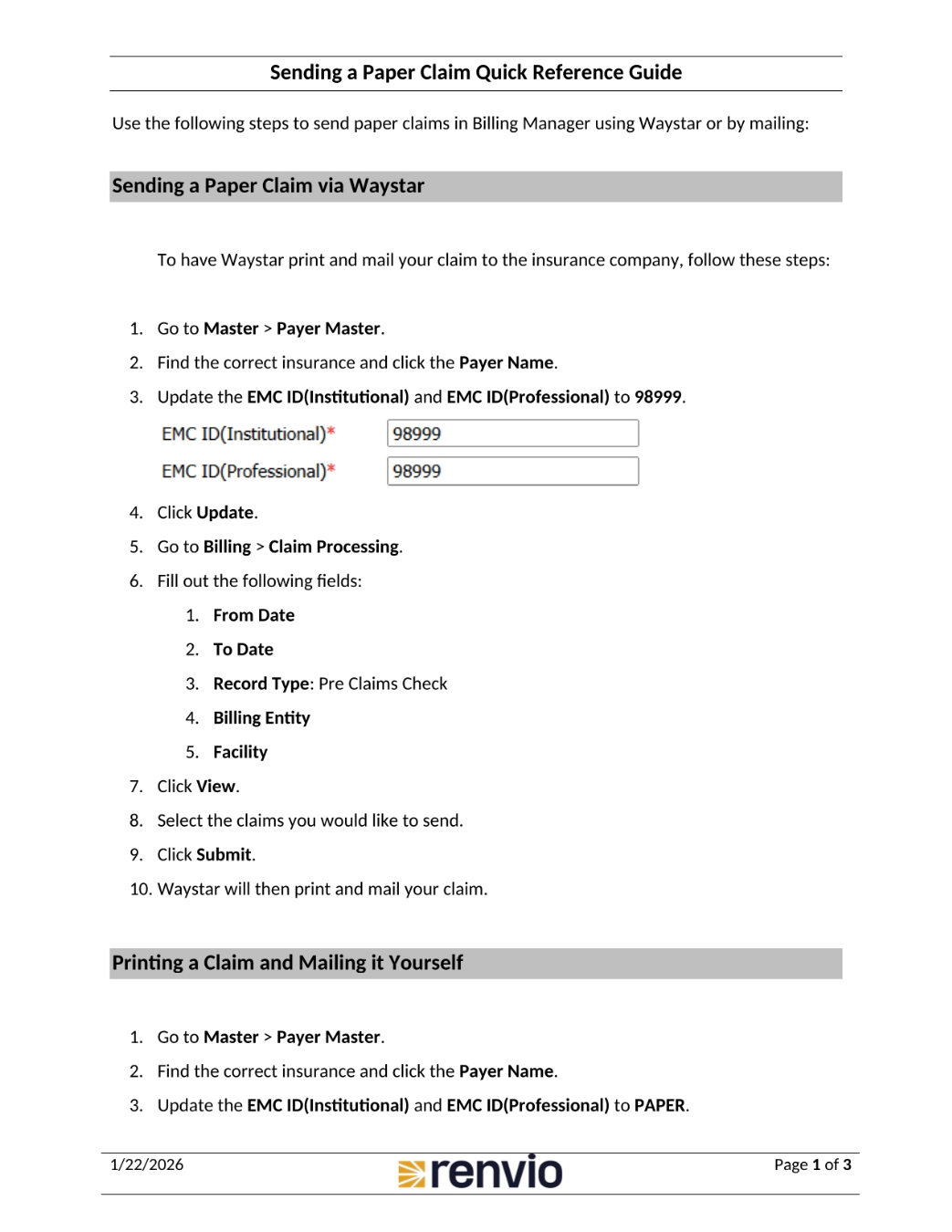
This quick reference guide outlines the steps to send paper claims in Billing Manager using Waystar or by mailing. To send a paper claim via Waystar, first go to Master, then Payer Master. Find the correct insurance and click the Payer Name. Next, update the EMC ID Institutional and Professional to nine eight nine nine nine. Finally, click Update.
2. Printing a Claim and Mailing it Yourself
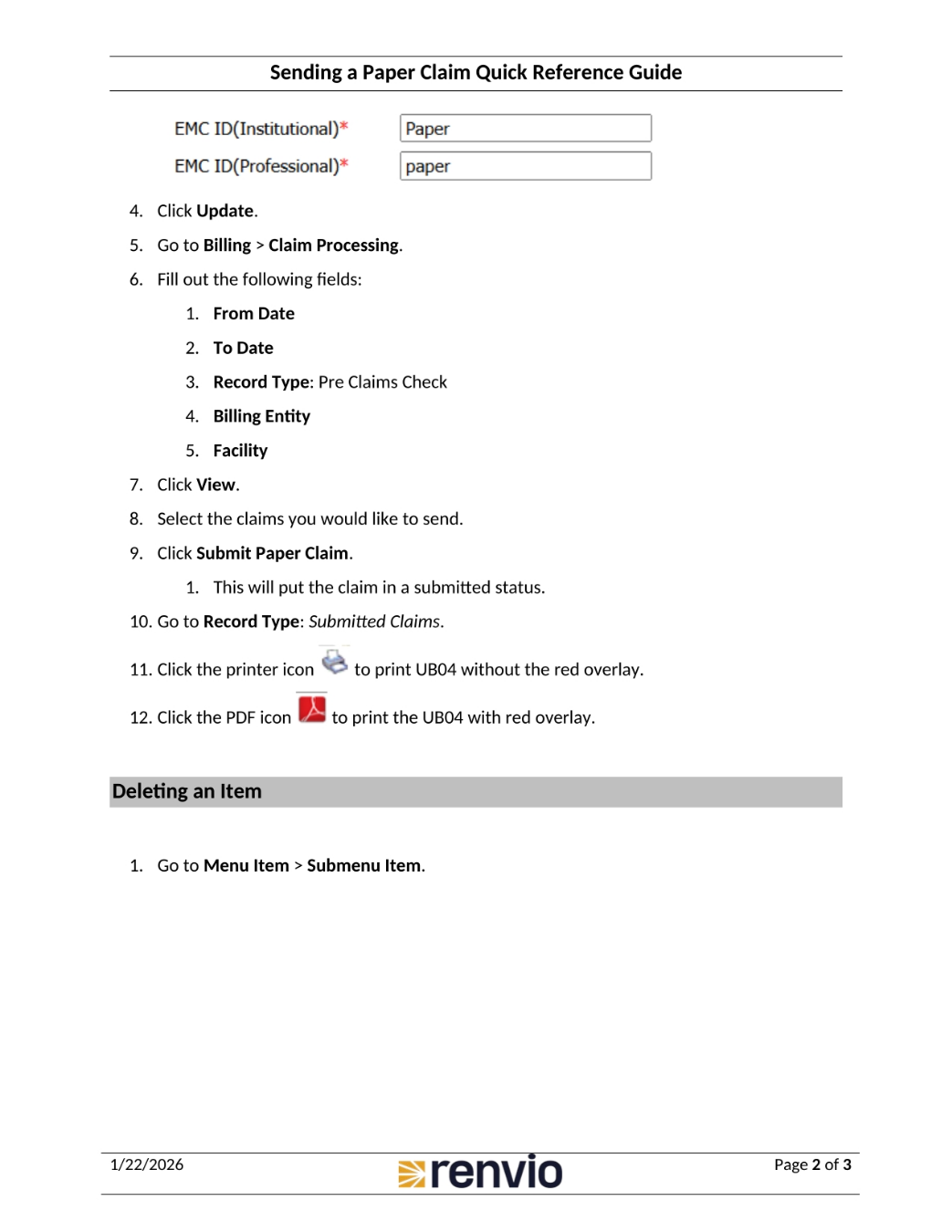
To print a claim and mail it yourself, go to Billing, then Claim Processing. Fill out the following fields: From Date, To Date, Record Type, Billing Entity, and Facility. Click View, then select the claims you would like to send. Click Submit Paper Claim to put the claim in a submitted status. Go to Record Type and select Submitted Claims. Click the printer icon to print the UB04 without the red overlay, or click the PDF icon to print the UB04 with the red overlay. Finally, to delete an item, go to Menu Item, then Submenu Item.
3. Sending a Paper Claim Quick Reference Guide
This page is blank.