Monthly Financial Closing: A Step-by-Step Guide for Billing Managers
1. Monthly Financial Closing Procedures
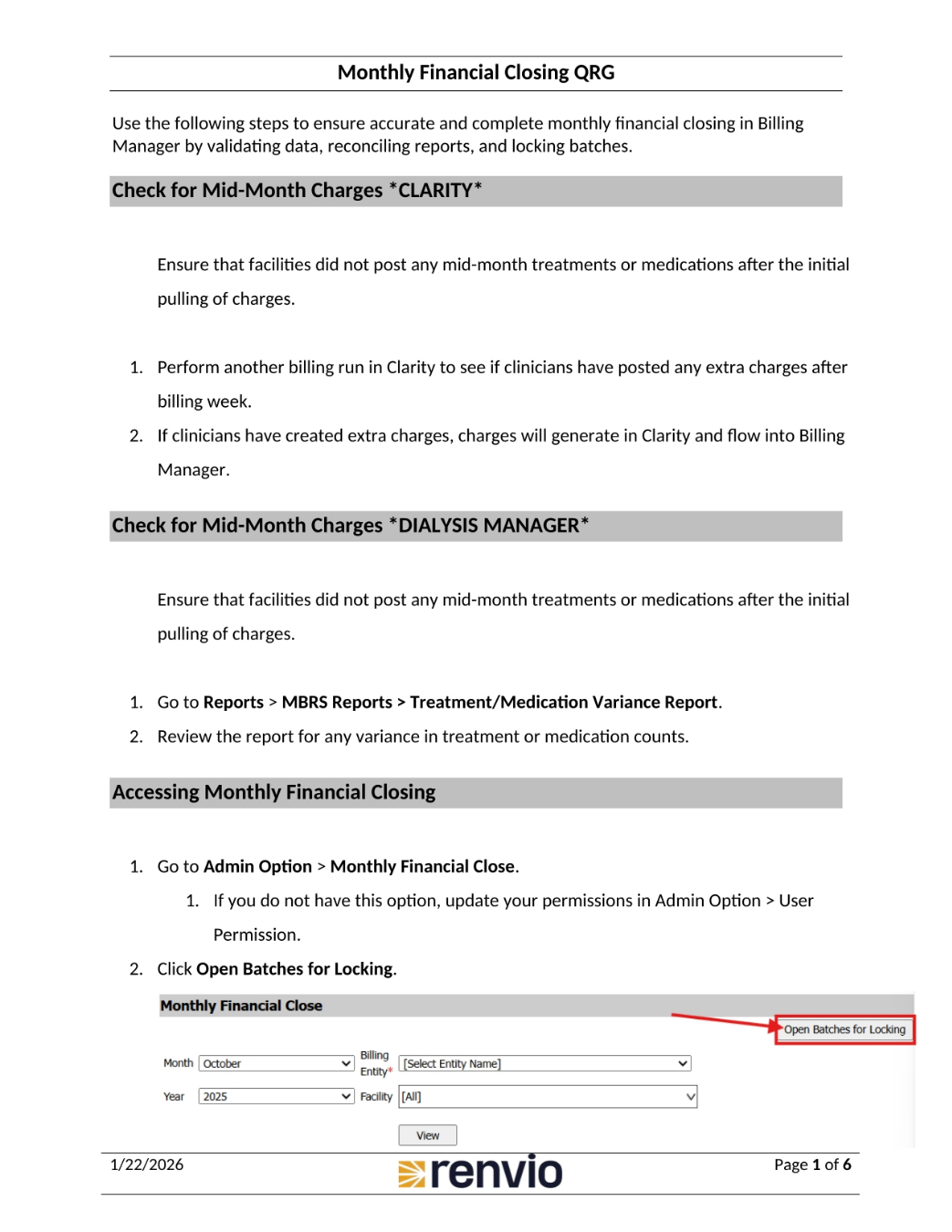
To ensure accurate and complete monthly financial closing in Billing Manager, follow these steps. First, check for mid-month charges in Clarity to ensure facilities didn't post any mid-month treatments or medications after the initial pulling of charges. Perform another billing run in Clarity to see if clinicians have posted any extra charges after billing week. Next, check for mid-month charges in Dialysis Manager, ensuring facilities didn't post any mid-month treatments or medications after the initial pulling of charges. Go to Reports, then MBRS Reports, then Treatment/Medication Variance Report, and review the report for any variance in treatment or medication counts. Finally, to access monthly financial closing, go to Admin Option, then Monthly Financial Close. If you don't have this option, update your permissions in Admin Option, then User Permission. Then, click Open Batches for Locking.
2. Completing the Monthly Financial Close
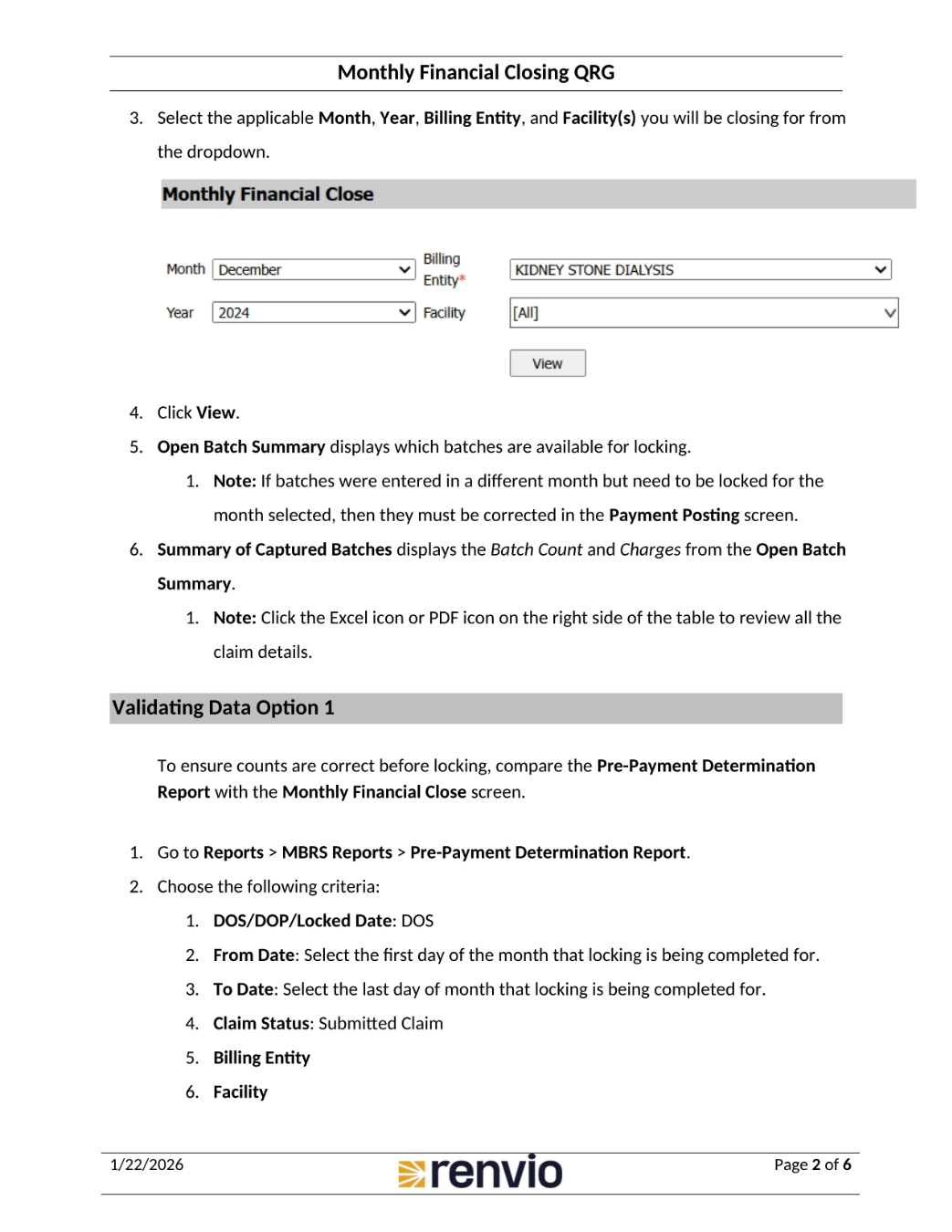
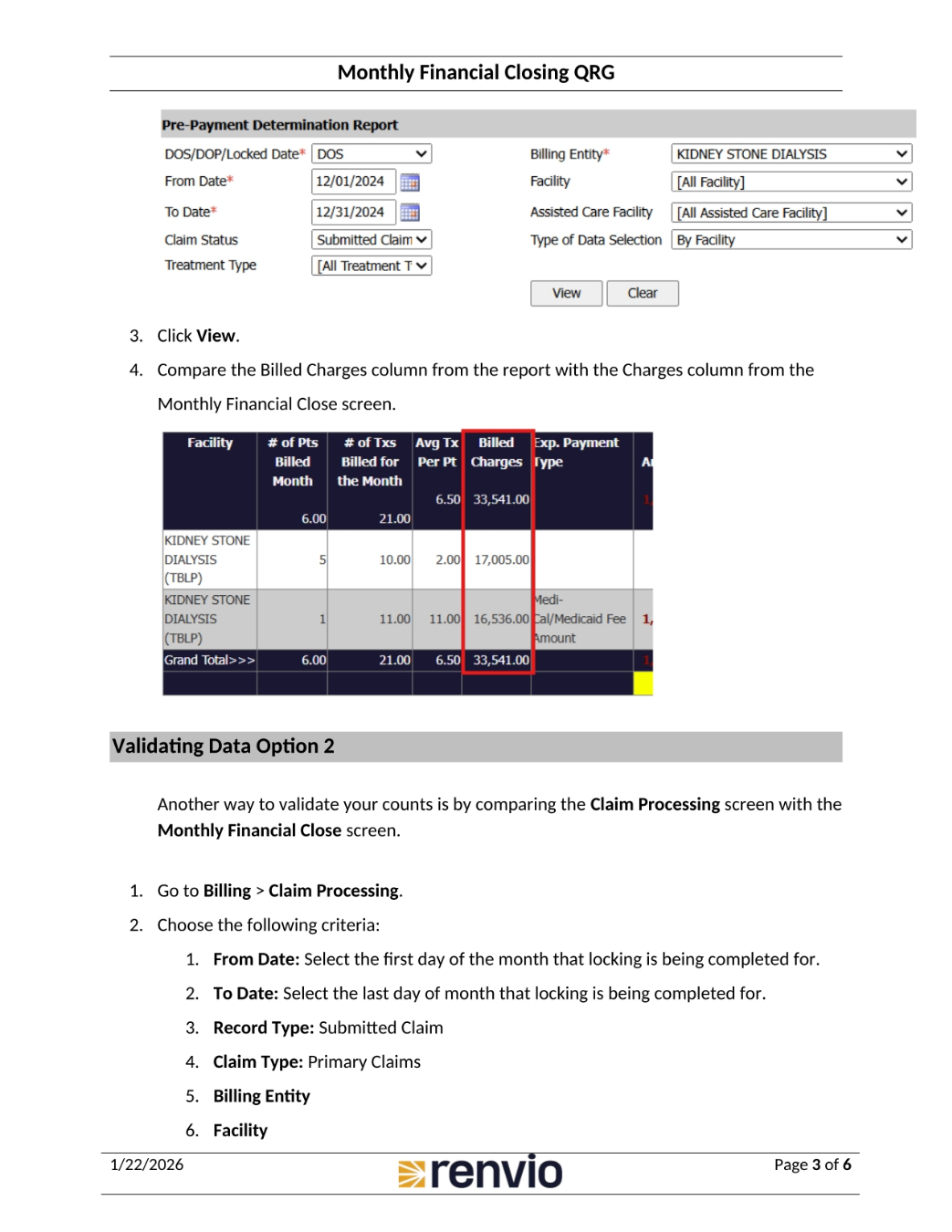
Select the applicable month, year, billing entity, and facility or facilities you will be closing for from the dropdown. Then, click View. Open Batch Summary displays which batches are available for locking. Note that if batches were entered in a different month but need to be locked for the month selected, then they must be corrected in the Payment Posting screen. Summary of Captured Batches displays the Batch Count and Charges from the Open Batch Summary. To review all the claim details, click the Excel or PDF icon on the right side of the table. To ensure counts are correct before locking, compare the Pre-Payment Determination Report with the Monthly Financial Close screen. Go to Reports, then MBRS Reports, then Pre-Payment Determination Report. Choose the following criteria: DOS, DOP, or Locked Date; From Date; To Date; Claim Status; Billing Entity; and Facility.
3. Validating Data for Accurate Financial Closing
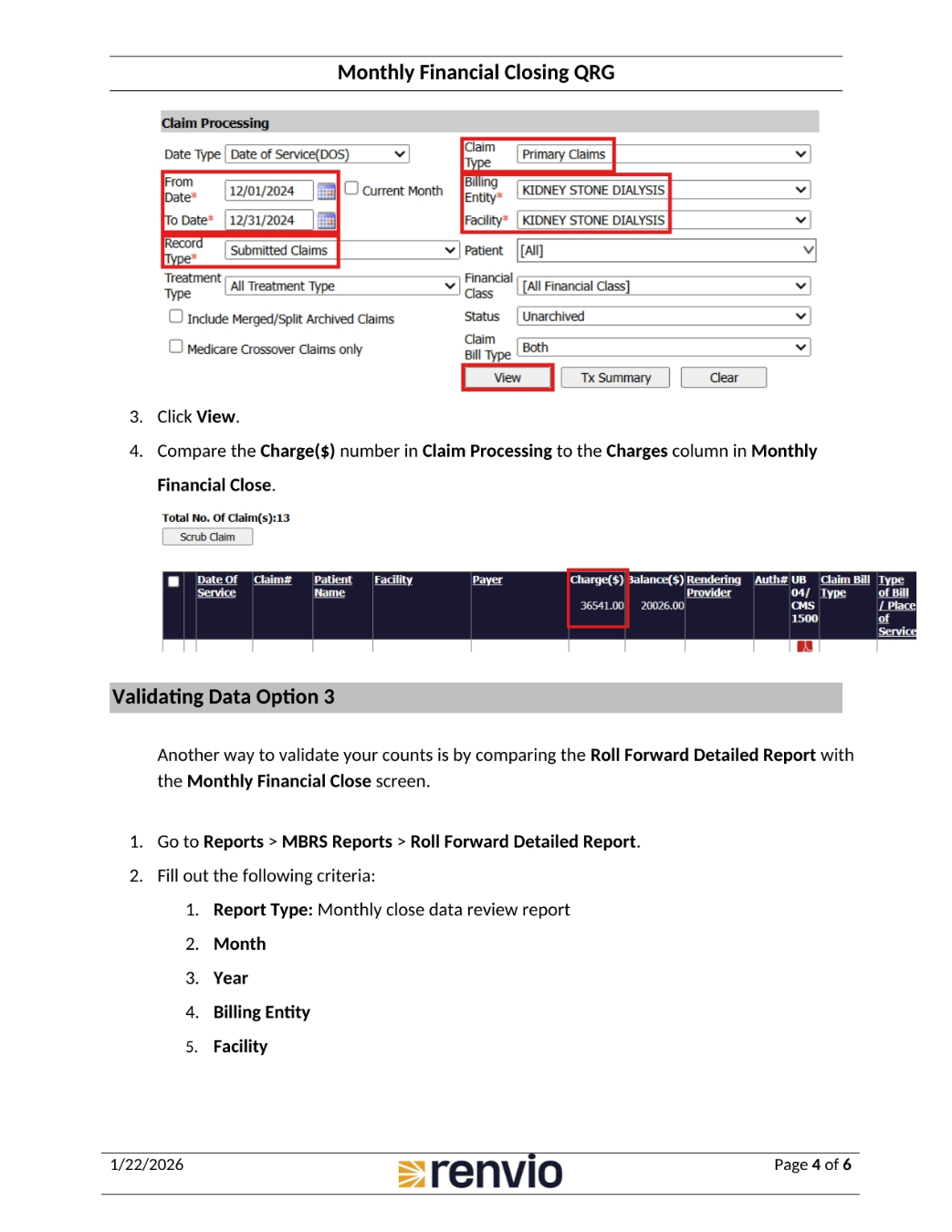
Click View. Compare the Billed Charges column from the report with the Charges column from the Monthly Financial Close screen. Another way to validate your counts is by comparing the Claim Processing screen with the Monthly Financial Close screen. Go to Billing, then Claim Processing. Choose the following criteria: From Date, To Date, Record Type, Claim Type, Billing Entity, and Facility.
4. Claim Processing and Data Validation
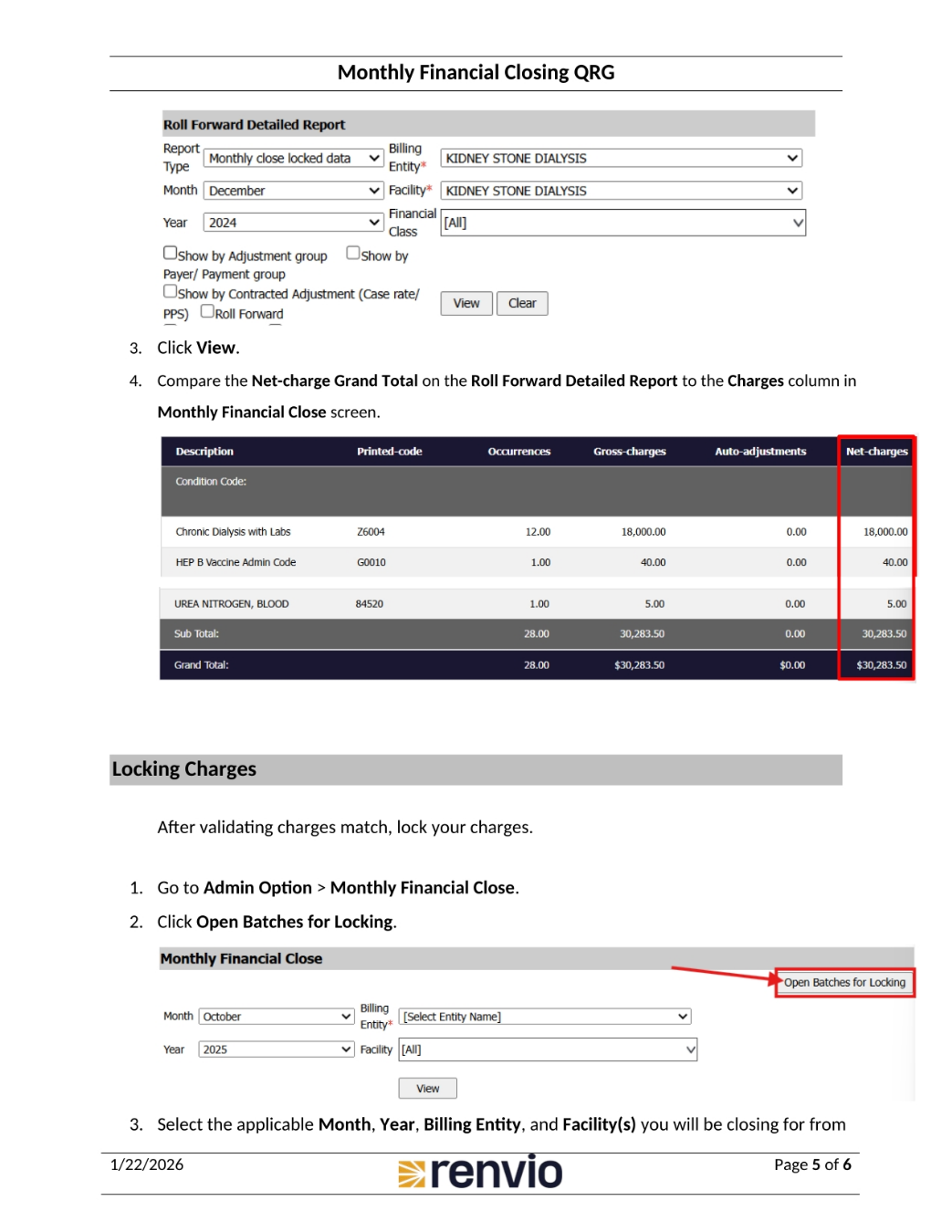
Click View. Compare the Charge number in Claim Processing to the Charges column in Monthly Financial Close. Another way to validate your counts is by comparing the Roll Forward Detailed Report with the Monthly Financial Close screen. Go to Reports, then MBRS Reports, then Roll Forward Detailed Report. Fill out the following criteria: Report Type, Month, Year, Billing Entity, and Facility.
5. Roll Forward Report and Locking Charges
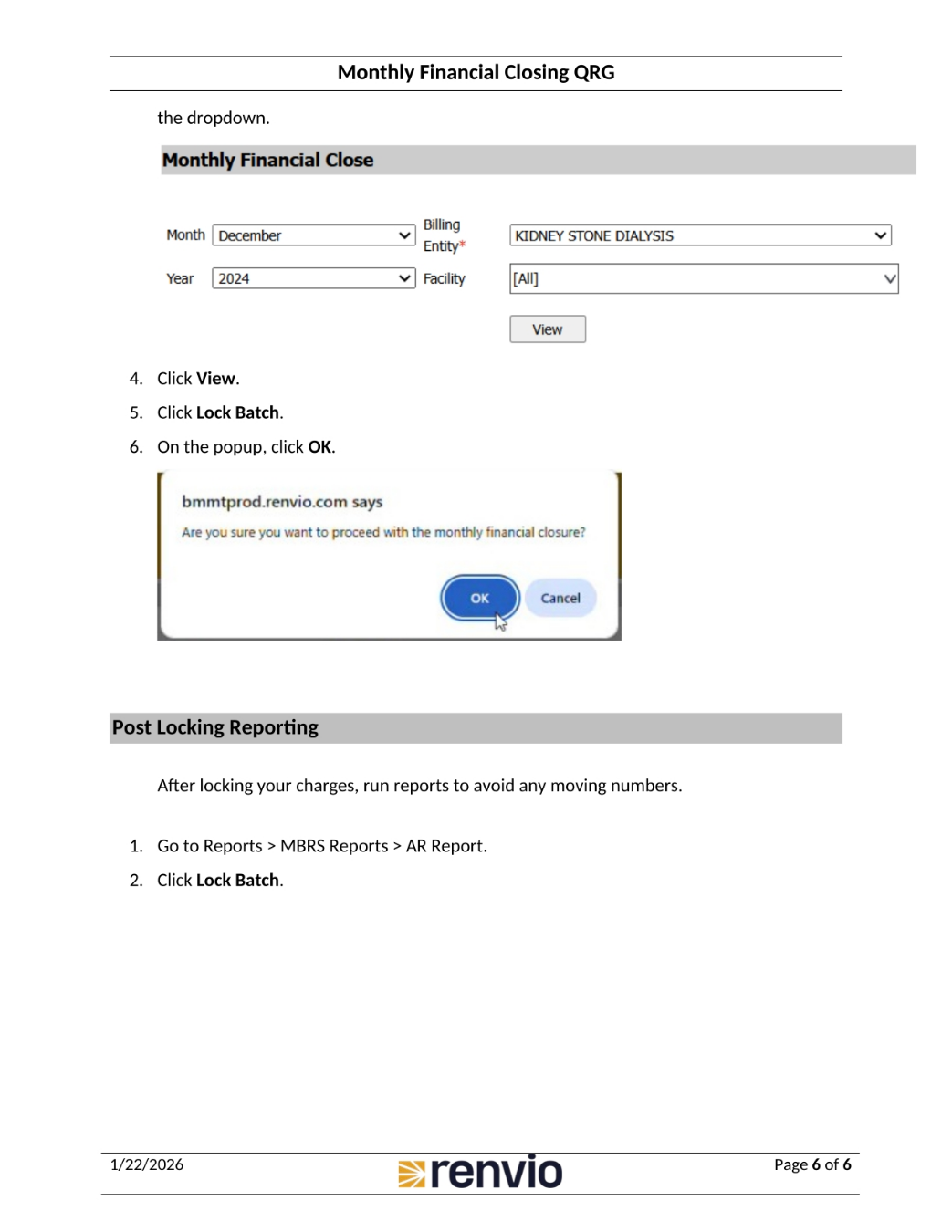
Click View. Compare the Net-charge Grand Total on the Roll Forward Detailed Report to the Charges column in Monthly Financial Close screen. After validating charges match, lock your charges. Go to Admin Option, then Monthly Financial Close. Click Open Batches for Locking. Select the applicable Month, Year, Billing Entity, and Facility or Facilities you will be closing for from the dropdown.
6. Finalizing and Reporting
Click View. Click Lock Batch. On the popup, click OK. After locking your charges, run reports to avoid any moving numbers. Go to Reports, then MBRS Reports, then AR Report. Click Lock Batch.