Troubleshooting Guide: Mapping Lab Charge Files for Accurate Billing
1. Troubleshooting Unmapped Lab Charge Files
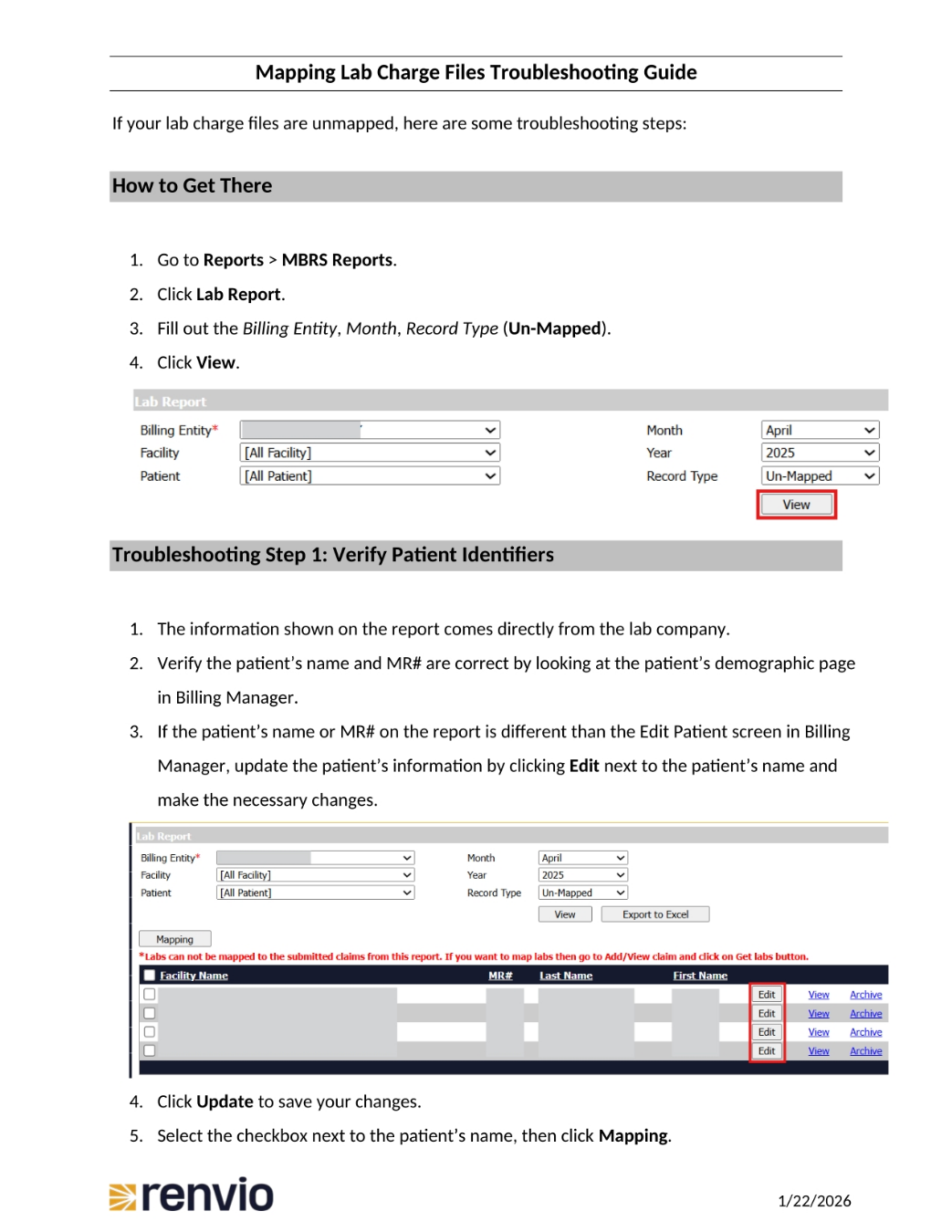
If your lab charge files are unmapped, there are some troubleshooting steps to follow. First, go to Reports, then MBRS Reports, and click on Lab Report. Fill out the Billing Entity, Month, and Record Type, selecting Un-Mapped. Then, click View to proceed.
2. Verify Charges and Patient Identifiers
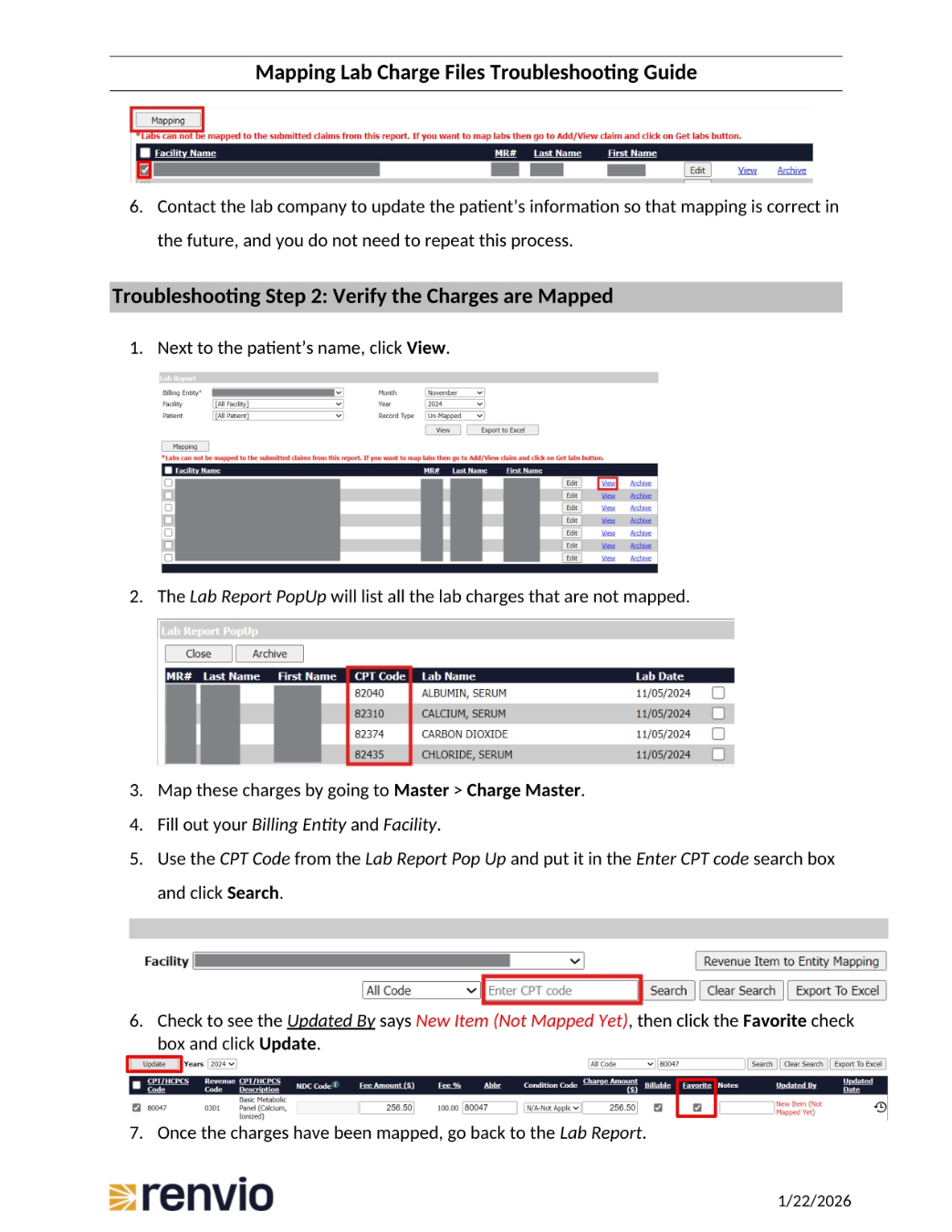
To verify patient identifiers, ensure the information on the report matches the lab company's records. Check the patient's name and MR number against the demographic page in Billing Manager. If there are discrepancies, update the patient's information by clicking Edit next to the patient's name. Click Update to save changes, then select the checkbox next to the patient's name and click Mapping. To verify the charges are mapped, click View next to the patient's name. The Lab Report Pop-Up will list any unmapped lab charges. Map these charges by going to Master, then Charge Master. Fill out the Billing Entity and Facility, and use the CPT Code from the Lab Report Pop-Up in the search box. Check that the Updated By field says New Item, then click the Favorite checkbox and Update. Finally, return to the Lab Report.
3. Ensuring Claims and Archiving
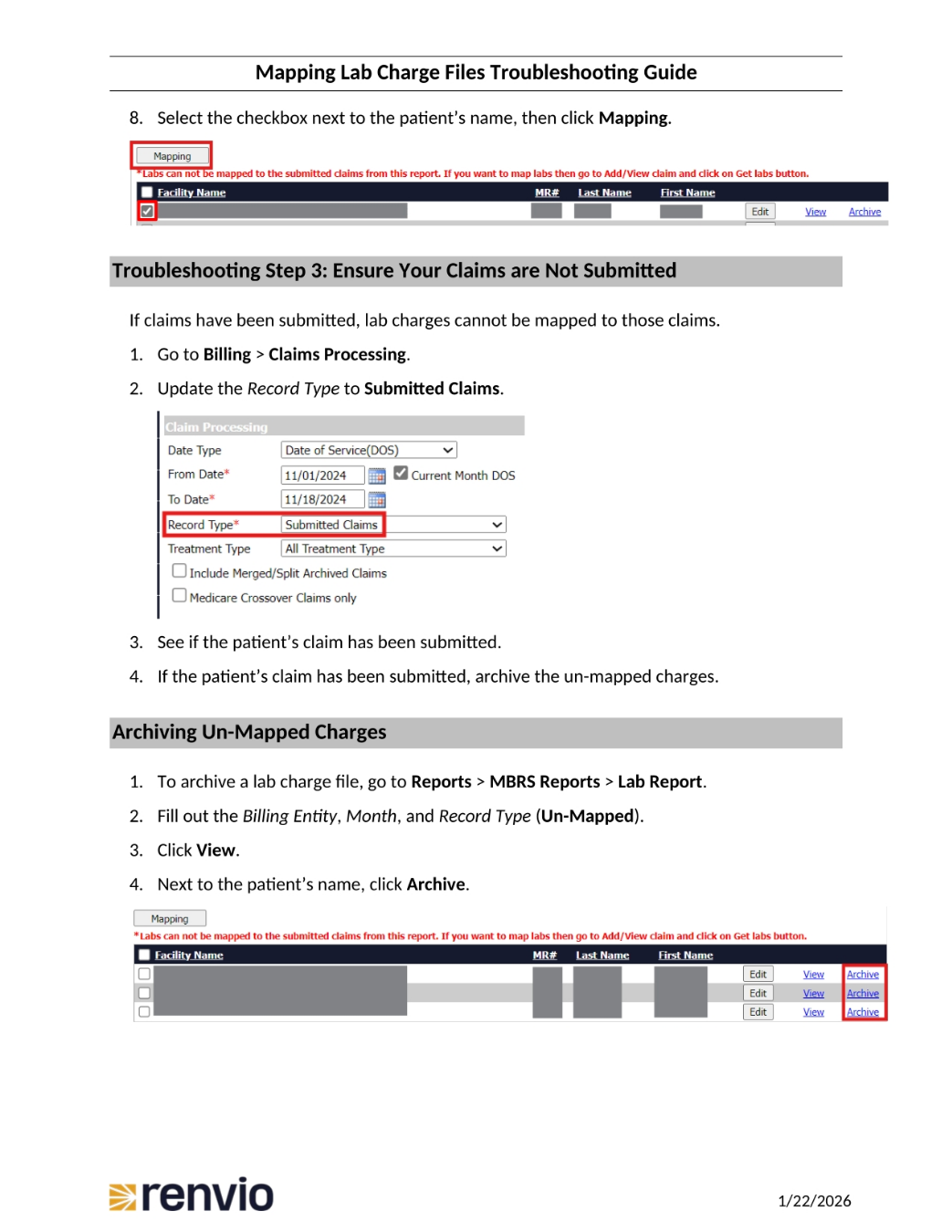
Select the checkbox next to the patient's name, then click Mapping. If claims have been submitted, lab charges cannot be mapped. Go to Billing, then Claims Processing, and update the Record Type to Submitted Claims. Check if the patient's claim has been submitted, and if so, archive the unmapped charges. To archive a lab charge file, go to Reports, MBRS Reports, and Lab Report. Fill out the Billing Entity, Month, and Record Type, selecting Un-Mapped. Click View, then click Archive next to the patient's name.