Creating Hepatitis B Vaccines for billing
1. Adding a New Vaccine in Dialysis Manager
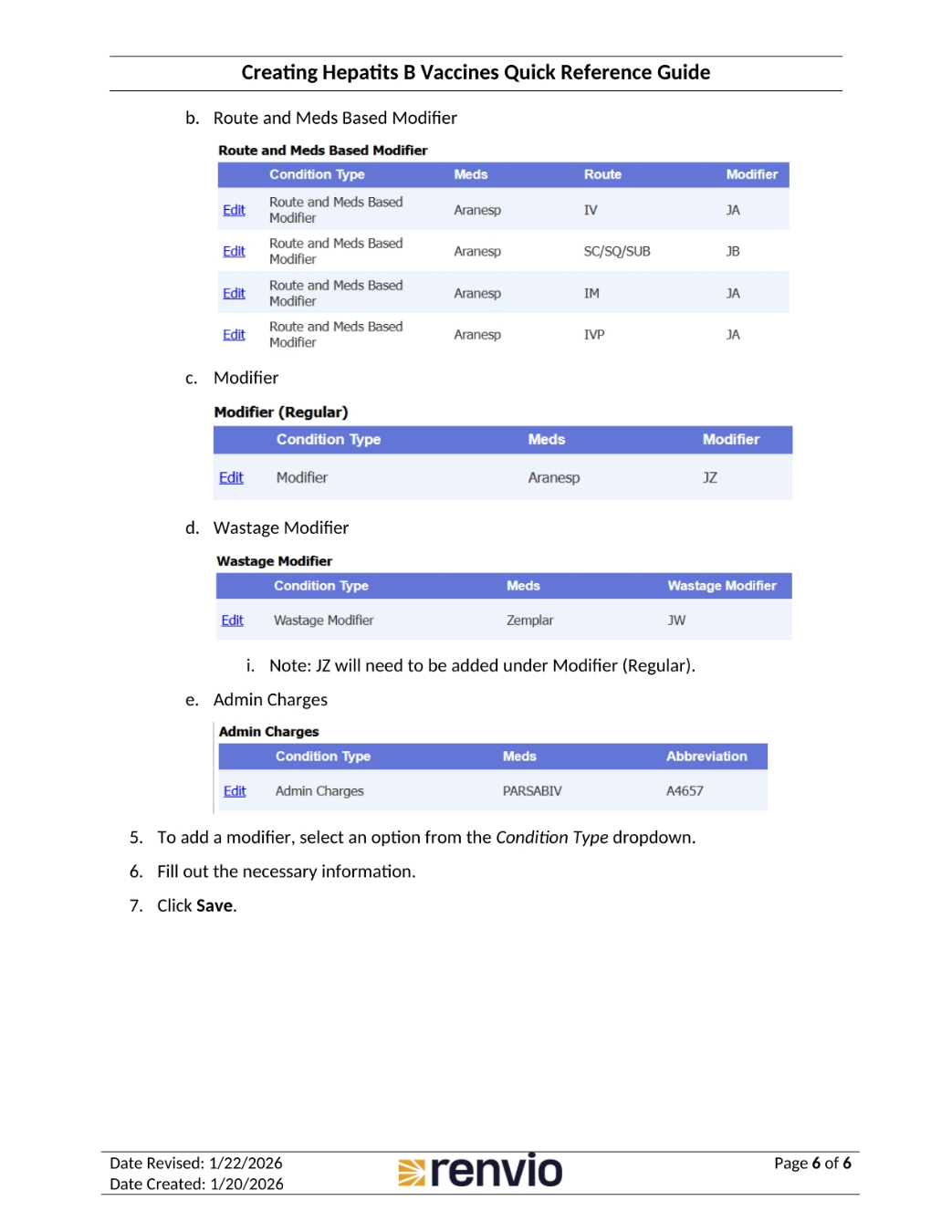
This guide outlines the steps to create a Hepatitis B vaccine within Dialysis Manager and Billing Manager. To add a new vaccine, first go to Admin Options, then Masters in Dialysis Manager. Click Meds from the list box on the left side of the screen. Check the existing list of medications and vaccines before creating a new one. If the vaccine is already available, skip to updating the billing setup. If not, enter the name in Trade Name, and select the Route and Unit applicable for administration. Finally, in the Charges dropdown, select Billable through Vial and select the Category of medication.
2. Setting Up the Dose Detail Master
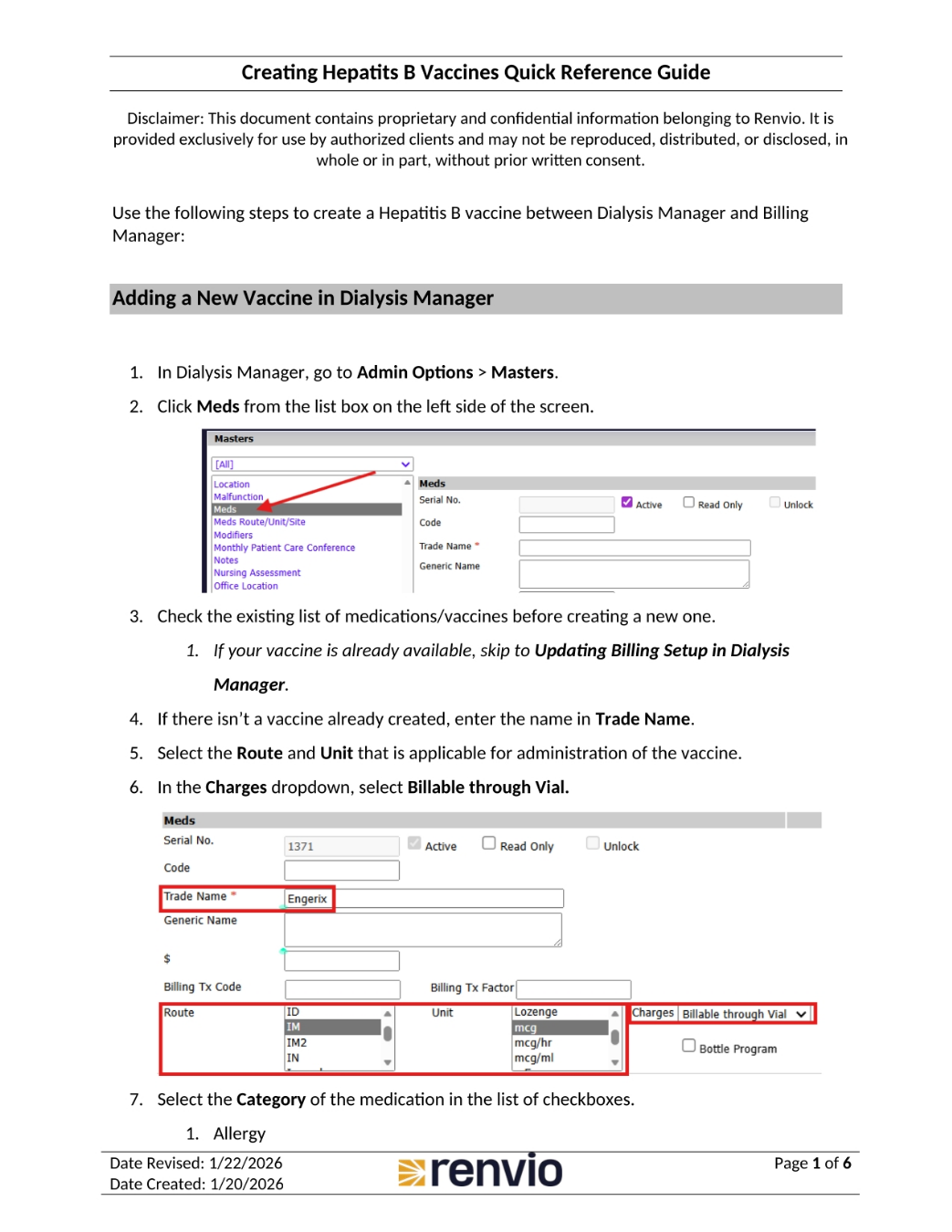
To set up the dose detail master, click the Dose Detail Master under the medication that was just created, or go to Admin Options, Masters, Utilities, and Meds Dose Detail Master. Check the list at the bottom of the screen before creating a new entry. If an entry is not found, fill out the form at the top of the pop up. Select the medication from the Meds Name dropdown, fill out the Vial Size, select Single Use, and enter the NDC Code in a 5-4-2 format, which can be found on the vial. Finally, click Save.
3. Updating Billing Setup in Dialysis Manager
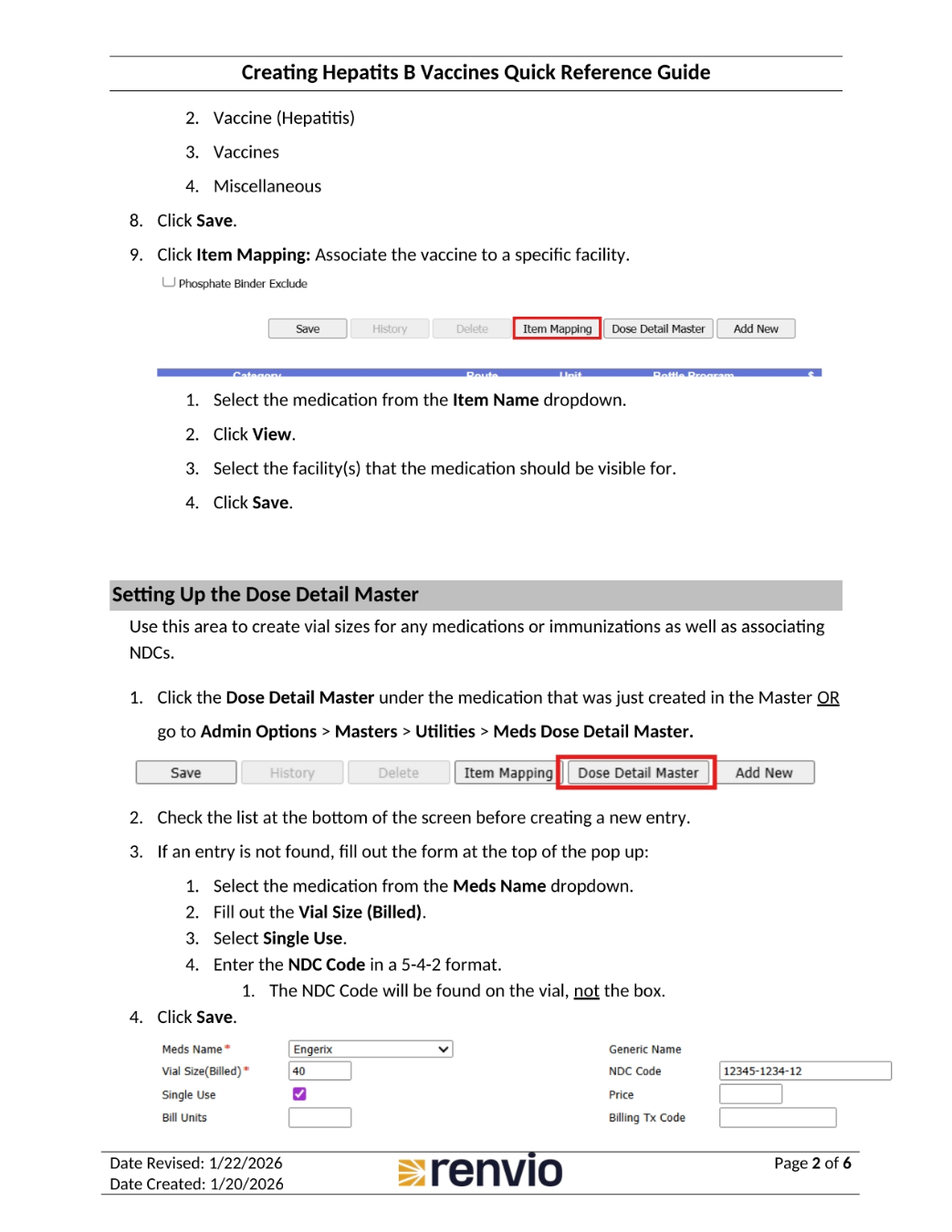
To update the billing setup, go to Import/Export, then Export Treatment Billing. Click Billing Setup. On the popup, click Edit next to Export to MBRS. Under Medications, locate the new medication. Select the Billable checkbox next to the Meds Name. Enter a unique Abbreviation, and make note of it for the Charge Master. To add dose ranges or modifiers, click Special Conditions. If the special conditions option is gone, the page may need to be signed and saved, or the medication may have multiple vial sizes listed.
4. Updating the Revenue Master in Billing Manager
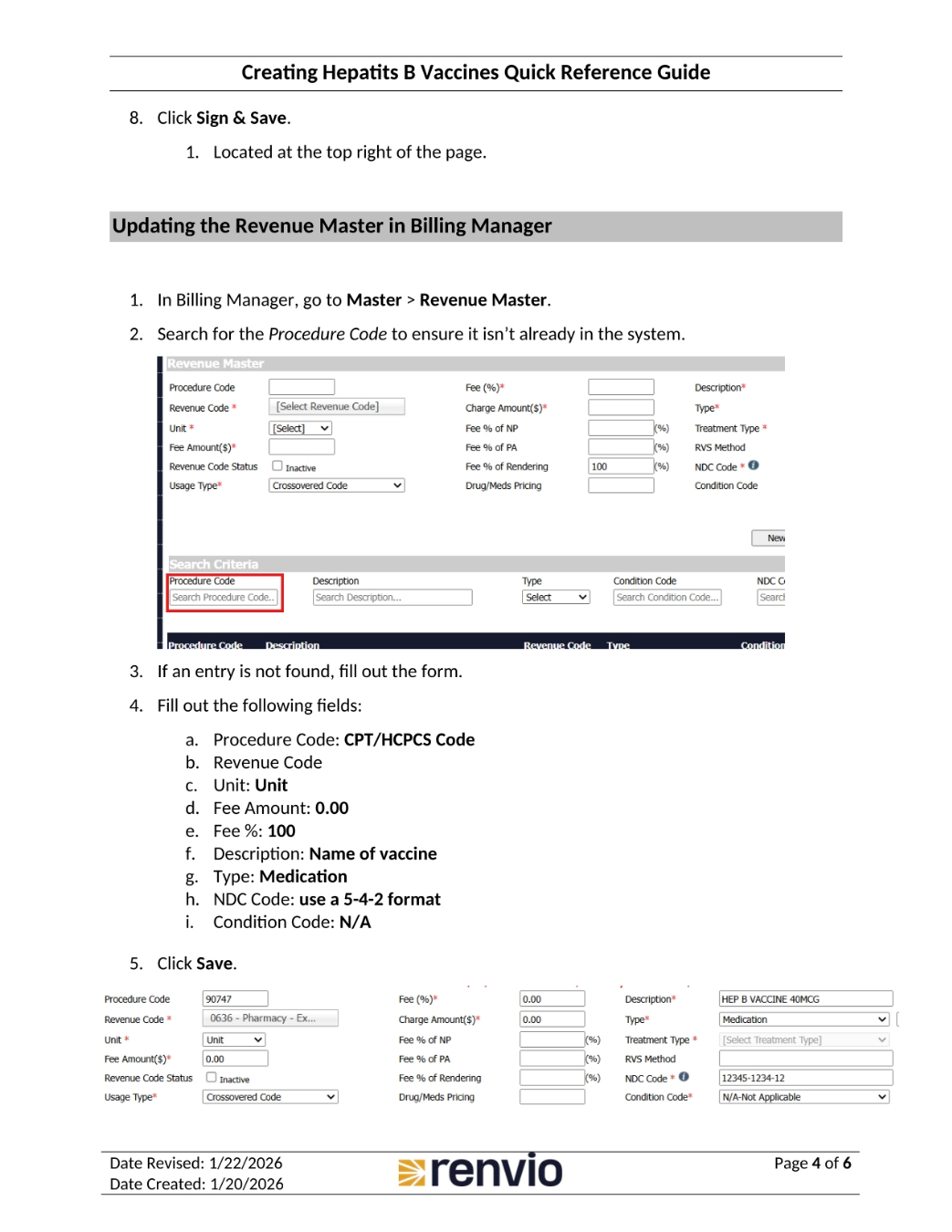
To update the Revenue Master, go to Master, then Revenue Master in Billing Manager. Search for the Procedure Code to ensure it isn't already in the system. If an entry is not found, fill out the form with the following information: Procedure Code, Revenue Code, Unit, Fee Amount, Fee %, Description, Type, NDC Code, and Condition Code. Finally, click Save.
5. Updating the Charge Master in Billing Manager
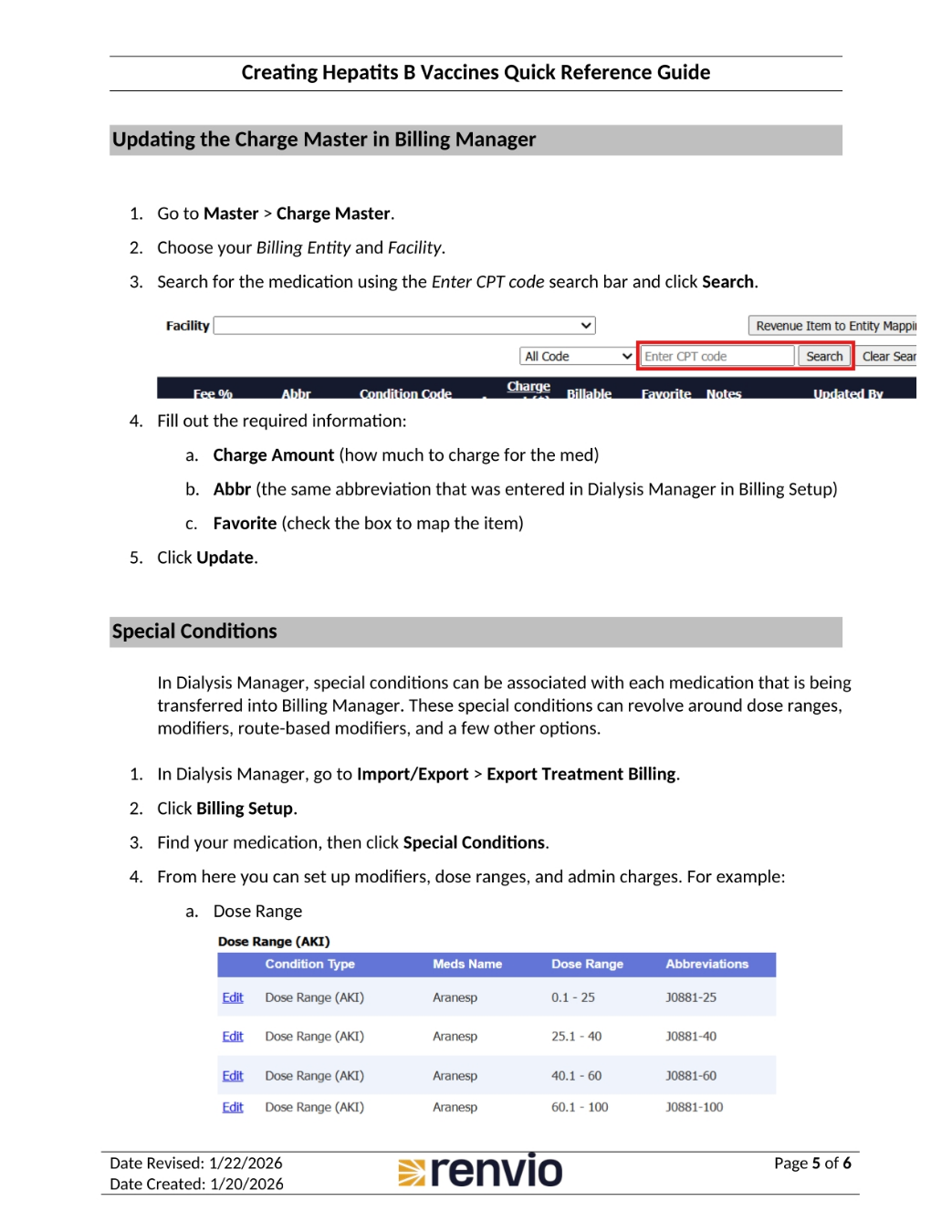
To update the Charge Master, go to Master, then Charge Master. Choose your Billing Entity and Facility. Search for the medication using the Enter CPT code search bar and click Search. Fill out the required information, including Charge Amount, Abbr, and Favorite. Click Update. Special conditions can be associated with each medication that is being transferred into Billing Manager. Go to Import/Export, then Export Treatment Billing, and click Billing Setup. Find your medication, then click Special Conditions to set up modifiers, dose ranges, and admin charges.
6. Creating Hepatitis B Vaccines Quick Reference Guide
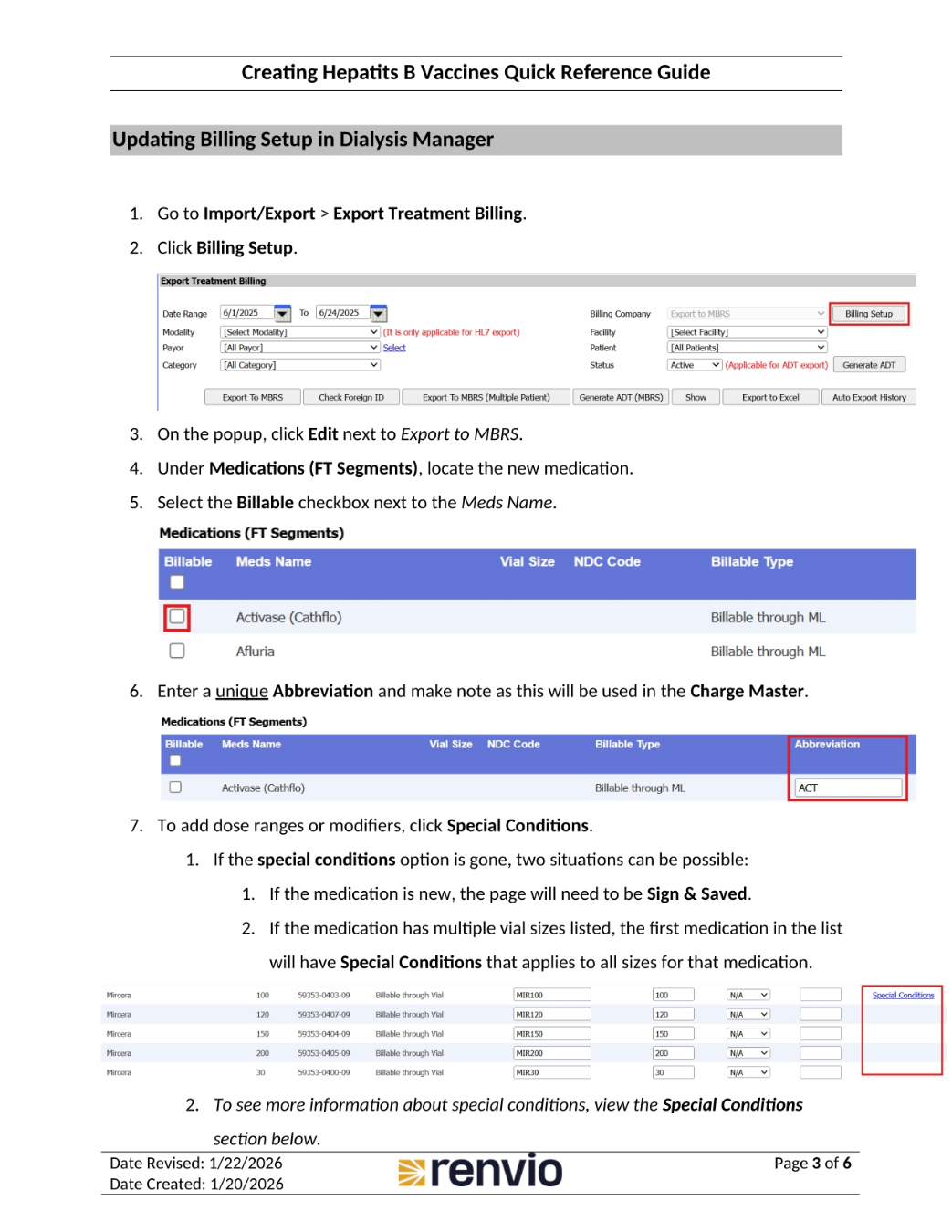
This page details route and meds based modifiers, as well as regular modifiers, wastage modifiers, and admin charges. To add a modifier, select an option from the Condition Type dropdown, fill out the necessary information, and click Save.