Quick Reference Guide: Mapping Dummy Codes in Renvio
1. Adding a Replaceable Code in Revenue Master
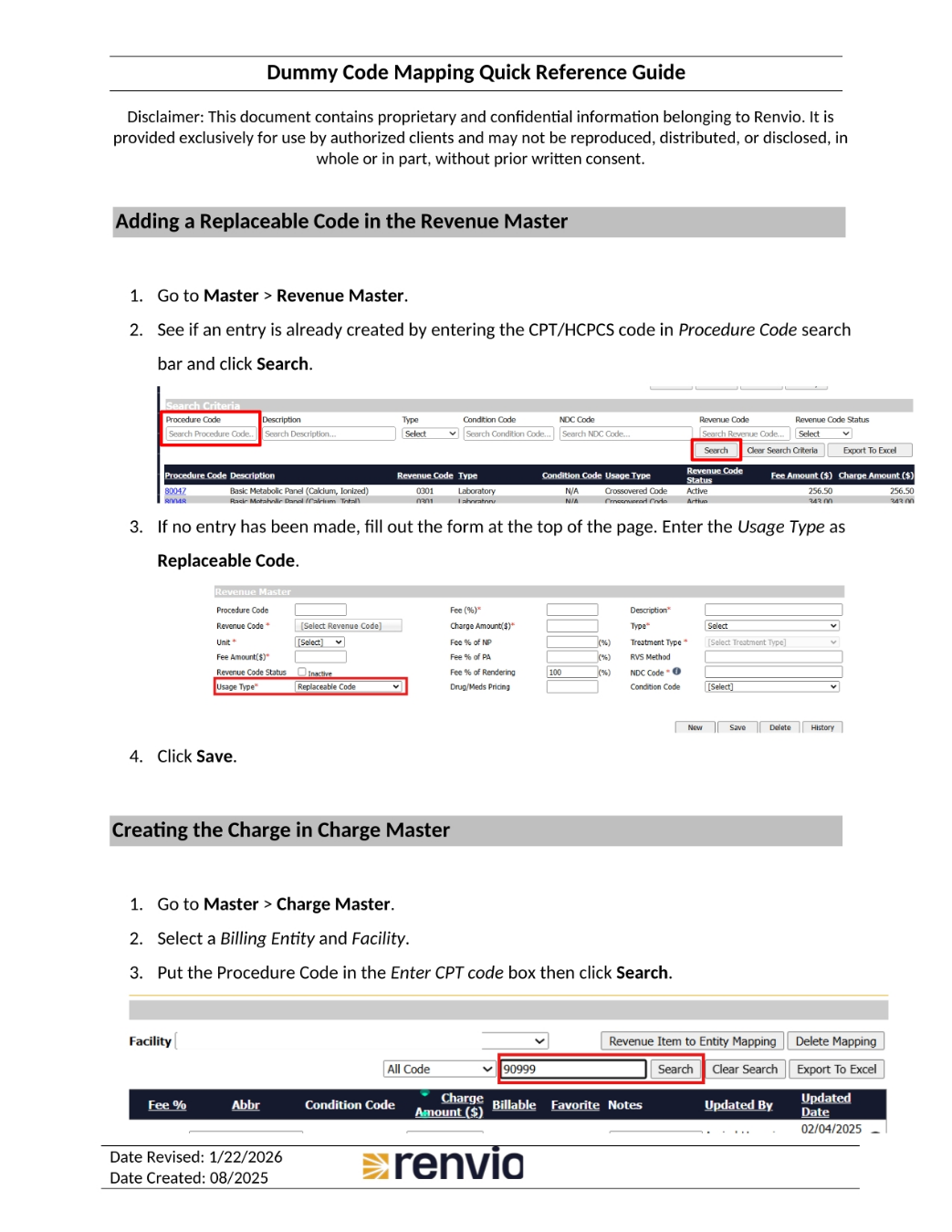
This document provides a quick reference for mapping dummy codes in Renvio. Let's begin with adding a replaceable code in the Revenue Master. First, go to Master, then Revenue Master. See if the entry exists by entering the CPT or HCPCS code in the Procedure Code search bar and click Search. If no entry has been made, fill out the form at the top of the page and enter the Usage Type as Replaceable Code. Finally, click Save.
2. Creating a Charge in Charge Master
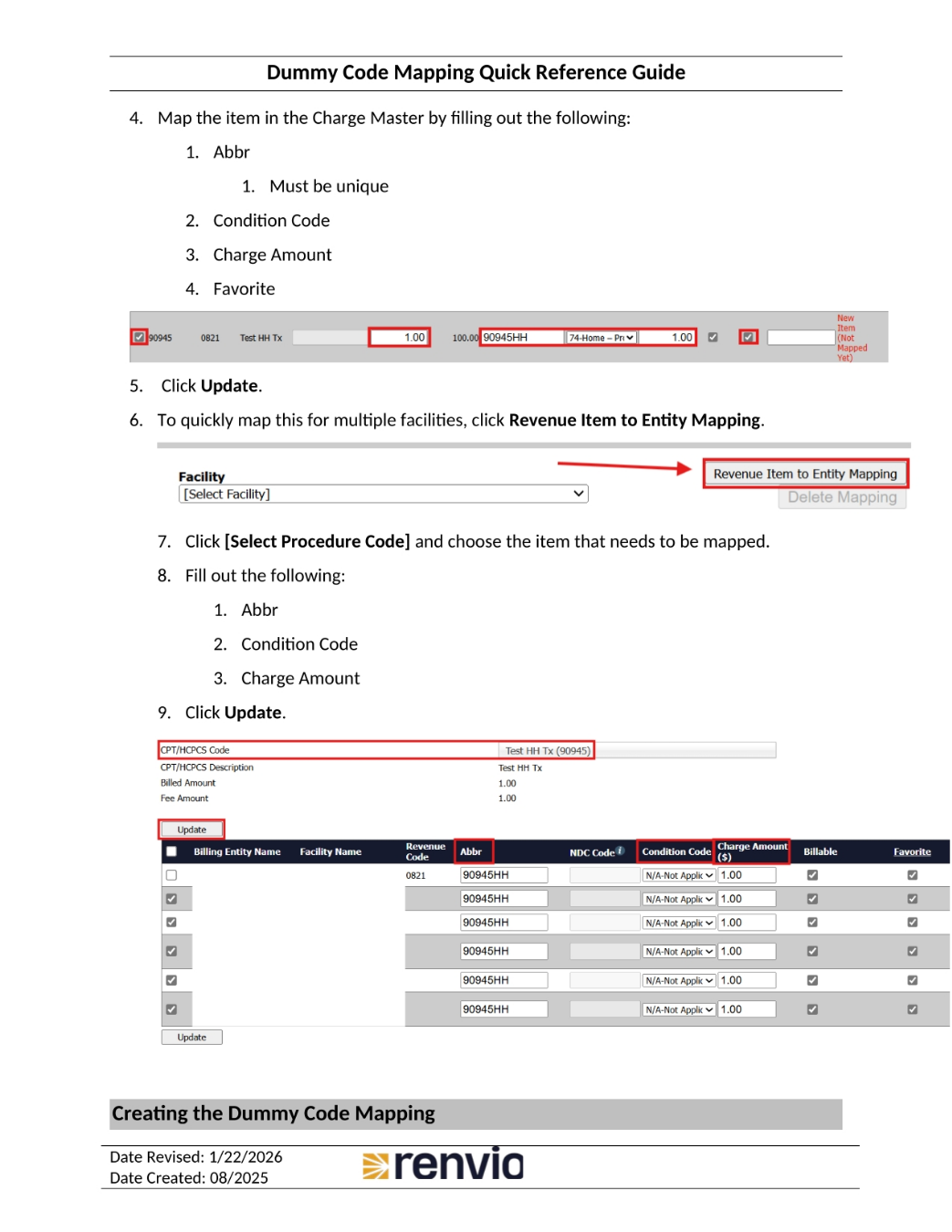
Now, let's create a charge in the Charge Master. Go to Master, then Charge Master. Select a Billing Entity and Facility. Put the Procedure Code in the Enter CPT code box, then click Search. Map the item in the Charge Master by filling out the Abbr, which must be unique, the Condition Code, the Charge Amount, and Favorite. Click Update. To quickly map this for multiple facilities, click Revenue Item to Entity Mapping. Click Select Procedure Code and choose the item that needs to be mapped. Fill out the Abbr, Condition Code, and Charge Amount, then click Update.
3. Mapping Dummy Codes
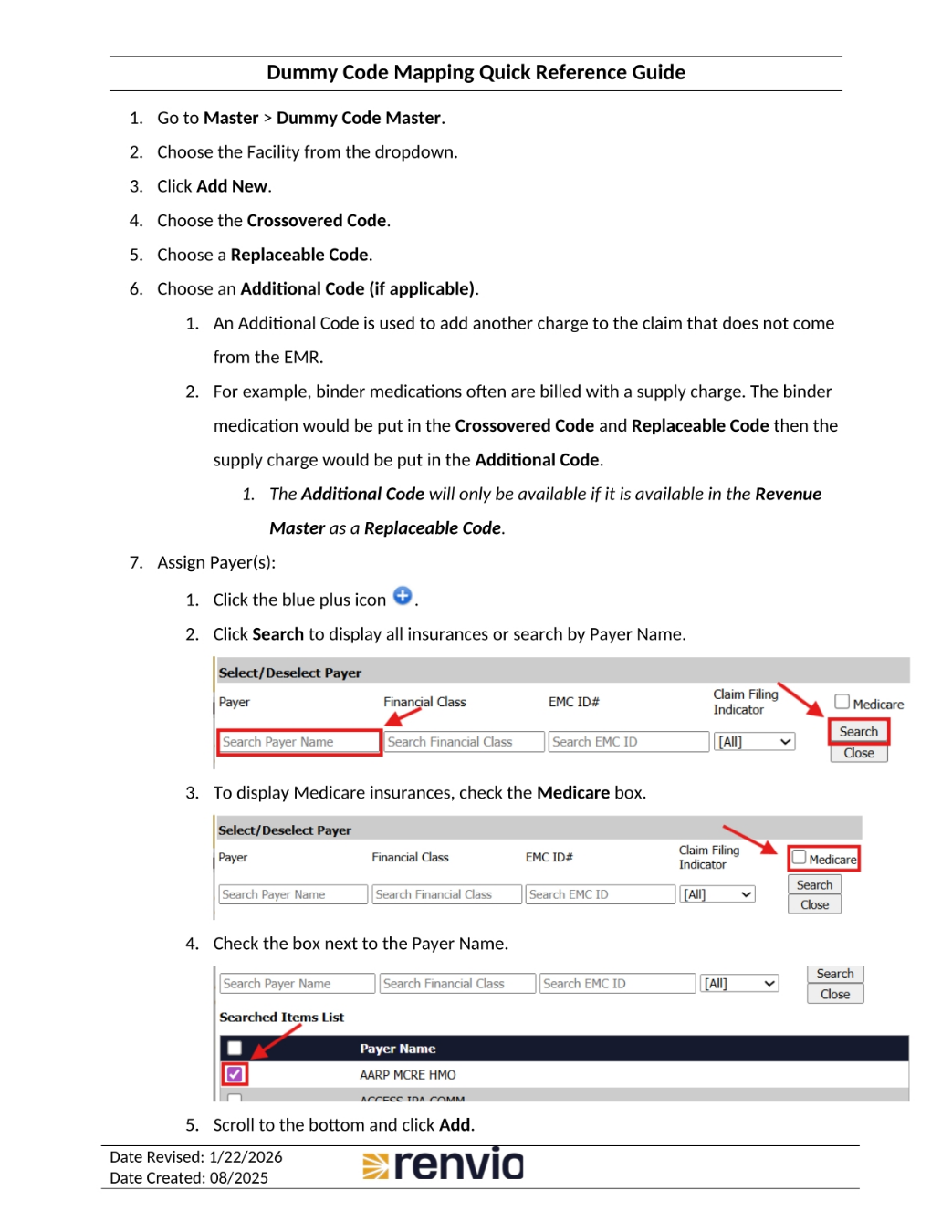
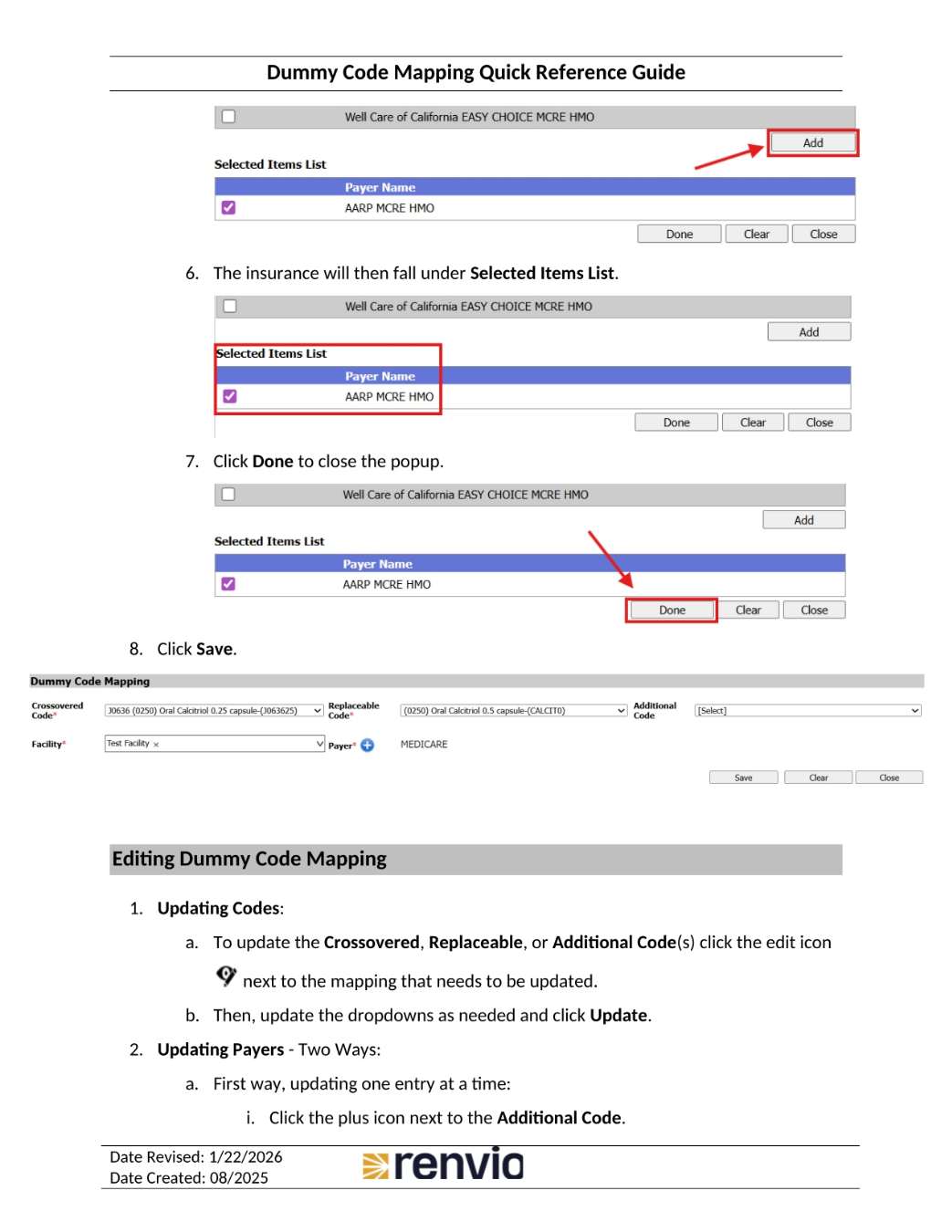
Let's move on to mapping dummy codes. Go to Master, then Dummy Code Master. Choose the Facility from the dropdown and click Add New. Choose the Crossovered Code, then choose a Replaceable Code. Choose an Additional Code if applicable. An Additional Code is used to add another charge to the claim that does not come from the EMR. Assign Payer or Payers by clicking the blue plus icon, then click Search to display all insurances or search by Payer Name. To display Medicare insurances, check the Medicare box. Check the box next to the Payer Name, then scroll to the bottom and click Add.
4. Completing Dummy Code Mapping
The insurance will then fall under Selected Items List. Click Done to close the popup. Finally, click Save. To update the Crossovered, Replaceable, or Additional Codes, click the edit icon next to the mapping that needs to be updated, then update the dropdowns as needed and click Update. There are two ways to update Payers. The first way is updating one entry at a time. Click the plus icon next to the Additional Code.
5. Updating Payer Information
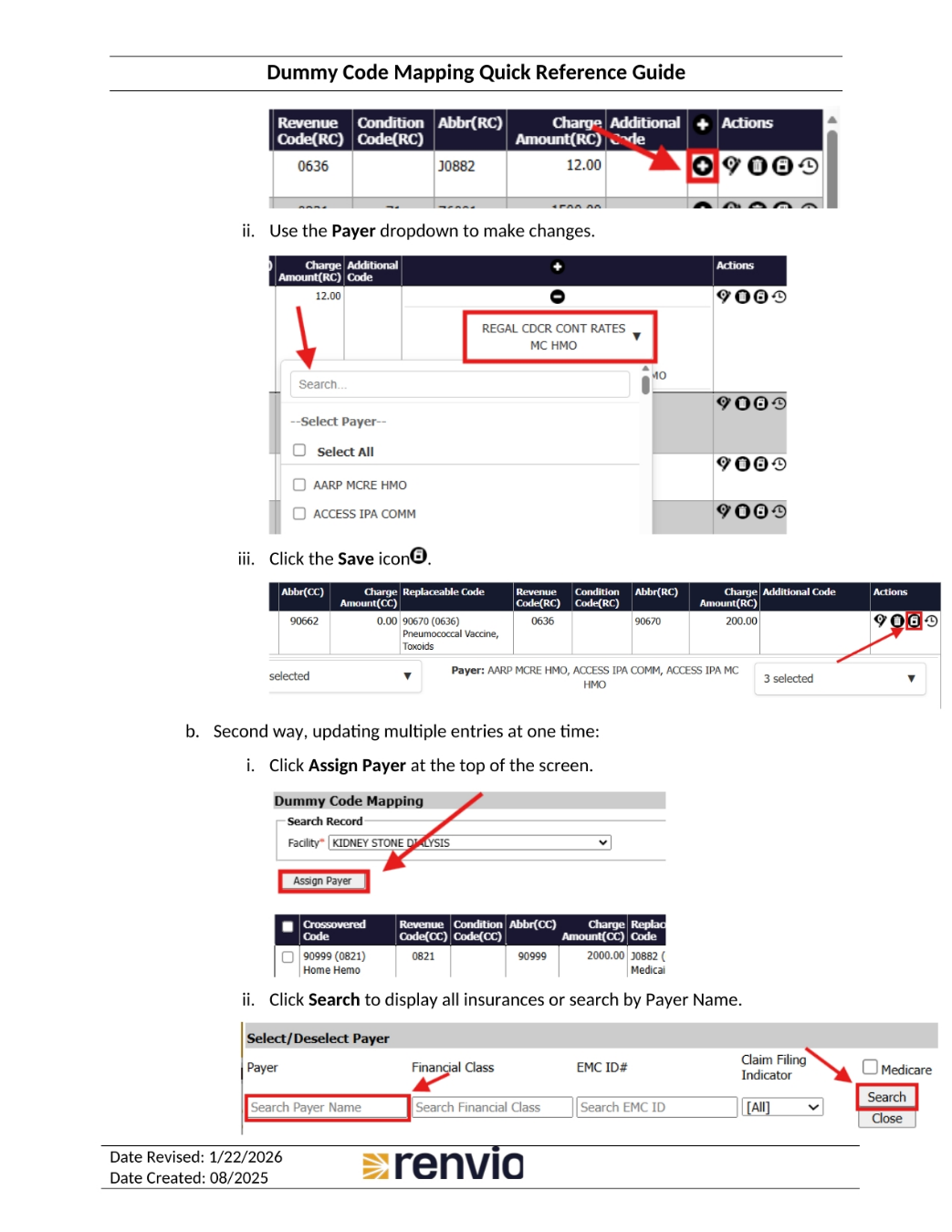
Use the Payer dropdown to make changes. Click the Save icon. The second way is updating multiple entries at one time. Click Assign Payer at the top of the screen. Click Search to display all insurances or search by Payer Name.
6. Finalizing Payer Updates
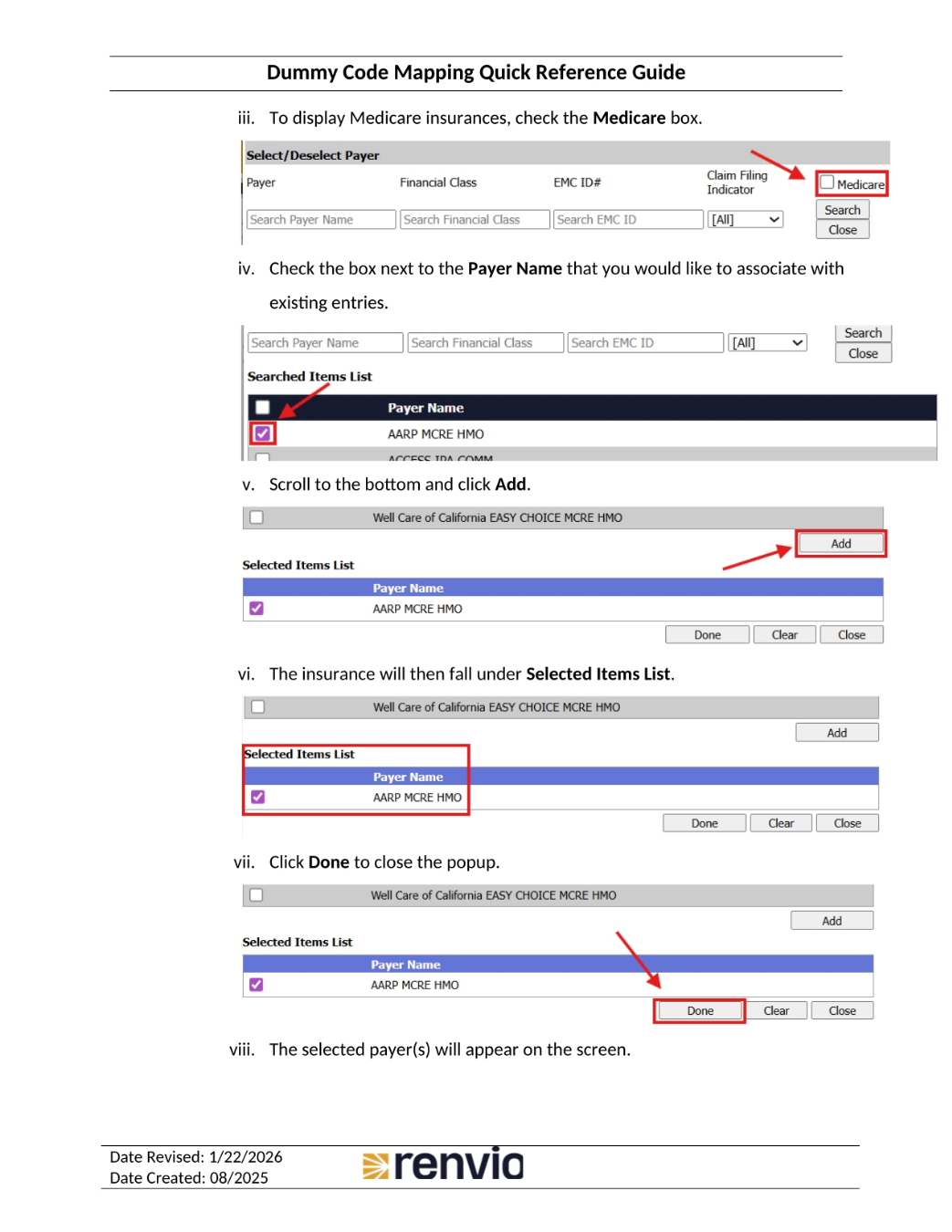
To display Medicare insurances, check the Medicare box. Check the box next to the Payer Name that you would like to associate with existing entries. Scroll to the bottom and click Add. The insurance will then fall under Selected Items List. Click Done to close the popup. The selected payer or payers will appear on the screen.
7. Adding Payers and Deleting Codes
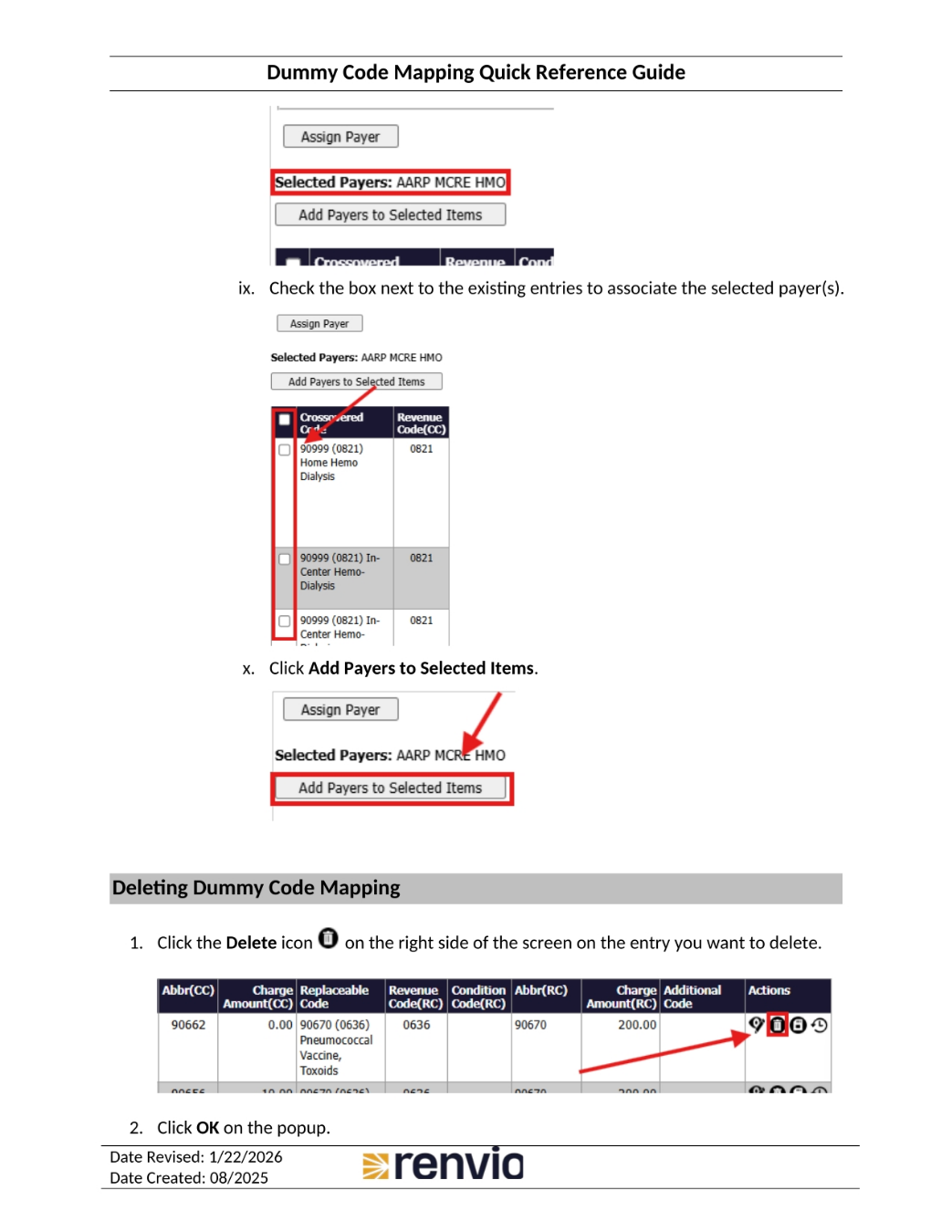
Check the box next to the existing entries to associate the selected payer or payers. Click Add Payers to Selected Items. To delete a dummy code mapping, click the Delete icon on the right side of the screen on the entry you want to delete, then click OK on the popup.
8. Reviewing History of Dummy Code Mapping
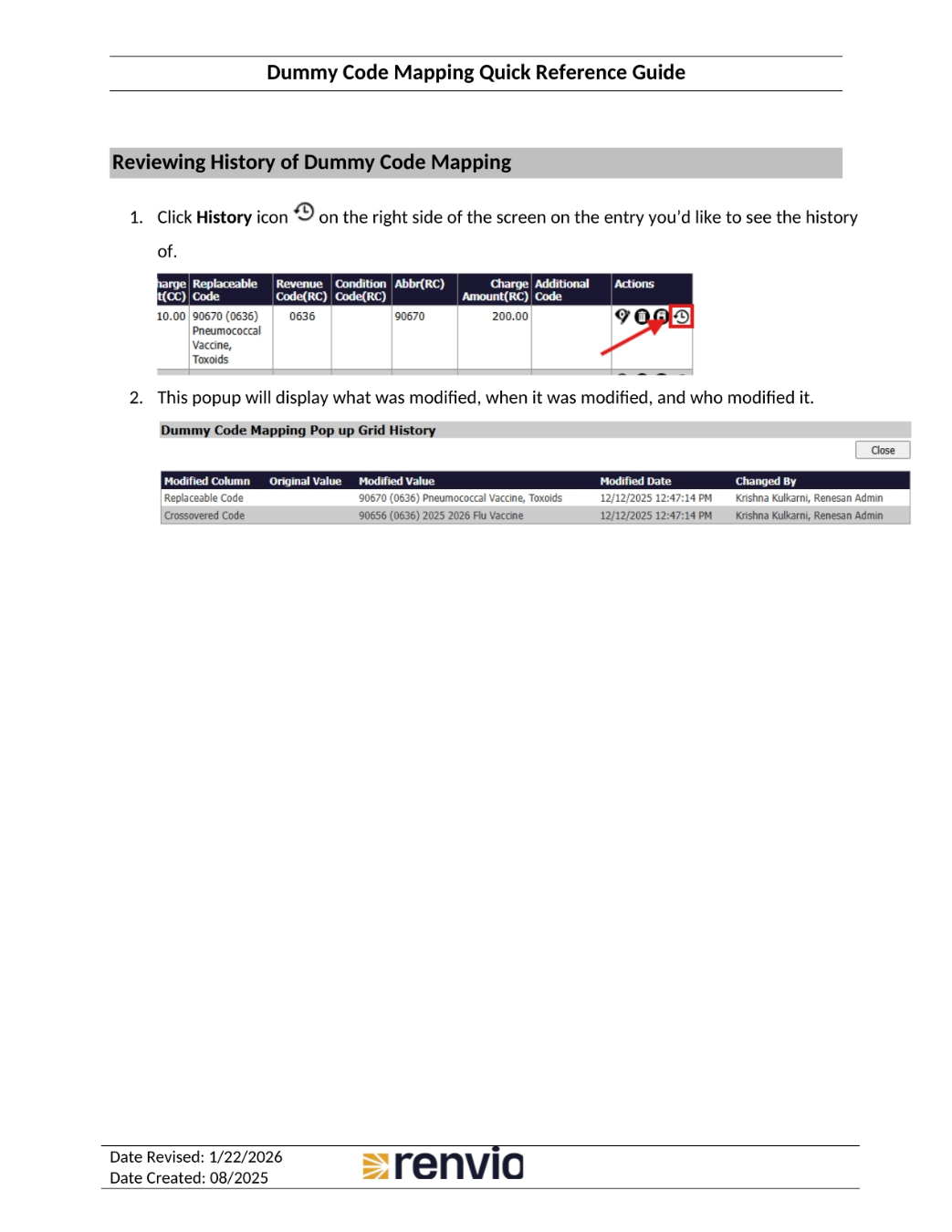
Finally, let's review the history of dummy code mapping. Click the History icon on the right side of the screen on the entry you'd like to see the history of. This popup will display what was modified, when it was modified, and who modified it.