DefenCath Billing Setup: A Quick Reference Guide
1. Adding DefenCath to Dialysis Manager
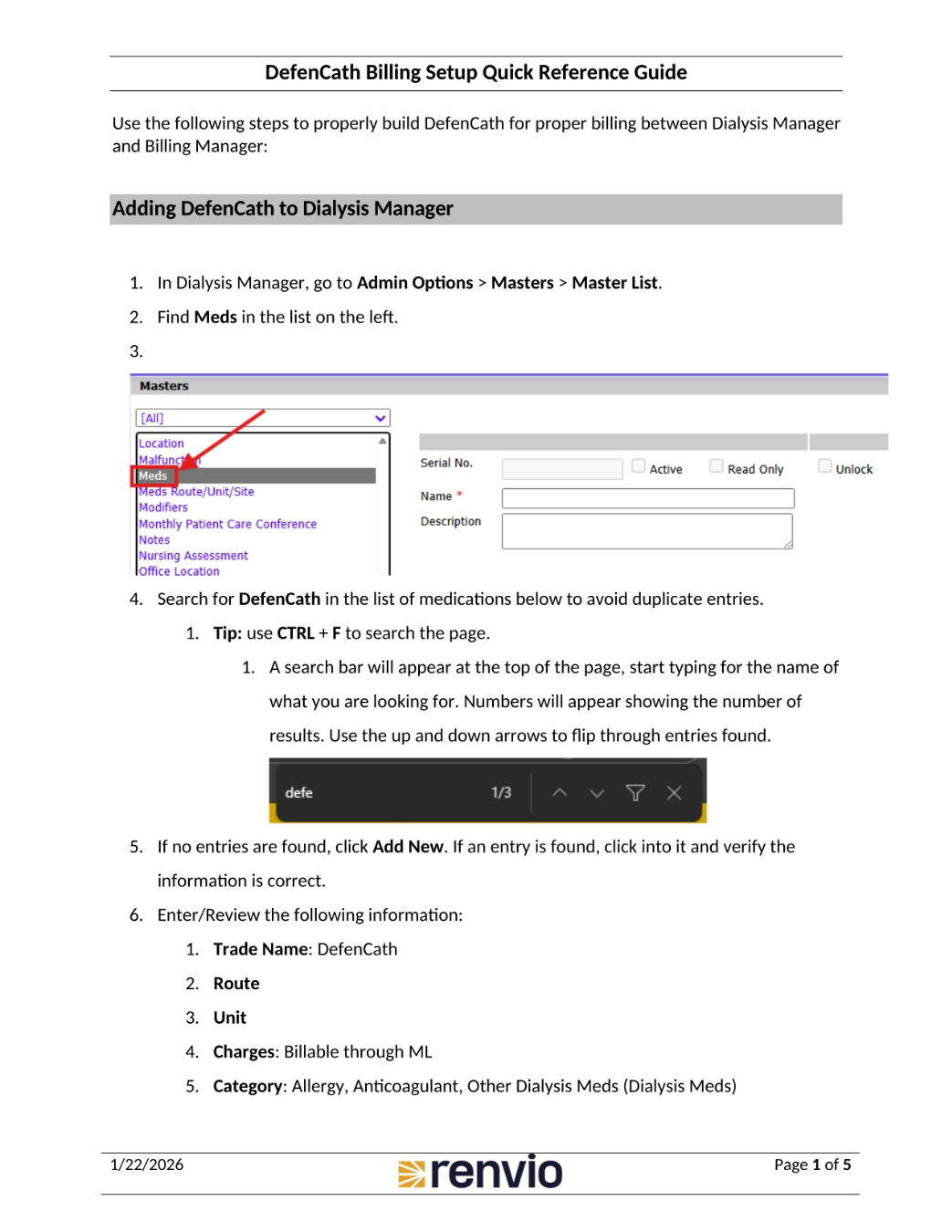
This guide outlines the steps to properly set up DefenCath for accurate billing between Dialysis Manager and Billing Manager. First, in Dialysis Manager, navigate to Admin Options, then Masters, and select Master List. Find Meds in the list on the left. Search for DefenCath to avoid creating duplicate entries. If no entries are found, click Add New. Finally, enter the trade name, route, unit, charges, and category information.
2. Adding DefenCath to Dose Detail Master
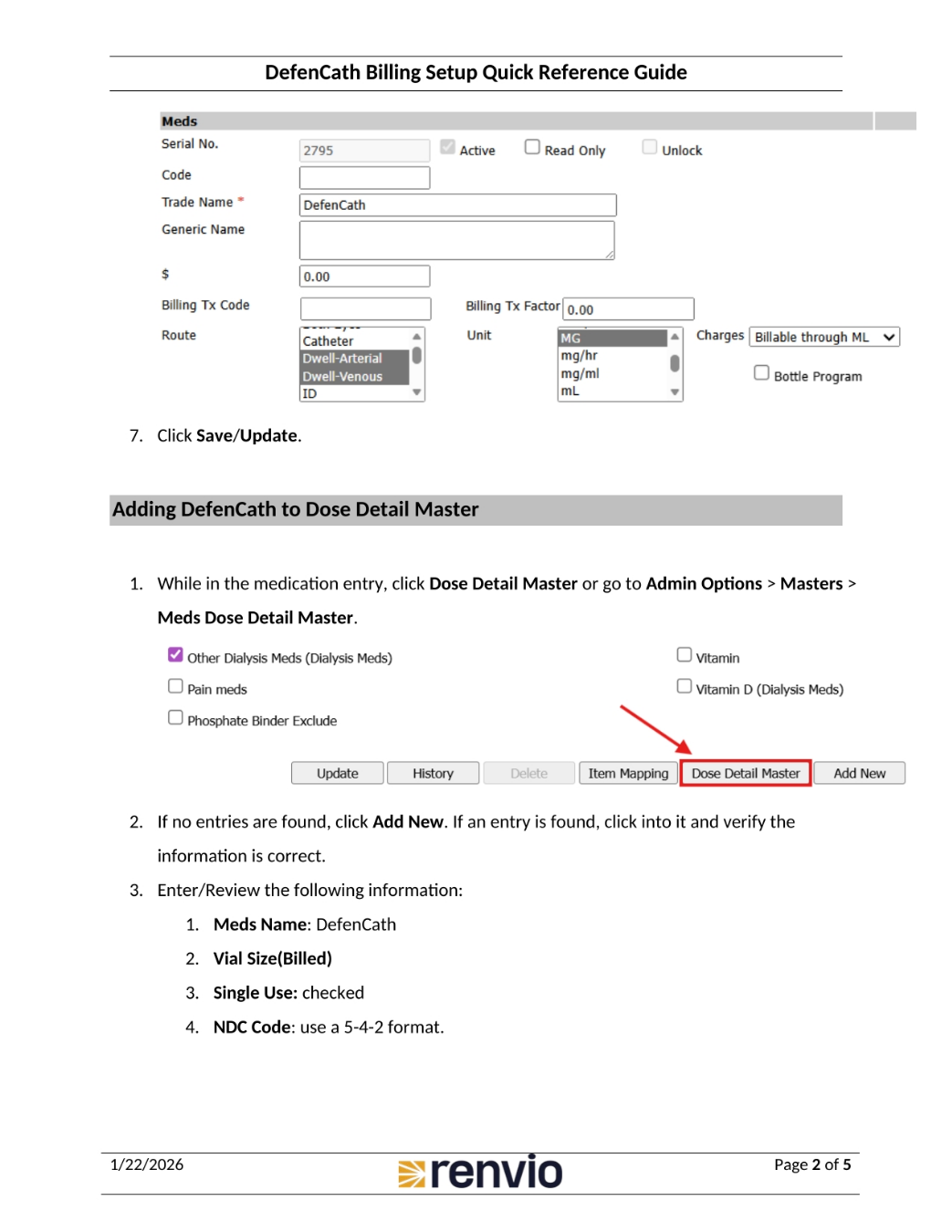
While in the medication entry, click Dose Detail Master or go to Admin Options, Masters, and Meds Dose Detail Master. If no entries are found, click Add New. Then, enter the Meds Name as DefenCath, the Vial Size, and ensure Single Use is checked. Finally, enter the NDC Code, using a 5-4-2 format. Click Save/Update to finalize the changes.
3. Updating Billing Setup in Dialysis Manager
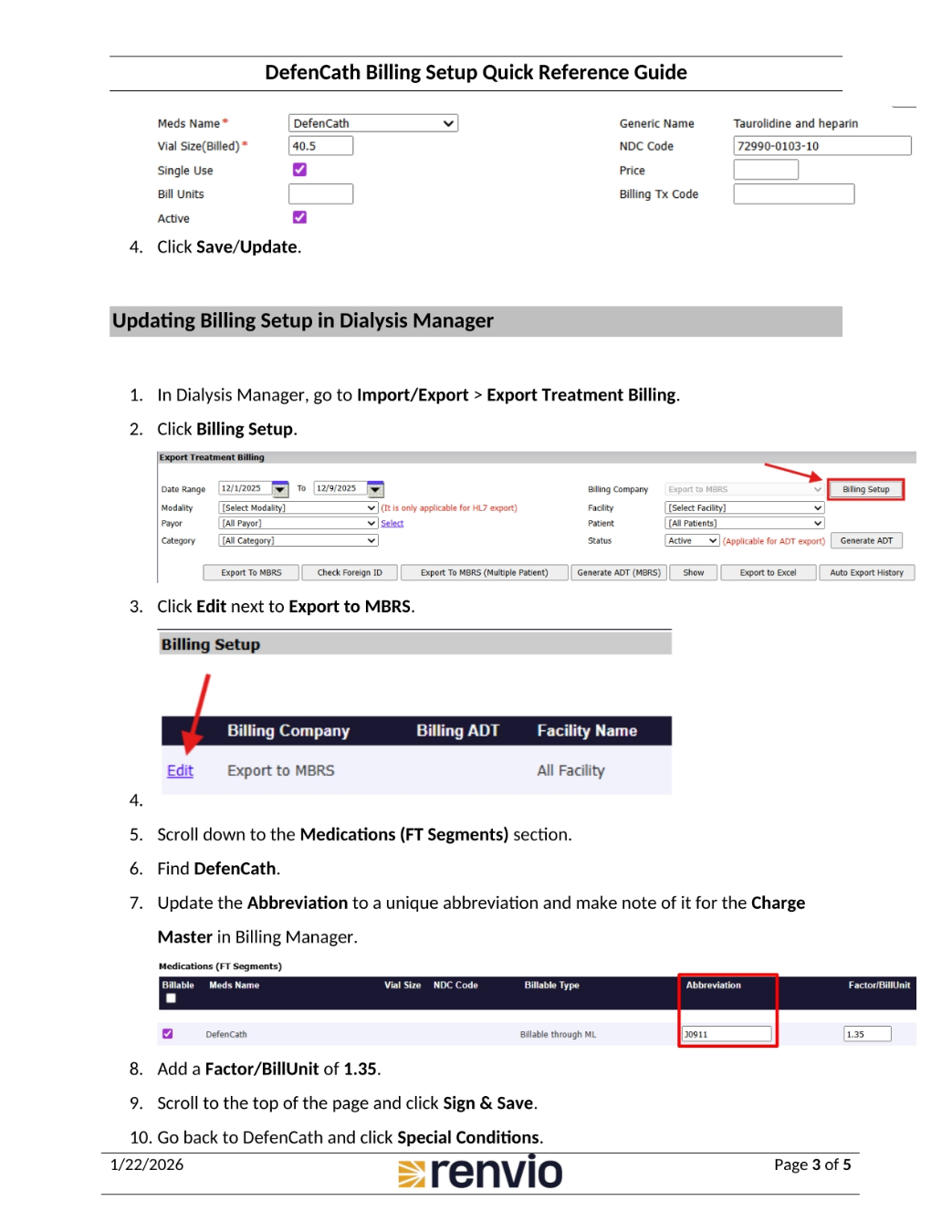
To update the billing setup, go to Import/Export, then Export Treatment Billing. Click Billing Setup. Next, click Edit next to Export to MBRS. Scroll down to the Medications section and find DefenCath. Update the Abbreviation to a unique identifier and note it for the Charge Master in Billing Manager. Add a Factor/BillUnit of 1.35. Scroll to the top, click Sign & Save, then return to DefenCath and click Special Conditions.
4. Adding DefenCath to the Revenue Master in Billing Manager
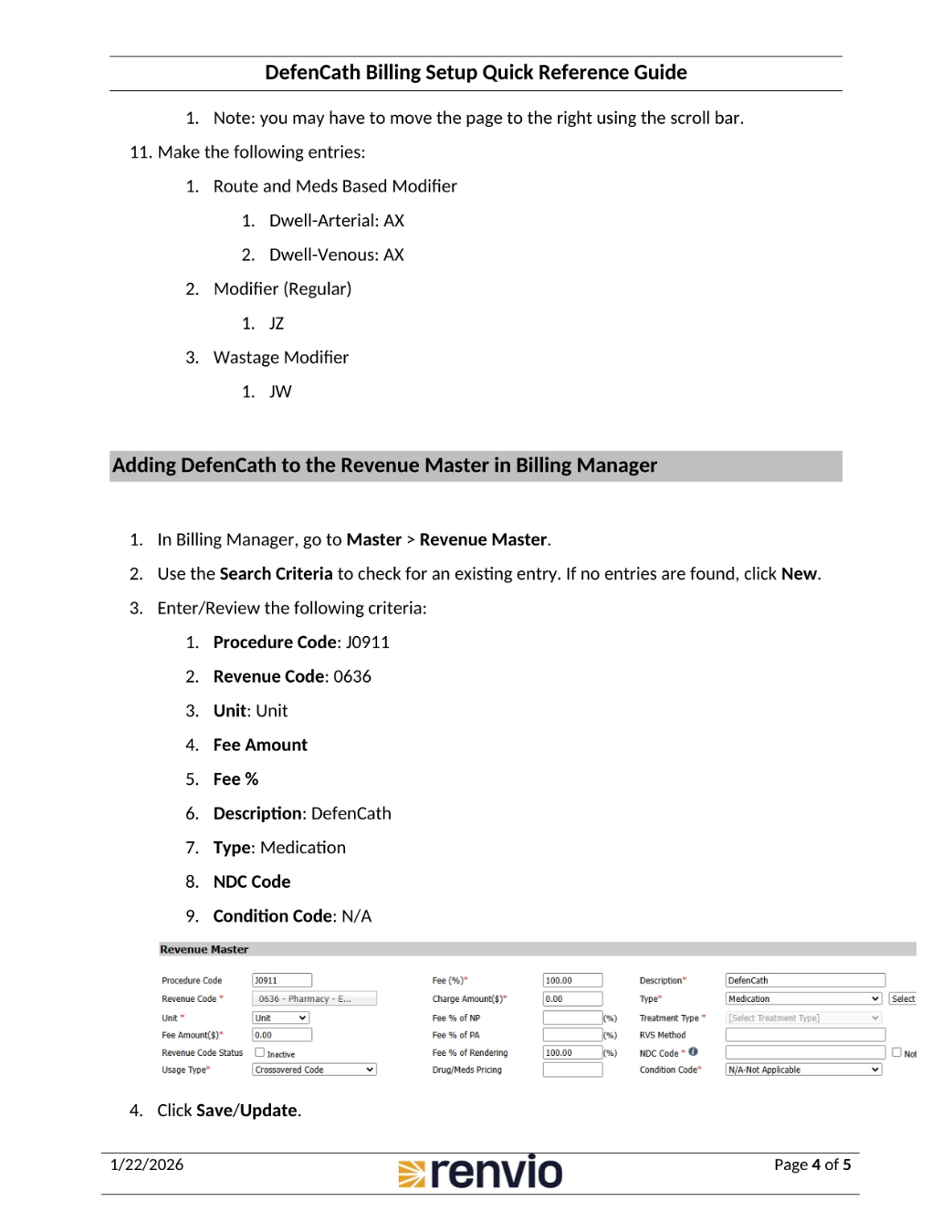
In Billing Manager, go to Master, then Revenue Master. Use the Search Criteria to check for an existing entry; if none are found, click New. Enter the Procedure Code as J0911, Revenue Code as 0636, Unit as Unit, and fill in the Fee Amount and Fee percentage. Add DefenCath as the description and select Medication as the type. Include the NDC Code and Condition Code as N/A. Click Save/Update.
5. Adding DefenCath to the Charge Master in Billing Manager
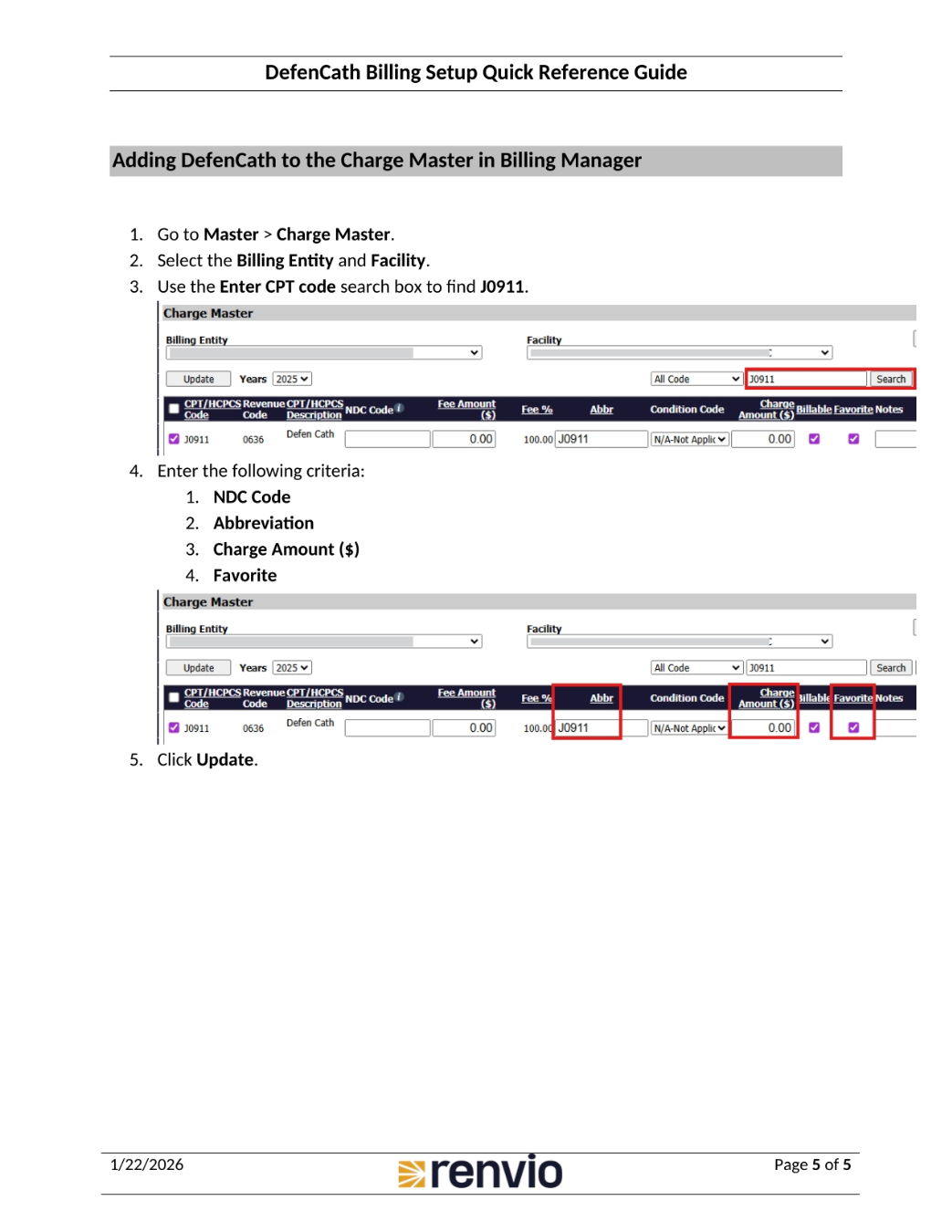
To add DefenCath to the Charge Master, go to Master, then Charge Master. Select the Billing Entity and Facility. Use the Enter CPT code search box to find J0911. Enter the NDC Code, Abbreviation, Charge Amount, and mark it as a Favorite. Finally, click Update to save the changes.