Configure 2026-2027 Flu Vaccines in Billing Manager
This tutorial explains how to configure 2026-2027 flu vaccines in Billing Manager.
Go to bmmttest.renvio.com
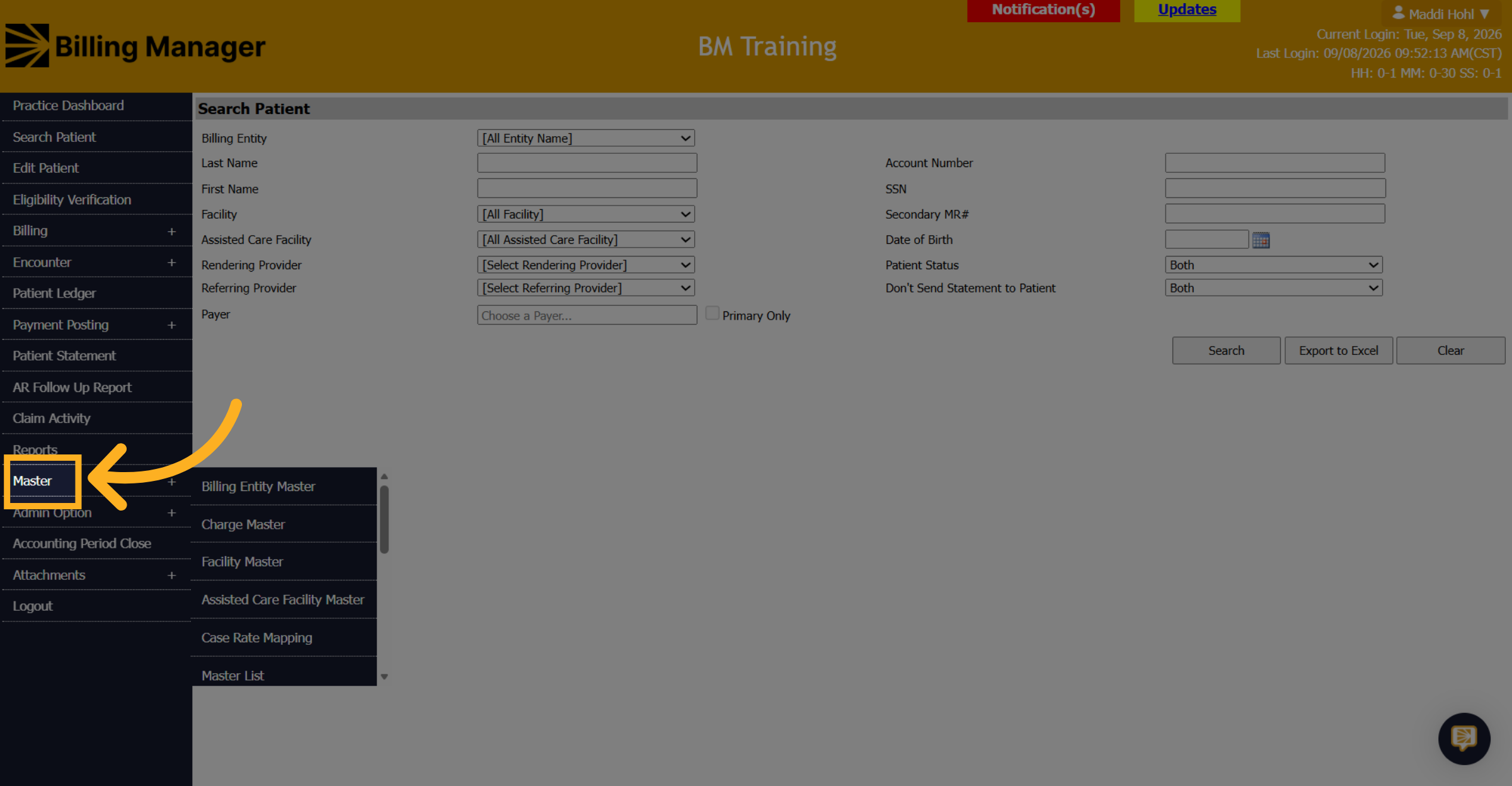
1. Access Master Section
Navigate to Master.
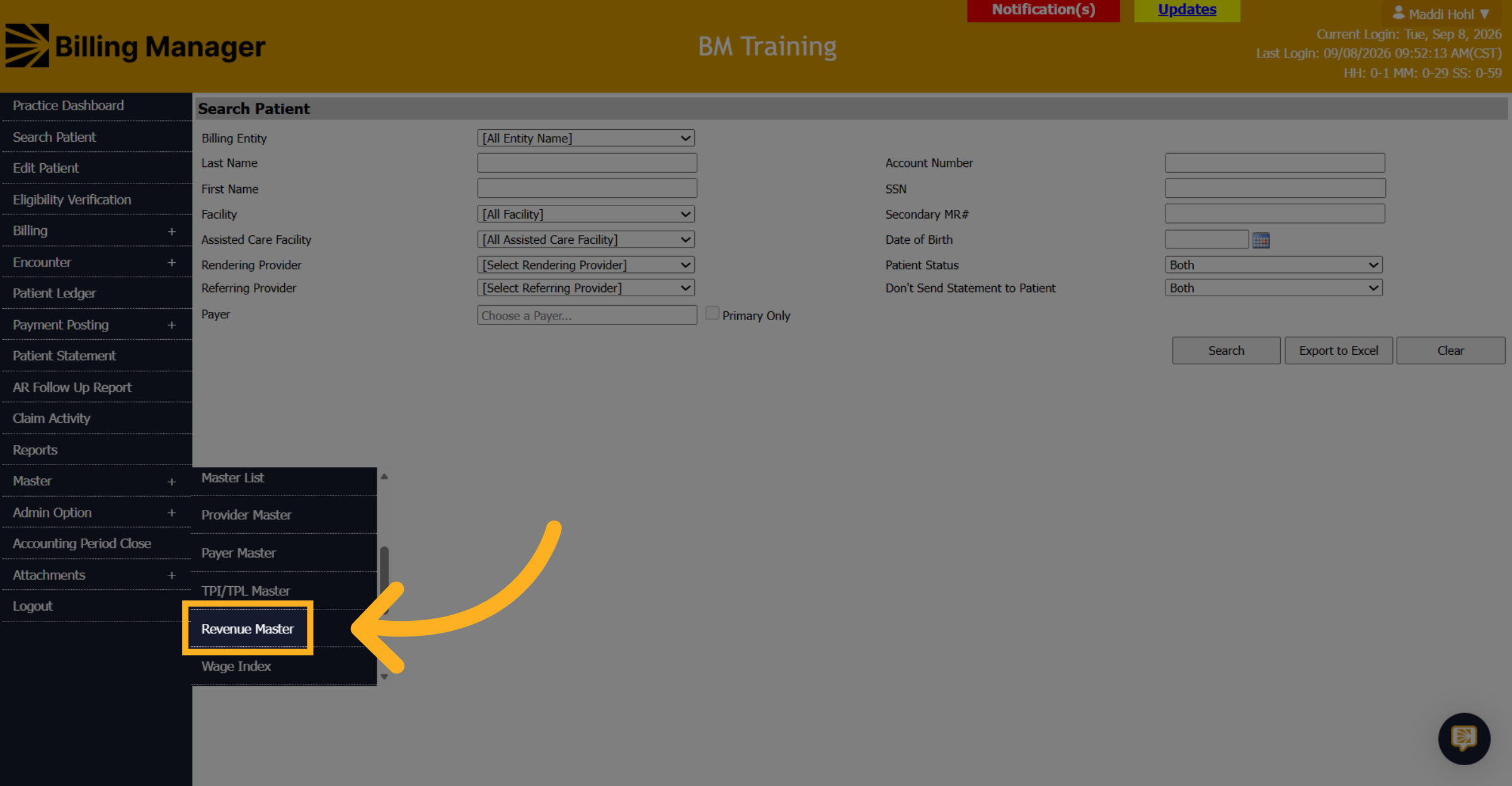
2. Open Revenue Master
Click Revenue Master.
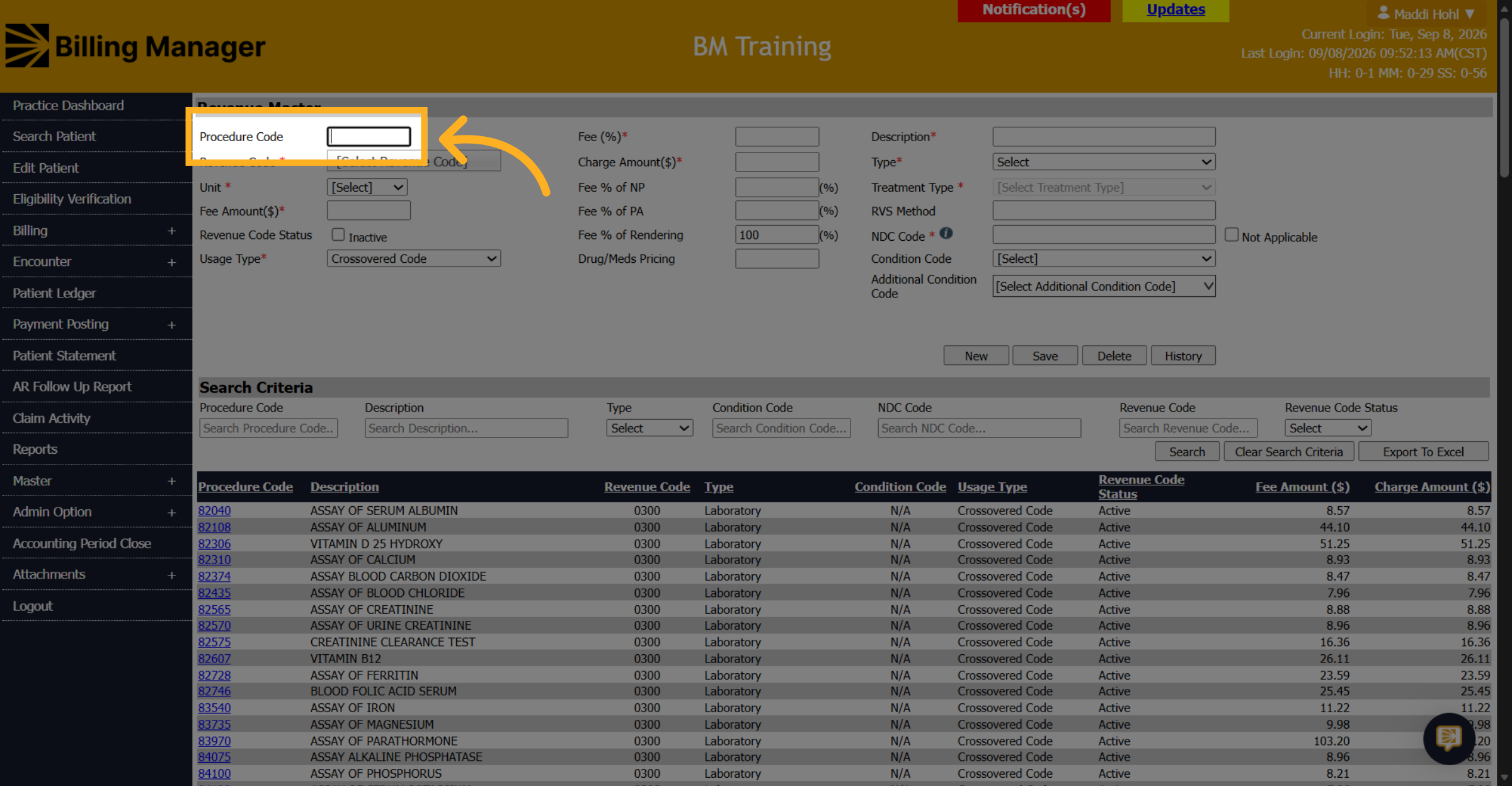
3. Enter the Procedure Code
Begin by entering the procedure code.
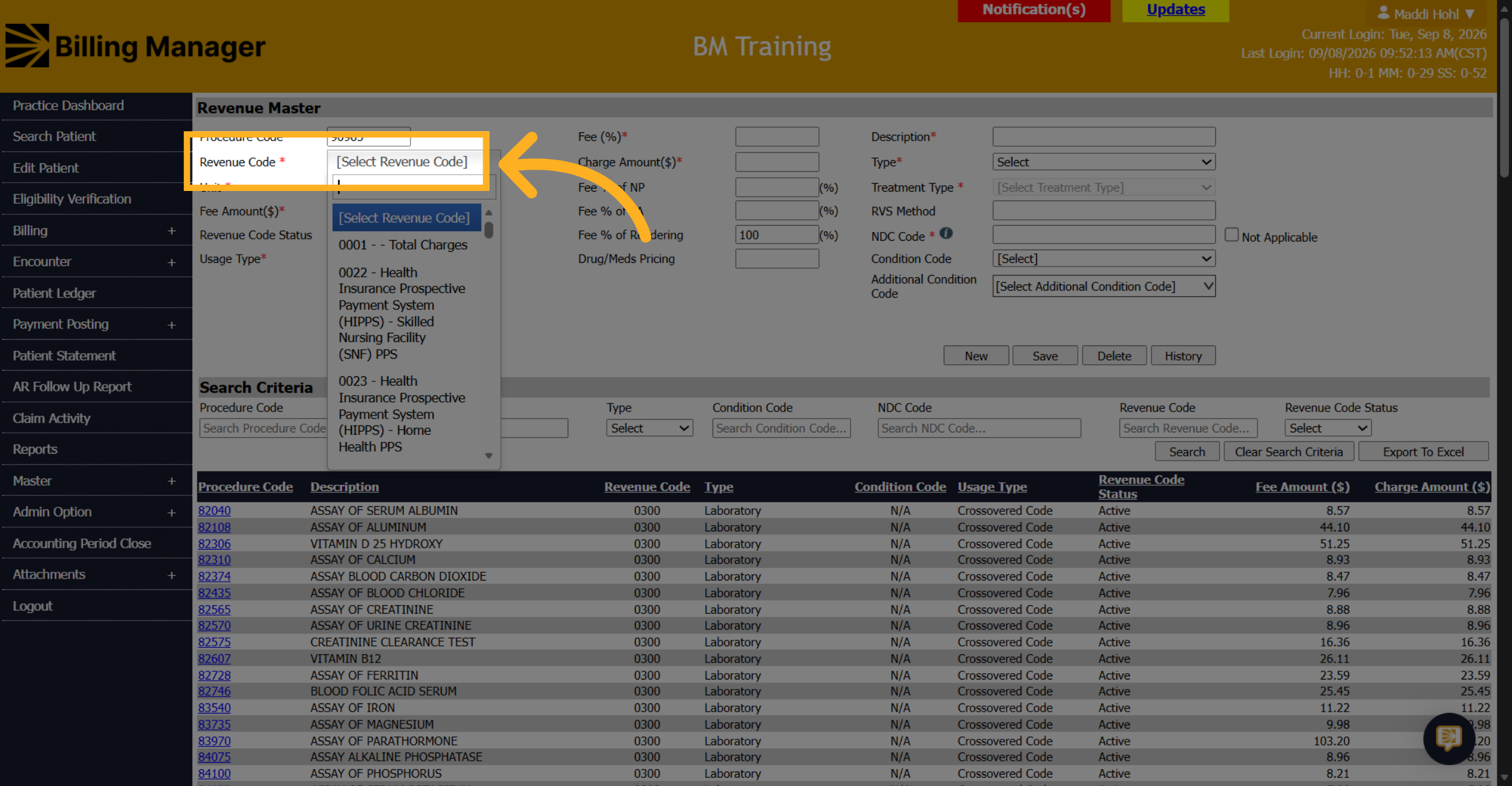
4. Select Revenue Code
Choose the appropriate revenue code.
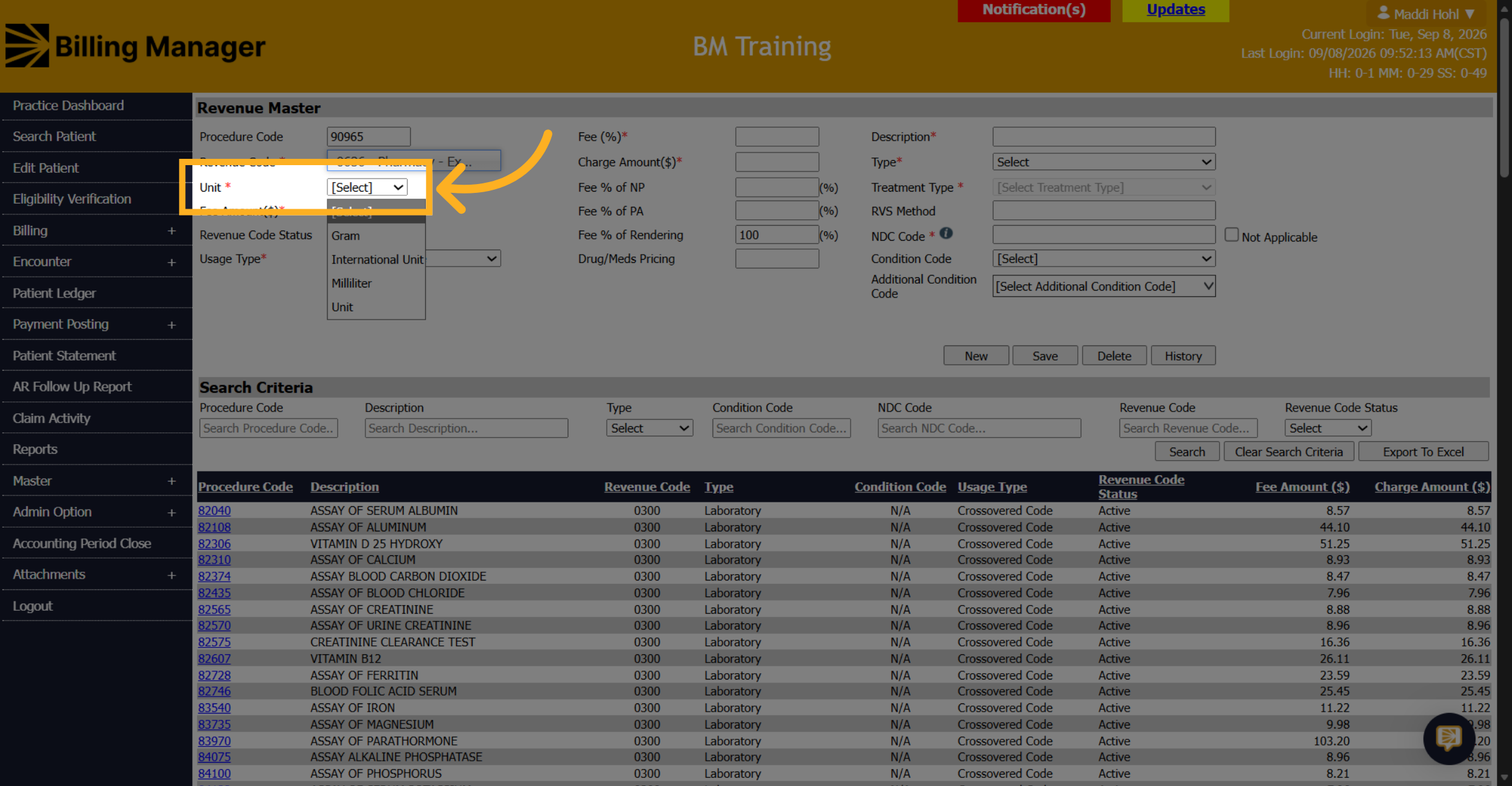
5. Choose a Unit
Select a Unit.
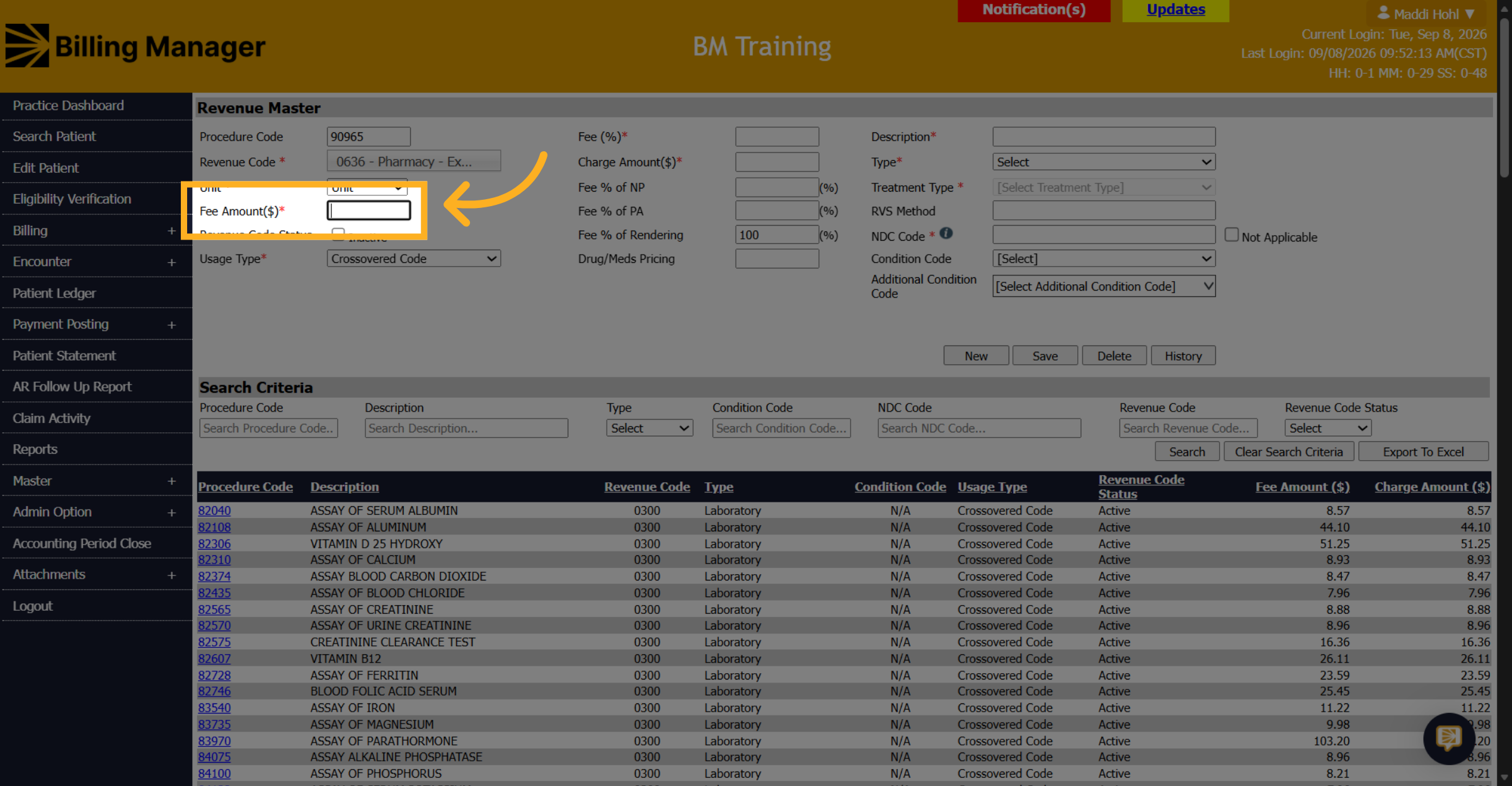
6. Enter a Fee Amount
Enter a fee amount.
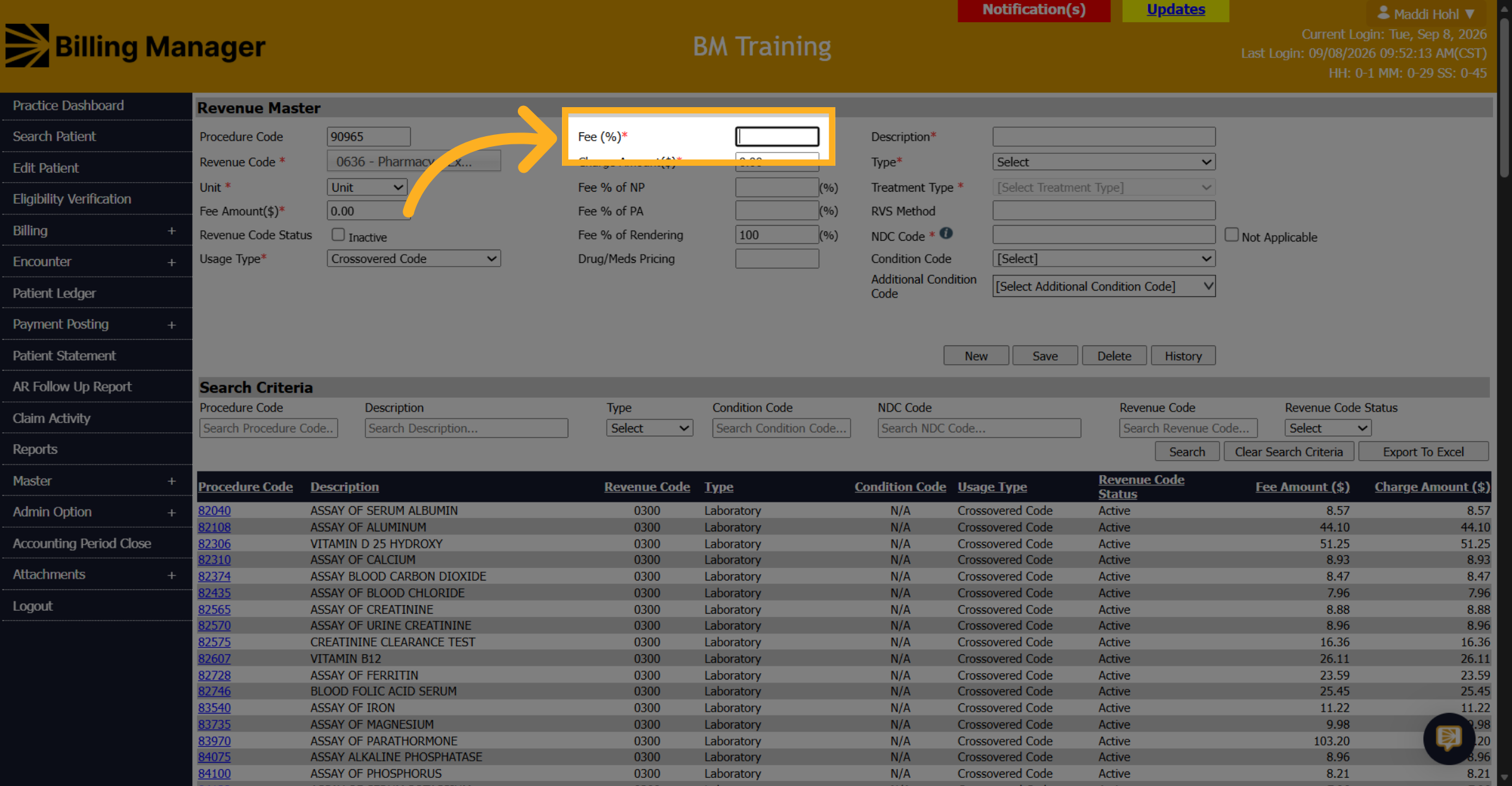
7. Enter a Fee Percent
Enter a fee percentage.
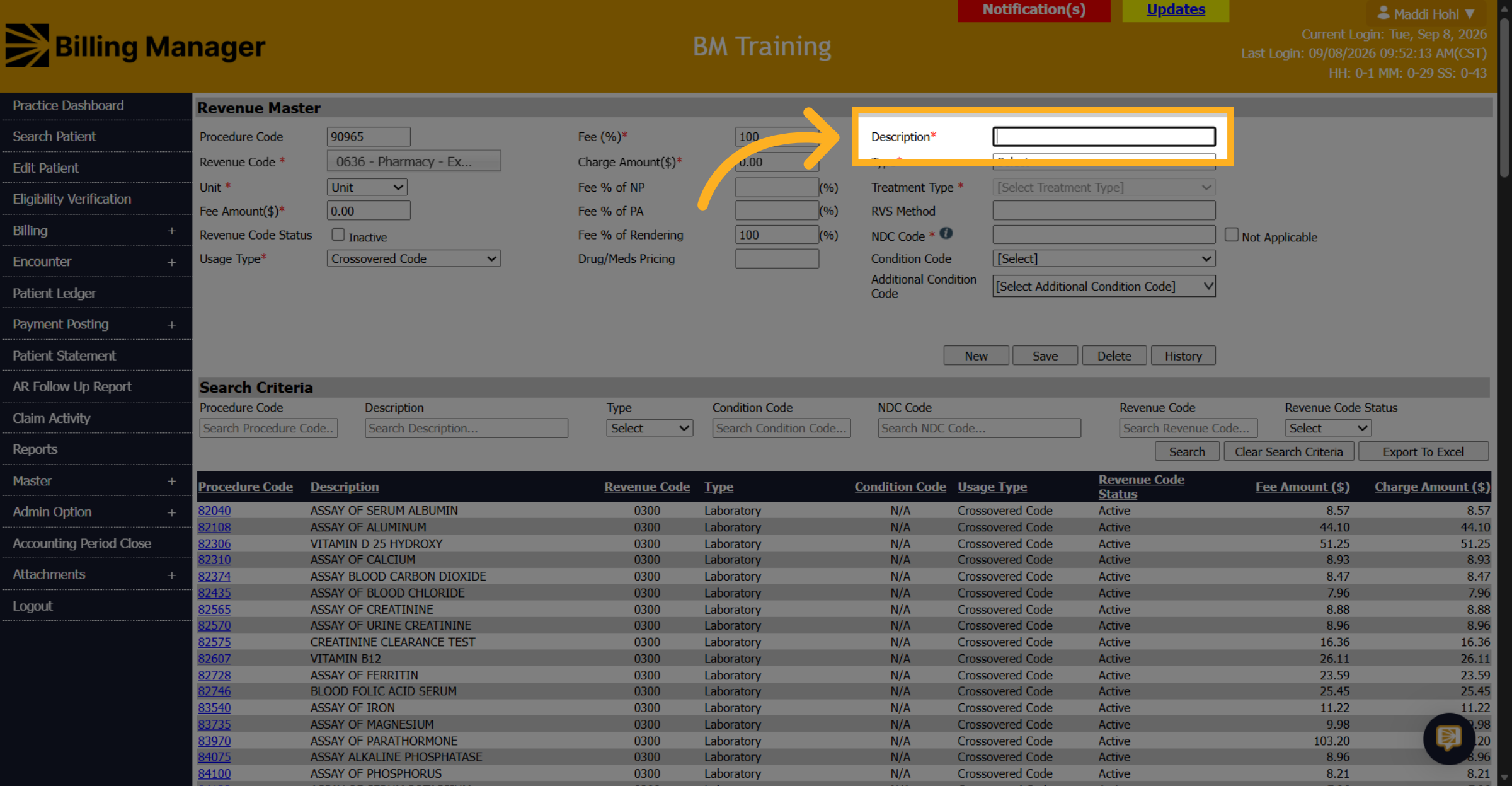
8. Put in a Description
In the description, enter the flu vaccines name and year.
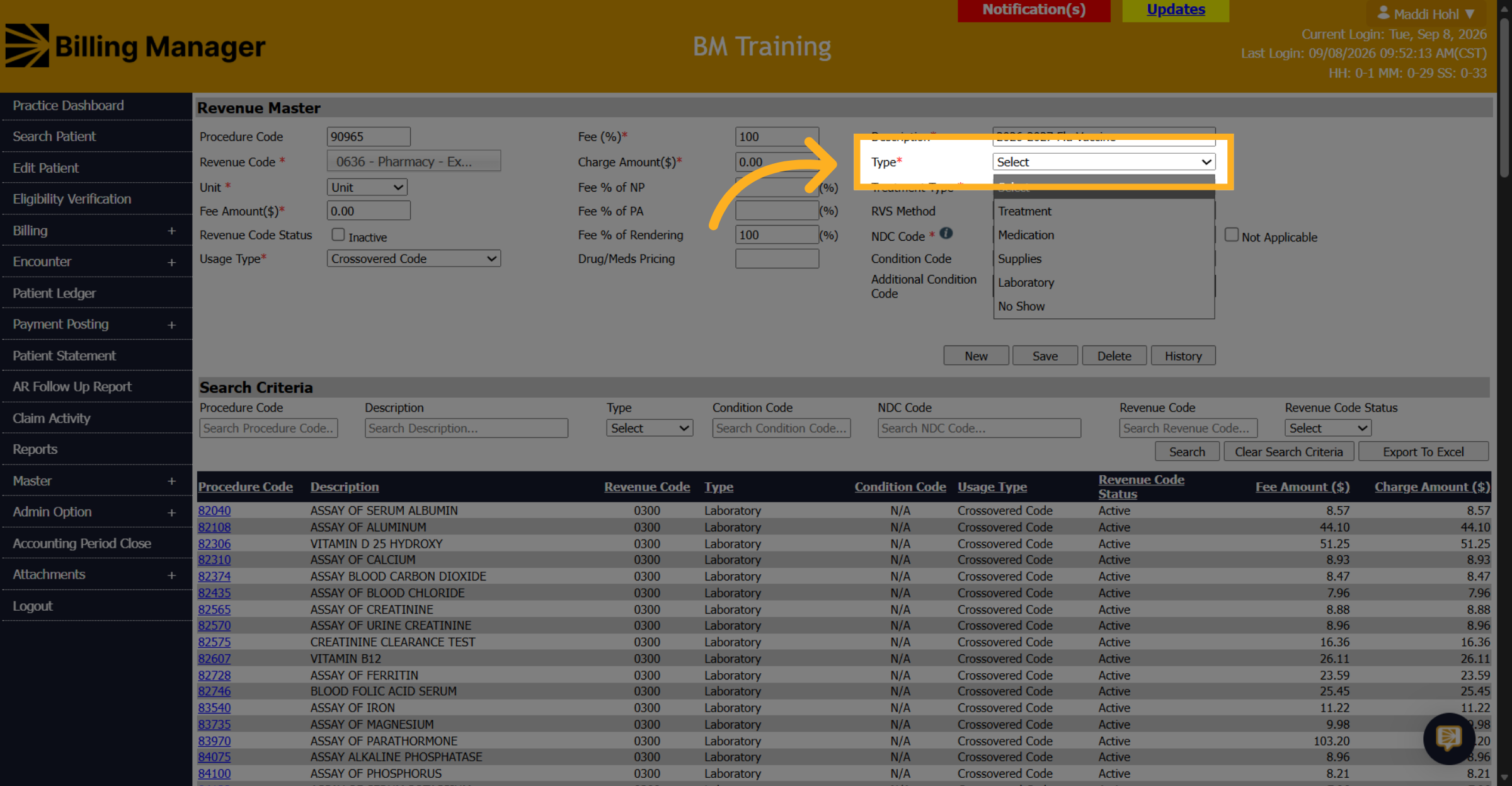
9. Select a Type
Selec the type as a medication.
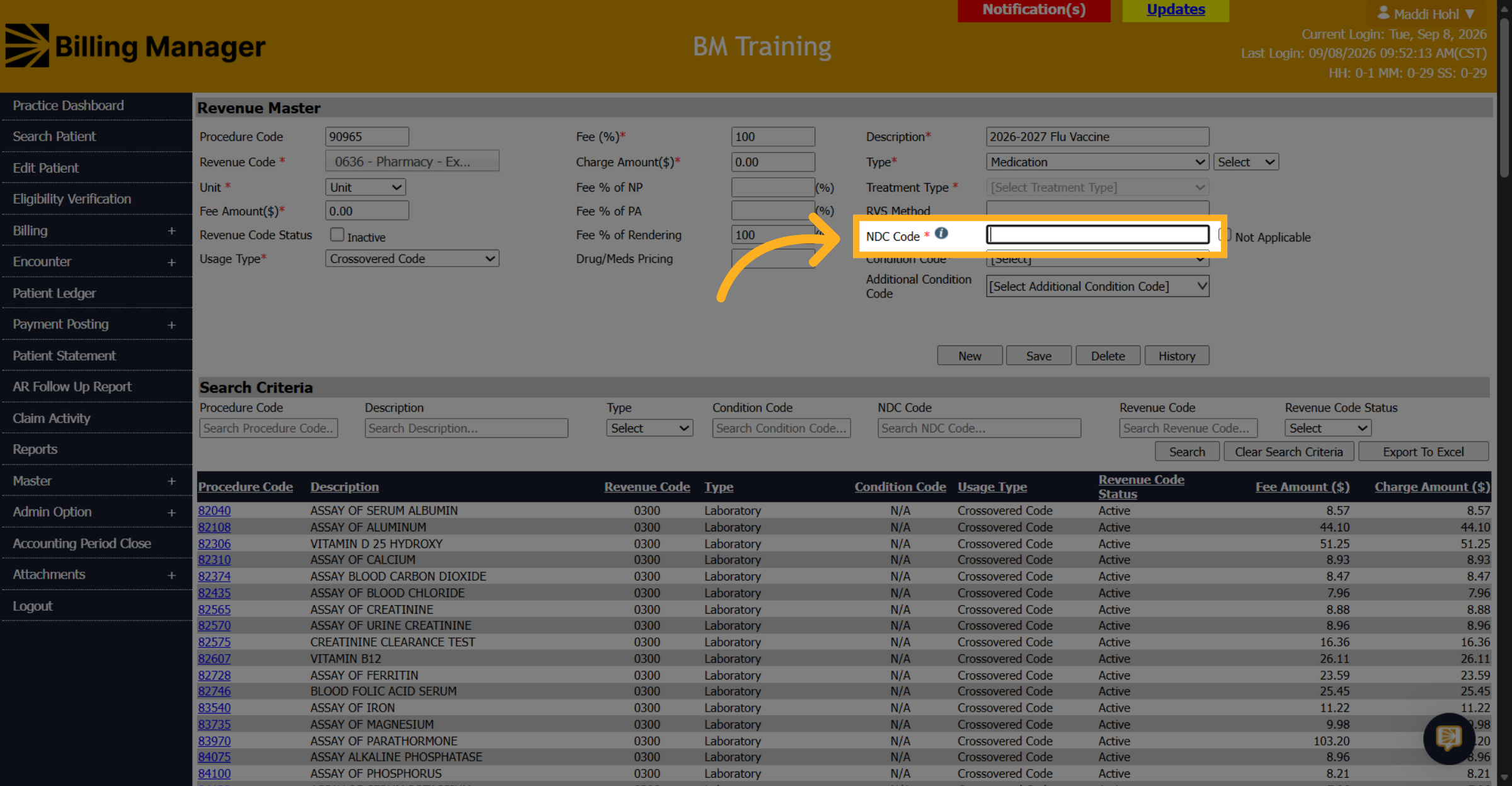
10. Enter an NDC Code
Enter the NDC code with the 5-4-2 format. If you are unsure how to enter the correct format, click the 'i' icon next to the box.
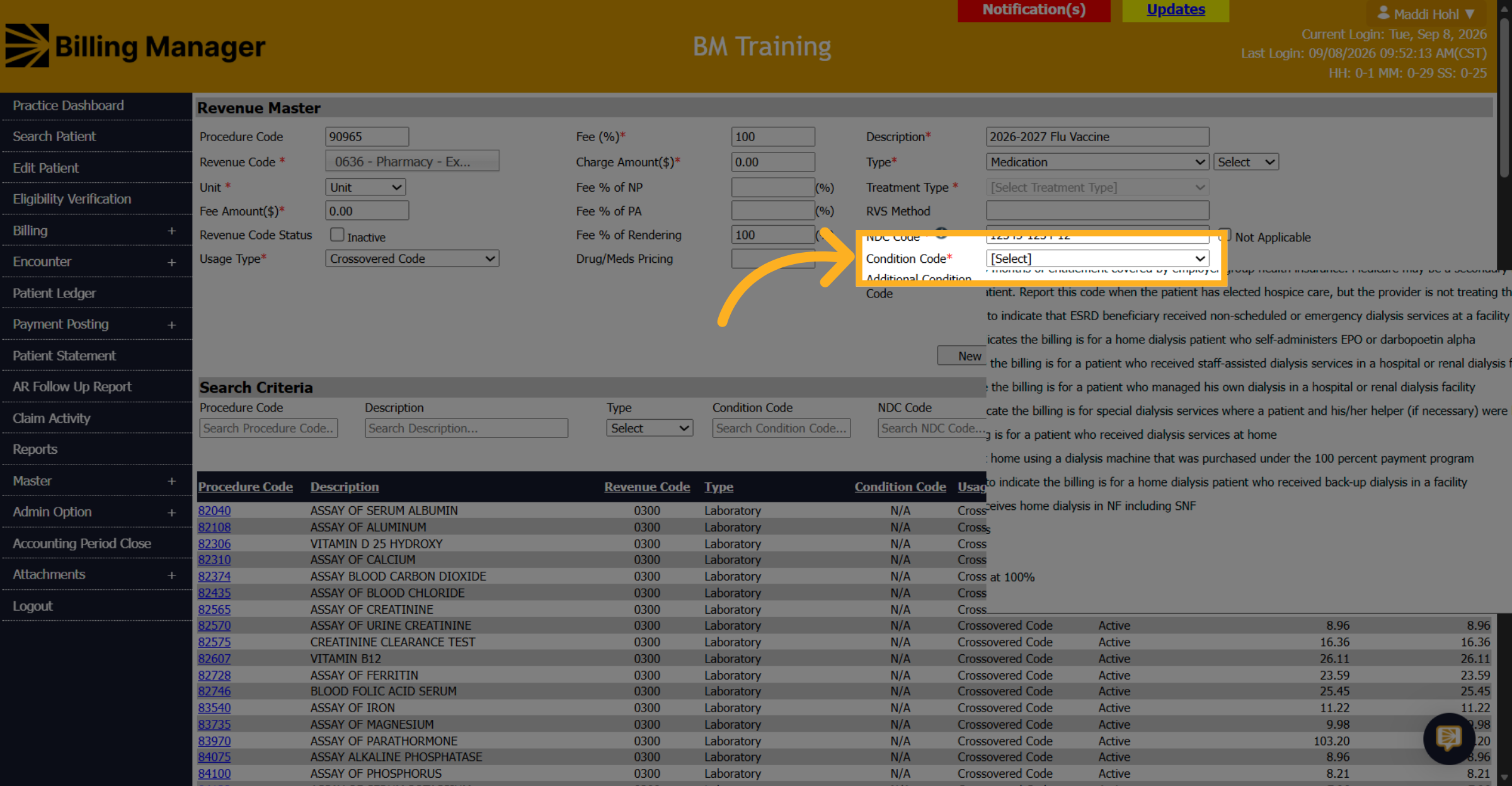
11. Select Condition Code
Choose the condition code.
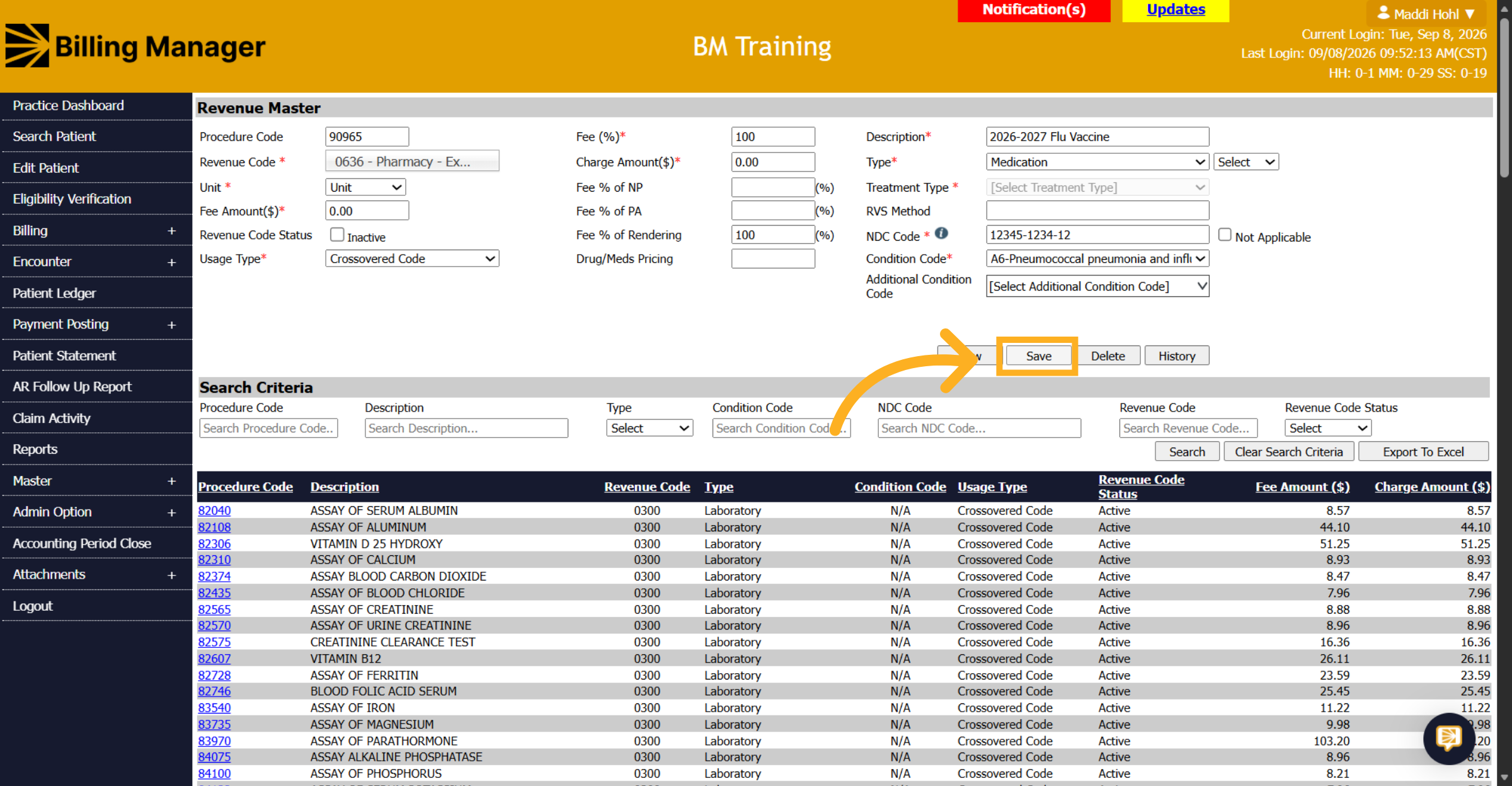
12. Save the Entry
Click save.
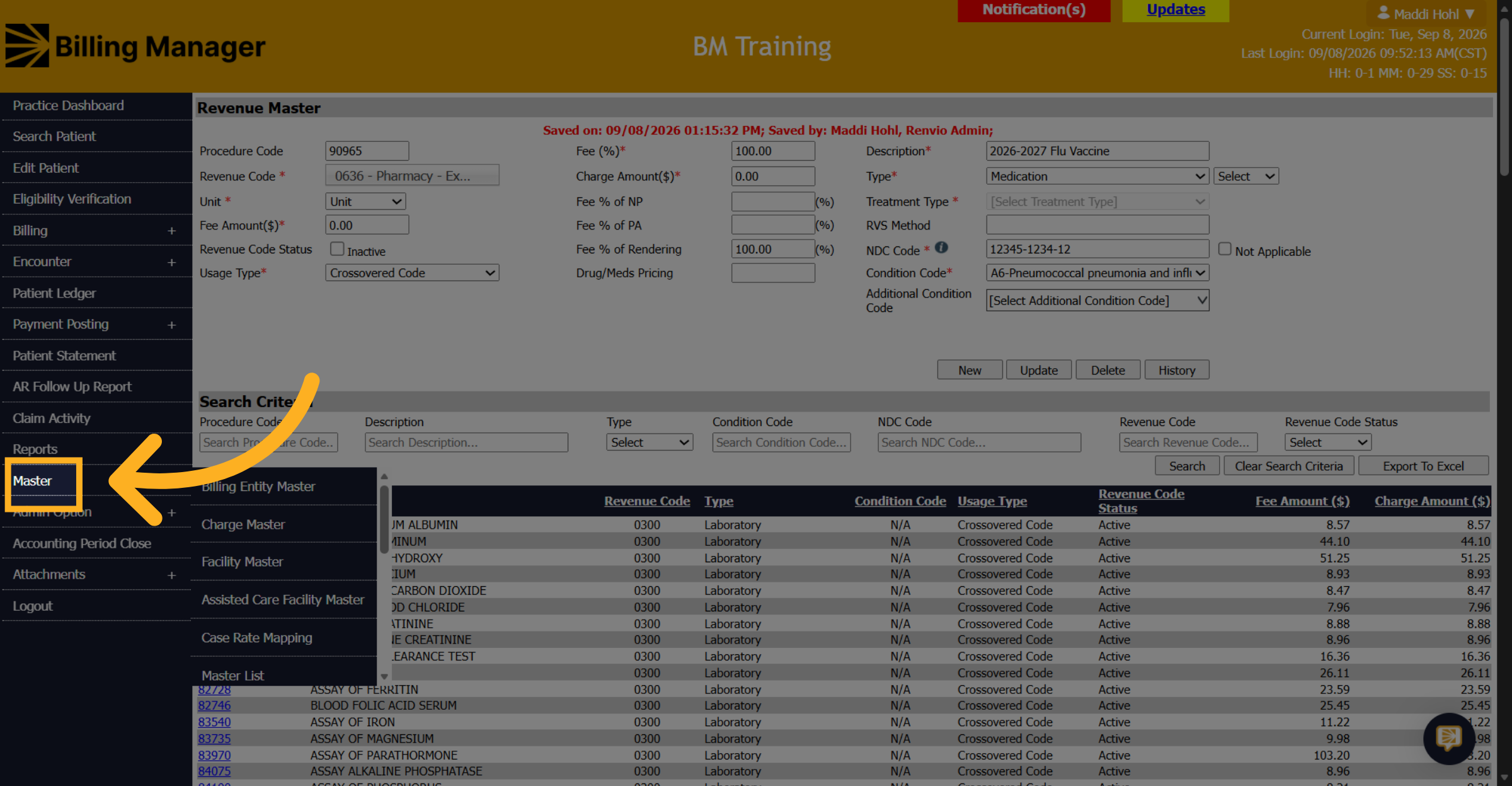
13. Click Master
After the vaccines have been entered in the Revenue Master, hover over Master.
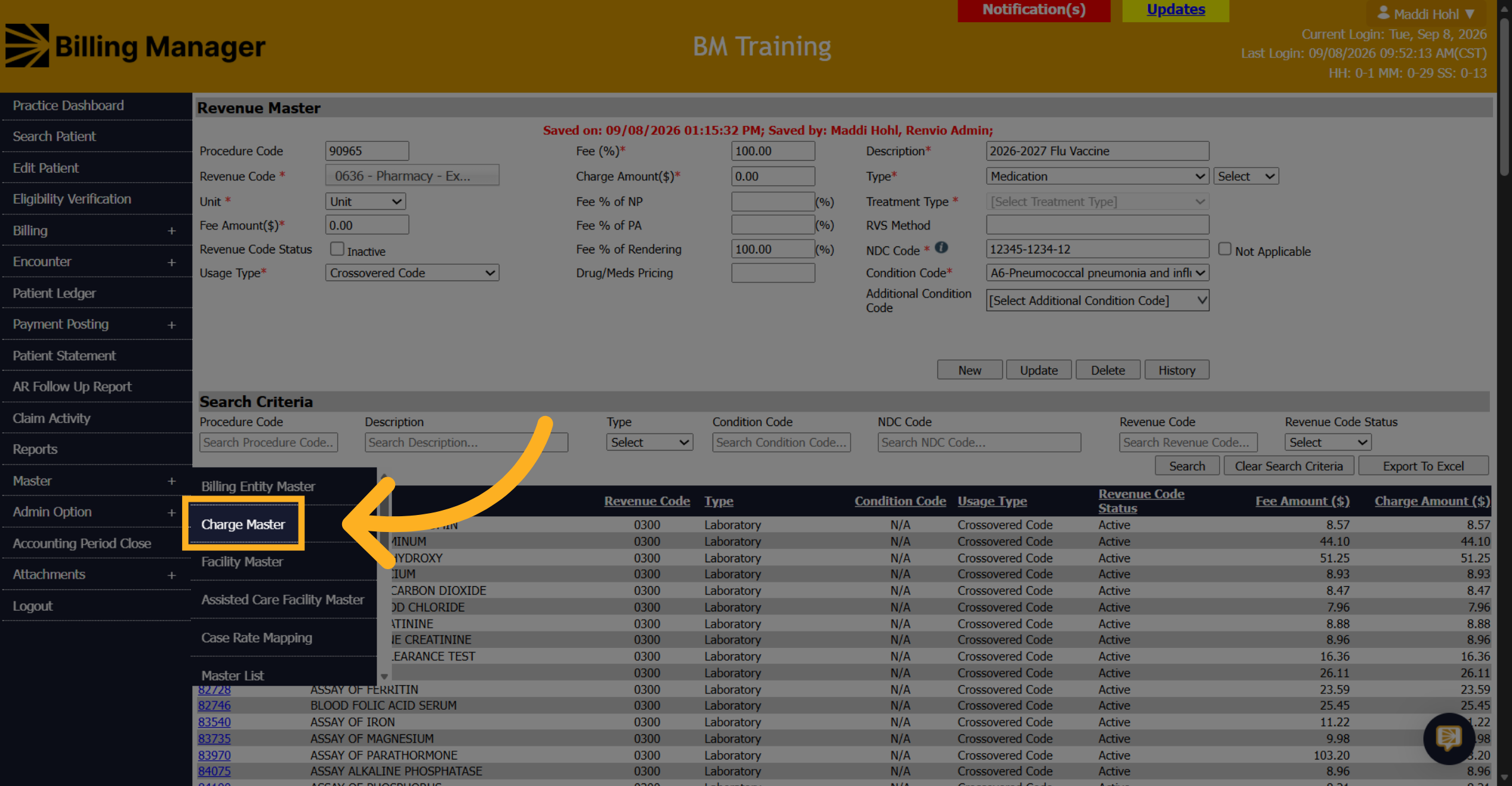
14. Access Charge Master
Click Charge Master
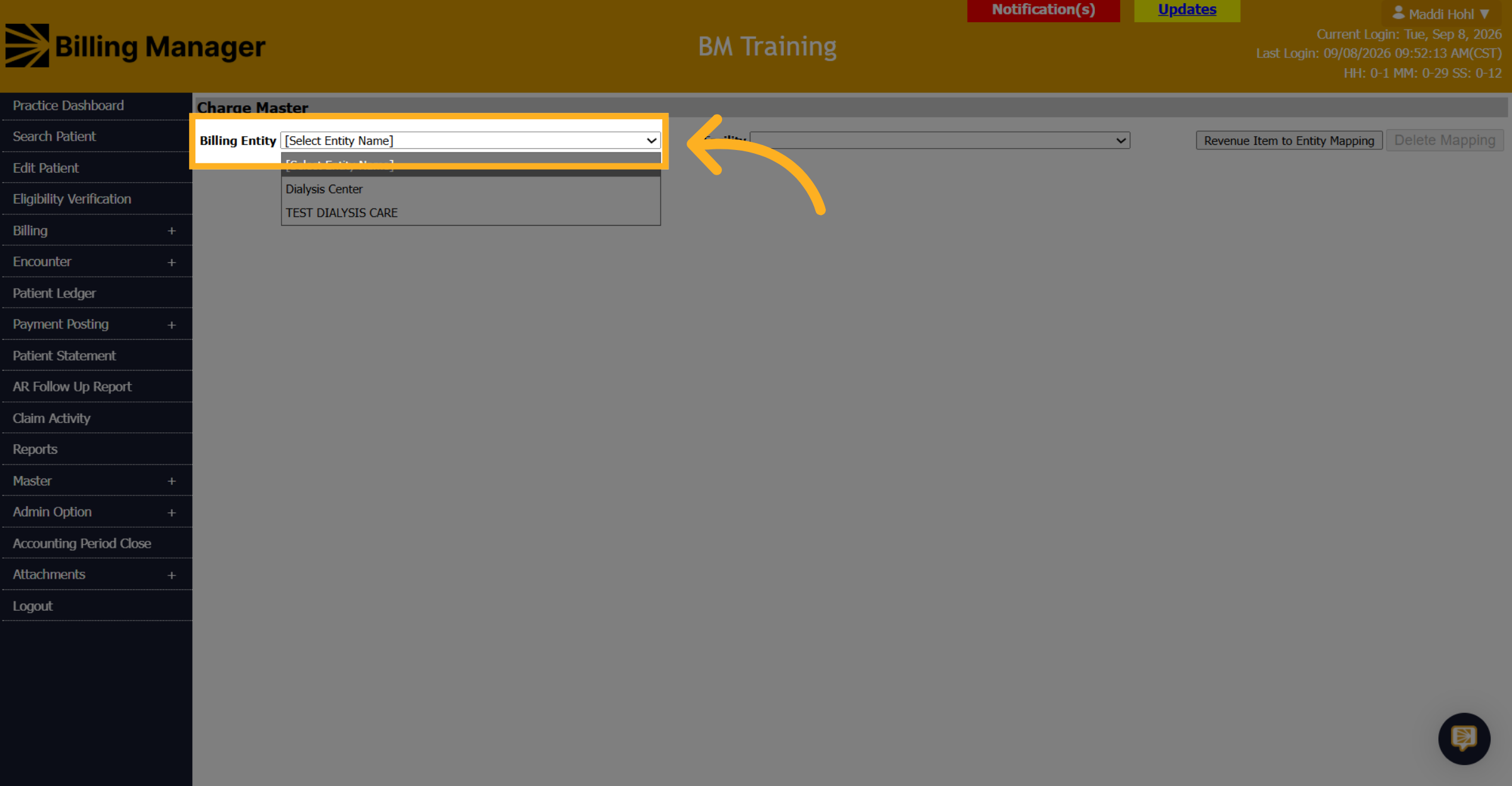
15. Select Entity Name
Choose a billing entity.
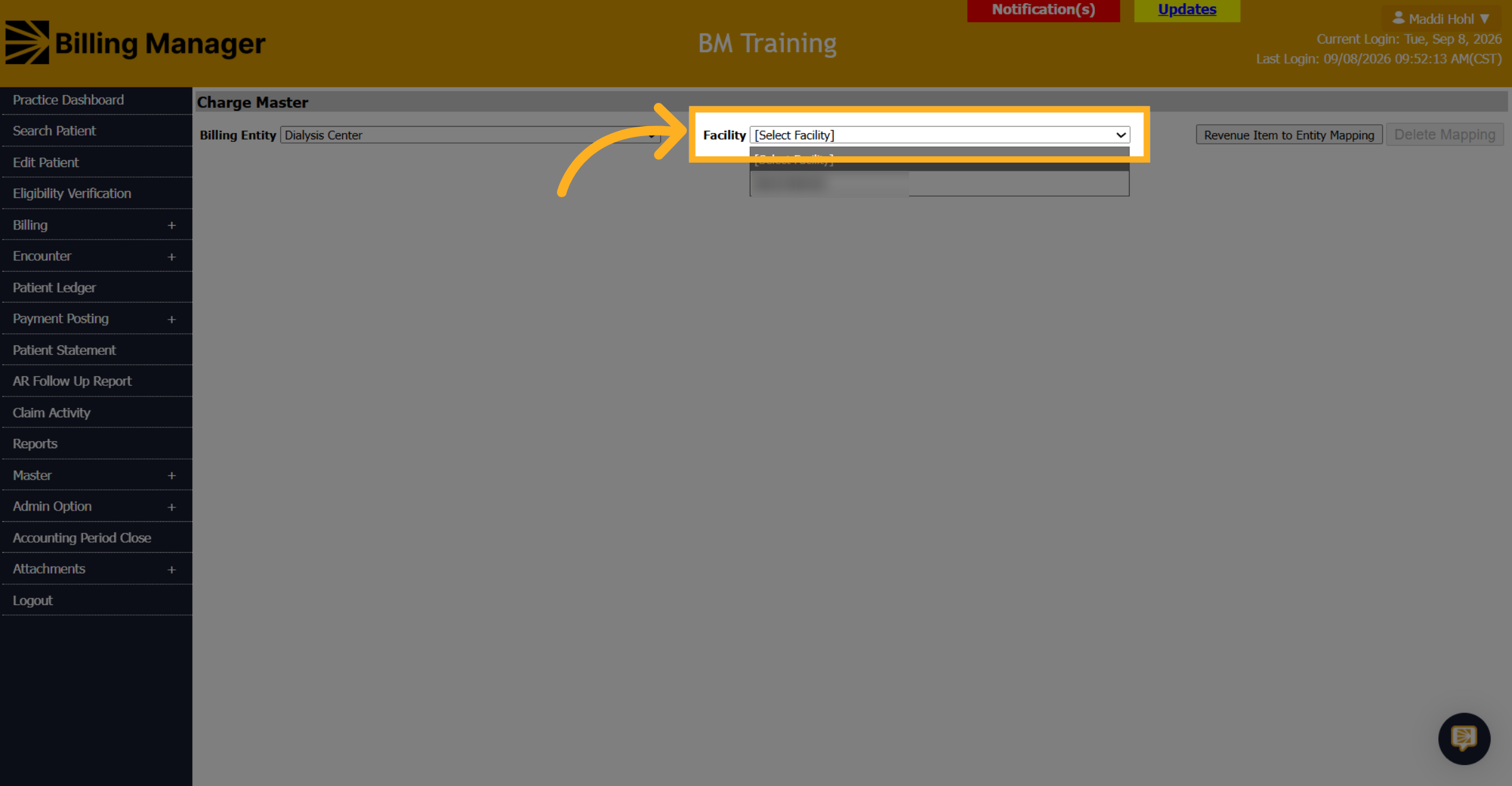
16. Choose Specific Facility
Select the specific facility.
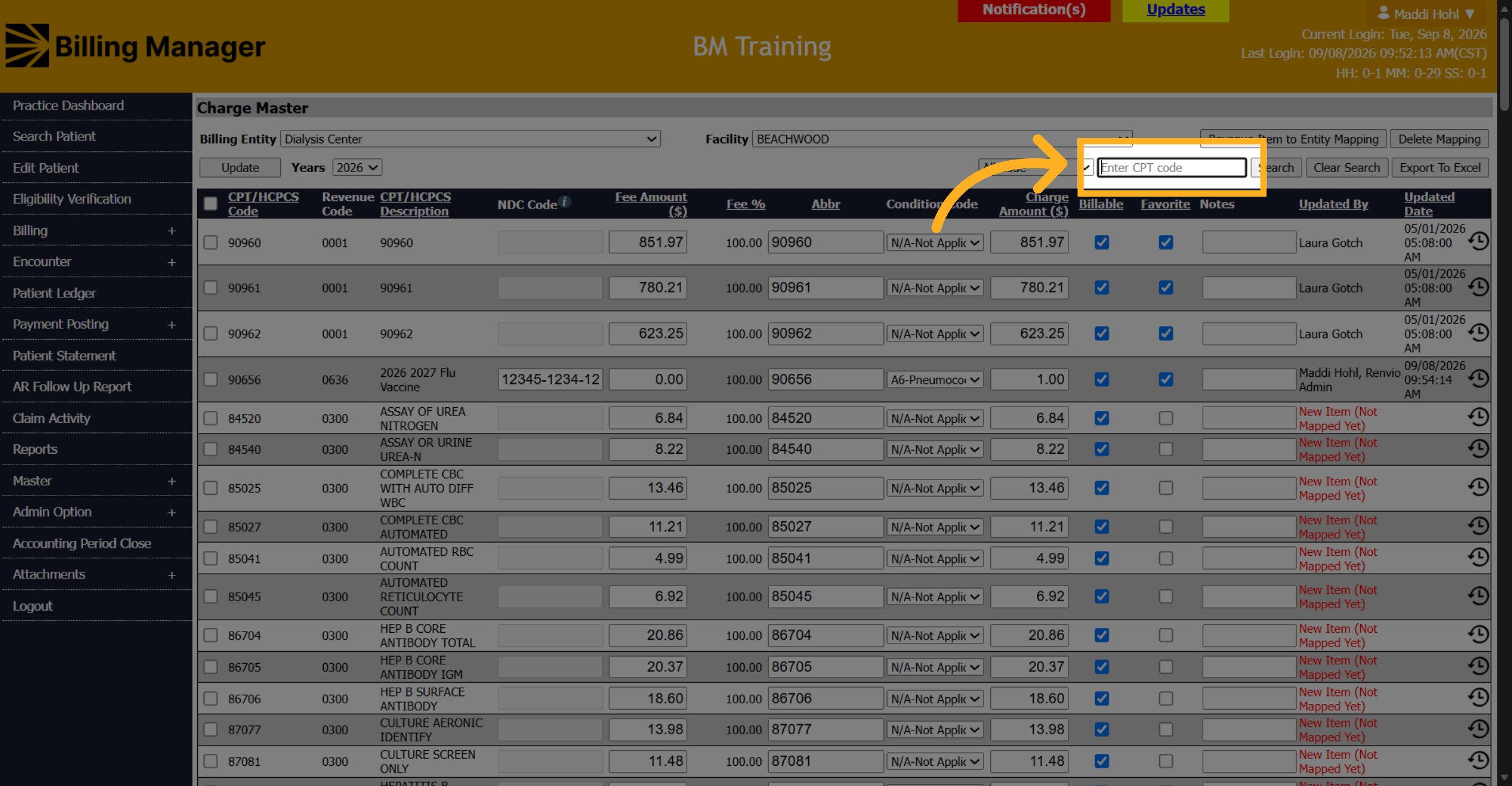
17. Enter CPT Code
Input the CPT code to search for the vaccines.
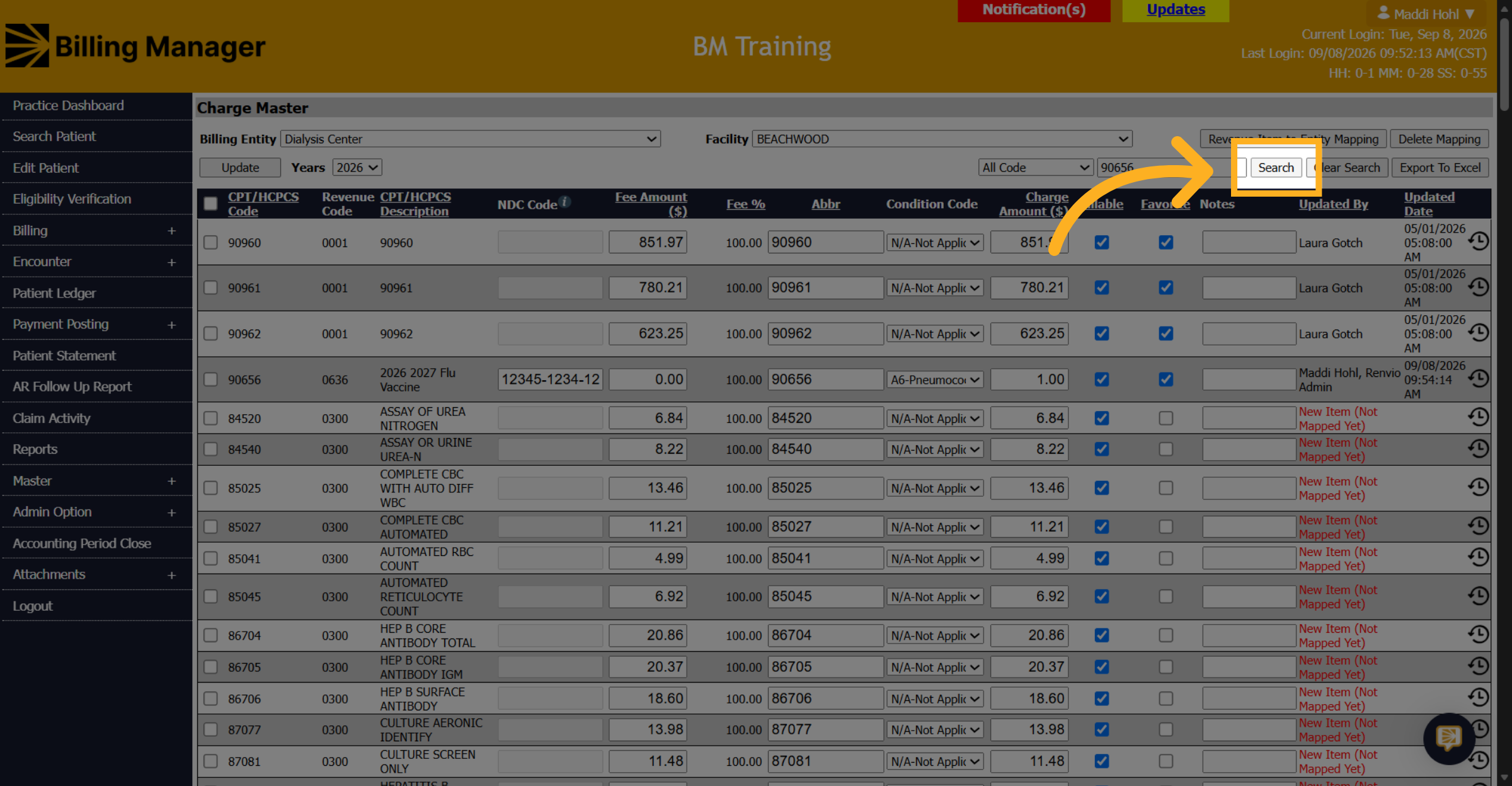
18. Search CPT Code
Click Search.
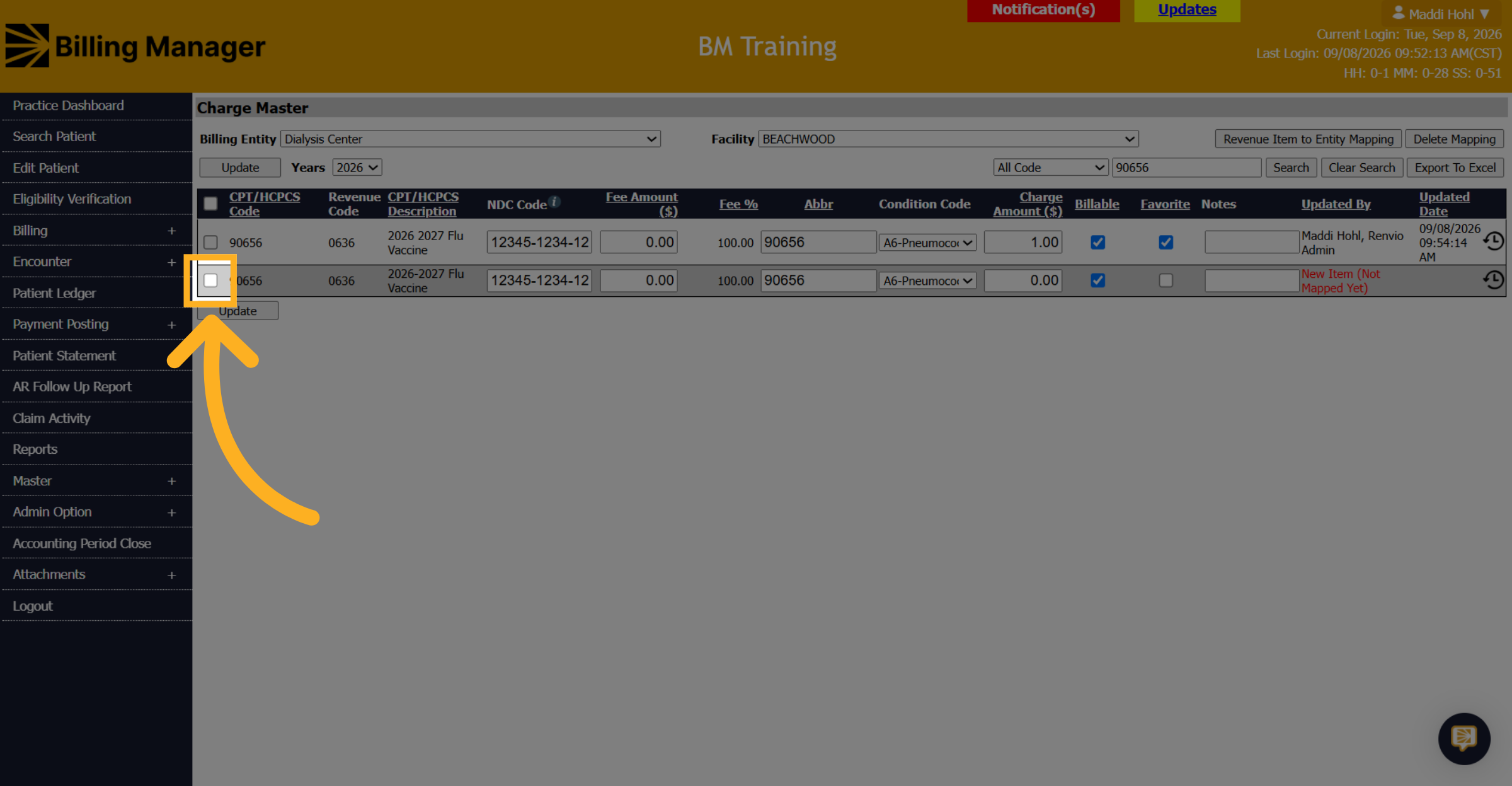
19. Check the Box
Check the box next to the vaccines that will be updated.
20. Enter an Abbreviation
Enter an abbreviation that matches with Dialysis Manager's abbreviation in the Billing Setup.
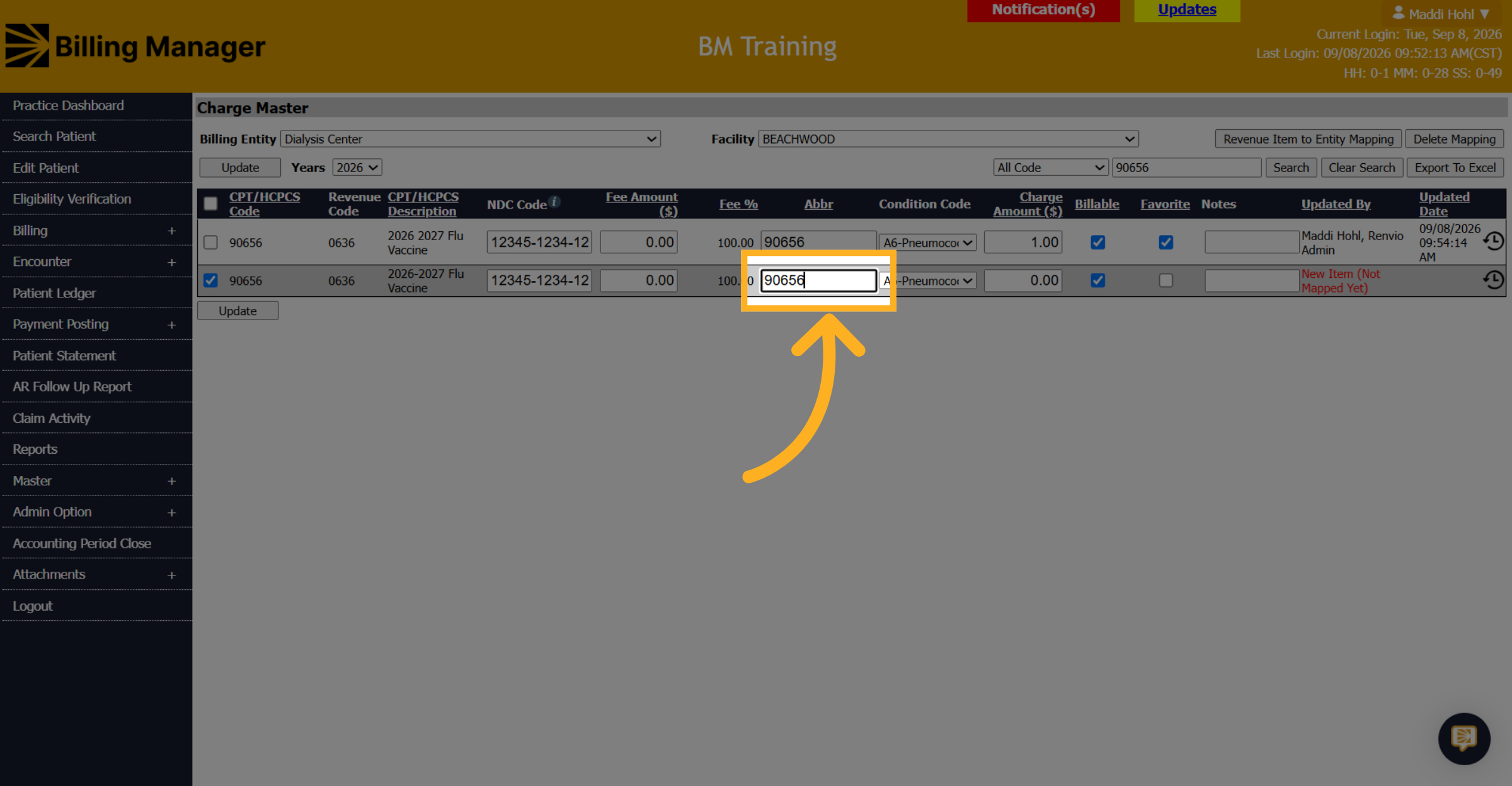
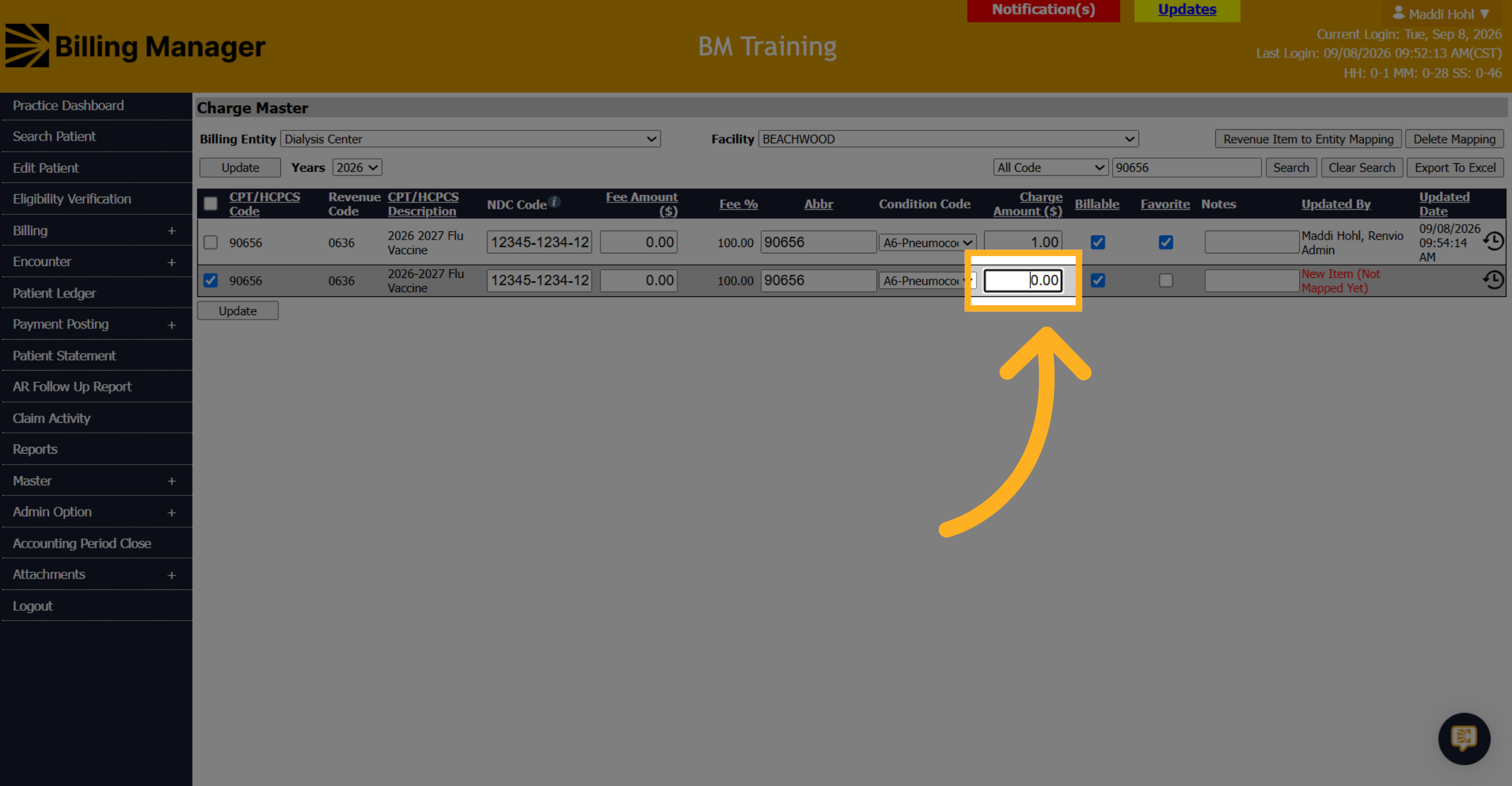
21. Enter a Charge Amount
Enter a Charge Amount. This is what will go on the claim
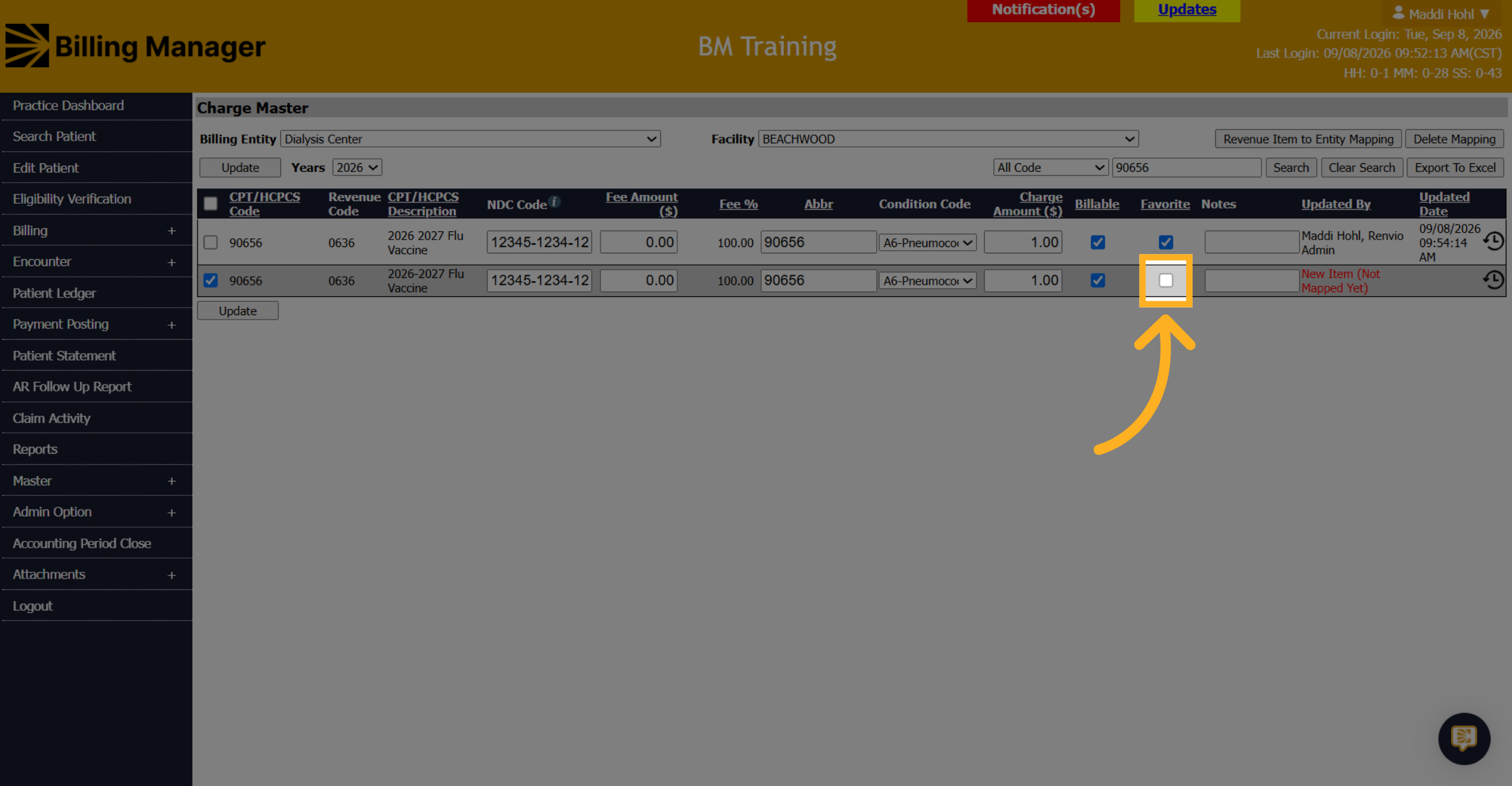
22. Activate Additional Option
Mark the line as a favorite.
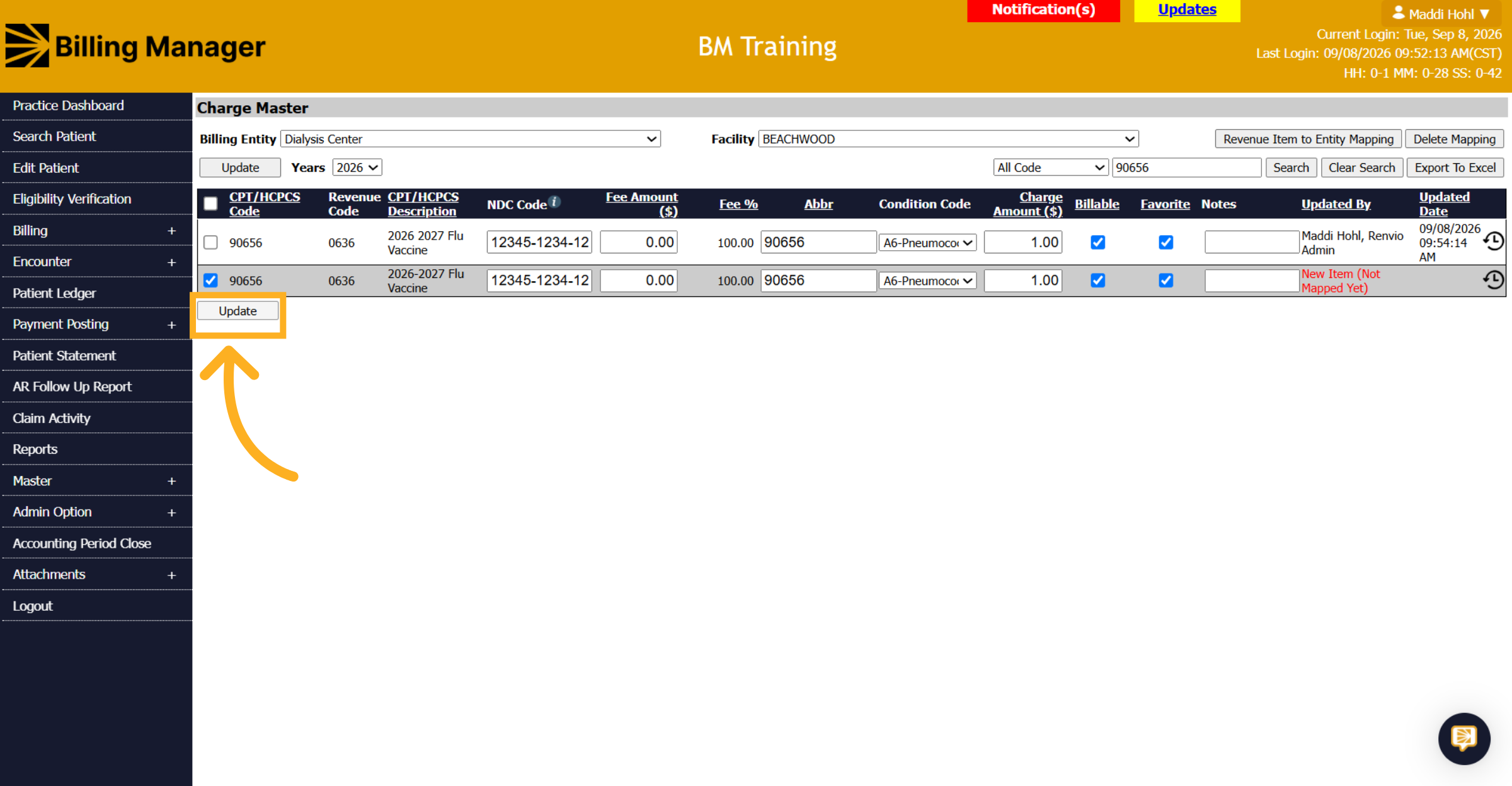
23. Update Charge Master
Click update.
24. Repeat for the admin charge.
Repeat these steps for the admin charge if there is not one in the system already.
Thank you for watching! You have set up vaccines for this upcoming flu season! If you have questions, please reach out to us for help.