Claim Scrub Setup: A Quick Reference Guide for Efficient Claim Review
1. Setting Up Claim Scrubber
This quick reference guide outlines the steps to set up the Claim Scrubber, a utility used for a final check of your claims before submission. To begin, navigate to Admin Options, then Claim Scrub Setup. Fill out the Billing Entity and Facility information. Next, click View and choose the options you want the system to check for.
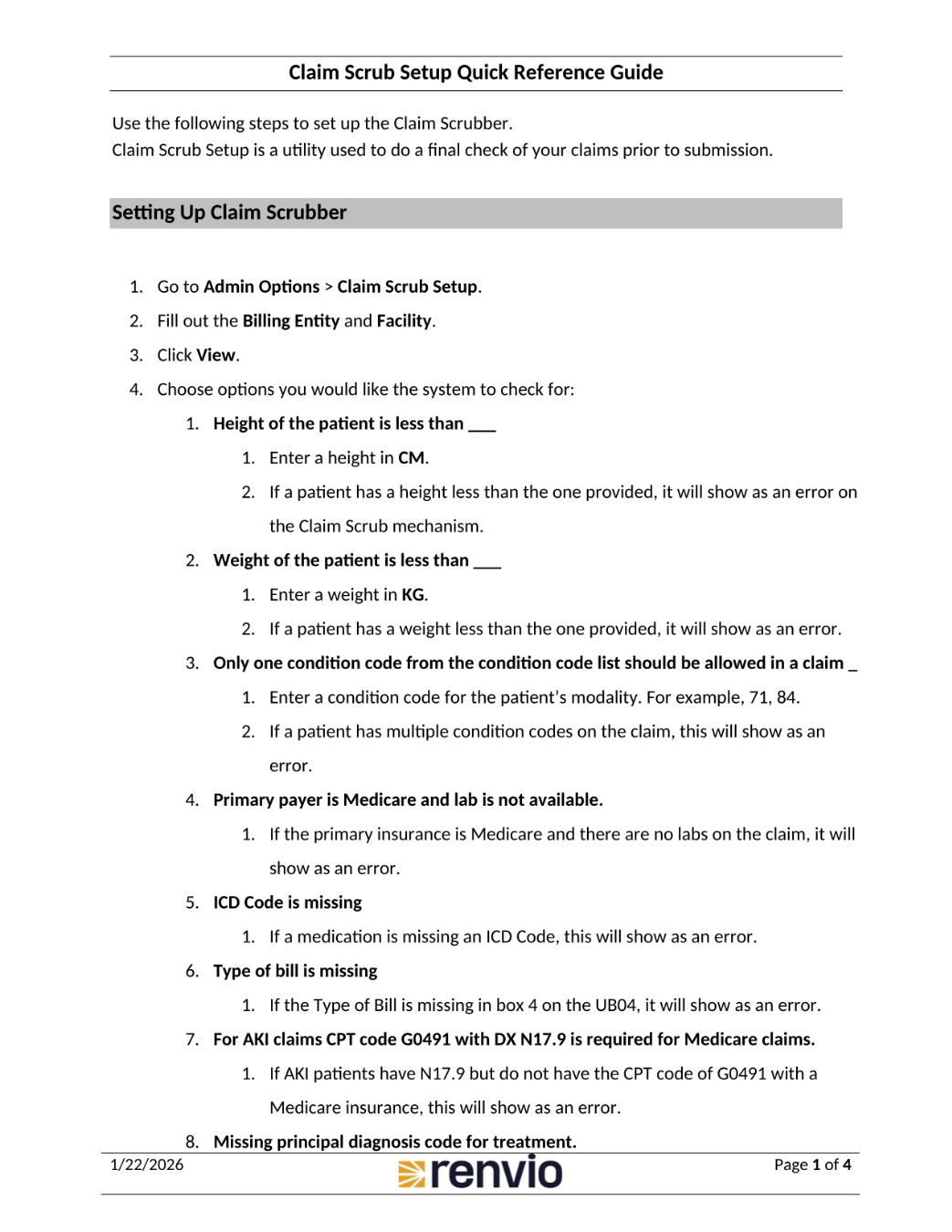
2. Claim Scrub Setup Details
The system can check for various conditions. These include whether the patient's height or weight is less than a specified value, whether only one condition code is present, or if Medicare is the primary payer and lab results are unavailable. It also checks for missing ICD codes, the type of bill, and specific requirements for AKI claims. Additional checks include missing principal diagnosis codes, ICD codes in treatments, and hematocrit or hemoglobin levels outside specified ranges. The system also verifies NDC formatting, D6 value codes, expired ICD codes, and maximum billable times for particular revenue codes.
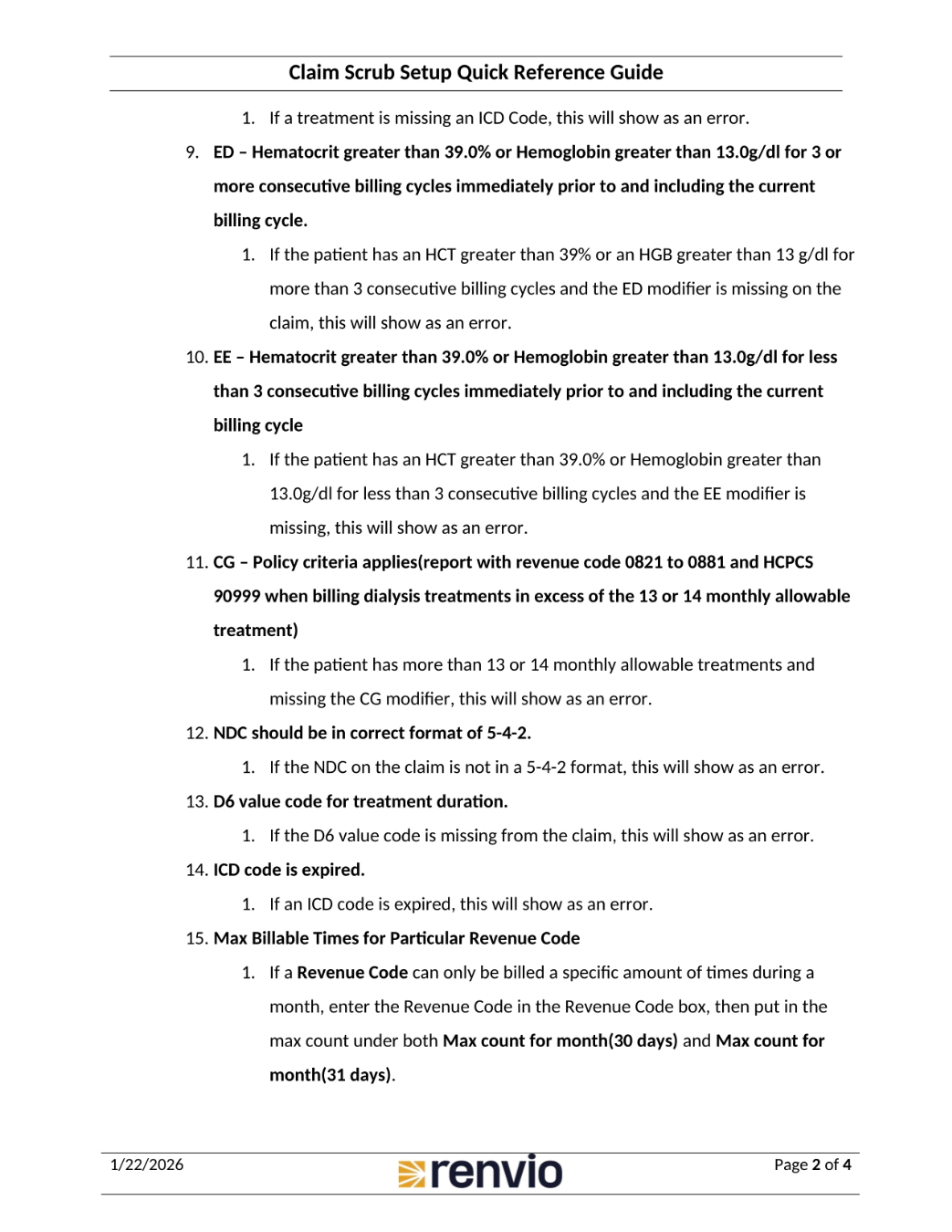
3. How to Scrub Claims
To scrub claims, go to Billing, then Claim Processing. Select your Billing Entity and Facility, and update the Record Type to Pre Claims Check. Click View, then select your claims and click Scrub Claim. Review the list of errors and make corrections. You can also set up revenue master-based condition codes.
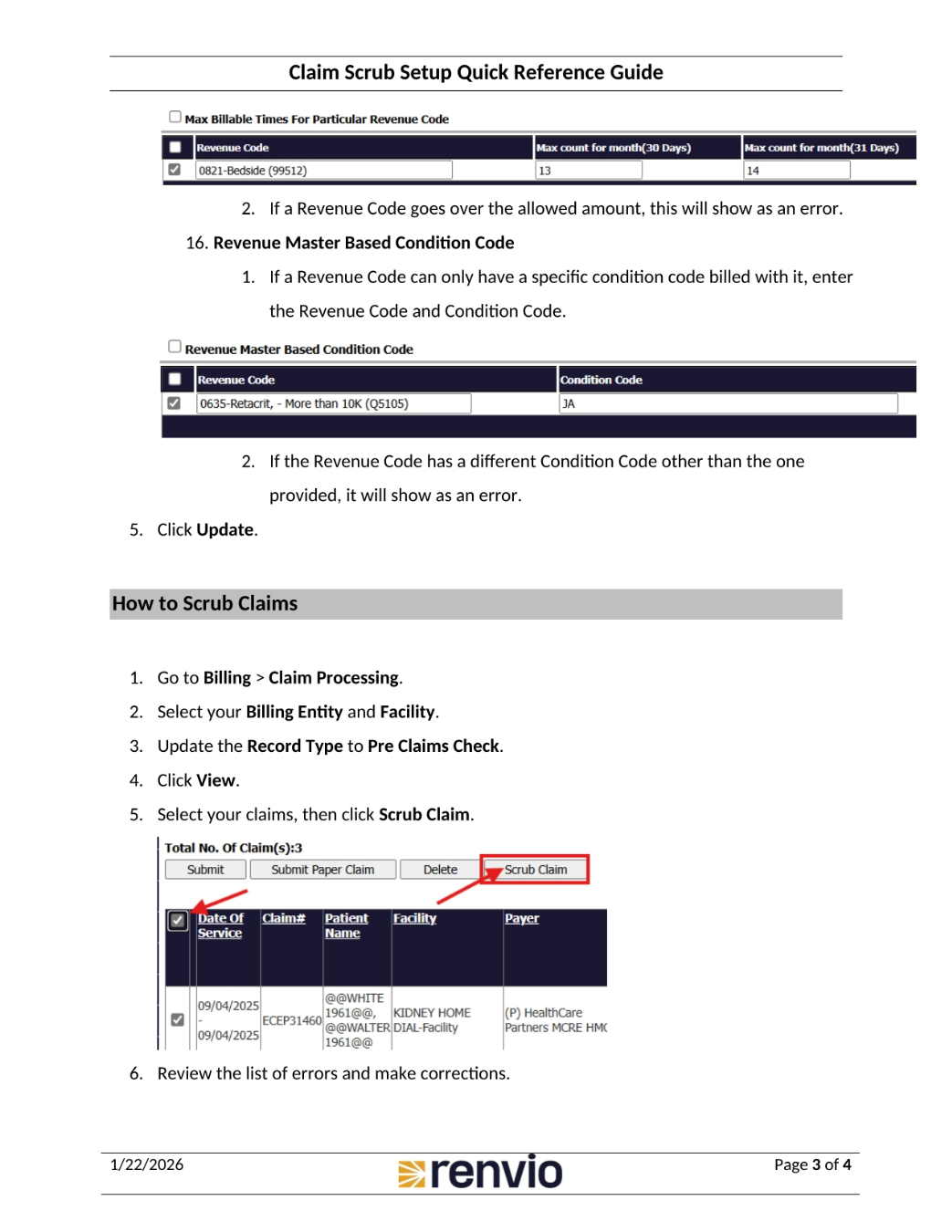
4. Claim Scrub Results
This list can be exported to Excel by clicking the Export to Excel button. The table displays the claim number, payer, date of service, and reason for any errors found. These reasons may include missing D6 value codes, missing ICD codes, or missing principal diagnosis codes for treatment.