Fixing Errors in Charges: A Quick Reference Guide
1. Financial Transaction Code Error
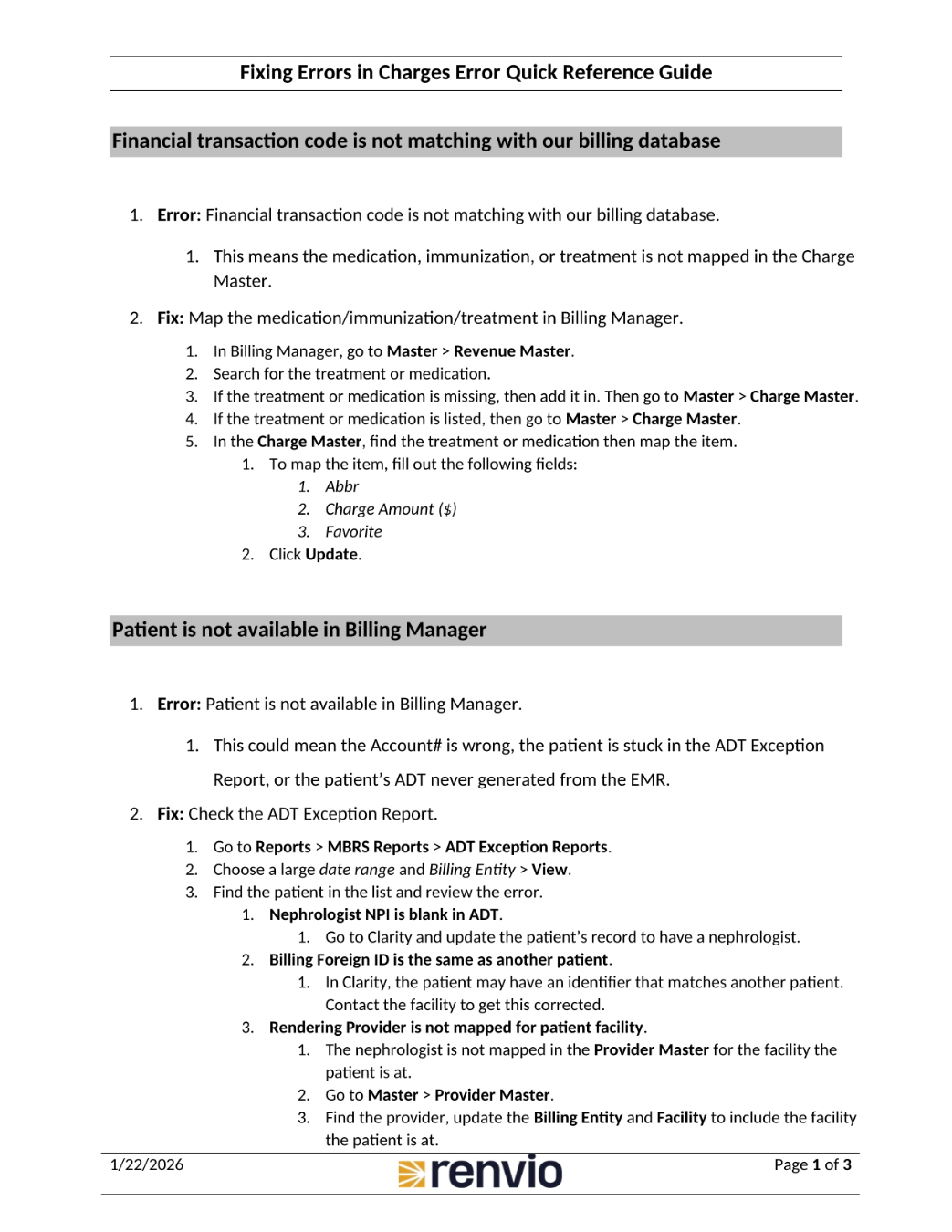
Let's review how to fix errors when the financial transaction code doesn't match our billing database. This often means the medication, immunization, or treatment isn't mapped in the Charge Master. To fix this, in Billing Manager, navigate to Master, then Revenue Master, and search for the treatment or medication. If it's missing, add it. Then, go to Master, then Charge Master. If it's listed, go to Master, then Charge Master, and map the item, filling out the Abbr, Charge Amount, and Favorite fields before clicking Update.
2. Patient Not Available Error
Next, let's address when a patient isn't available in Billing Manager. This could mean the Account number is wrong, the patient is stuck in the ADT Exception Report, or the patient's ADT was never generated from the EMR. To fix, check the ADT Exception Report by going to Reports, then MBRS Reports, then ADT Exception Reports. Choose a large date range and Billing Entity, then View. Find the patient and review the error. Other potential fixes include checking if the Nephrologist NPI is blank in ADT, if the Billing Foreign ID is the same as another patient, or if the Rendering Provider is not mapped for the patient facility.
3. Payer and Financial Transaction Errors
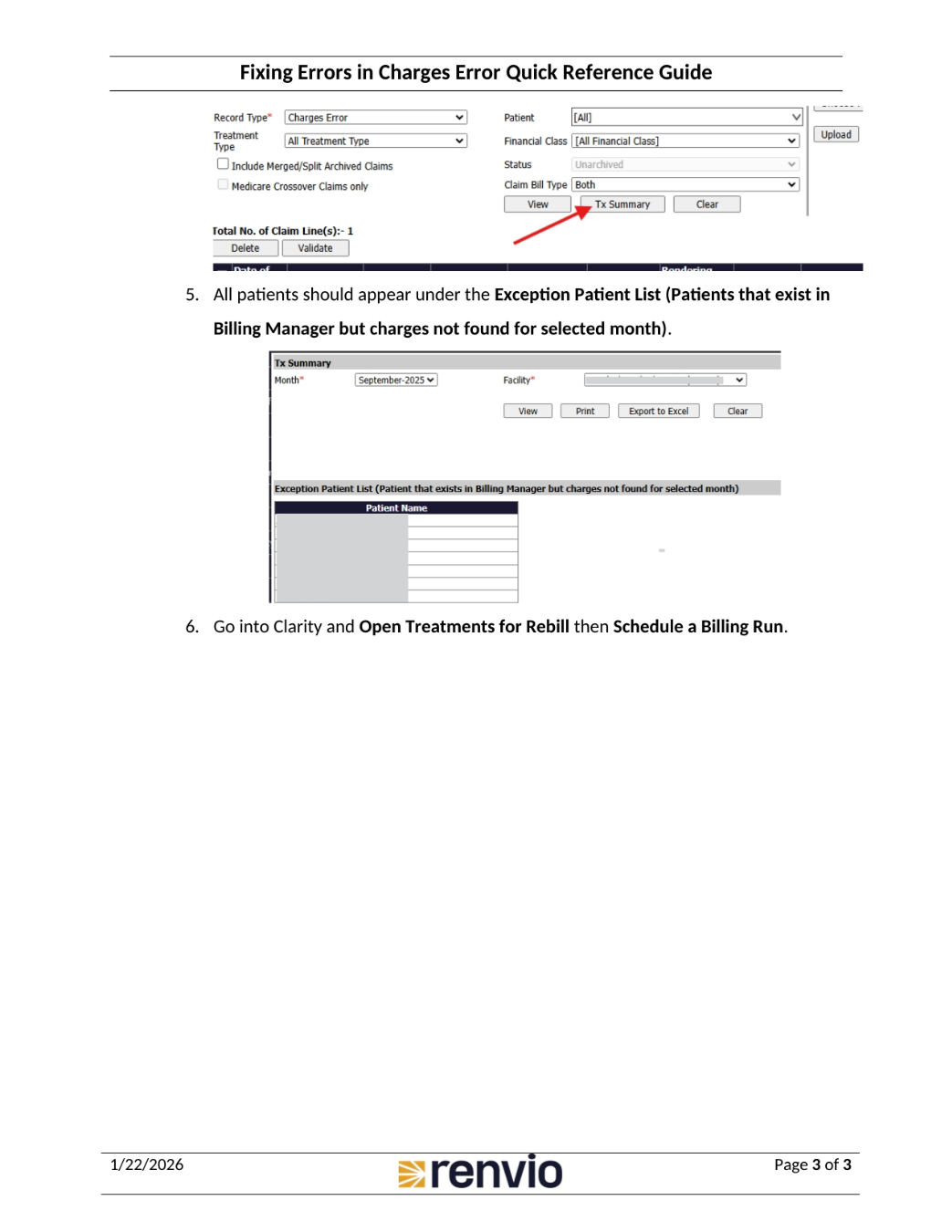
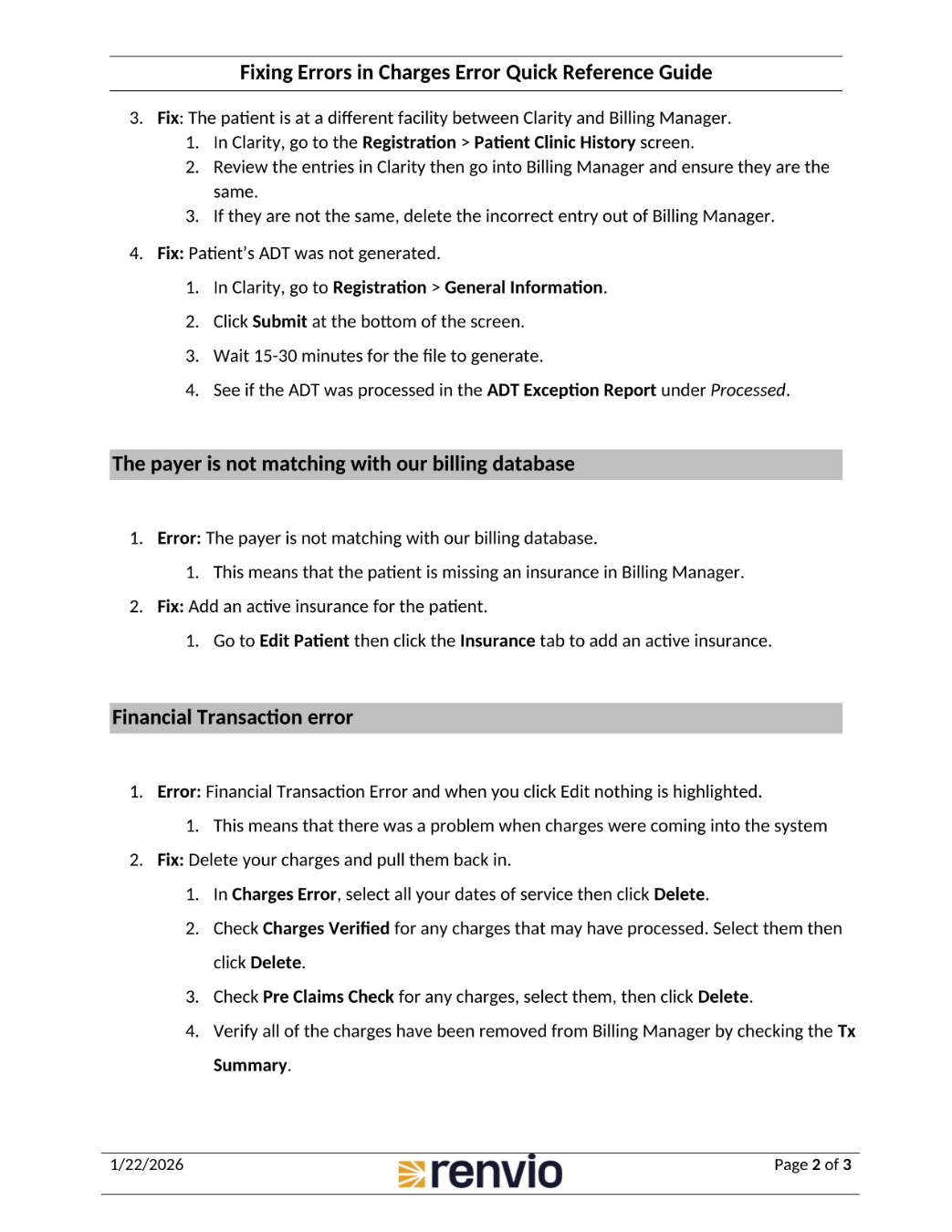
Now, let's cover errors related to the payer and financial transactions. If the patient is at a different facility, go to Registration, then Patient Clinic History in Clarity, review the entries, and ensure they match Billing Manager. If not, delete the incorrect entry. If the patient's ADT wasn't generated, go to Registration, then General Information in Clarity, click Submit, wait 15 to 30 minutes, and check the ADT Exception Report. For payer errors, where the payer doesn't match, add an active insurance for the patient by going to Edit Patient and clicking the Insurance tab. Finally, for financial transaction errors where Edit is not highlighted, delete and re-enter the charges. In Charges Error, select all dates of service and click Delete. Check Charges Verified and Pre Claims Check, deleting any processed charges. Verify all charges are removed by checking the Tx Summary.