Quick Reference Guide: Charge Master Price Increase in Billing Manager
1. Exporting the Charge Master
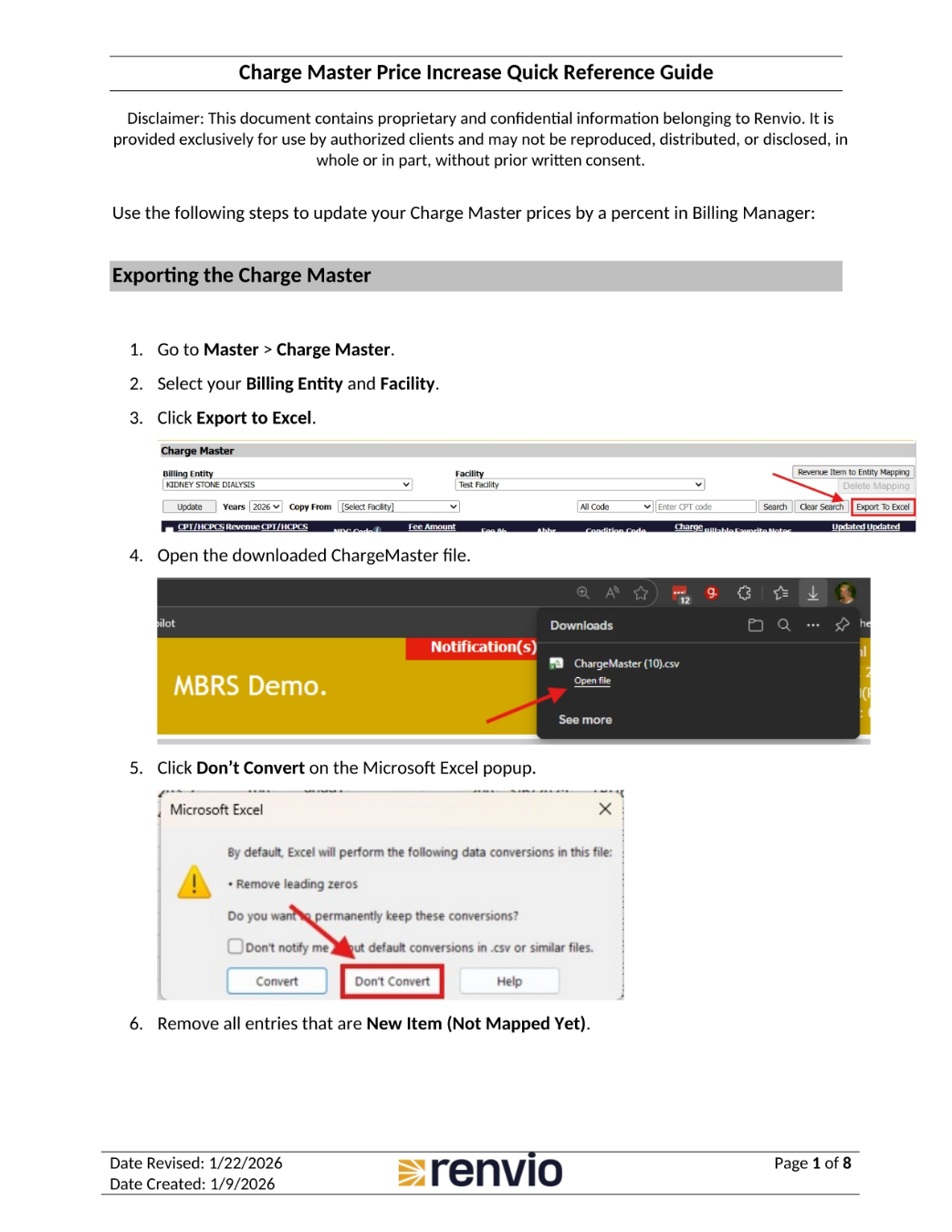
This guide outlines the steps to update Charge Master prices by a percentage in Billing Manager. First, go to Master, then Charge Master. Select your Billing Entity and Facility. Next, click Export to Excel. Open the downloaded ChargeMaster file and click Don't Convert on the Microsoft Excel popup. Finally, remove all entries that are New Item, or Not Mapped Yet.
2. Inserting a Column for Charge Amount
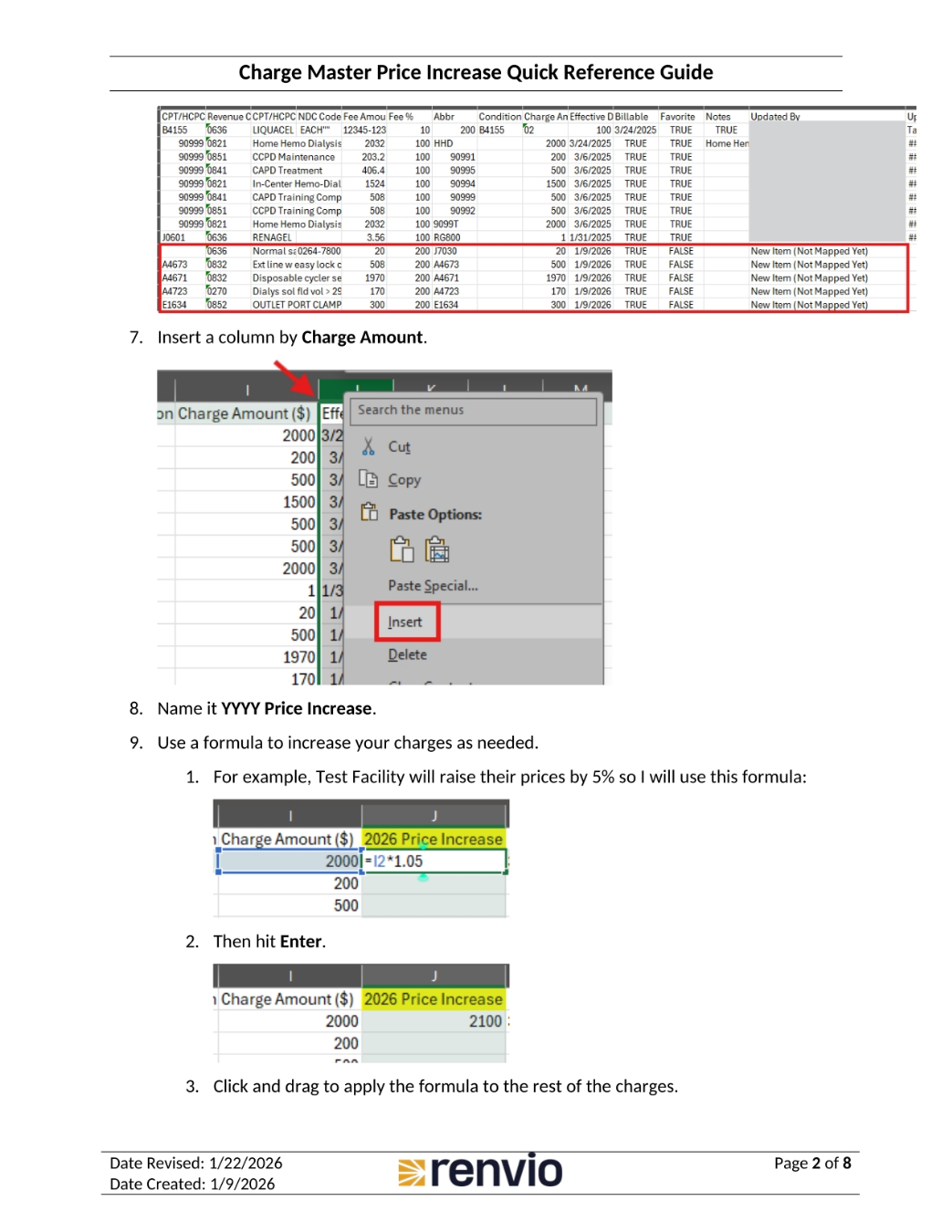
Now, insert a column by Charge Amount. Name this column YYYY Price Increase. Use a formula to increase your charges as needed. For example, if the Test Facility will raise their prices by 5%, use the formula shown. Then hit Enter. Click and drag to apply the formula to the rest of the charges.
3. Downloading the Import Utility Template
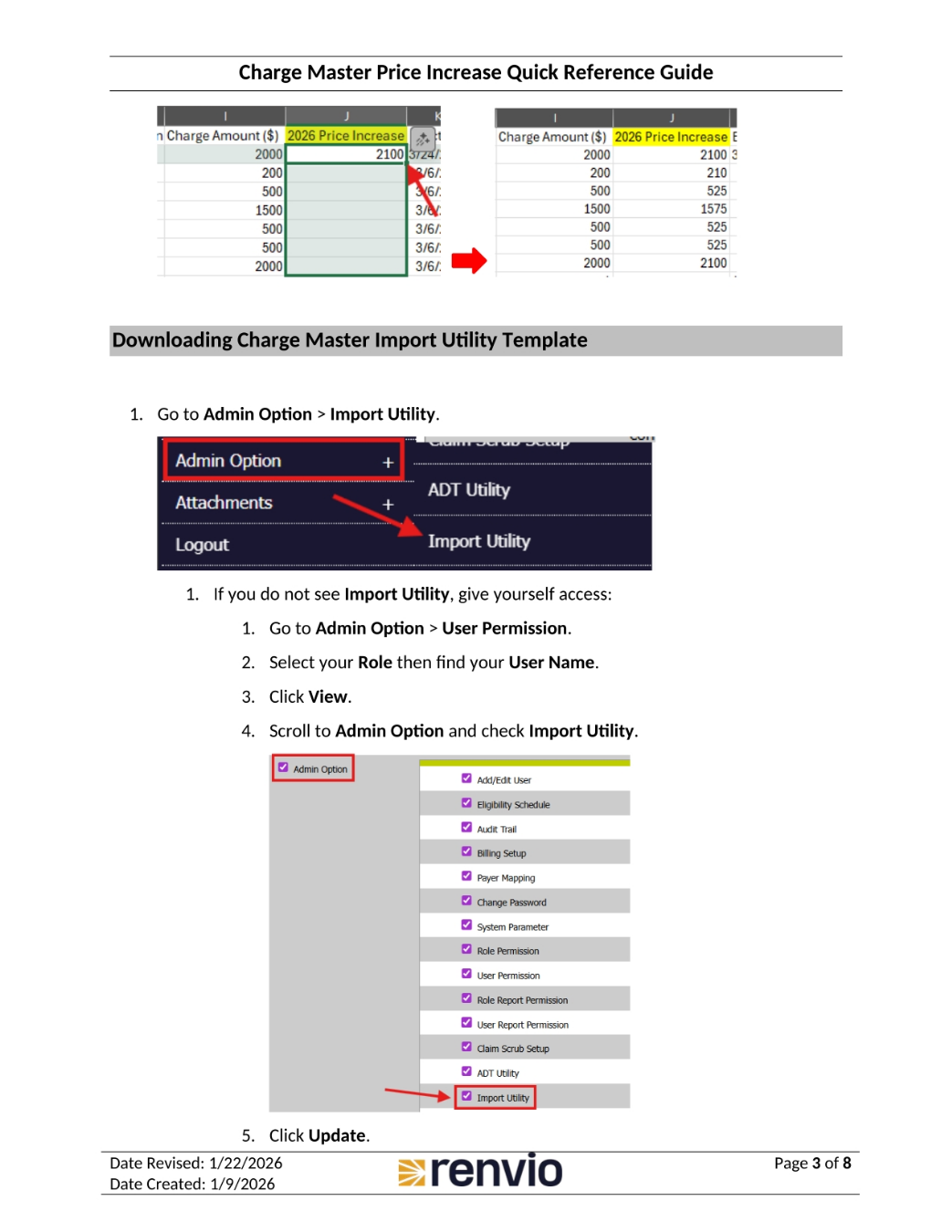
To download the Charge Master Import Utility Template, go to Admin Option, then Import Utility. If you do not see Import Utility, give yourself access by going to Admin Option, then User Permission. Select your Role, find your User Name, and click View. Scroll to Admin Option and check Import Utility. Click Update.
4. Filling Out the Import Utility Template
Click the Excel icon next to Charge Master. Open the downloaded file. Then, open the Charge Master Excel file that was exported from the Charge Master, which contains the price increase. Copy and paste the information from the Charge Master Excel file to the Charge Master Import Utility Template Excel file, starting with the CPT/HCPCS Code to Procedure Code.
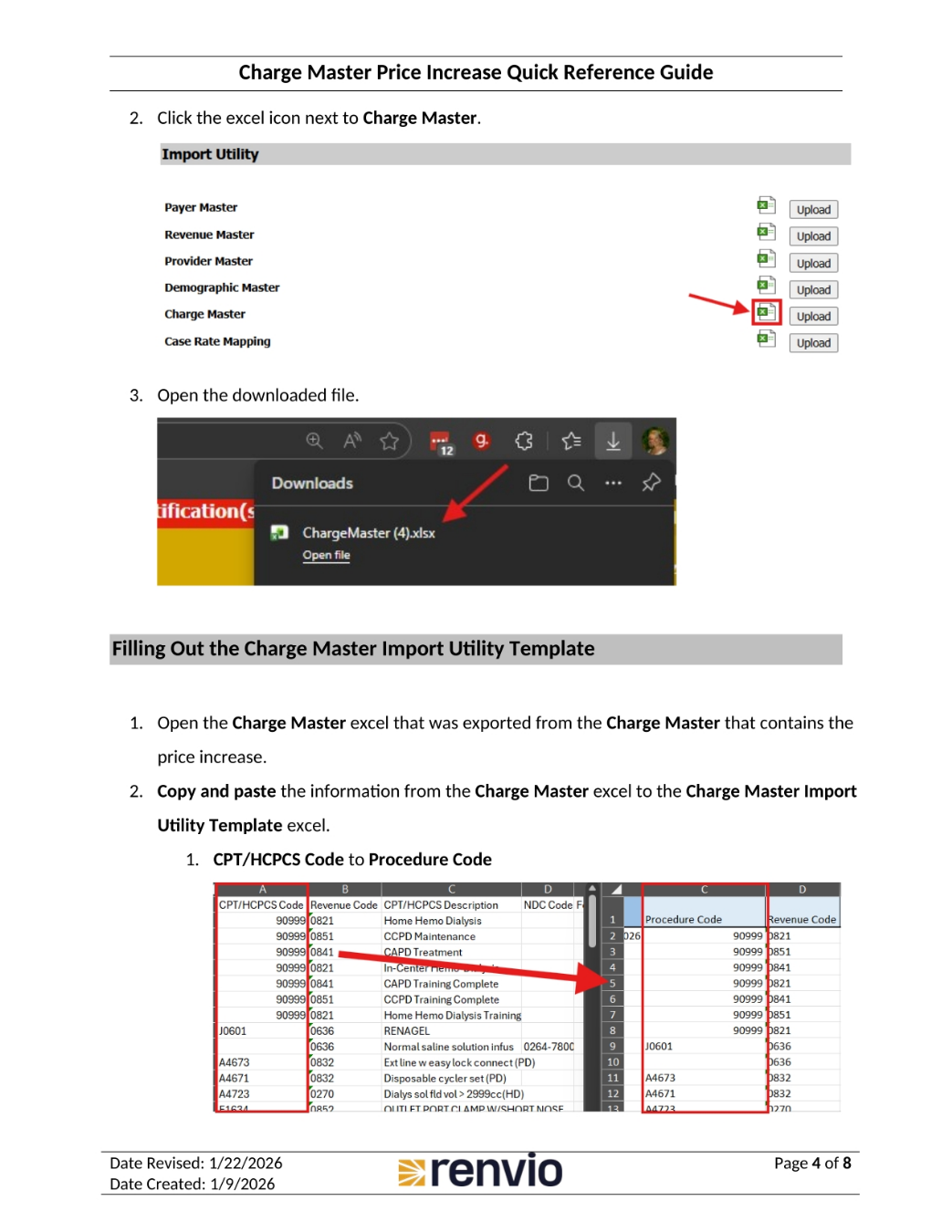
5. Mapping Data Fields
Continue by mapping the Revenue Code to Revenue Code, then the CPT/HCPCS Description to CPT/HCPCS Description. Next, map the Abbr to Procedure Code Abbr. Finally, map the 2026 Price Increase to Charge Amount. Note that when pasting, either use CTRL+SHIFT+V or choose Paste Option: Values.
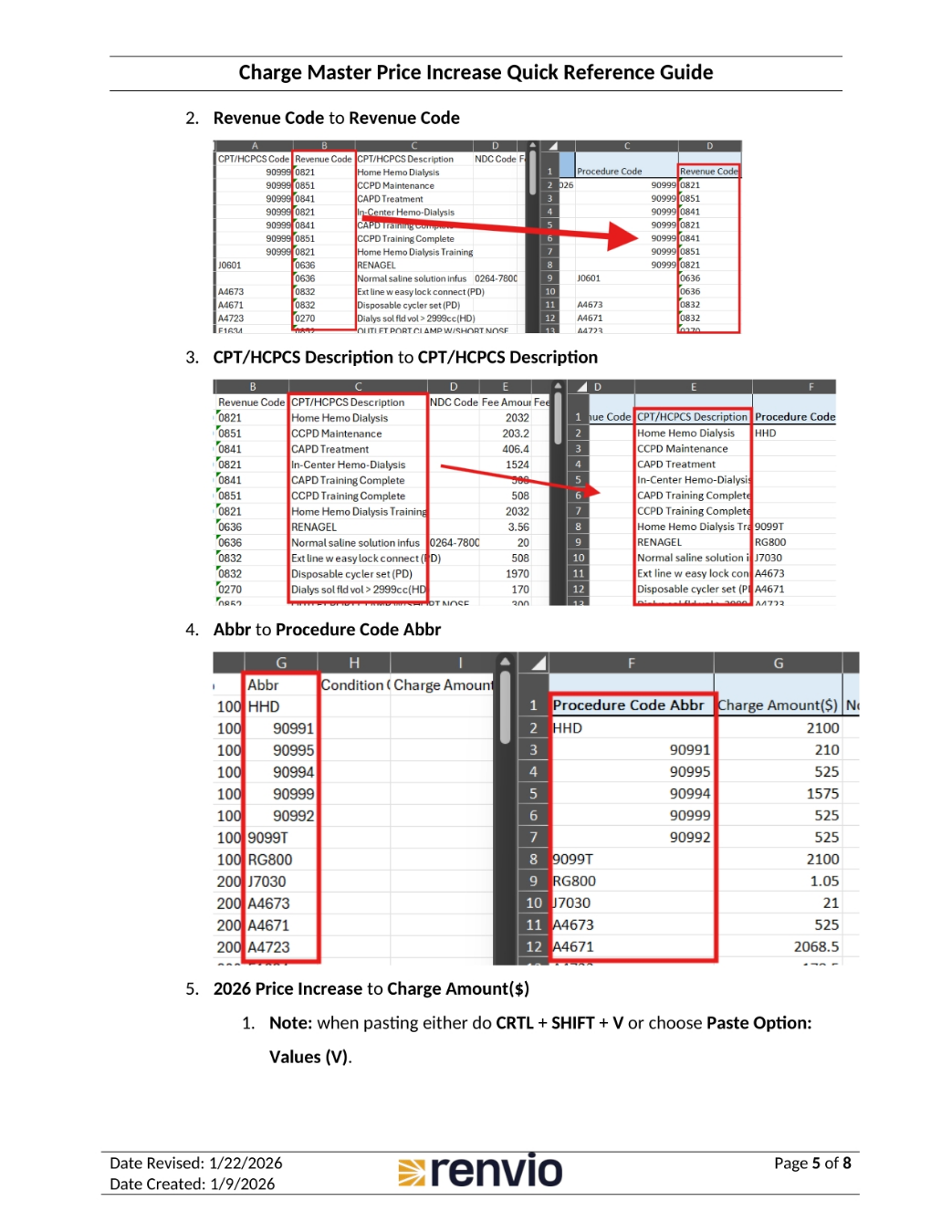
6. Completing the Template
The NDC Code must be in a 5-4-2 format, otherwise the entry will not be imported. An example is shown. Next, find the Facility Abbreviation by going to Master, then Facility Master. Click into the Facility and copy the Facility Abbr. Paste it into the Charge Master Import Utility Template under Facility abbreviation.
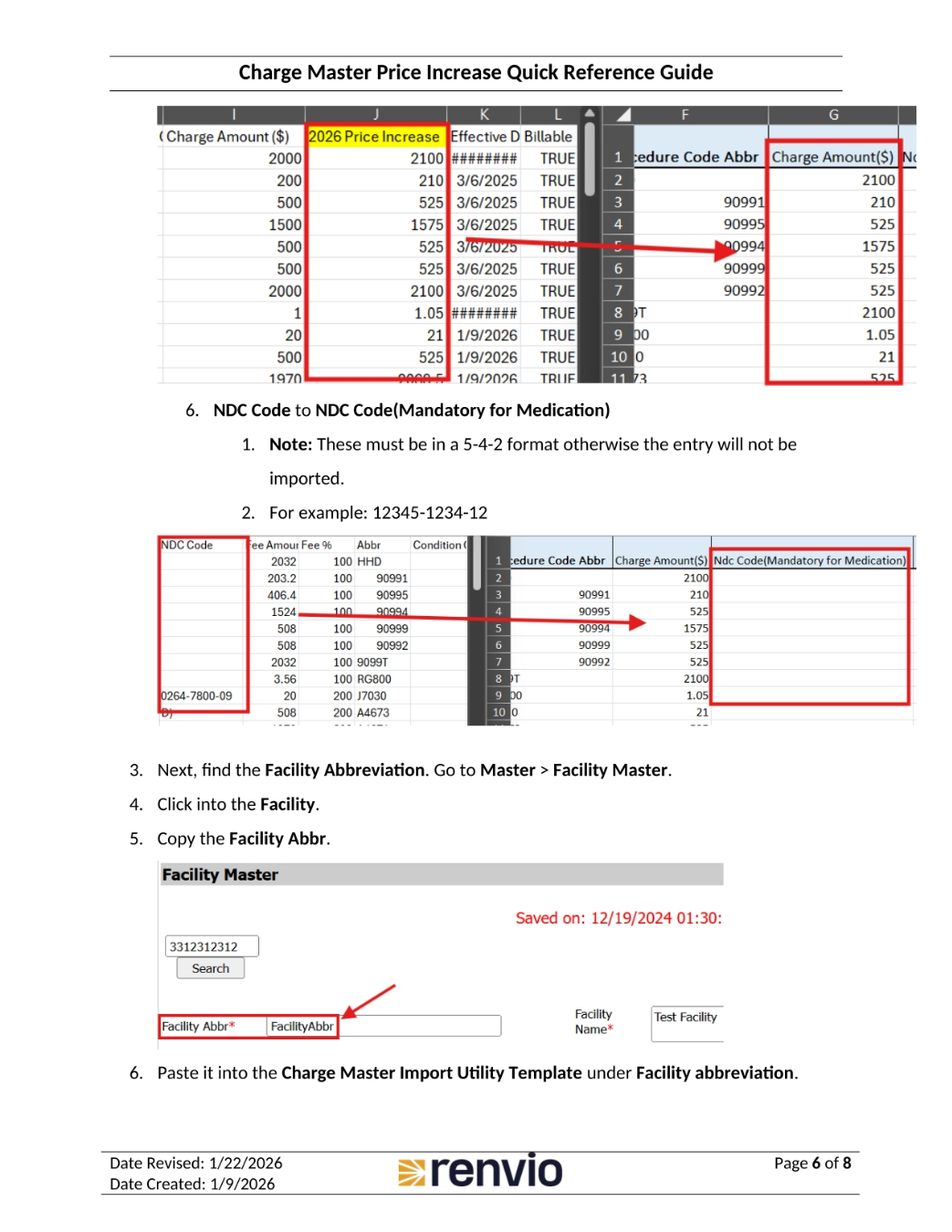
7. Finalizing the Template
Enter the year the price increase needs to take place. Add the Facility Abbreviation and Year to all items in the Charge Master Import Utility Template. Save and close the Charge Master Import Utility Template.
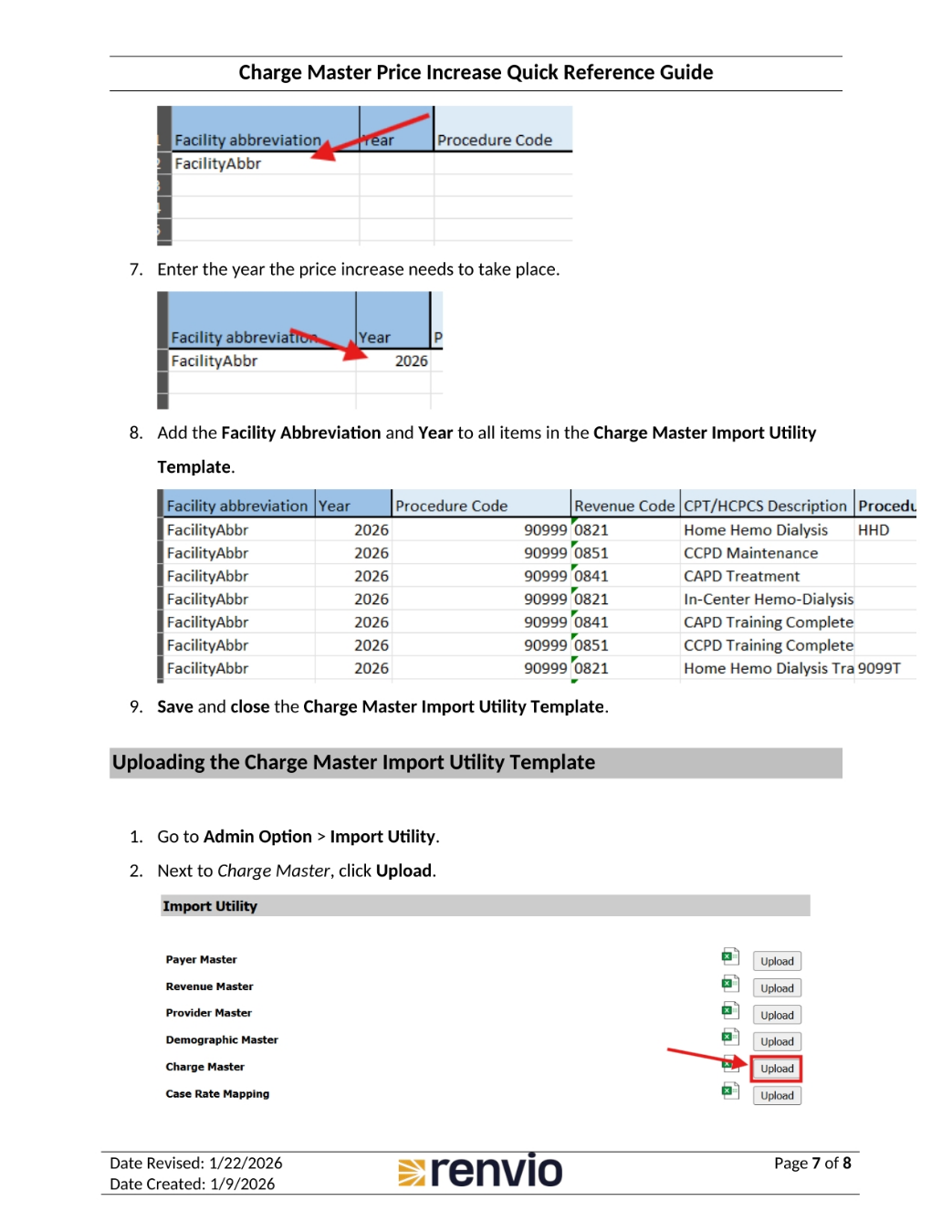
8. Uploading the Template
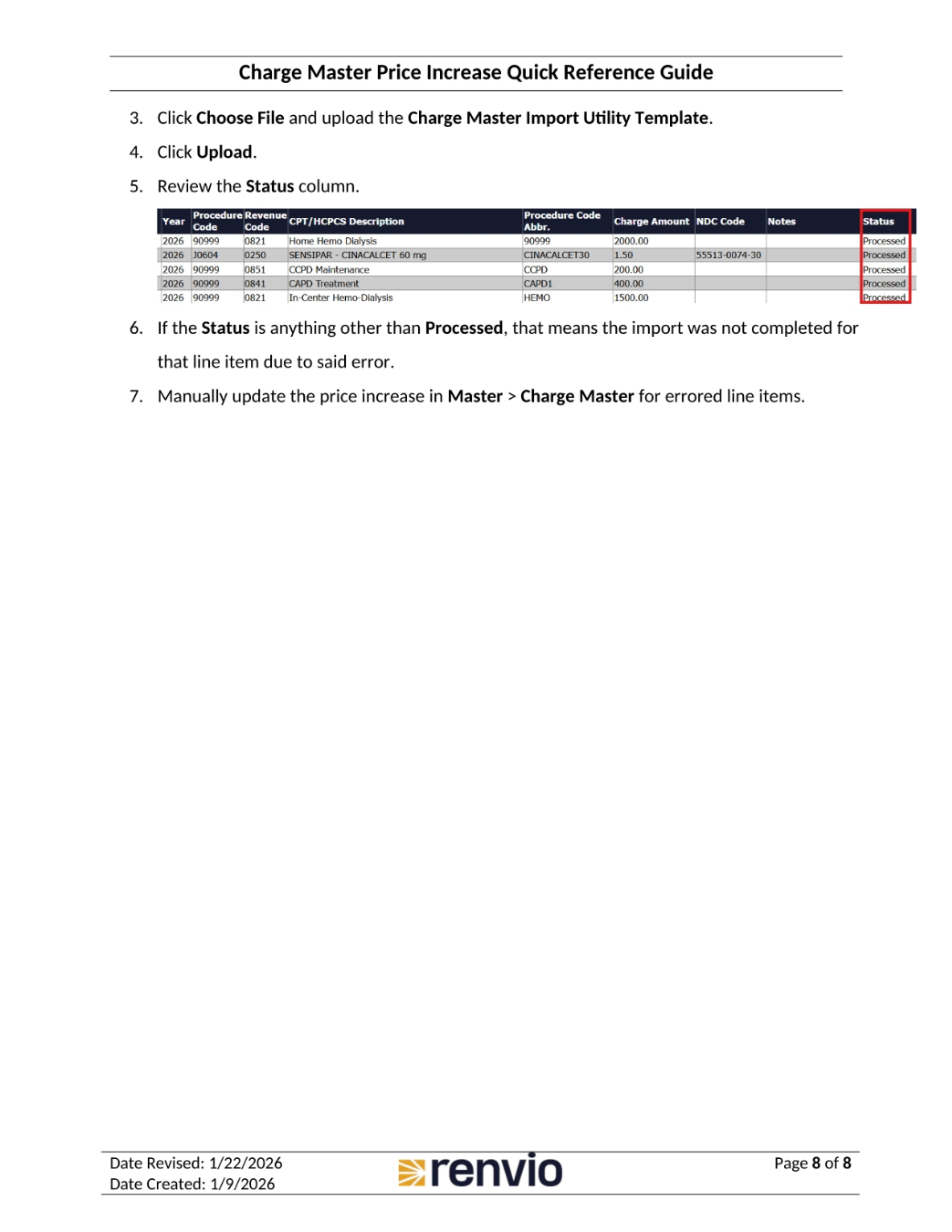
To upload the Charge Master Import Utility Template, go to Admin Option, then Import Utility. Next to Charge Master, click Upload. Click Choose File and upload the Charge Master Import Utility Template. Click Upload. Review the Status column. If the Status is anything other than Processed, the import was not completed for that line item due to an error. Manually update the price increase in Master, then Charge Master, for errored line items.