Billing Setup in Billing Manager: A Reference Guide
1. Billing Setup Screen Customization
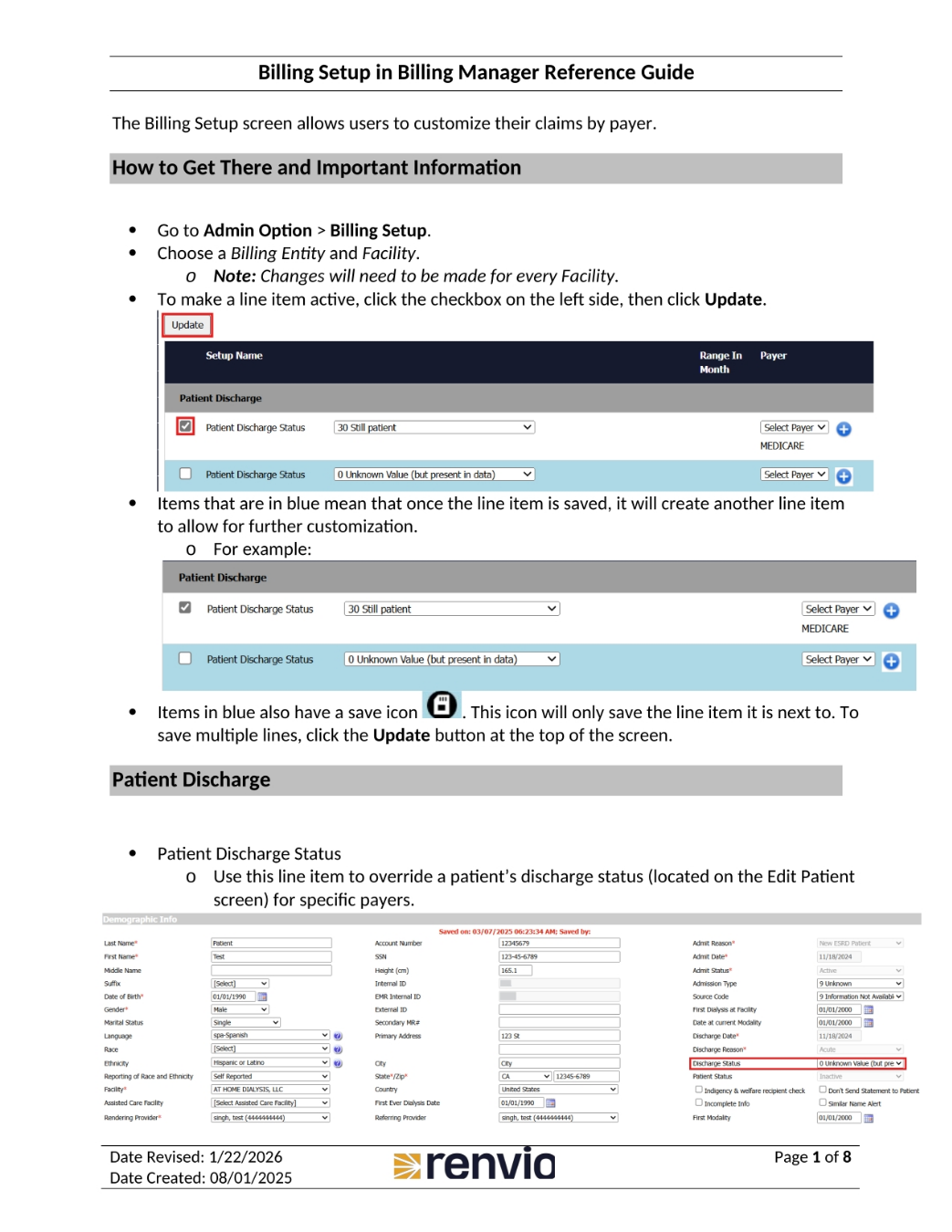
The Billing Setup screen allows users to customize their claims by payer. To get there, go to Admin Option, then Billing Setup. Choose a Billing Entity and Facility. Note that changes will need to be made for every Facility. To make a line item active, click the checkbox on the left side, then click Update.
2. Patient Statement and Provider Setup
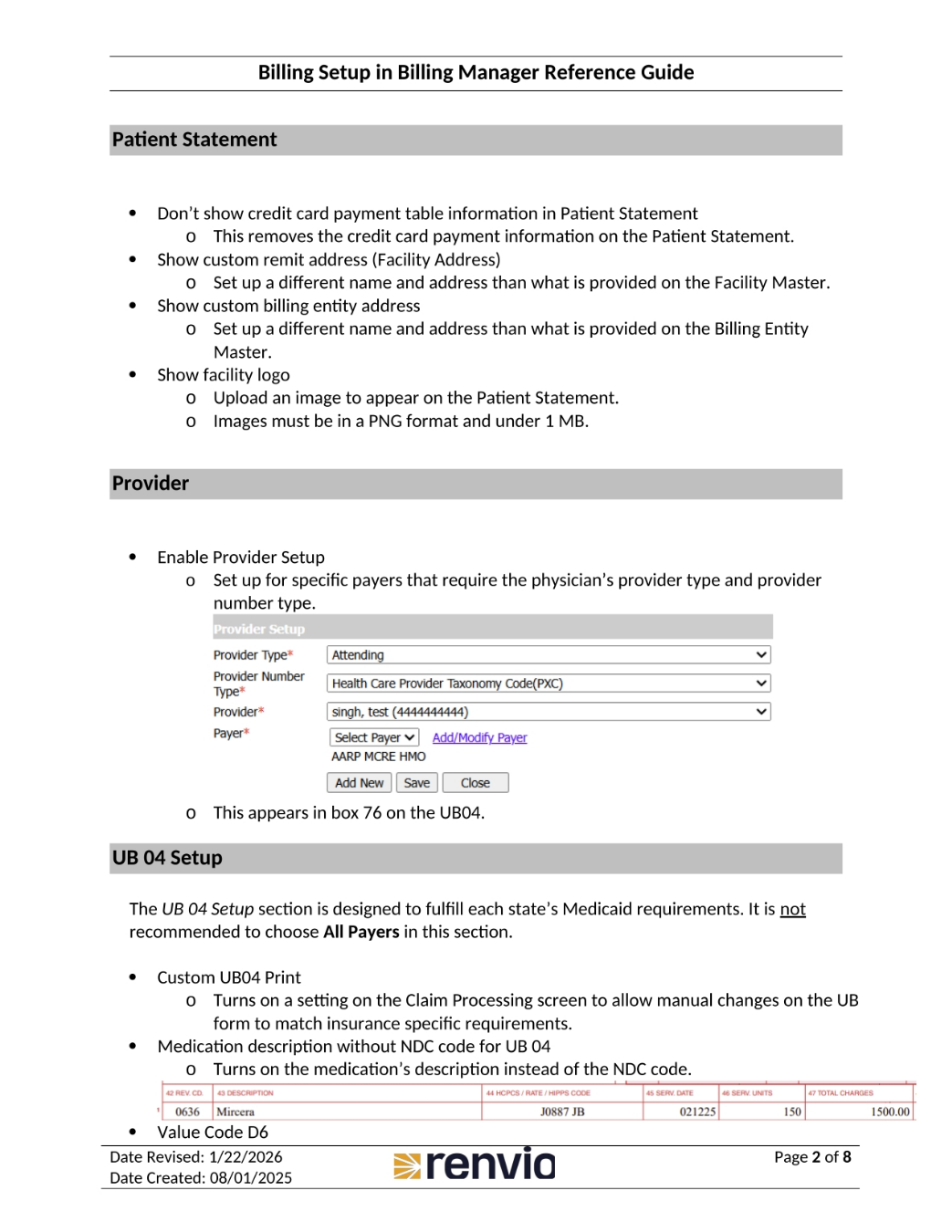
In the Patient Statement section, you can choose not to show credit card payment table information. You can also show a custom remit address or billing entity address. Additionally, you can show a facility logo. In the Provider section, you can enable Provider Setup for specific payers that require the physician's provider type and number type. This appears in box 76 on the UB04 form.
3. UB04 Settings and Templates
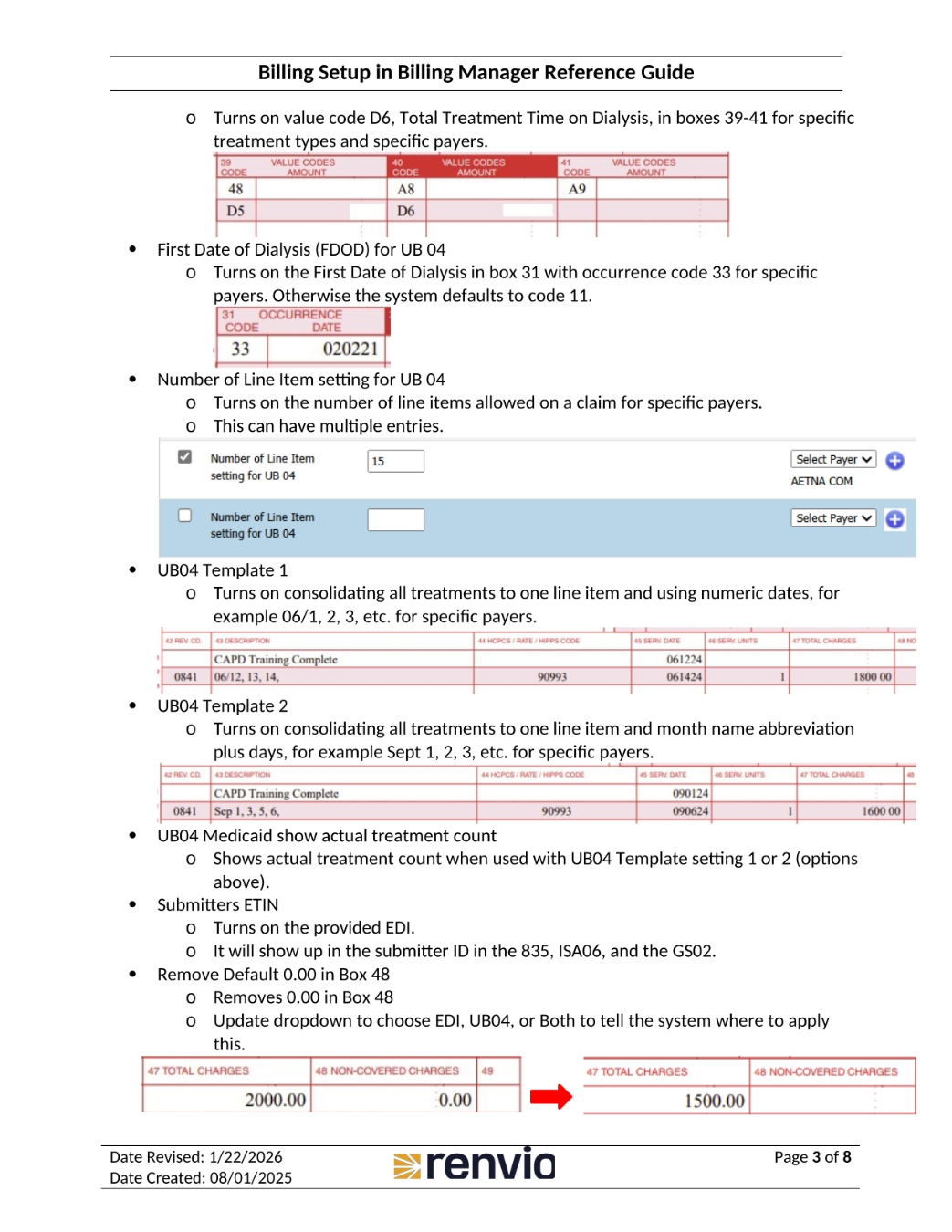
The UB 04 Setup section is designed to fulfill each state's Medicaid requirements, but choosing All Payers is not recommended. You can customize the UB04 print and include the medication description without the NDC code. You can also turn on value code D6 for total treatment time on dialysis. First Date of Dialysis can be turned on for box 31. You can also set the number of line items for UB04 and use UB04 templates to consolidate treatments.
4. Meds and Labs Billing Options
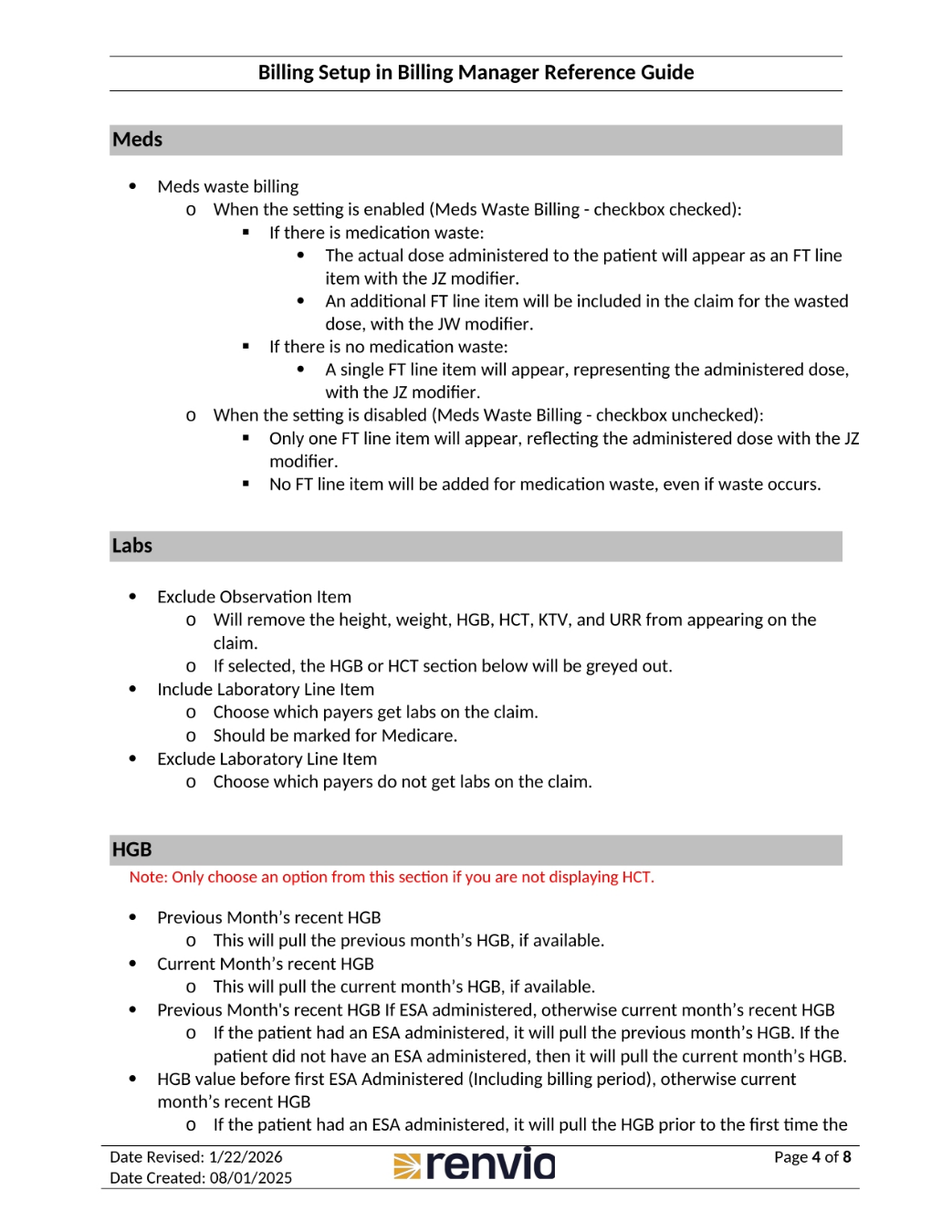
When the Meds Waste Billing setting is enabled, the actual dose administered to the patient will appear as an FT line item with the JZ modifier. An additional FT line item will be included in the claim for the wasted dose, with the JW modifier. You can also exclude observation items, include laboratory line items, and exclude laboratory line items. Note that you should only choose an option from the HGB section if you are not displaying HCT.
5. HCT and Claim Settings
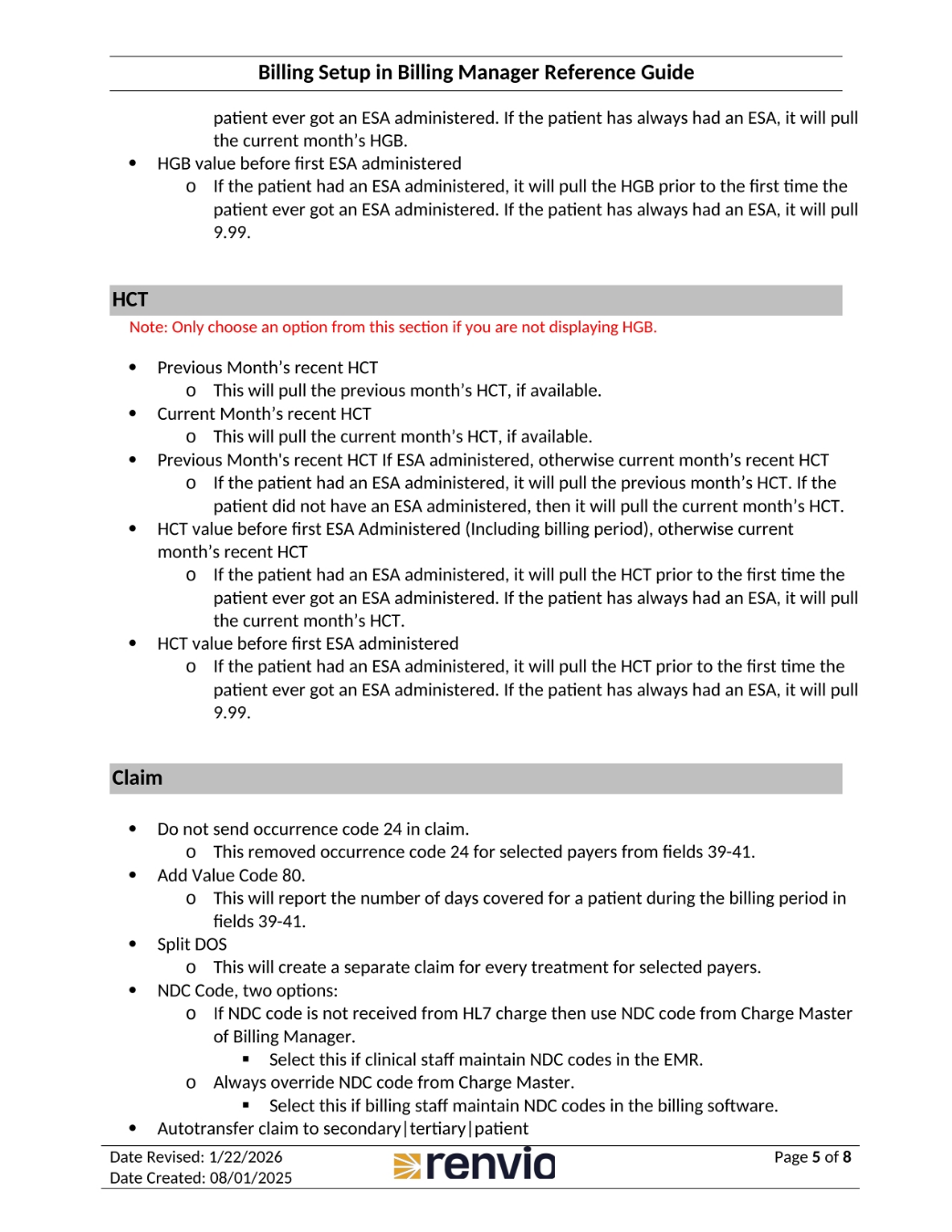
Note that you should only choose an option from the HCT section if you are not displaying HGB. You can select previous or current month's HCT, or the HCT value before first ESA administered. You can also choose not to send occurrence code 24 in the claim and add value code 80. You can split DOS and select NDC code options. Finally, you can autotransfer the claim to secondary, tertiary, or patient.
6. Claim Transfers and Value Codes
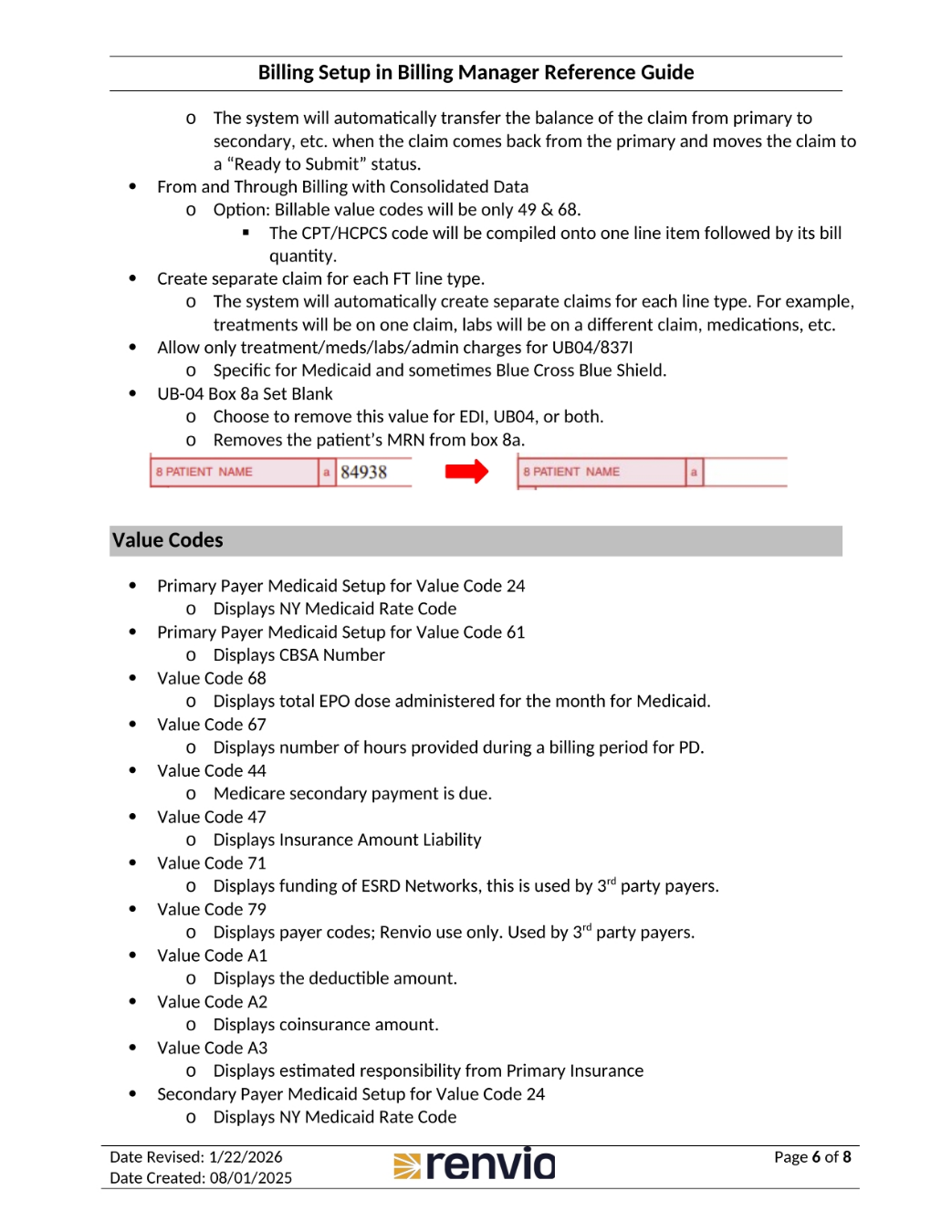
The system will automatically transfer the balance of the claim from primary to secondary when the claim comes back from the primary and moves the claim to a 'Ready to Submit' status. You can also use from and through billing with consolidated data and create separate claims for each FT line type. You can allow only treatment, meds, labs, and admin charges for UB04/8371 and set the UB-04 Box 8a blank. Finally, you can set up primary and secondary payer Medicaid and value codes.
7. FT Line Item Order and Condition Codes
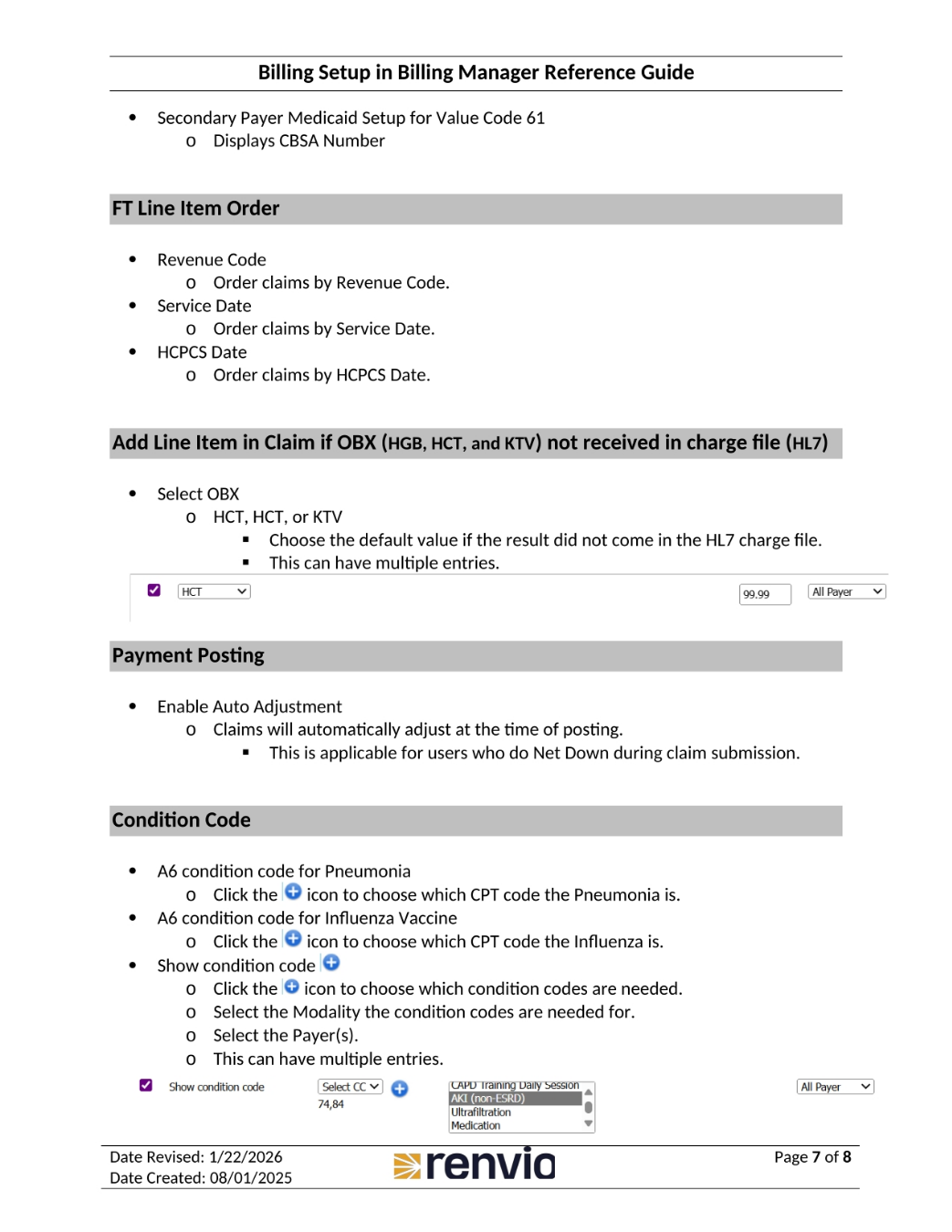
You can order FT line items by revenue code, service date, or HCPCS date. You can also add a line item in the claim if OBX is not received in the charge file. You can enable auto adjustment for claims and set condition codes for pneumonia and influenza vaccine. You can also show condition codes and select the modality and payers for the condition codes.
8. Modifier Handling
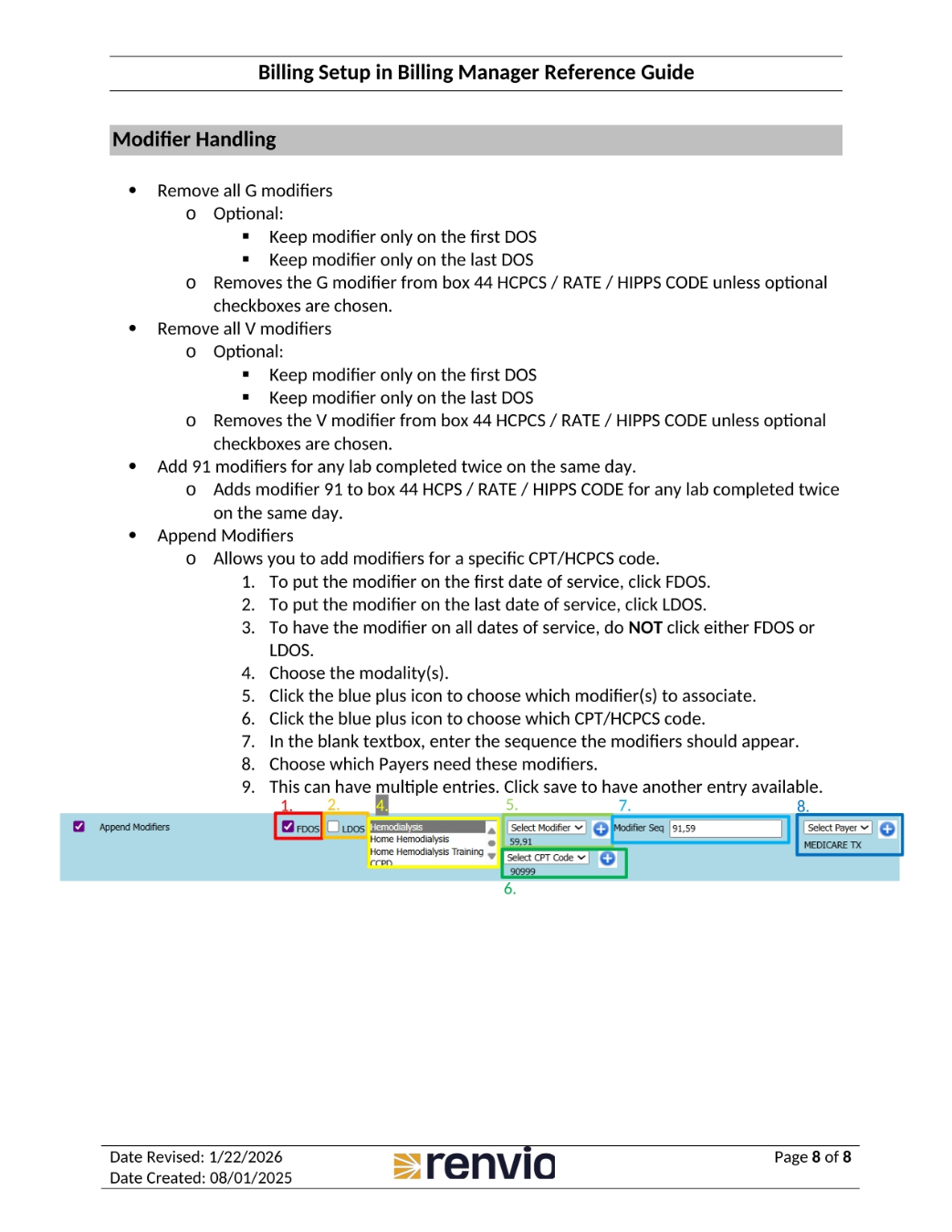
You can remove all G or V modifiers, and add 91 modifiers for any lab completed twice on the same day. You can also append modifiers, putting the modifier on the first or last date of service, or on all dates of service. Choose the modality, modifier, CPT/HCPCS code, and payers that need these modifiers. This can have multiple entries, and you can click save to have another entry available.