Adjust AX Modifier in Dialysis Manager and Billing Manager

This tutorial guides you through configuring billing settings for TDAPA drugs that contain the AX modifier.
1. CMS Guidelines
Starting for July dates of service, CMS will no longer be accepting the AX modifier for TDAPA drugs. Please note that previous dates of service will still require the AX modifier.
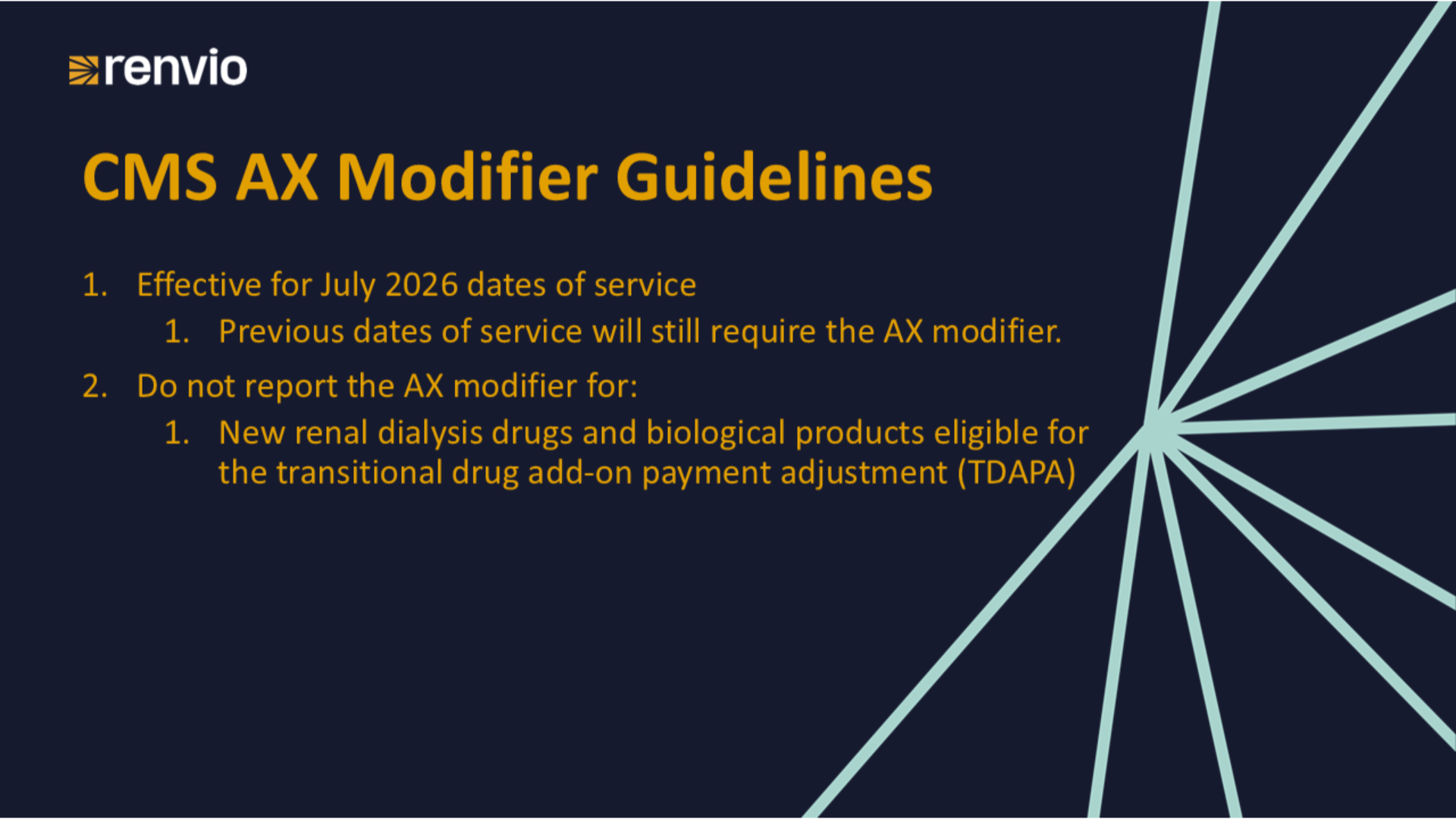
2. Affected TDAPA Drugs
Here is a list of affected TDAPA drugs.

3. Remove AX from Dialysis Manager
To begin, we will remove the AX modifier from the Billing Setup in Dialysis Manager to prevent Medicare claims from having the modifier on it.

4. Open Dialysis Manager
Please open Dialysis Manager.
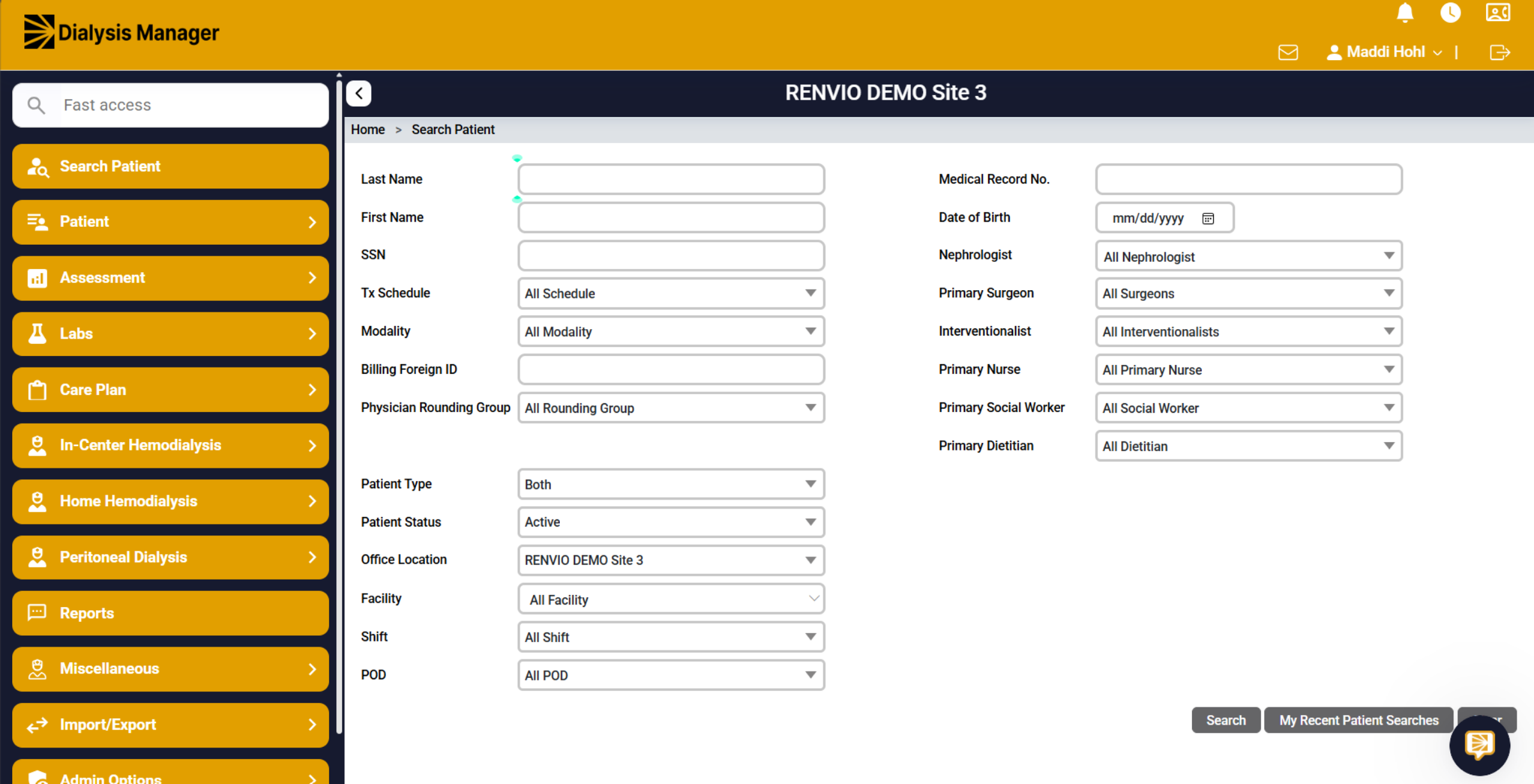
5. Access Import/Export Section
Hover over Import/Export.
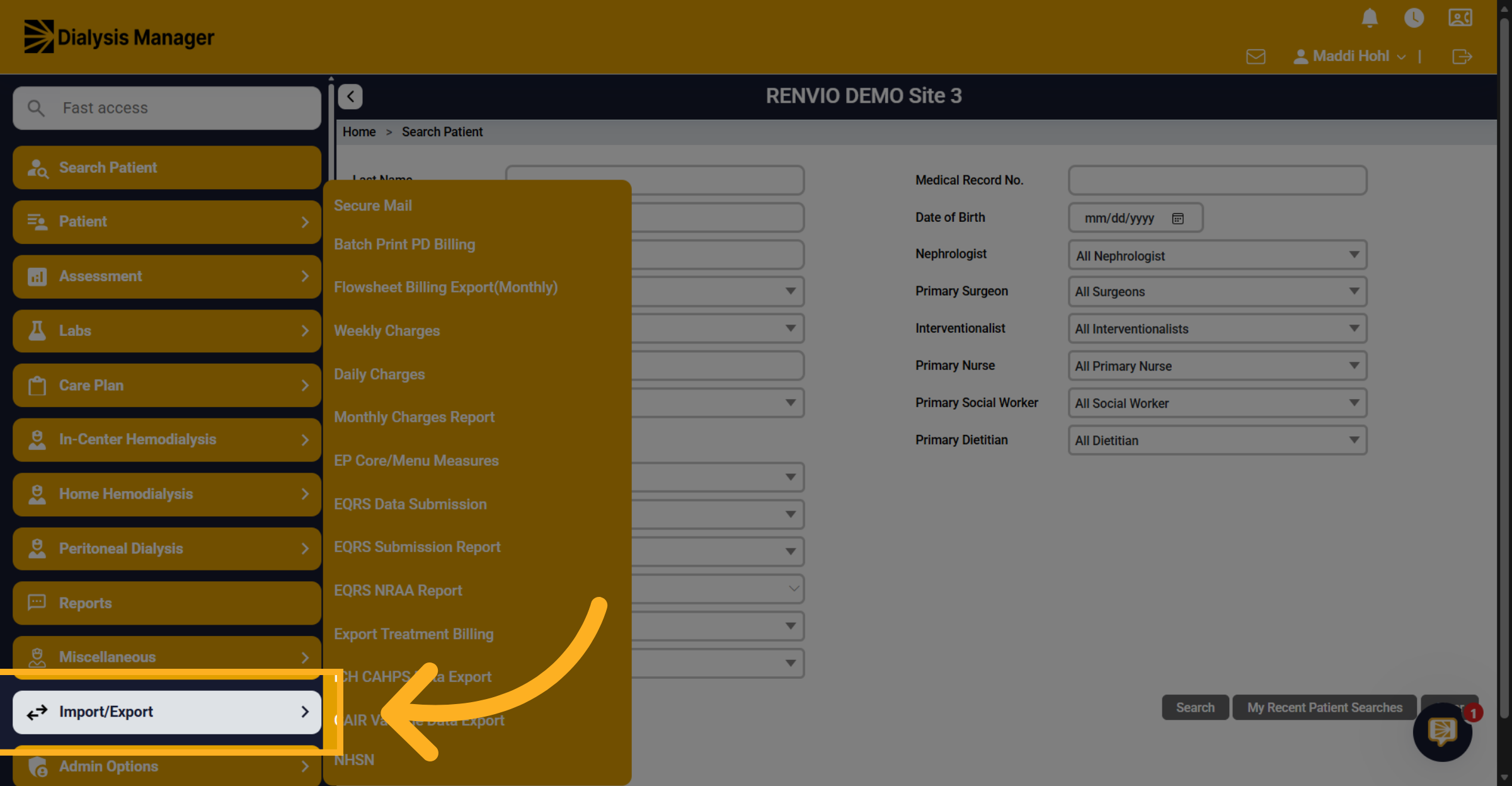
6. Open Export Treatment Billing
Click Export Treatment Billing.
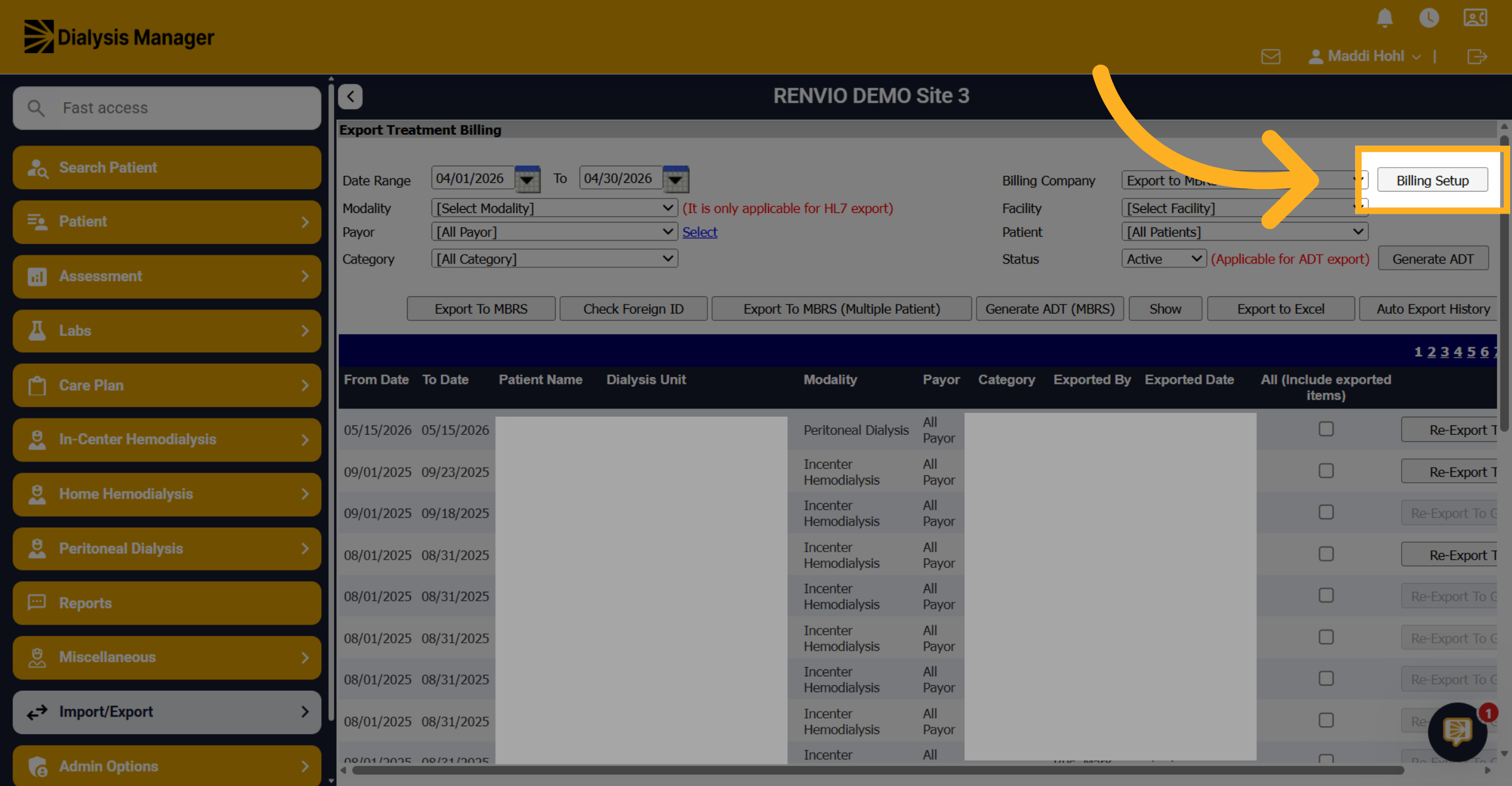
7. Navigate to Billing Setup
Click Billing Setup.
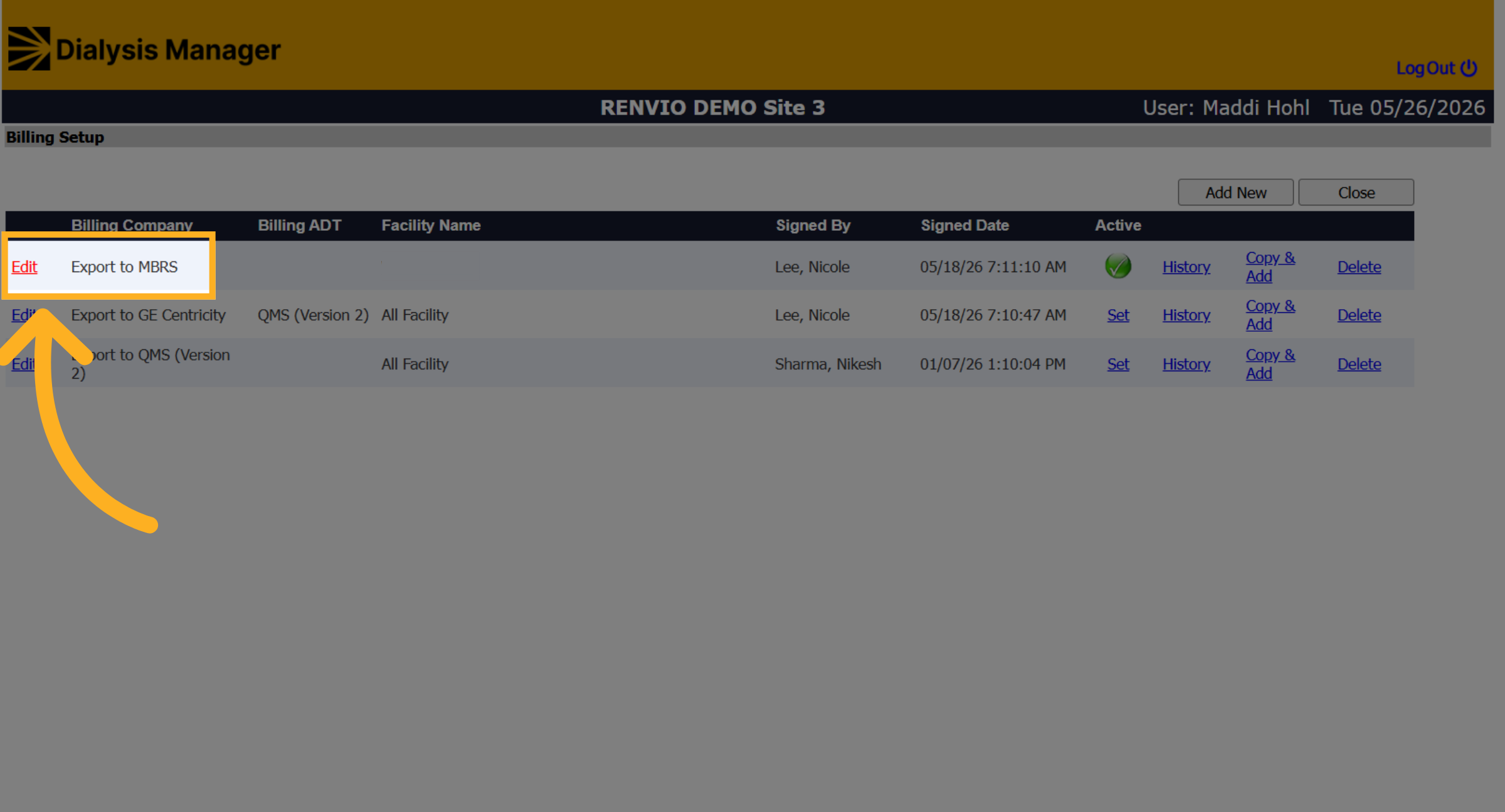
8. Edit Billing Settings
Click Edit to modify the current billing setup parameters.
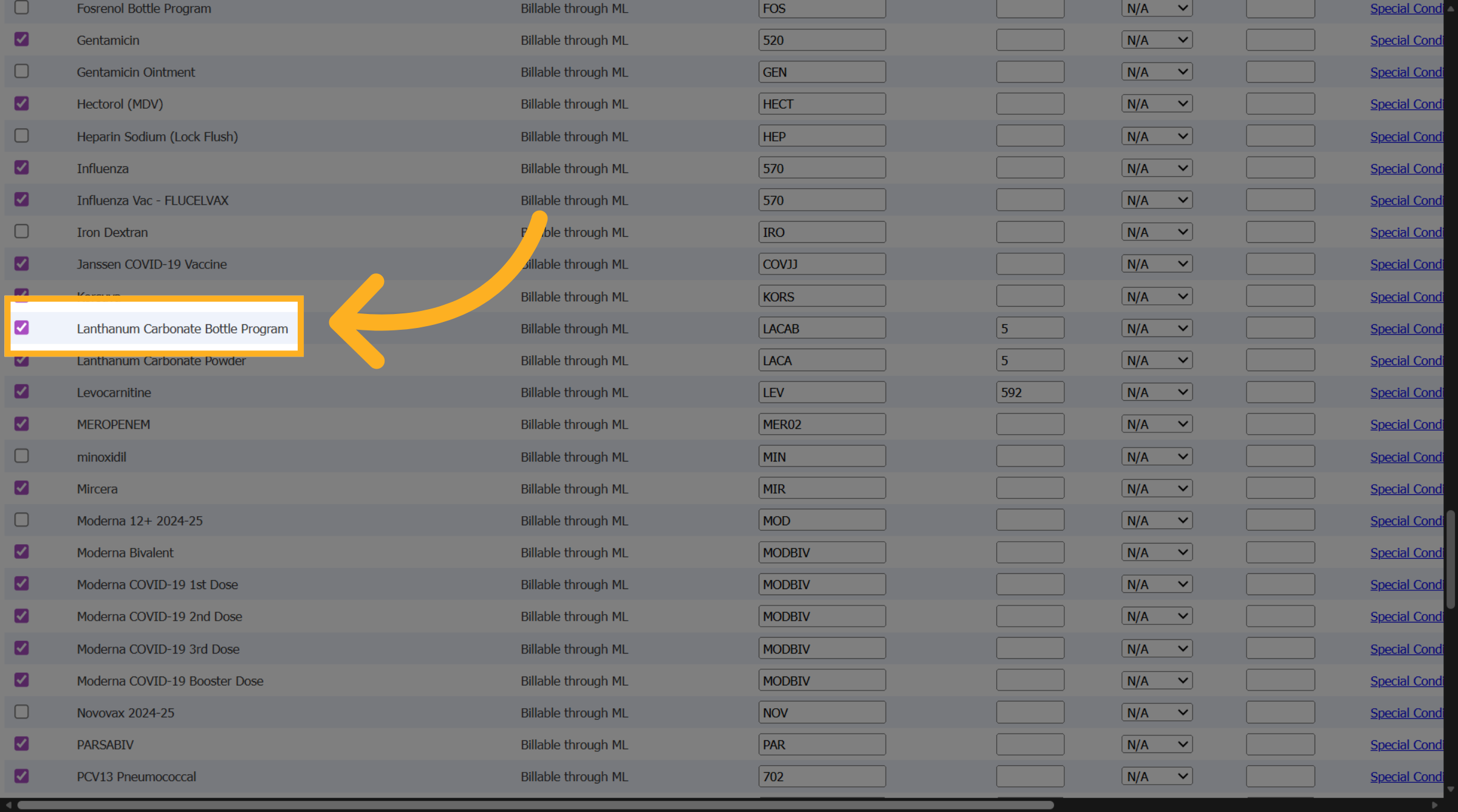
9. Find the Medication
Scroll to the bottom of the pop-up and locate the TDAPA medication.
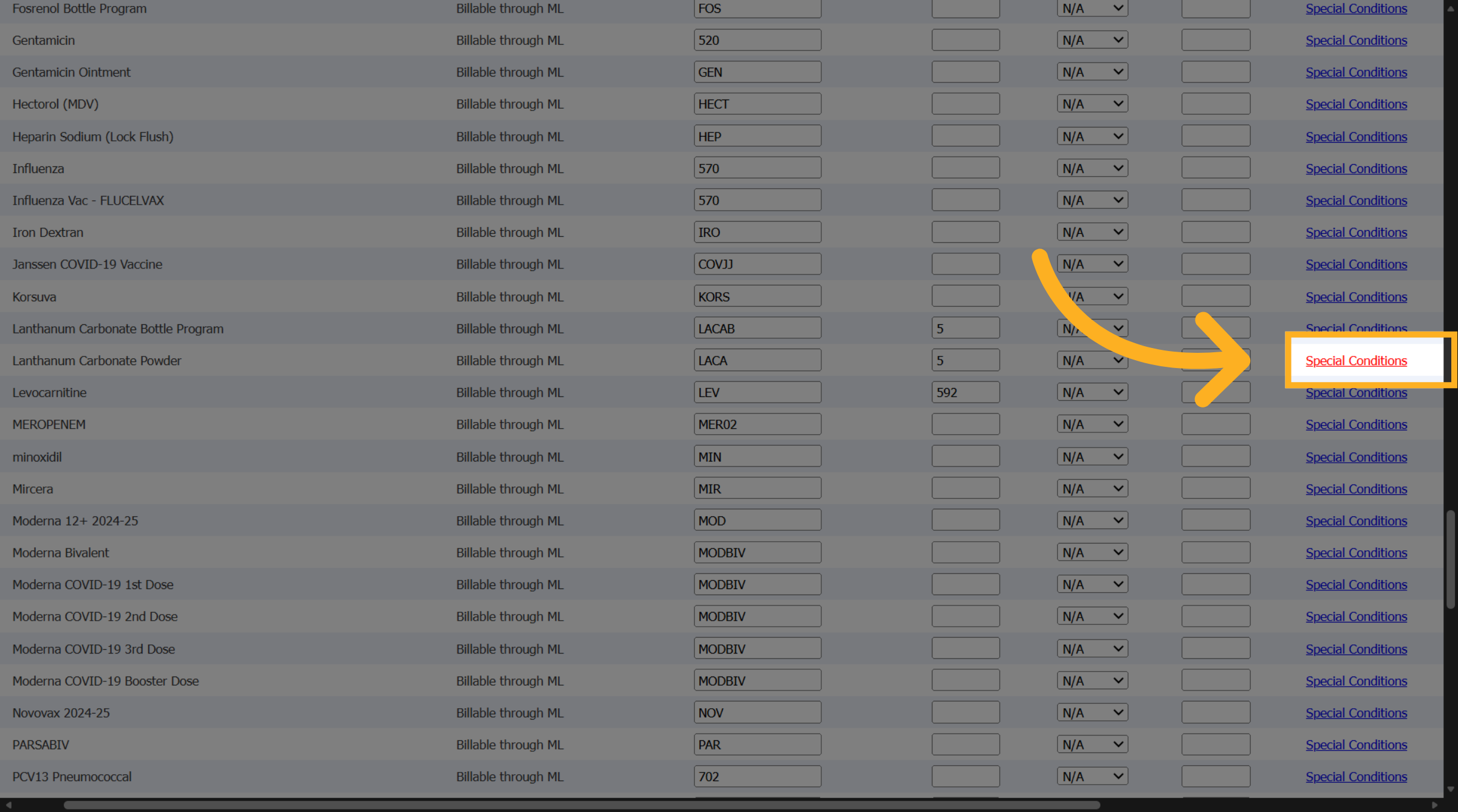
10. Open Special Conditions Tab
Click Special Conditions to manage billing conditions.
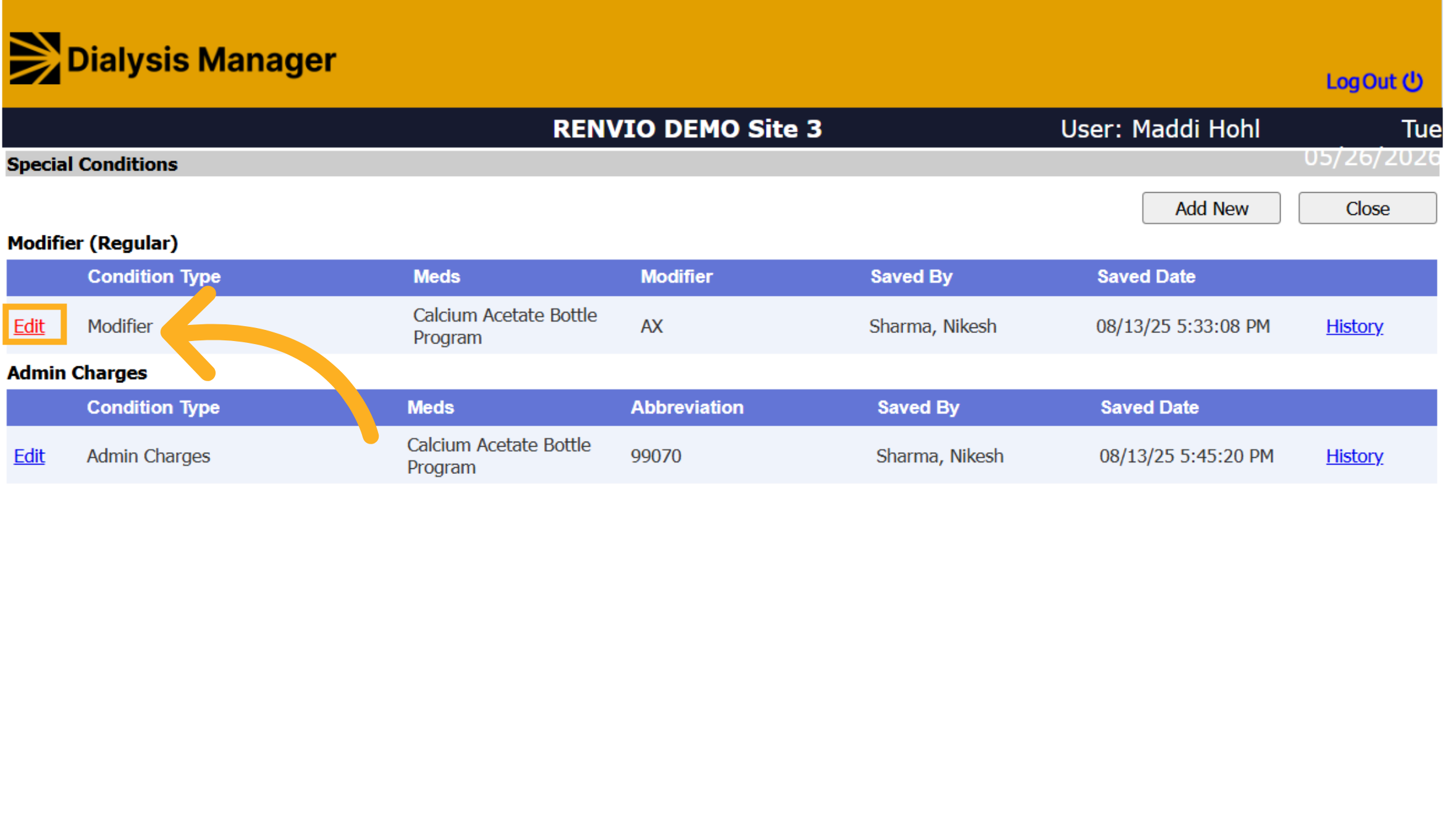
11. Edit Special Condition
Click Edit next to the AX modifier entry.
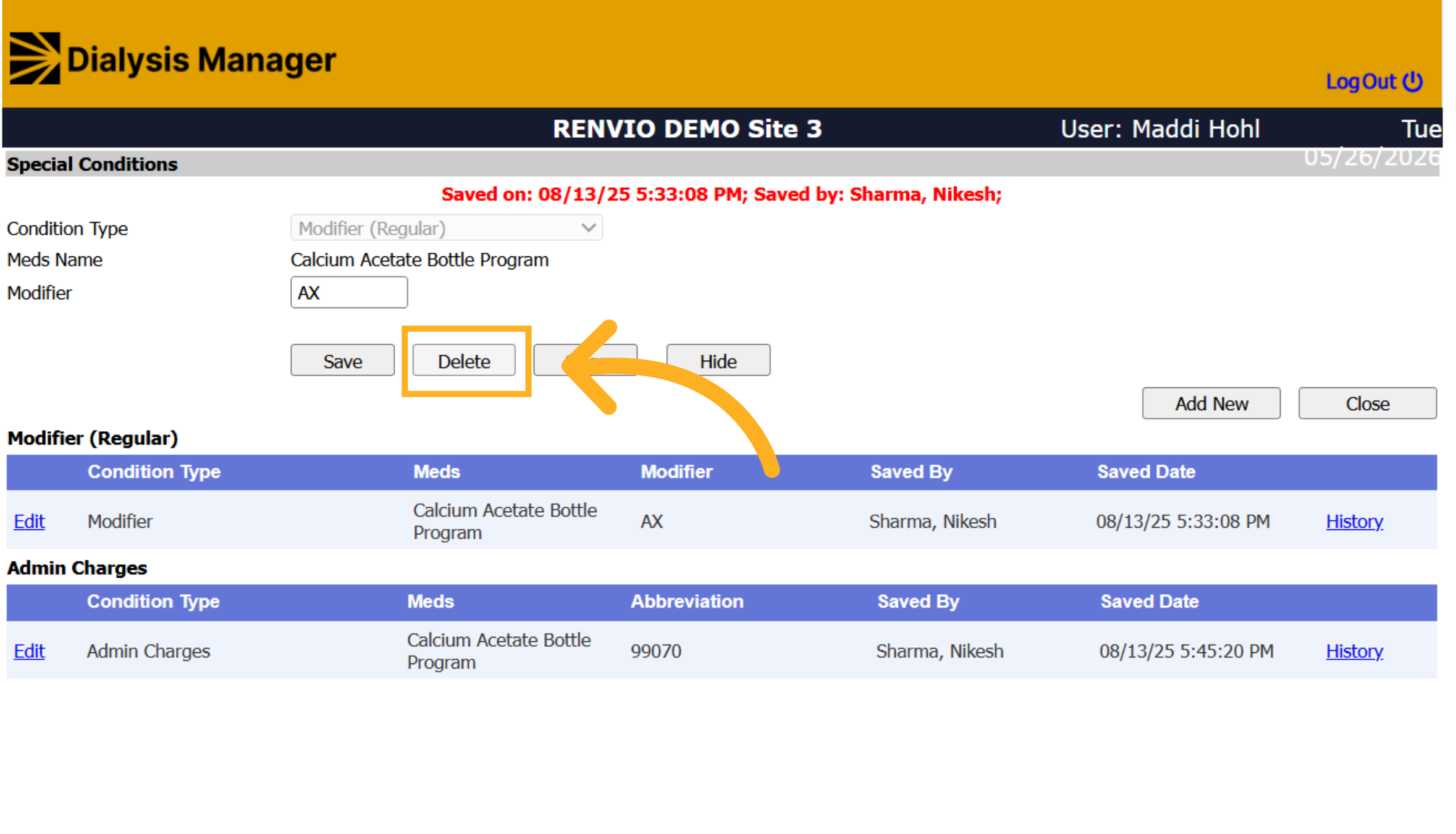
12. Delete Special Condition
Click Delete to remove the AX modifier.
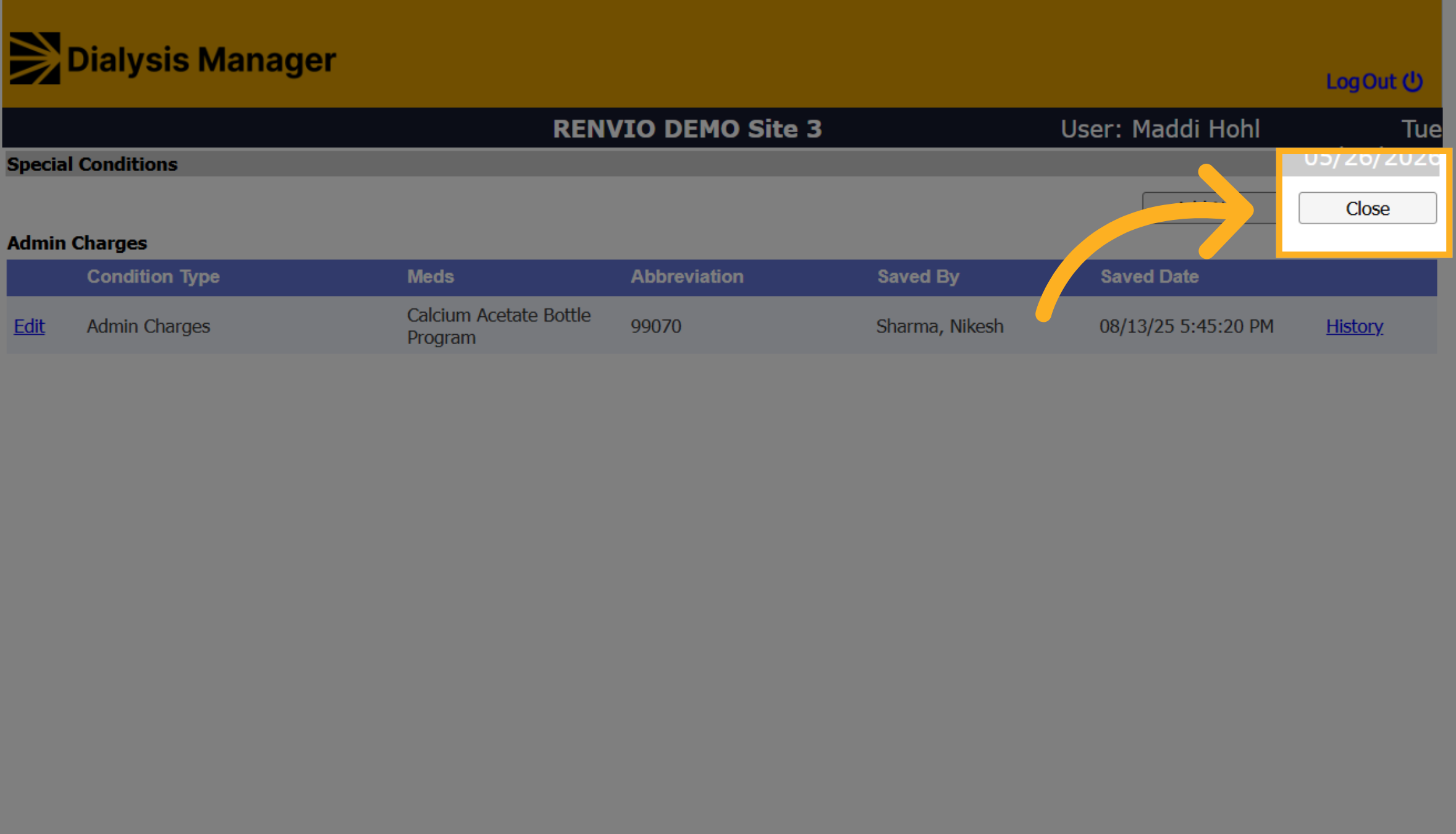
13. Close Special Conditions Window
Click Close to exit the Special Conditions window. Repeat this process with the rest of the TDAPA drugs.
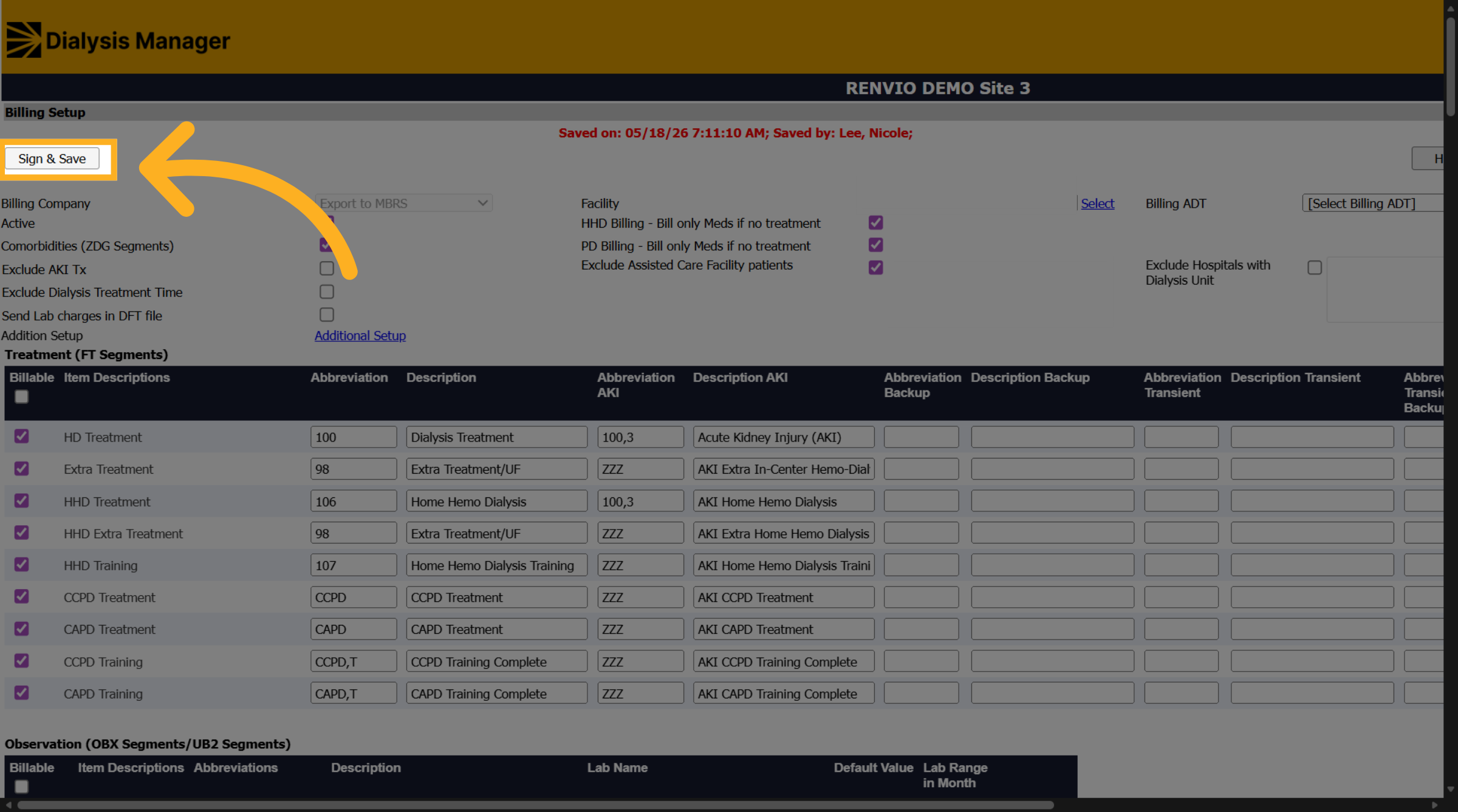
14. Save Billing Setup Changes
Once all the TDAPA drugs have had their AX modifier removed, click Sign & Save to save the modifications.
15. Set up AX for Commercials in Billing Manager
Follow the next steps to turn on the AX modifier for commercial insurances.

16. Switch to Billing Manager
Open Billing Manager.
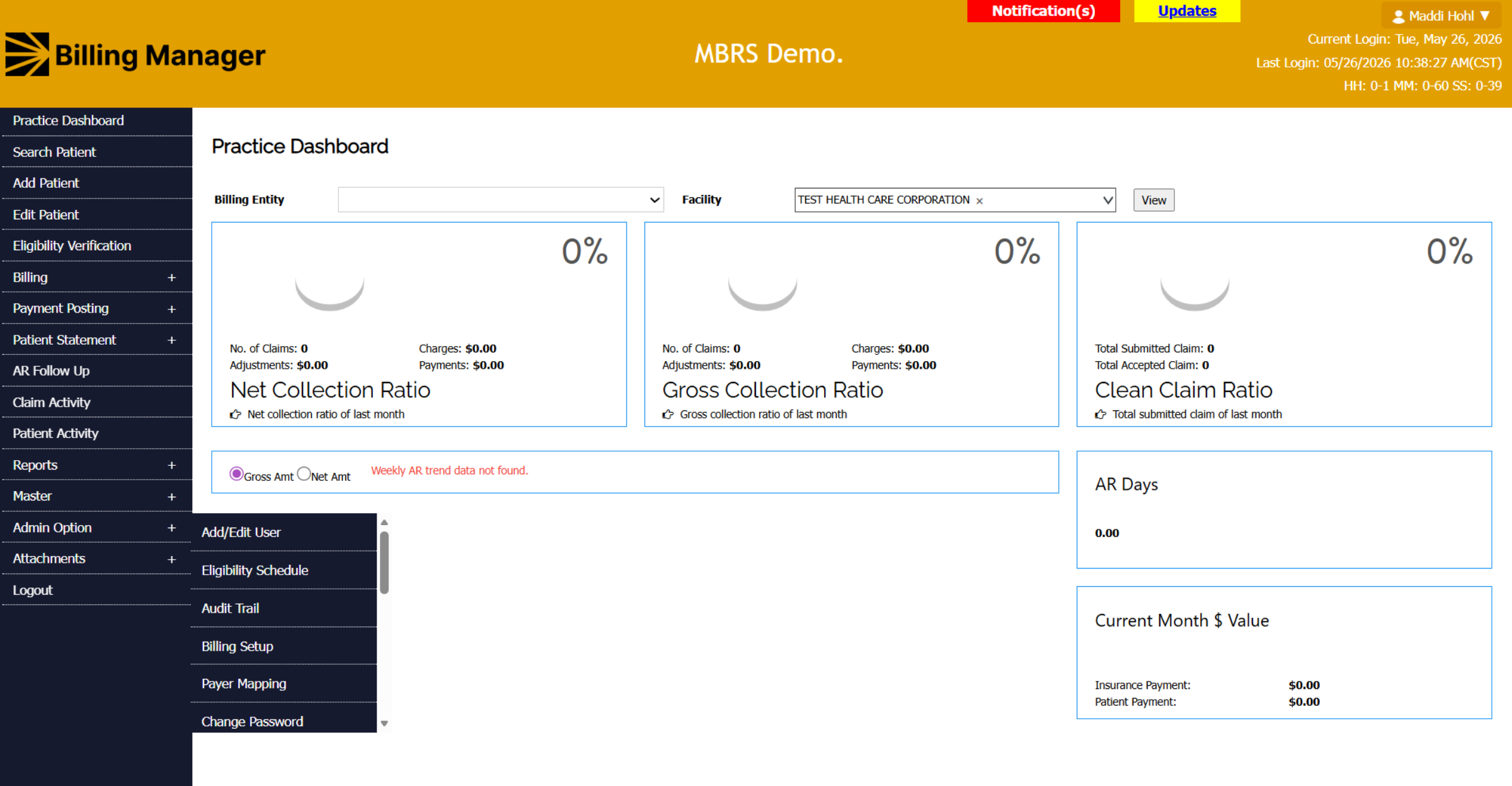
17. Open Admin Options
Hover over Admin Option.
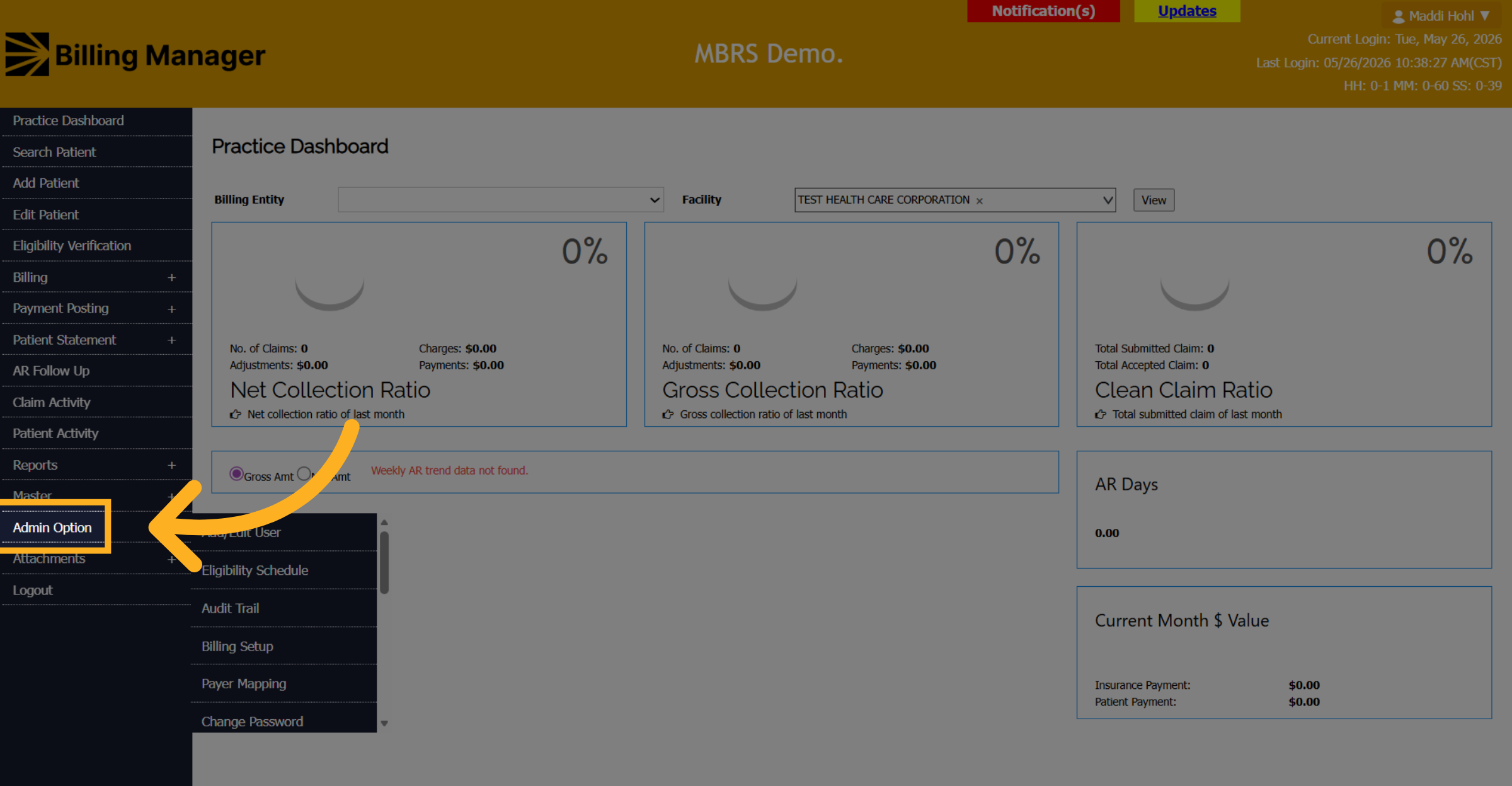
18. Access Billing Setup
Click Billing Setup.
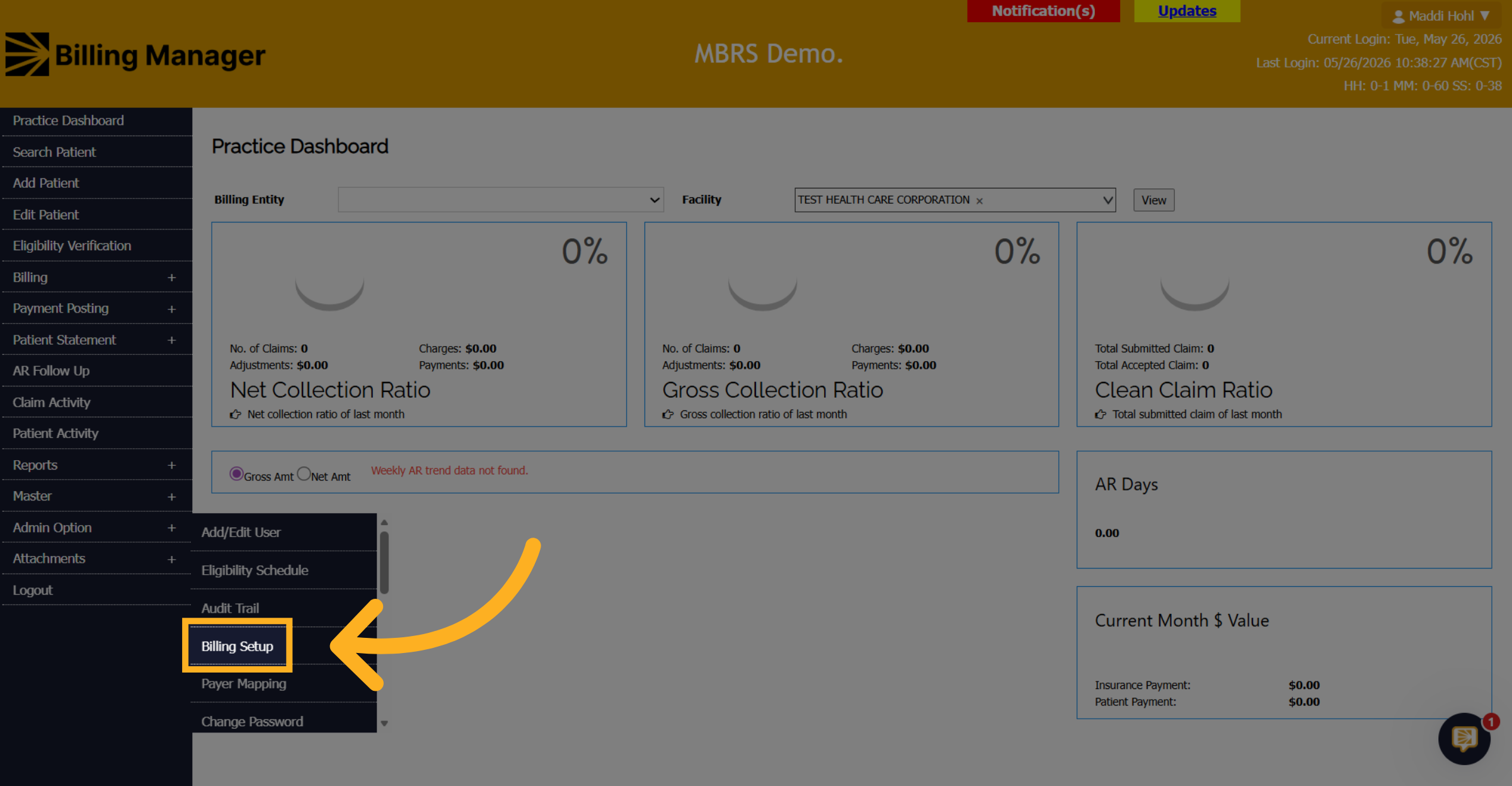
19. Open Billing Entity Selector
Update the Billing Entity and Facility
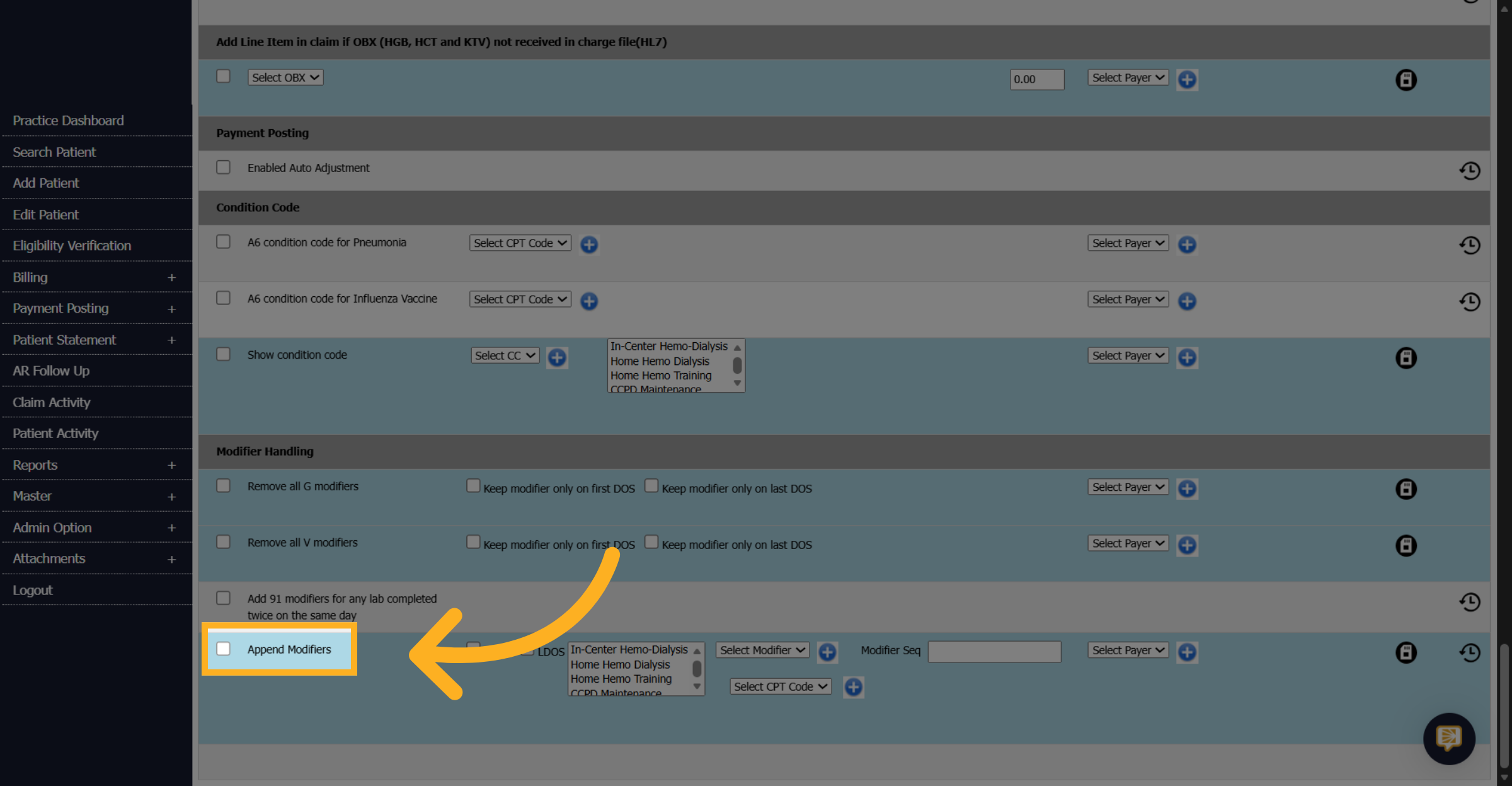
20. Enable Append Modifiers
Scroll to the very bottom of the screen and check the box next to Append Modifiers.
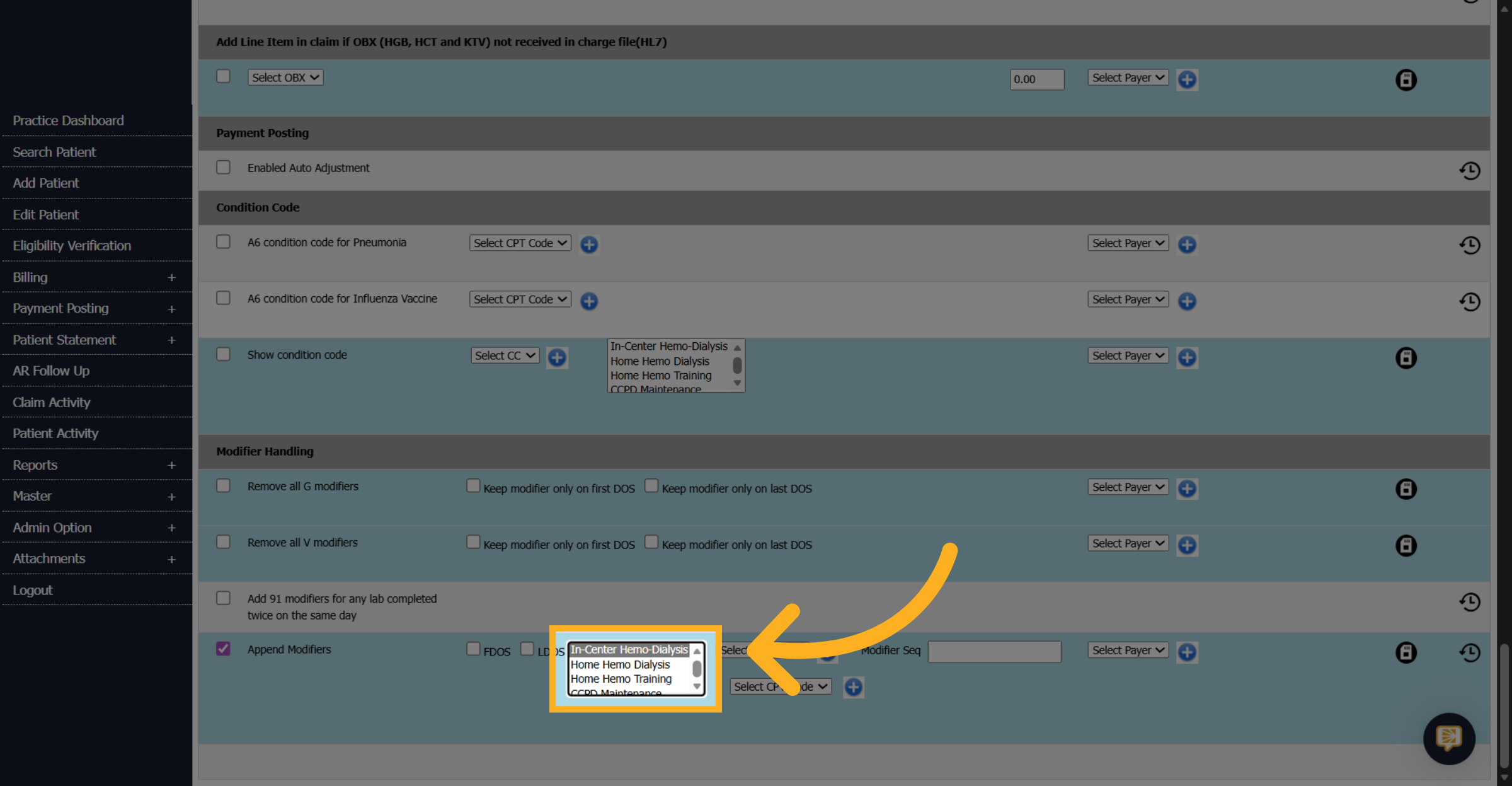
21. Select Dialysis Type
Select the treatment types that require the AX modifier.
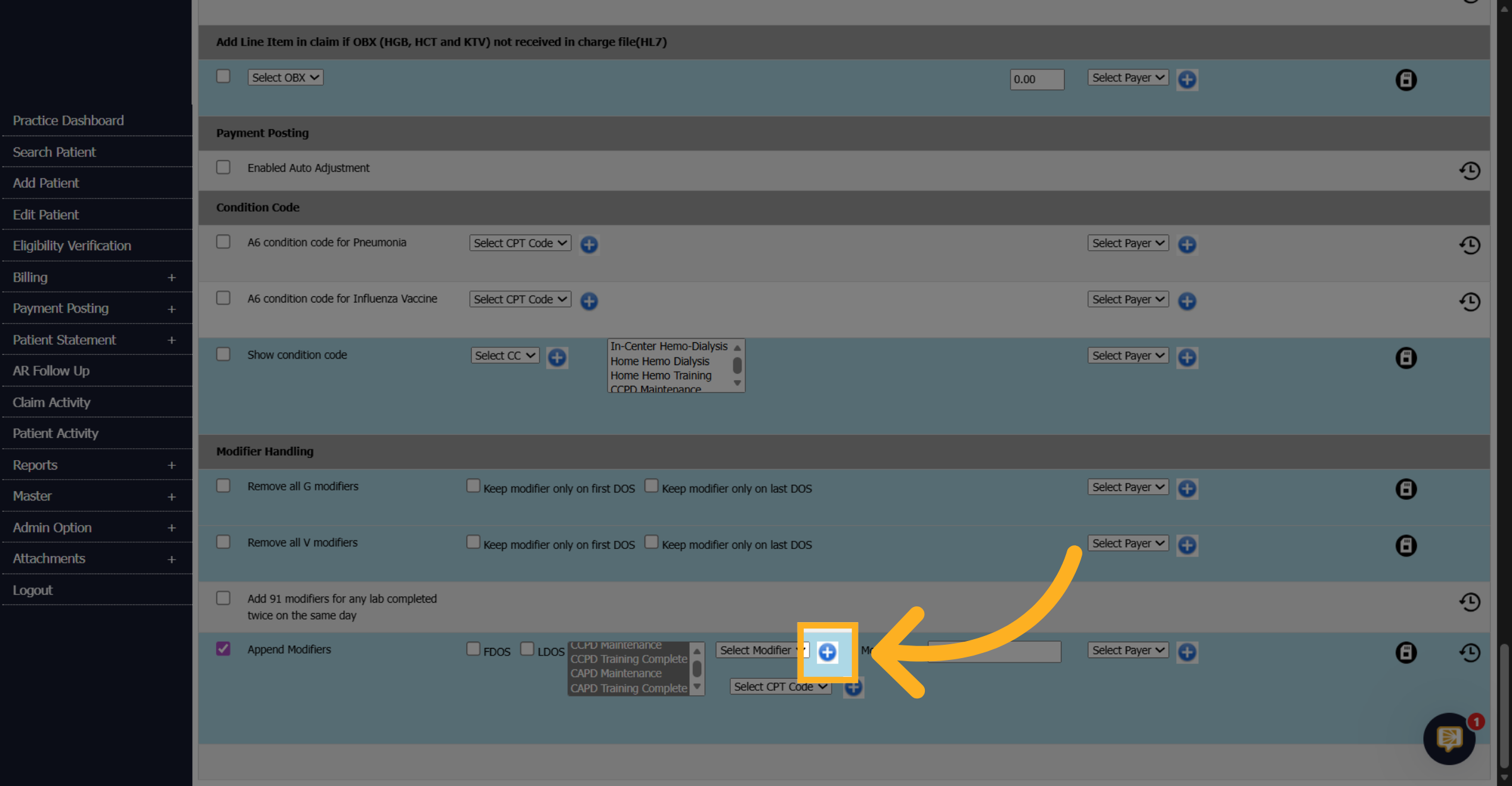
22. Choose the Modifier
Click the blue plus icon next to Select Modifier.
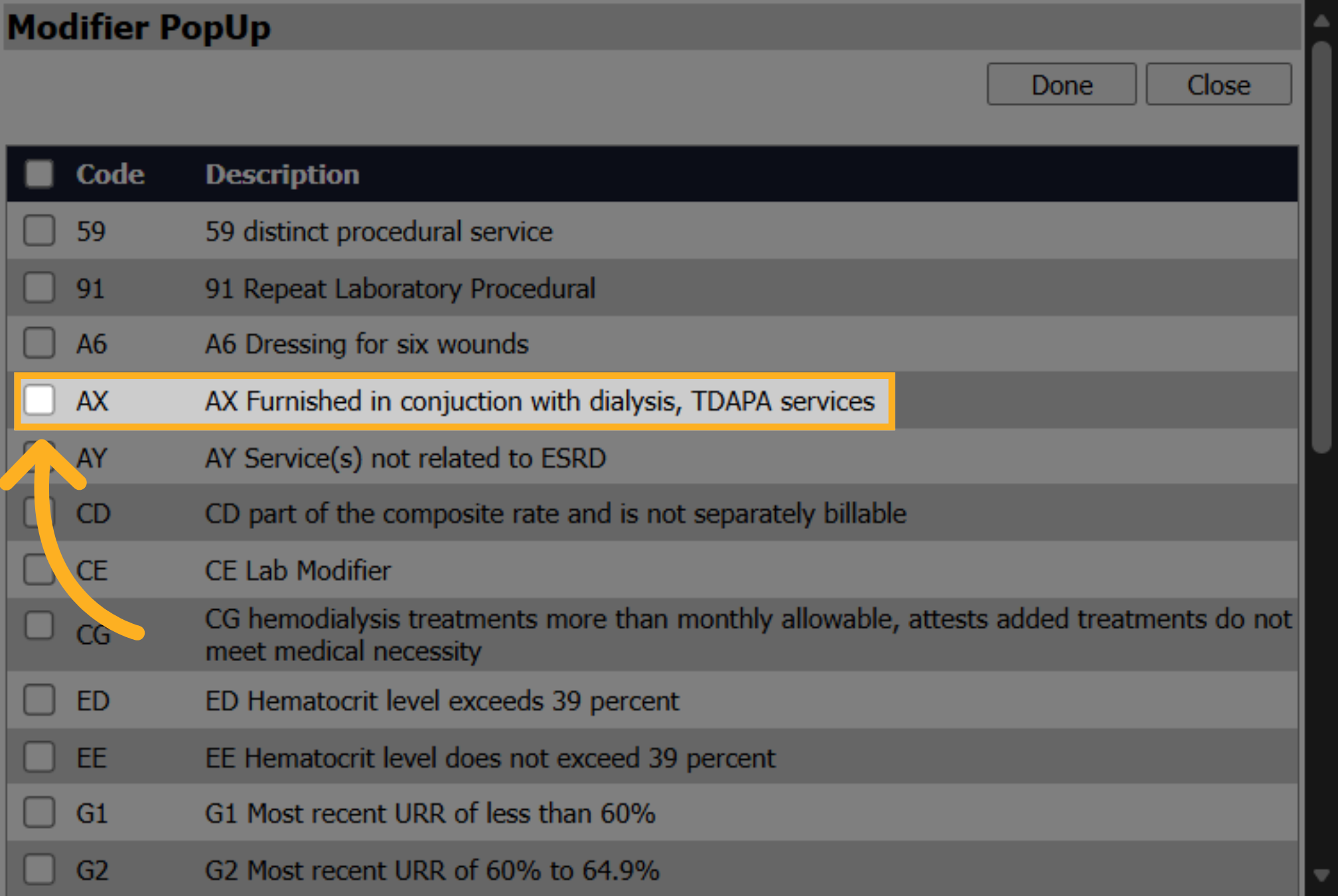
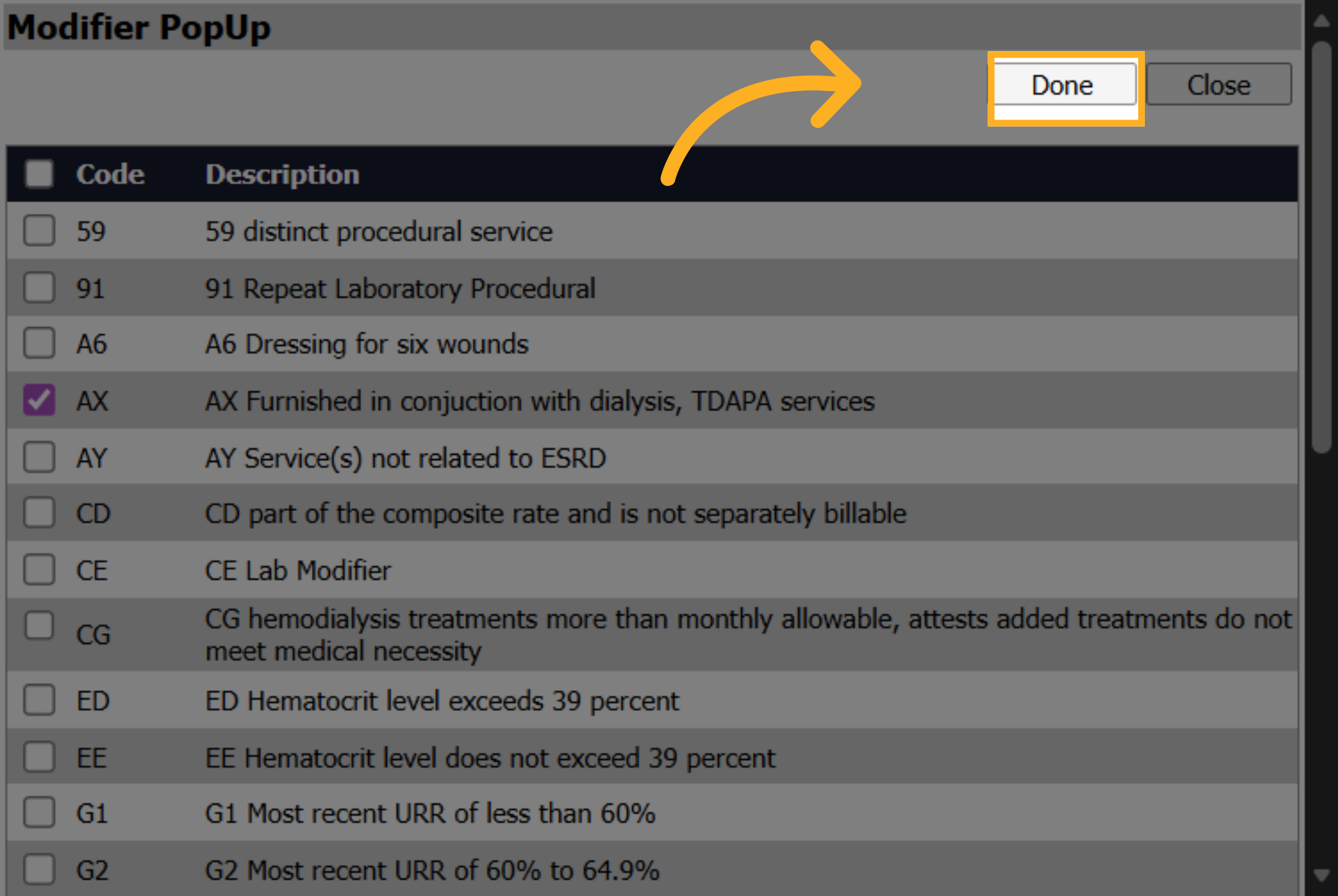
23. Enable Modifier Option
Check the box next to the AX modifier.
24. Confirm Modifier Settings
Click Done to apply the modifier.
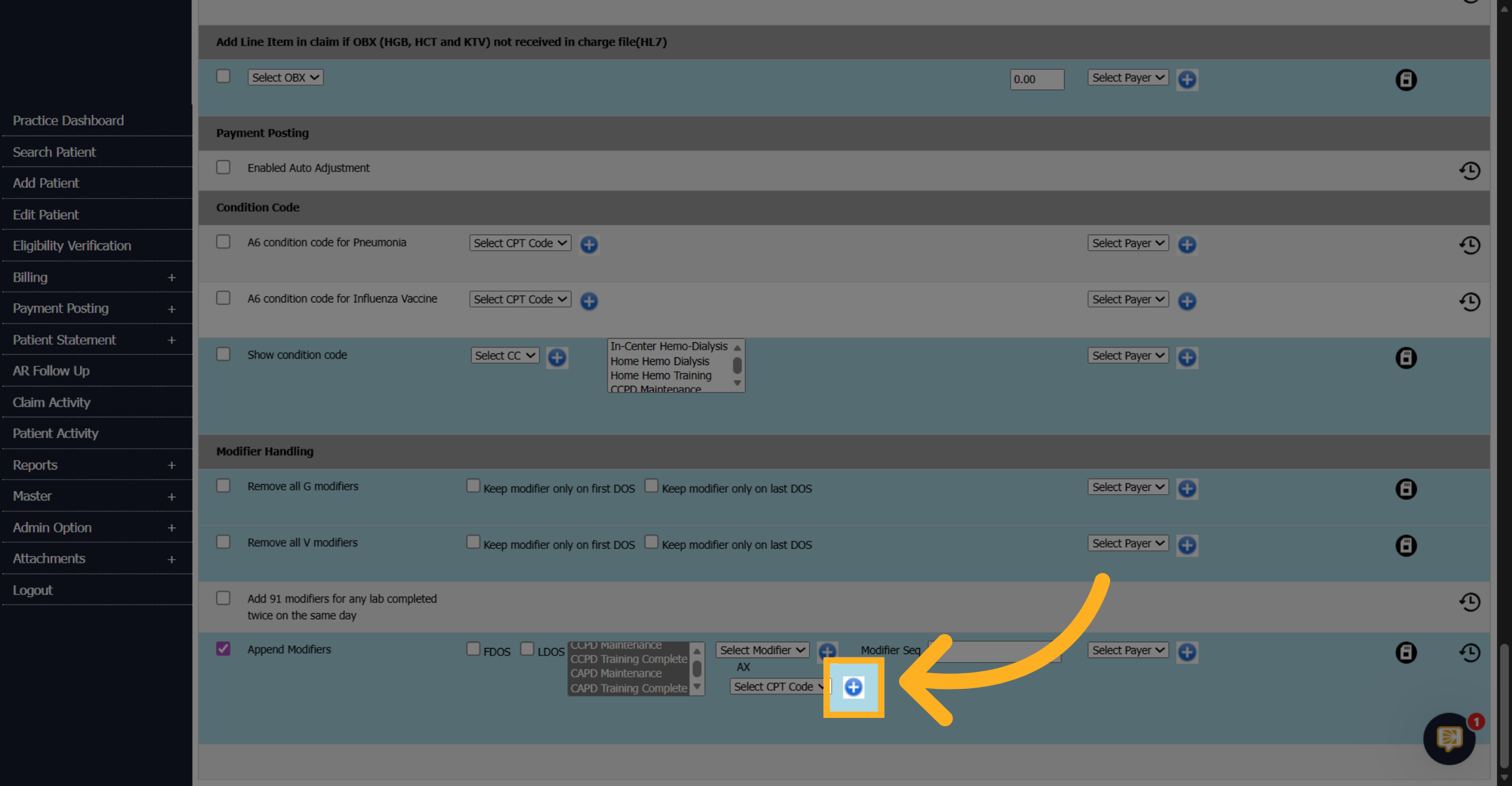
25. Choose CPT Code
Click the blue plus icon next to Select CPT Code.
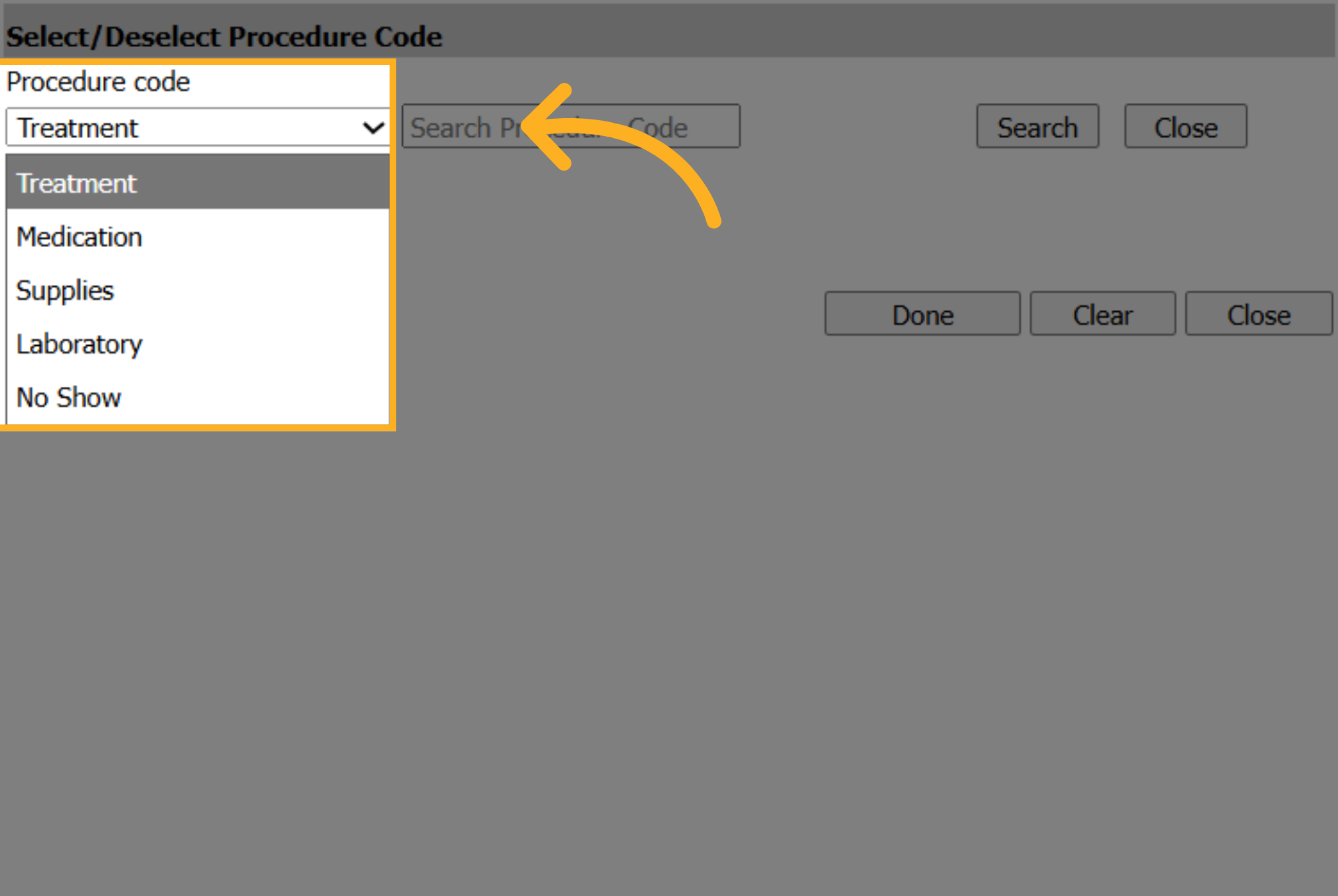
26. Select Procedure Code Categories
Update the Procedure Code dropdown to Medication.
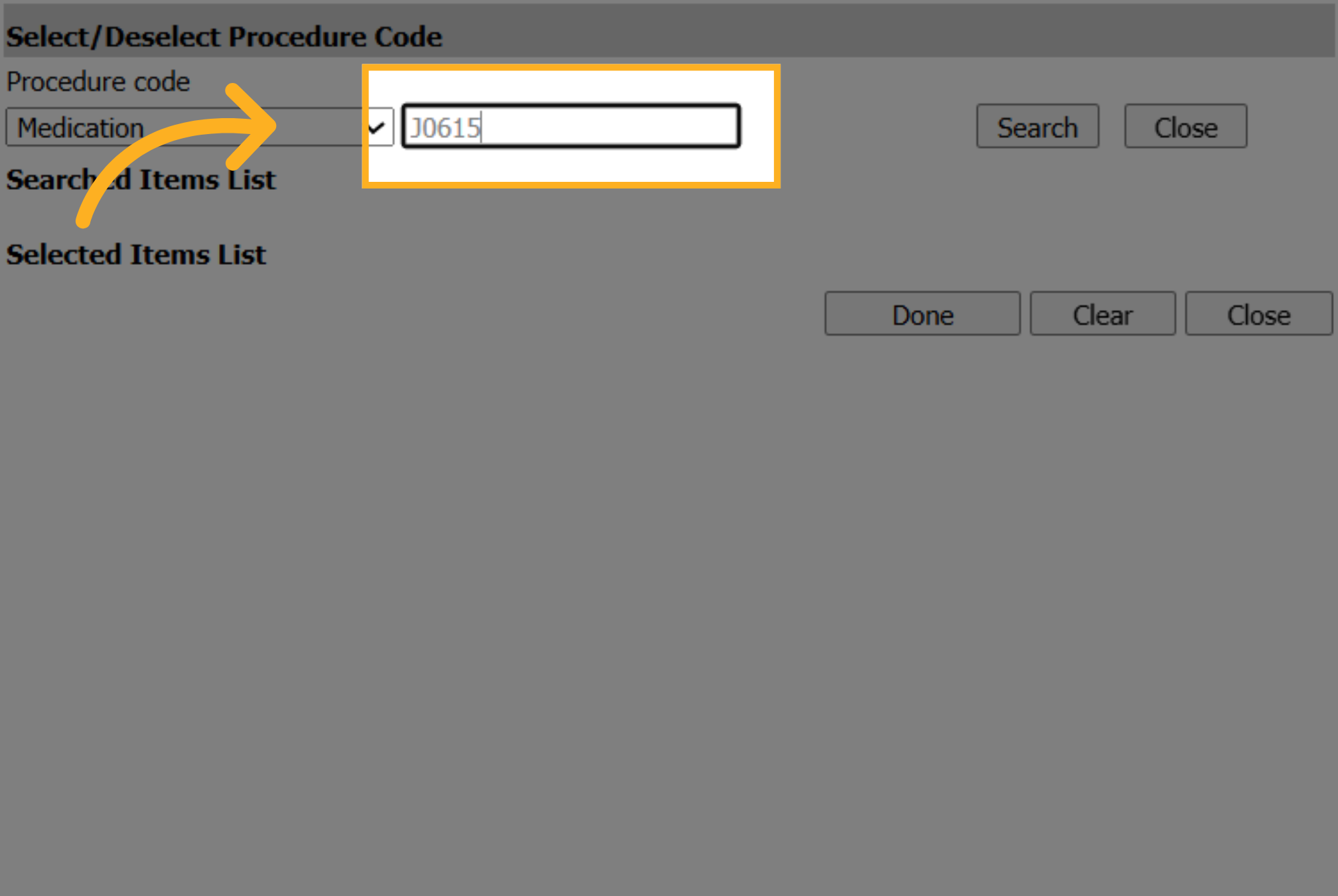
27. Enter Procedure Code
Enter the CPT code to locate the medication.
28. Execute Procedure Code Search
Click Search.
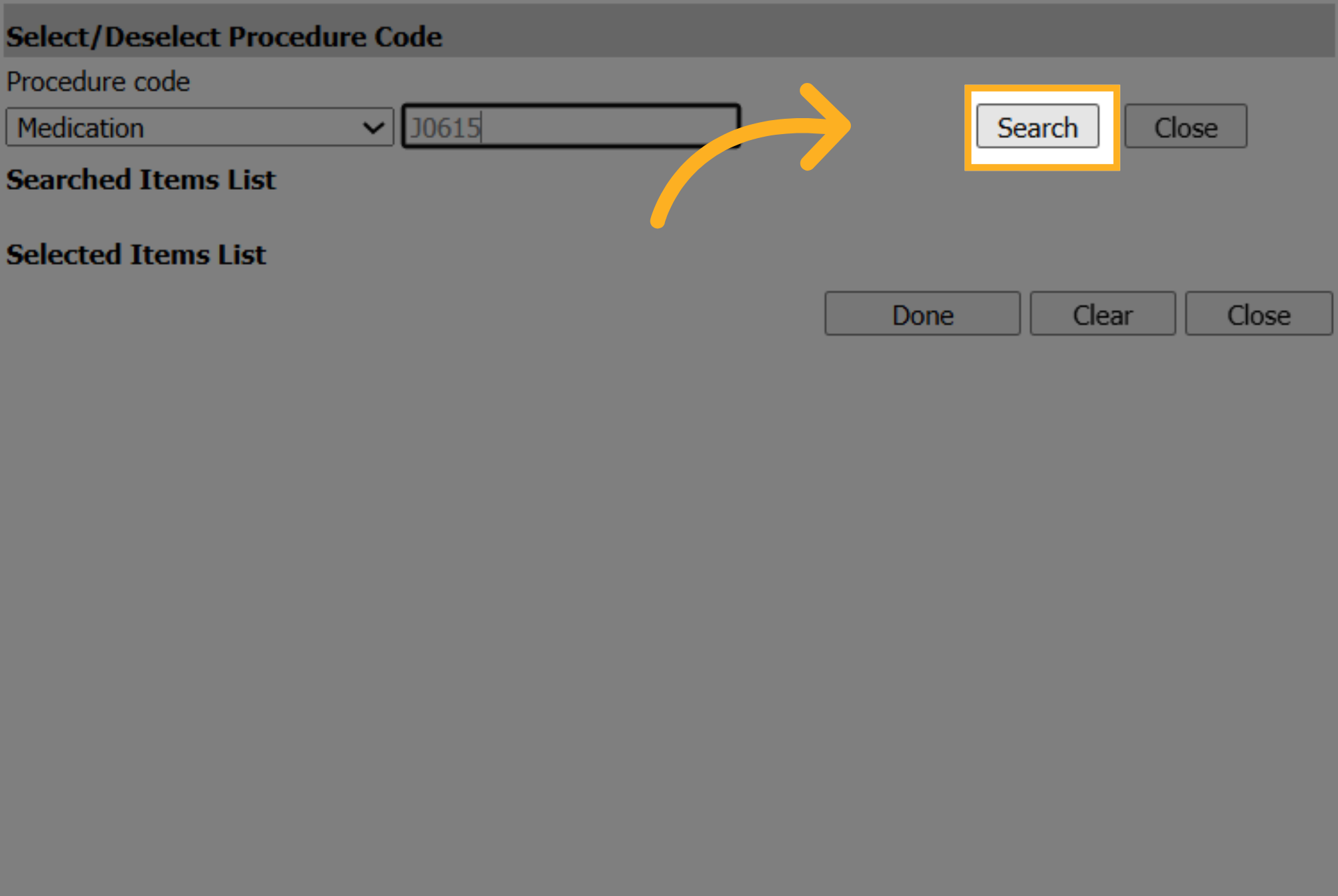
29. Enable Procedure Code Option
Check the box next to the correct procedure code.
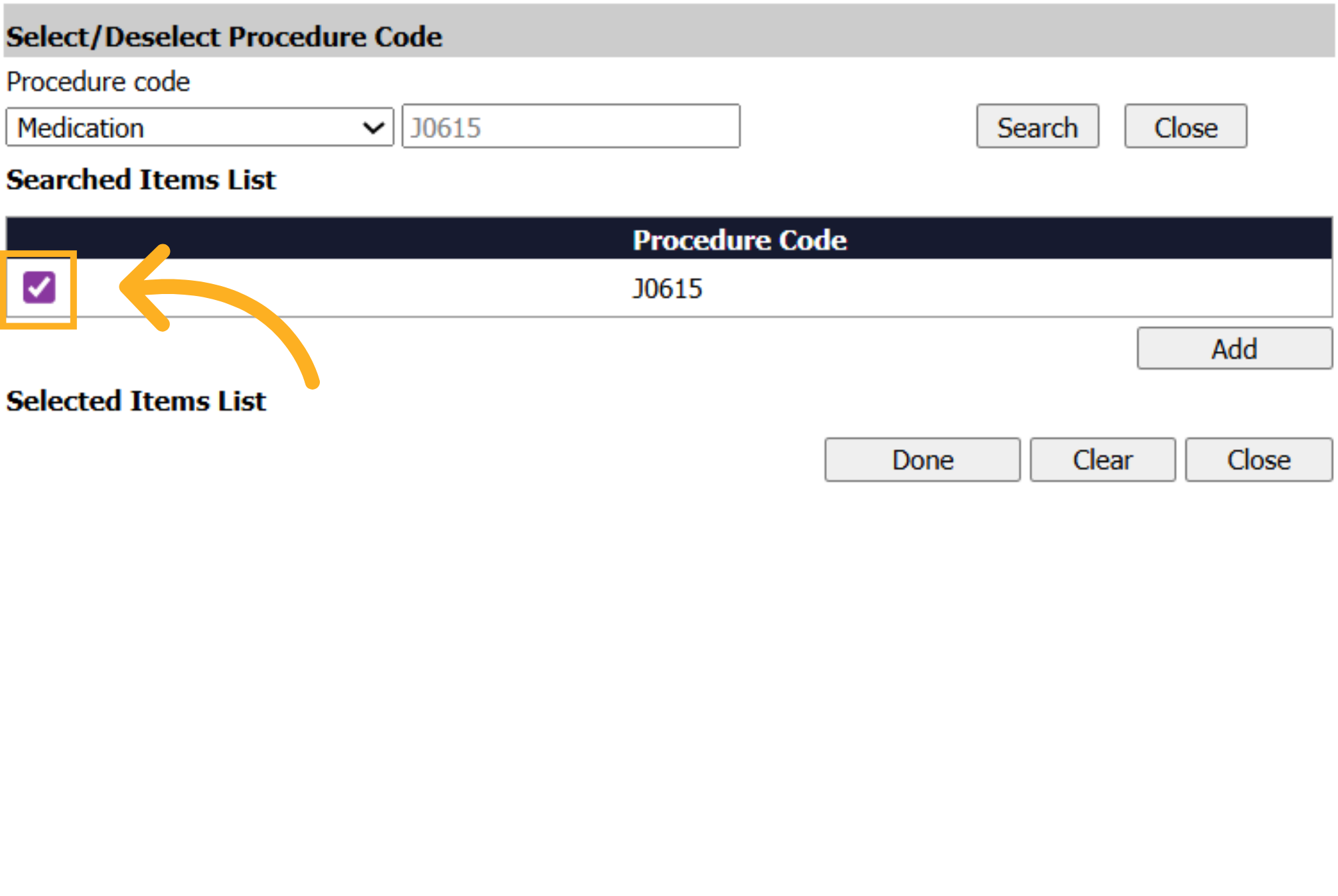
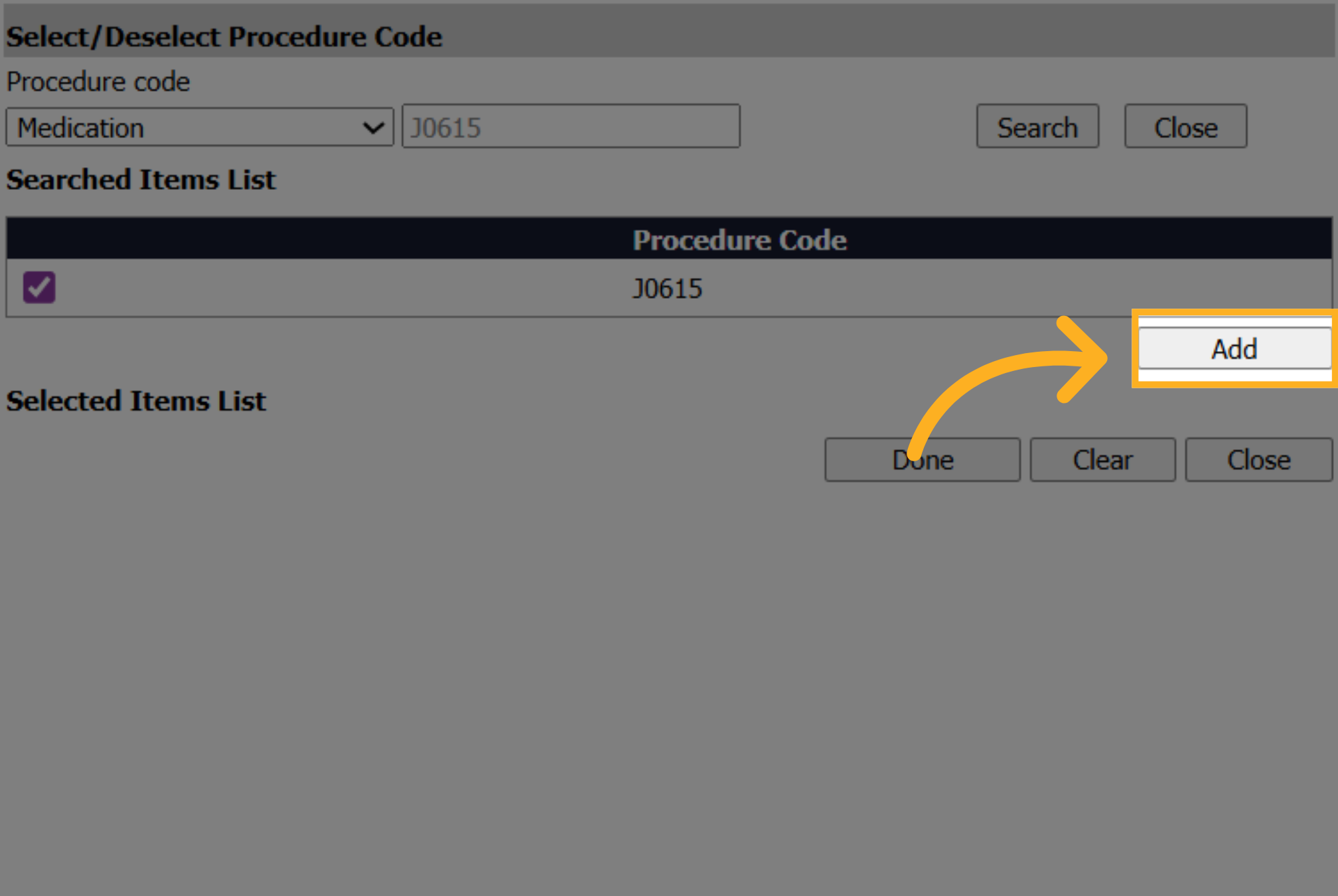
30. Click Add
Click Add to move the medication from Searched Items List to Selected Items List.
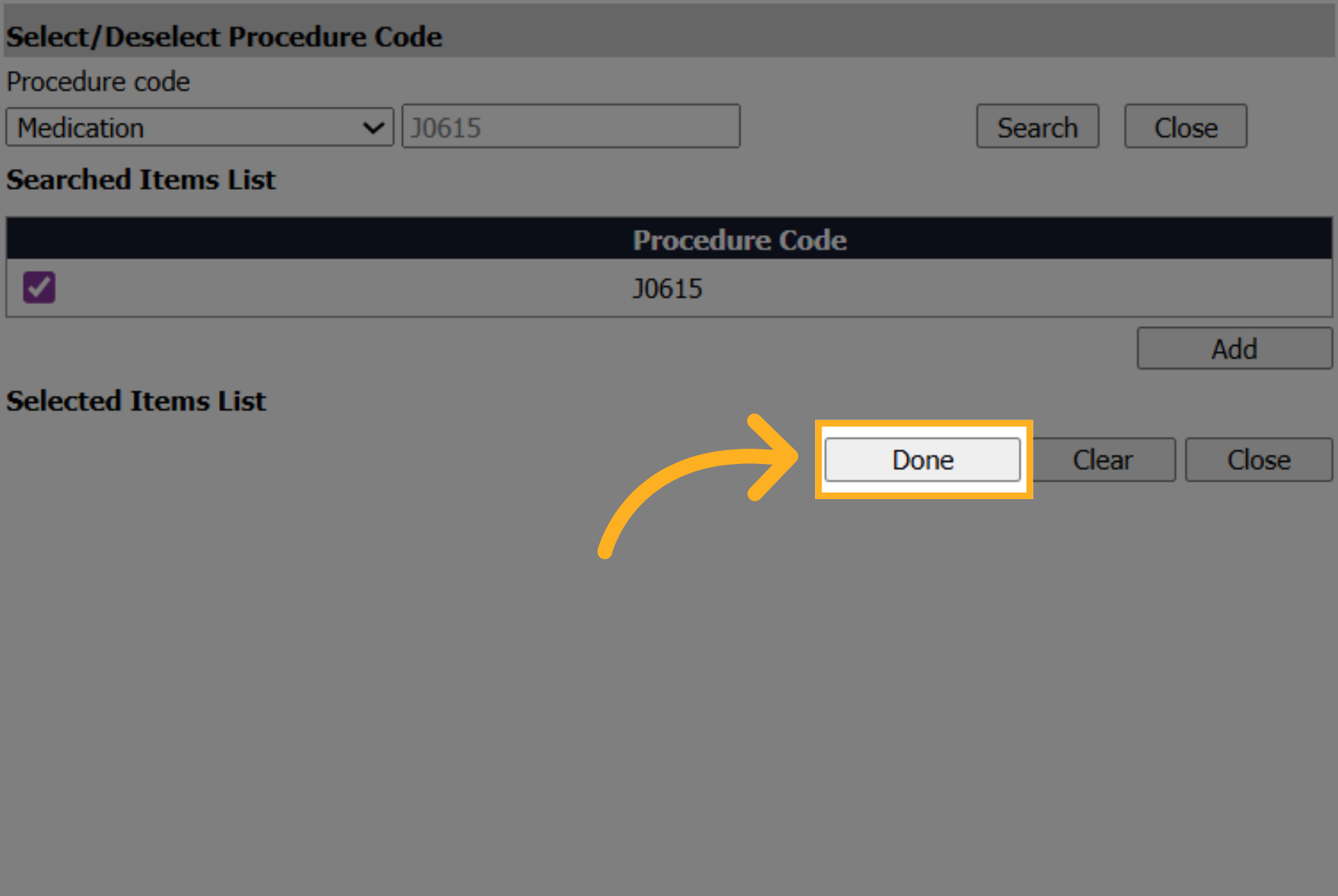
31. Click Done
Click Done to close the popup
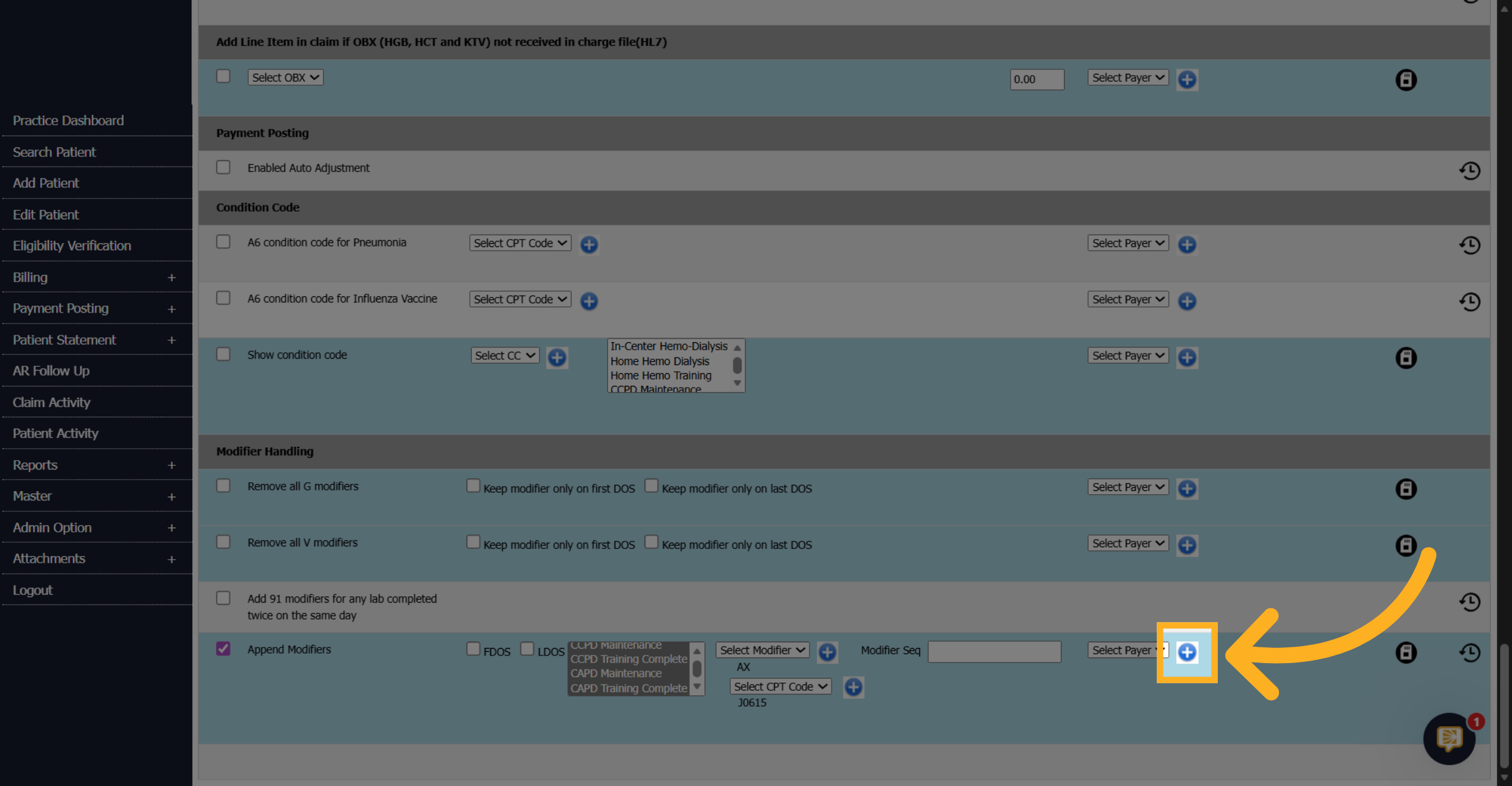
32. Click Here to Continue
Click the blue plus icon next to the Select Payer dropdown
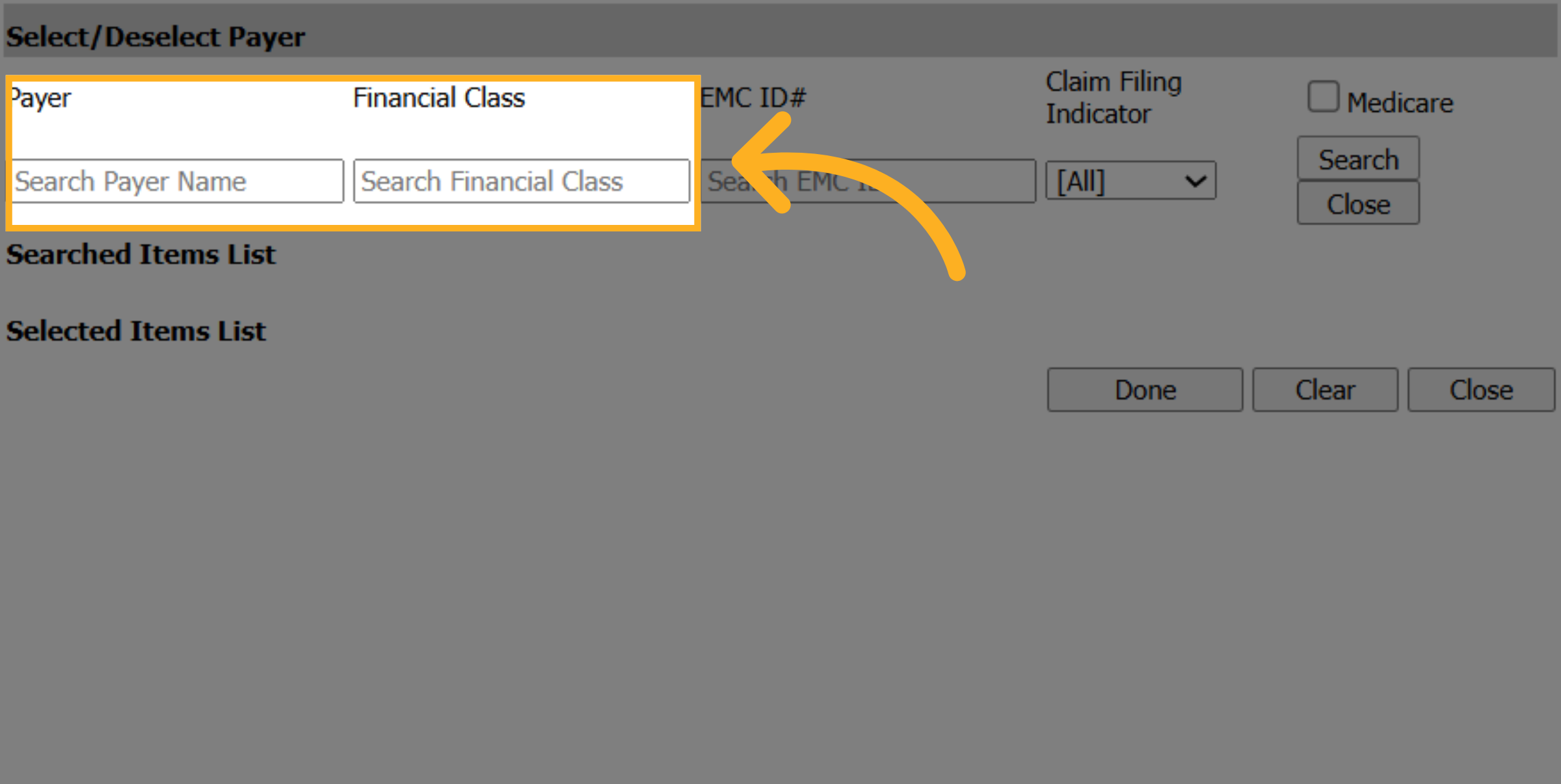
33. Search Payer Records
Use the Search Payer Name to find specific insurances then click Search.
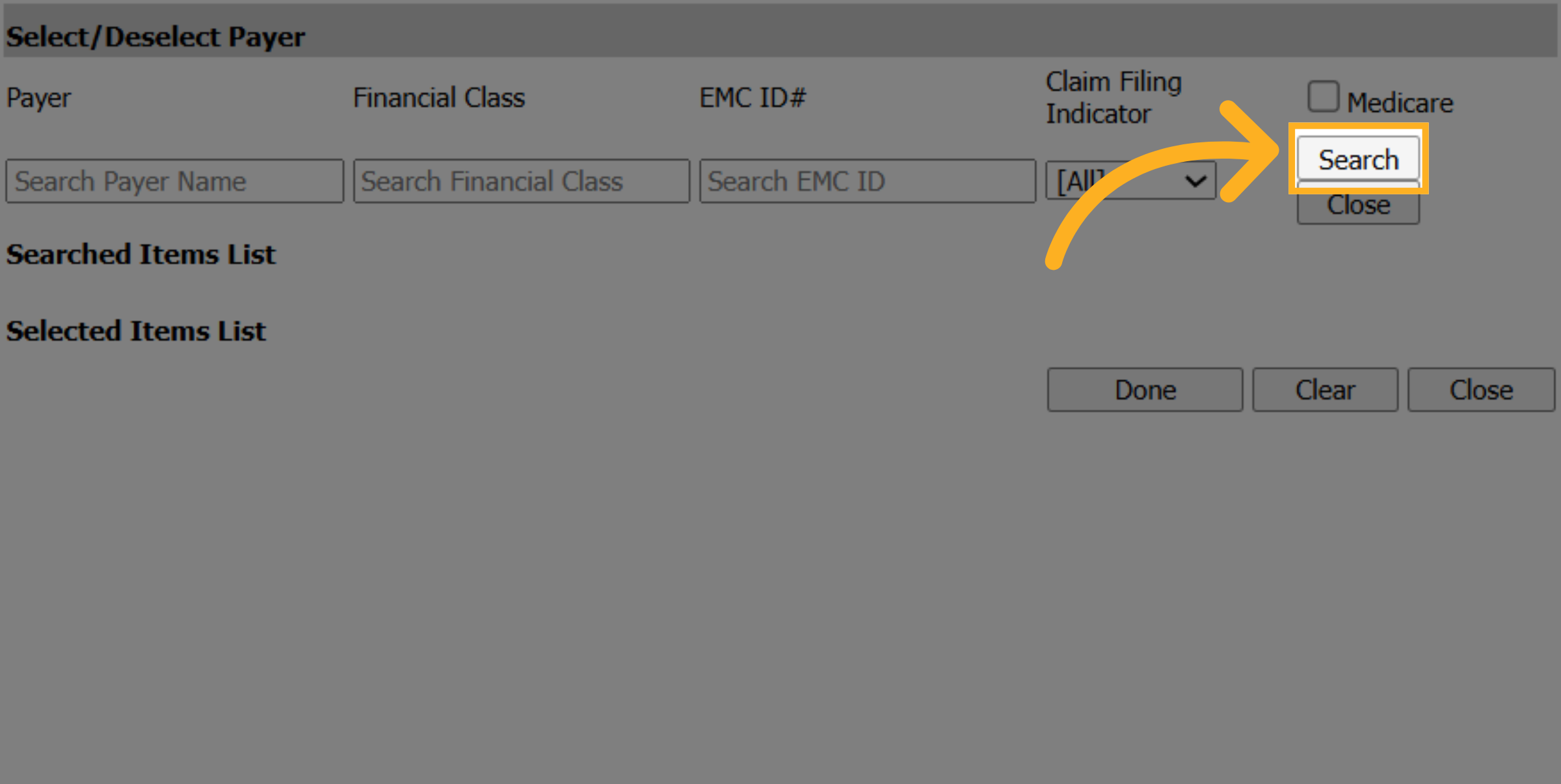
34. Search Payer Records
Or leave the boxes blank and click Search to display all payers.
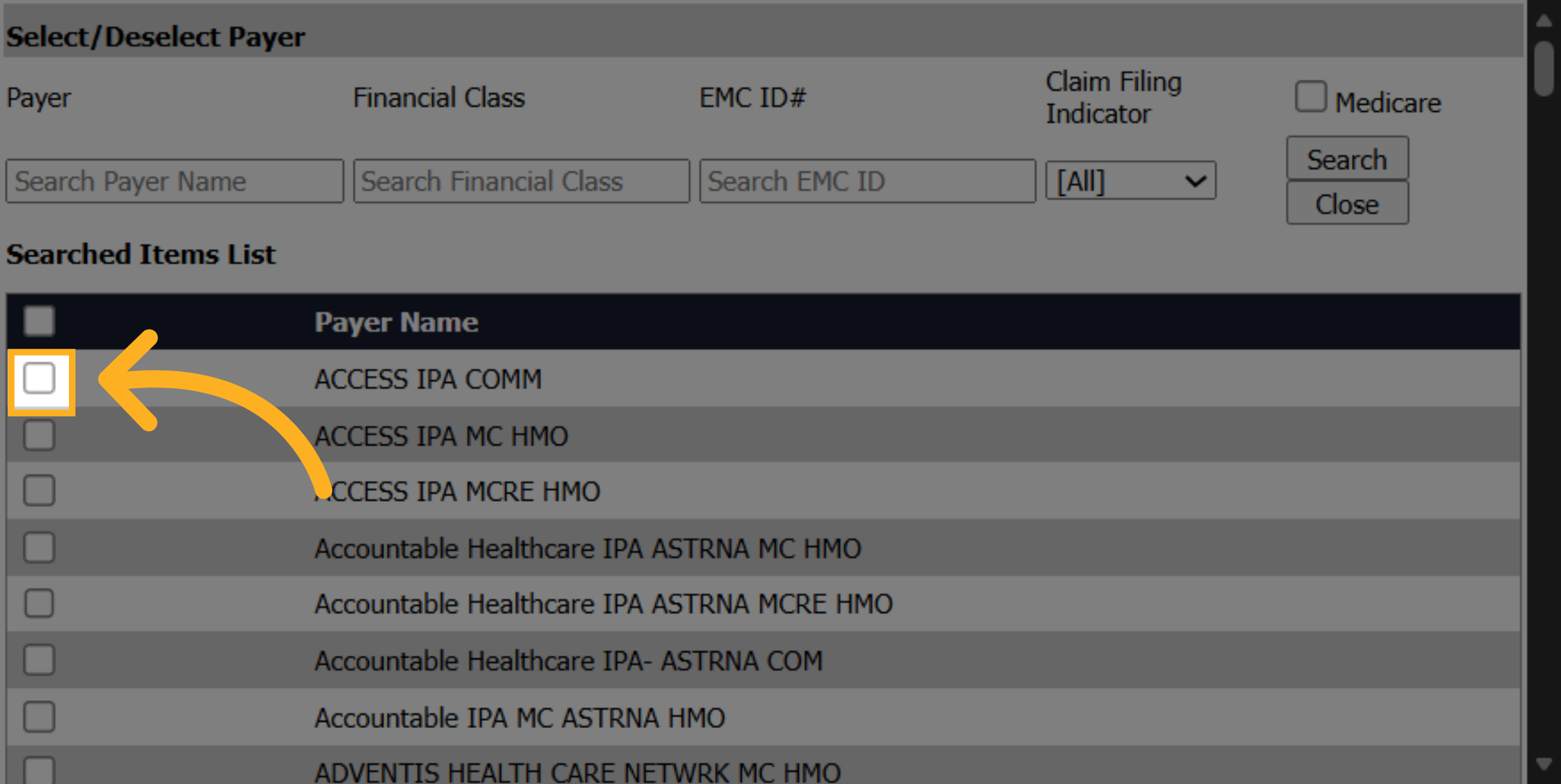
35. Check the Box next to the Payer
Check the box next to the payer that needs the AX modifier.
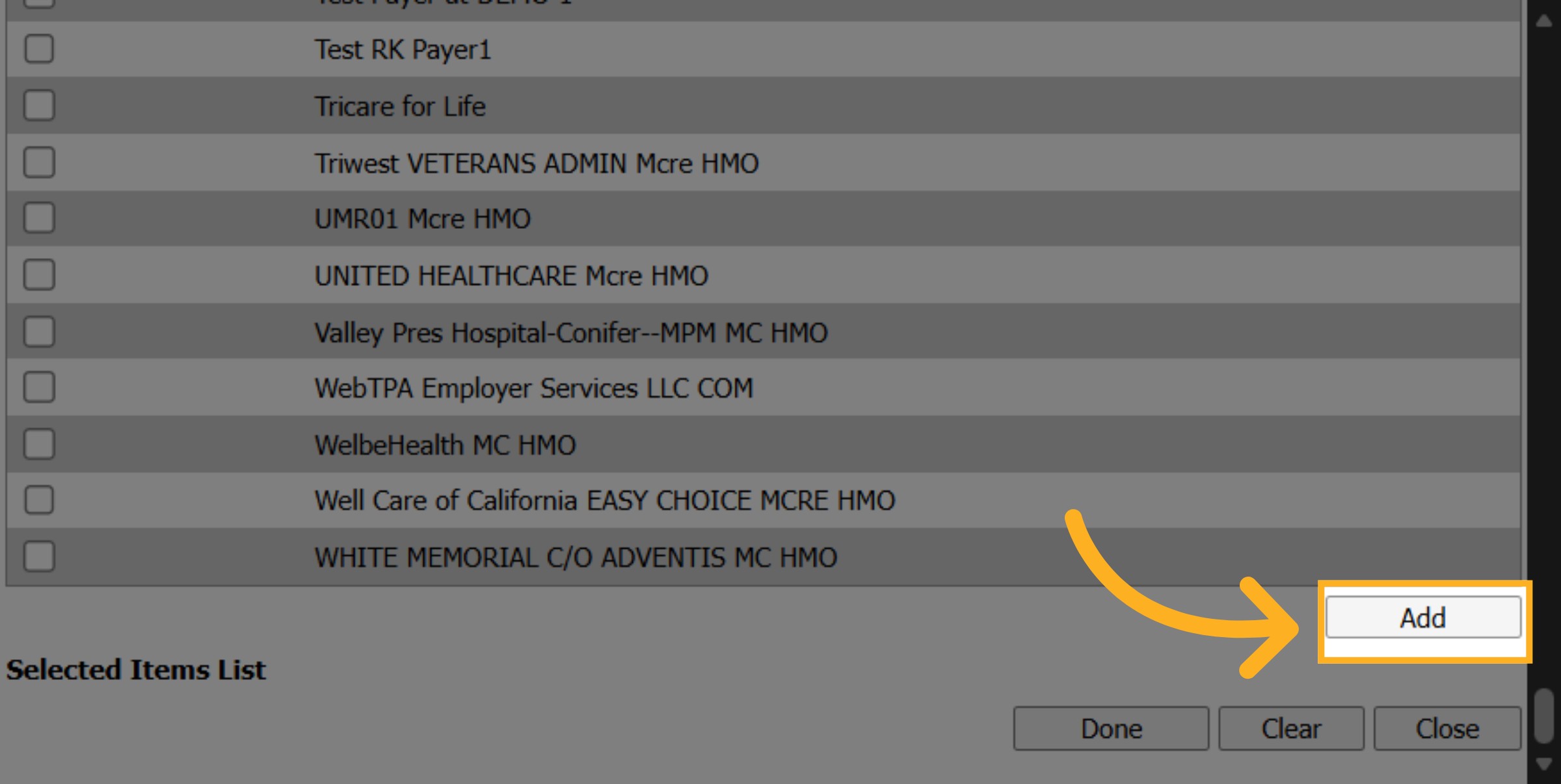
36. Click Add
Click "Add" to move the payer from Search Items List to Selected Items List.
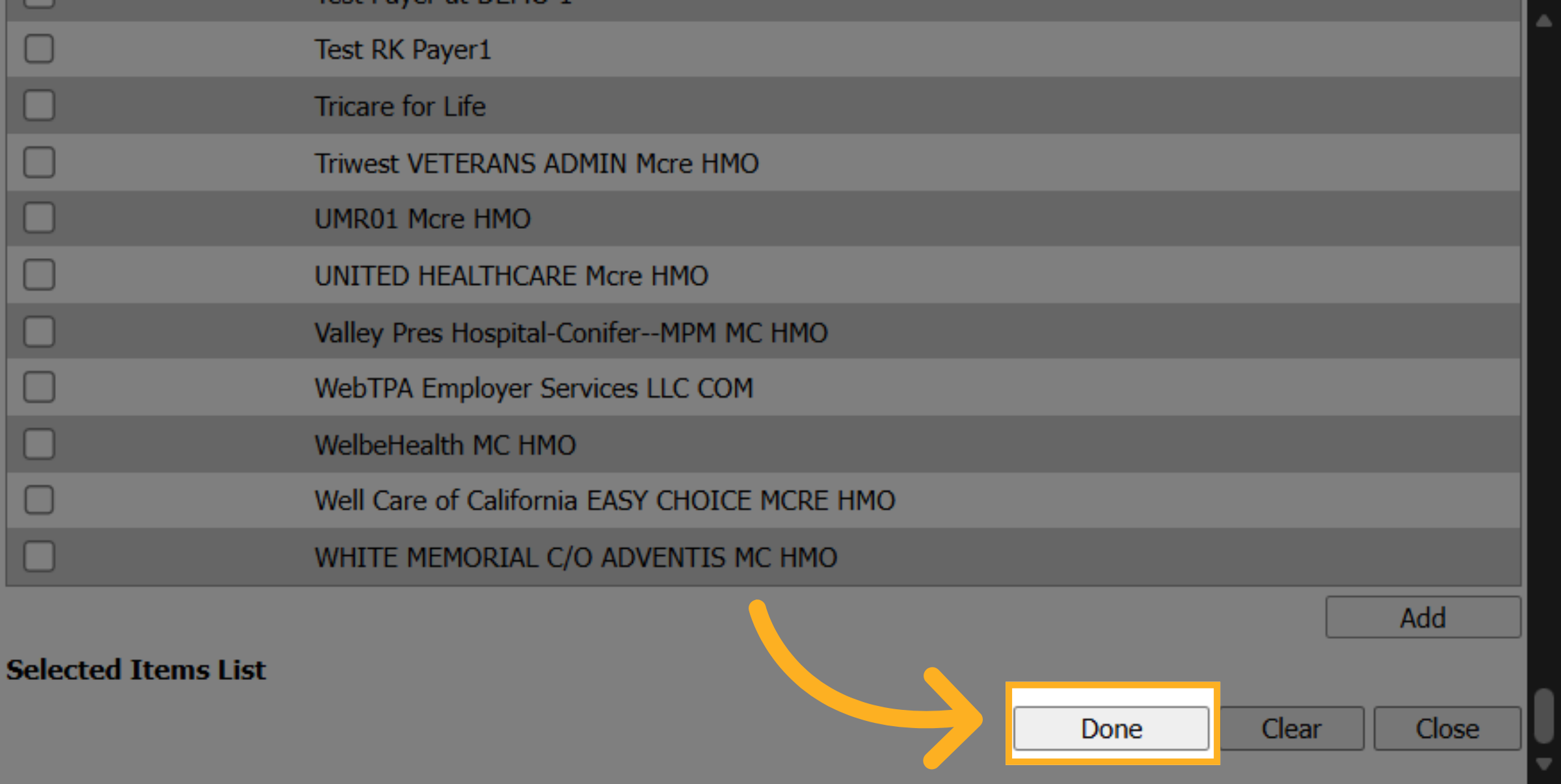
37. Click Done
Click Done once all the payers have been selected.
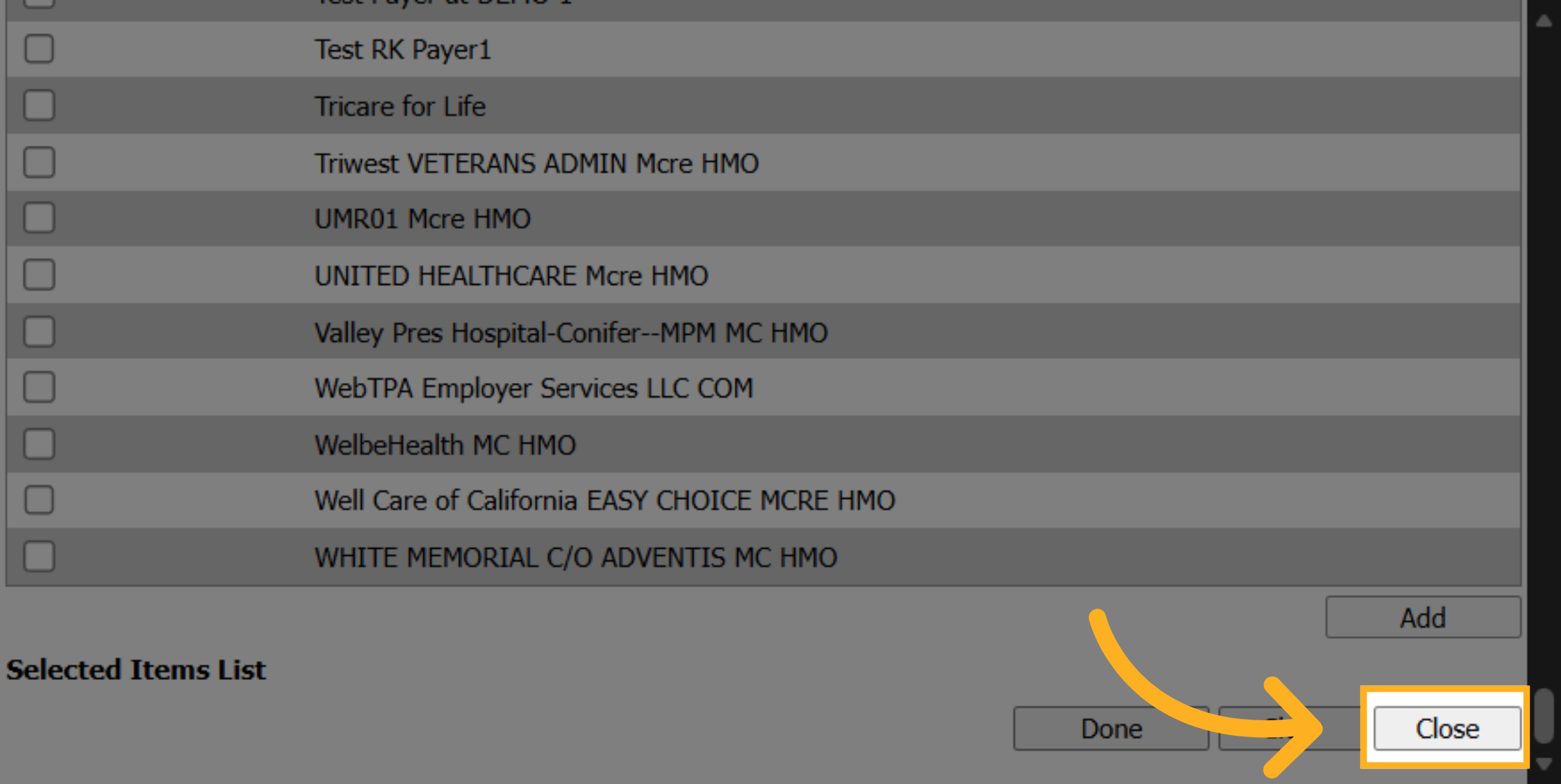
38. Close the popup
Click Close to return back to the Billing Setup screen.
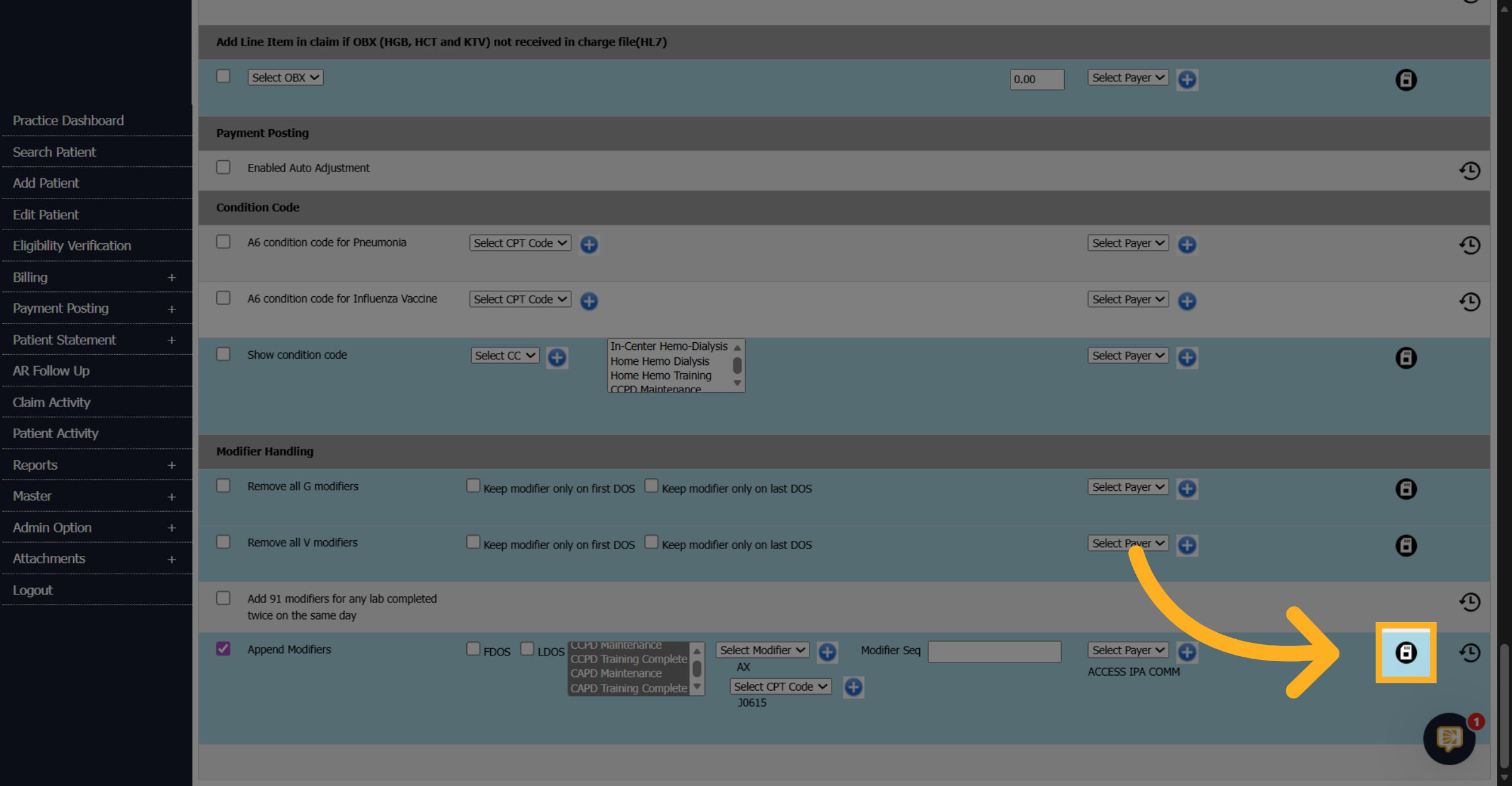
39. Click Save to Finish
Click the save icon to finalize the setup.
You have successfully turned off the AX modifier for all payers in Dialysis Manager then set up the AX modifier for specific payers in Billing Manager. If you have any questions, please send us an email!